Hi @Abdullah Butt/Project Lead - FORCE/Lahore,
Thank you for posting your question in the Microsoft Q&A forum.
At the moment, Microsoft Planner doesn’t provide a built‑in “Import from Excel” feature. However, you can still bulk‑create tasks from an Excel file by using either Power Automate or, if you prefer a developer‑focused method, the Microsoft Graph Planner API. Below are the approaches you can consider depending on what works best for your scenario.
Option 1: Power Automate (Recommended for most users)
Before you begin, make sure your Excel file is saved in OneDrive or SharePoint, as Power Automate can only read files stored in the cloud. Also, format your data as an Excel Table (Insert > Table) and include columns such as:
- Title
- Bucket
- StartDate
- DueDate
- AssignedTo
- Notes
You can review: Excel Online (Business)
After that, you can follow these steps:
- CreatCreate a new instant cloud flow in Power Automate.
- Add Excel Online (Business) > “List rows present in a table” to retrieve task data. If your file contains more than 256 rows, remember to enable Pagination inside the action’s settings.
- Add Planner > “Create a task (Preview)” and map your Excel columns to the Planner fields (Plan, Bucket, Title, Due date, Priority, Assigned user IDs, etc.). Reference: Planner
- (Optional) Add “Update task details” if you want to include descriptions or notes after the task is created.
Finally, here are a few things to notice:
- Excel table required: Power Automate cannot read data from raw ranges, only from named tables.
- Dates: Use ISO format (YYYY‑MM‑DD) or convert Excel serial dates in the flow.
- Large files: Turn on Pagination to process more than 256 rows.
- Planner connector limits: The connector currently supports basic plans only; premium plan features are not exposed.
Furthermore, to ensure you receive the most accurate and expert guidance, if you have any questions about Power Automate process, I recommend posting your query on the Find Answers | Microsoft Power Platform Community
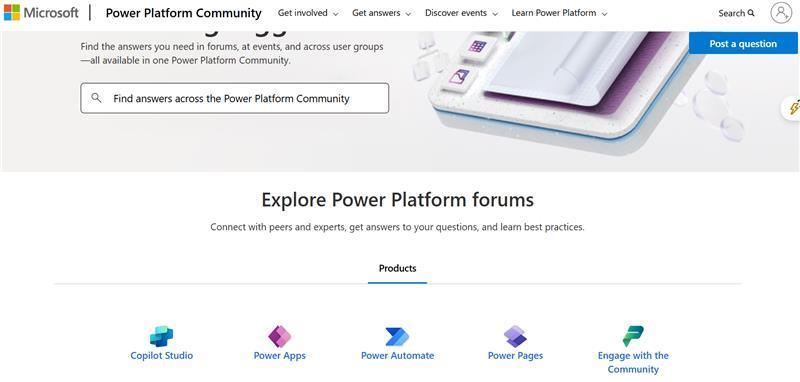
This forum is dedicated to Power Platform and is supported by a knowledgeable community, including Microsoft experts and partners. By posting there, you'll have access to more specialized resources and insights, which can help resolve your issue more effectively.
I suggest this route because our resources on Power Platform are limited, and we want to avoid providing incomplete or inaccurate information. The Power Platform Community is the best place to get targeted help and also allows others to learn from your experience.
Option 2: Microsoft Graph (REST API):
If you're comfortable with APIs, you can also create tasks programmatically. Here is a basic example:
POST https://graph.microsoft.com/v1.0/planner/tasks
Content-Type: application/json
Authorization: Bearer {token}

{
  "planId":   "{plan-id}",
  "bucketId": "{bucket-id}",
  "title":    "Task title",
  "assignments": {
    "{user-id}": {
      "@odata.type": "#microsoft.graph.plannerAssignment",
      "orderHint": " !"
    }
  }
}
- After creating tasks, you can use PATCH to update details like notes, checklists, and more.
- Required permissions include: Tasks.ReadWrite (delegated) Tasks.ReadWrite.All (application) Reference: Create plannerTask
- As a reminder, Graph API currently supports basic Planner plans only, premium plan capabilities are not exposed. Reference: Use the Planner REST API
If you need the opposite workflow, getting tasks out of Planner, you can use Export plan to Excel from the plan’s ellipsis menu. This will include task details suitable for reporting in Excel or Power BI. Reference: Export a plan to Excel.
Reference: Export a plan to Excel.
I hope this helps you move forward smoothly. If you have more questions or need further clarification, feel free to leave a comment here and I’ll be happy to continue supporting you.
Thank you for your patience and understanding, and I look forward to assisting you further.
If the answer is helpful, please click "Accept Answer" and kindly upvote it. If you have extra questions about this answer, please click "Comment".
Note: Please follow the steps in our documentation to enable e-mail notifications if you want to receive the related email notification for this thread.
' cx='32' cy='32' r='32' /%3E%3Ctext x='50%25' y='55%25' dominant-baseline='middle' text-anchor='middle' fill='%23FFF' %3EAB%3C/text%3E%3C/svg%3E)

' cx='32' cy='32' r='32' /%3E%3Ctext x='50%25' y='55%25' dominant-baseline='middle' text-anchor='middle' fill='%23FFF' %3EKN%3C/text%3E%3C/svg%3E)