Note
Access to this page requires authorization. You can try signing in or changing directories.
Access to this page requires authorization. You can try changing directories.
Use the Azure Developer CLI (azd) coding agent extension (azure.coding-agent) to give GitHub Copilot coding agent secure and scoped Azure access with a managed identity. The extension creates the managed identity, configures the federated credential, and sets up the GitHub Actions workflow in your repository.
See Extensions overview to learn how extensions add capabilities to azd.
Prerequisites
- Install Azure Developer CLI (
azd). See installation instructions. - Azure subscription that lets you create resource groups and managed identities.
- Local clone of the GitHub repository you enable for Copilot Coding Agent.
- Repository permissions to:
- Update the
copilotGitHub environment. - Configure Copilot Coding Agent settings.
- Push changes to the
.github/workflowsfolder.
- Update the
- At least one configured Git remote for the repository (required for federated credentials).
Install or upgrade the Copilot coding agent extension
Install for the first time
azd extension install azure.coding-agentUpgrade to the latest version
azd extension upgrade azure.coding-agentVerify it's installed:
azd extension list --installedYou should see
azure.coding-agentin the list.
Use the Copilot coding agent extension
The Copilot coding agent extension automates configuring Azure access via a managed identity for the Copilot coding agent. You also need to perform a few manual steps to complete the setup.
Enable Azure access
Inside the root of your local repository directory, run the following command:
azd coding-agent configFollow the on-screen prompts to complete the extension workflow.
During configuration, the extension:
- Creates (or reuses) a resource group.
- Creates an Azure managed identity.
- Assigns the Reader role to that identity scoped to the resource group.
- Establishes federated credentials linking the GitHub repository to the managed identity.
- Adds (or updates) a
copilot-setup-steps.ymlworkflow and related assets. - Guides you to finalize GitHub environment settings for the
copilotenvironment.
Verify setup (optional)
List the managed identity in the created (or updated) resource group:
az identity list --resource-group <resource-group-name>In GitHub, open the Settings > Environments > copilot environment, and confirm the federated credential entry referencing the managed identity (subject issuer should reflect GitHub).
Configure Azure MCP Server for the Copilot coding agent
The
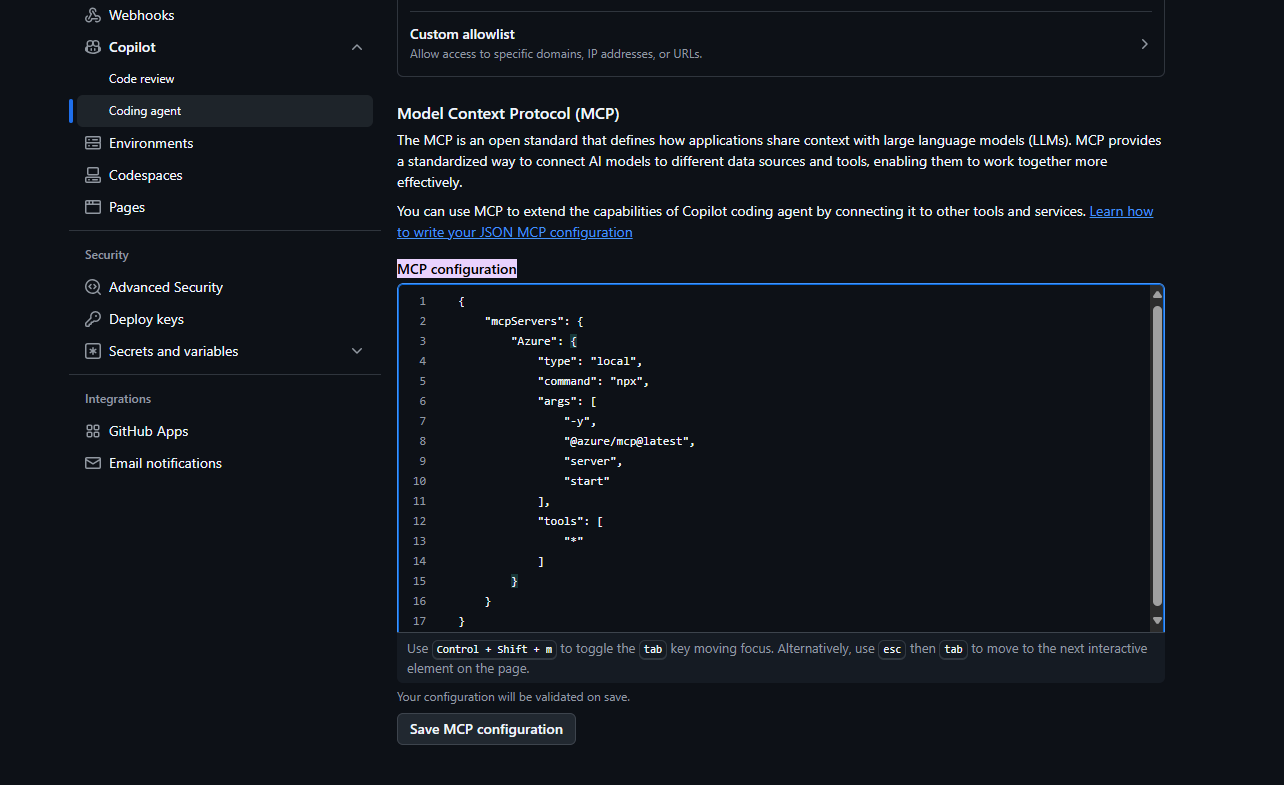
azd coding agentextension creates a pull request for a branch with the new GitHub workflow file atorigin/azd-enable-copilot-coding-agent-with-azure. If you want to use the Azure MCP Server connection in yourmainbranch, merge this PR.The pull request description and the extension output logs in the console both include a JSON configuration snippet you can use to configure Azure MCP Server for the Copilot coding agent:
{
    "mcpServers": {
        "Azure": {
            "type": "local",
            "command": "npx",
            "args": [
                "-y",
                "@azure/mcp@latest",
                "server",
                "start"
            ],
            "tools": [
                "*"
            ]
        }
    }
}
To configure the Azure MCP Server, go to the Settings page of your repository.
Select Copilot -> Coding agent on the left navigation.
Paste the JSON snippet from the PR into the MCP configuration box and select Save MCP configuration.
Test the Copilot coding agent extension
Navigate to your repository in GitHub.
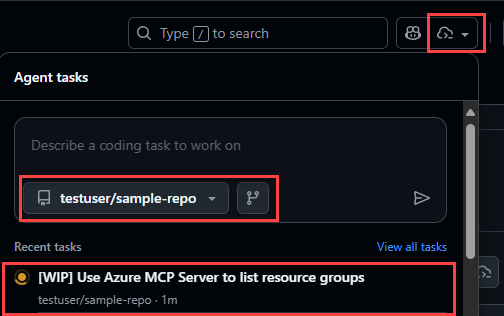
Select the Open agents panels icon on the top right navigation bar.
In the flyout panel, select the repository and branch that you used for the
azdcommand. If you merged the generated pull request intomain, selectmain.Enter a prompt that specifically instructs the Copilot coding agent to use the Azure MCP Server you configured, such as:
Use the Azure MCP Server to list the resource groups in my subscription.
Do not traverse or analyze the repository at all. Use only the Azure MCP Server.
Press Enter to run the prompt and instruct Copilot coding agent to create and run a new task.
Note
You can also run Copilot coding agent tasks on a branch other than
mainby selecting that branch in the flyout panel.Select the task that appears at the bottom of the panel to navigate to the task details page.
Scan through the output to see Copilot coding agent:
Start the Azure MCP Server:

Call various tools to gather information about your Azure resources:

Display the resource group in the final output:

Configure permissions on the managed identity
The azd coding agent extension creates an Azure managed identity that the Azure MCP Server uses to access your resources. This setup enables you to assign different roles to the managed identity in order to control the capabilities and permissions of Azure MCP Server.
By default, the extension assigns only the Reader role to the resource group scope. Assign additional roles or widen the scope if the agent needs more capabilities. See built-in roles.
For example, to assign the Contributor role at the resource group scope:
az role assignment create --assignee <principal-id-or-client-id> --role Contributor --scope /subscriptions/<subscription-id>/resourceGroups/<resource-group-name>
Troubleshooting
The following sections highlight common issues you can experience.
No git remotes configured
Add a remote so federated credentials can be generated:
git remote add origin <https://github.com/<your-org>/<your-repo>.git>
git fetch origin
Must have admin rights to Repository
Configuring a GitHub repository for the coding agent requires admin rights. Without these rights, you won't be able to update the Copilot environment to use managed identity credentials, or update the MCP configuration for the repository.
If you see this error, you'll need to elevate your rights.
(!) An error occurred, see the readme for troubleshooting and prerequisites:
    https://github.com/Azure/azure-dev/blob/main/cli/azd/extensions/azure.coding-agent/README.md
Error: failed to create GitHub environment copilot in repository owner/repository: exit code: 1, stdout: {"message":"Must have admin rights to Repository.","documentation_url":"https://docs.github.com/rest/deployments/environments#create-or-update-an-environment","status":"403"}, stderr: gh: Must have admin rights to Repository. (HTTP 403)
Refresh token expired
Sign-in again:
azd auth login
Add flags such as --tenant-id <tenant-id> or --use-device-code as needed.
Improve diagnostic output
Use debug mode:
azd coding-agent config --debug
All internal commands and their output print to the console.
Next steps
- Expand identity permissions (only as needed) using role assignments
- Integrate additional automation by extending the workflow in
.github/workflows/ - Explore other extension capabilities: Extensions overview
- Review Azure RBAC concepts
Contributing
To contribute to Azure Developer CLI resources, see the contributing guide. Pull requests might require signing a Contributor License Agreement.
Code of conduct
This project follows the Microsoft Open Source Code of Conduct.