Note
Access to this page requires authorization. You can try signing in or changing directories.
Access to this page requires authorization. You can try changing directories.
Deploy the Azure MCP Server as a self-hosted remote server over HTTPS. Agents in Microsoft Foundry and Microsoft Copilot Studio can securely connect to and call MCP tools using the deployed Azure MCP Server to run Azure operations. This article focuses on the Microsoft Foundry connection scenario.
Prerequisites
- Azure subscription with Owner or User Access Administrator access
- Azure Developer CLI (azd)
- The list of Azure MCP Server tool areas (namespaces) you wish to enable (see azmcp-commands.md). The reference template in this article uses the
storagenamespace. - Azure Storage account
- Microsoft Foundry project
Azure MCP Server template
Use the Azure MCP Server - ACA with Managed Identity azd template to deploy Azure MCP Server to Azure Container Apps with storage tools and a managed identity for secure access to Azure Storage. The Azure Developer CLI (azd) is an open source tool that simplifies provisioning and deploying Azure resources and offers concise commands (azd deploy, azd provision) that map to key stages in your development workflow.
Deploy the Azure MCP server
Deploy the Azure MCP server to Azure Container Apps:
Clone and initialize the
azmcp-foundry-aca-mitemplate with theazd initcommand.azd init -t azmcp-foundry-aca-miWhen prompted, enter an environment name.
Run the template with the
azd upcommand.azd upazdprompts you for the following:- Subscription: Select the subscription for the provisioned resources (listed below).
- Project resource ID: The Azure resource ID of the Microsoft Foundry project used for agent integration.
- Storage Account resource ID: The Azure resource ID of the storage account the MCP server accesses.
- Resource group: Create or select a resource group to store the provision resources.
azd uses the template files to provision the following resources and configurations:
- Azure Container App: Runs the Azure MCP server and provides the storage namespace.
- Microsoft Entra ID role assignments: Assign roles to the Azure Container Apps managed identity for outbound authentication to the storage account you specify with the storage resource ID:
- Reader: Read-only access to storage account properties.
- Storage Blob Data Reader: Read-only access to blob data.
- Entra app registration: Provides OAuth 2.0 authentication for clients like agents that have the
Mcp.Tools.ReadWrite.Allrole. The template assigns this role to the managed identity of the Microsoft Foundry project you specify. - Application Insights: Provides telemetry and monitoring.
Deployment output
After deployment finishes, retrieve the environment variables for the
azdproject using theazd env get-valuescommand.azd env get-valuesExample output:
CONTAINER_APP_URL="https://azure-mcp-storage-server.<your-container-app-name>.eastus2.azurecontainerapps.io"
ENTRA_APP_CLIENT_ID="<your-app-client-id>"
ENTRA_APP_IDENTIFIER_URI="api://<your-app-client-id>"
ENTRA_APP_OBJECT_ID="<your-app-object-id>"
ENTRA_APP_ROLE_ID="<your-app-role-id>"
ENTRA_APP_SERVICE_PRINCIPAL_ID="<your-app-service-principal-id>"
Copy the
CONTAINER_APP_URLandENTRA_APP_CLIENT_IDvalues to use in the next section, or leave the terminal open for reference.
Use the Azure MCP server from AI Foundry agent
After deployment, connect your AI Foundry agent to the Azure MCP Server running on Azure Container Apps. The agent authenticates using its managed identity to gain access to the configured Azure Storage tools.
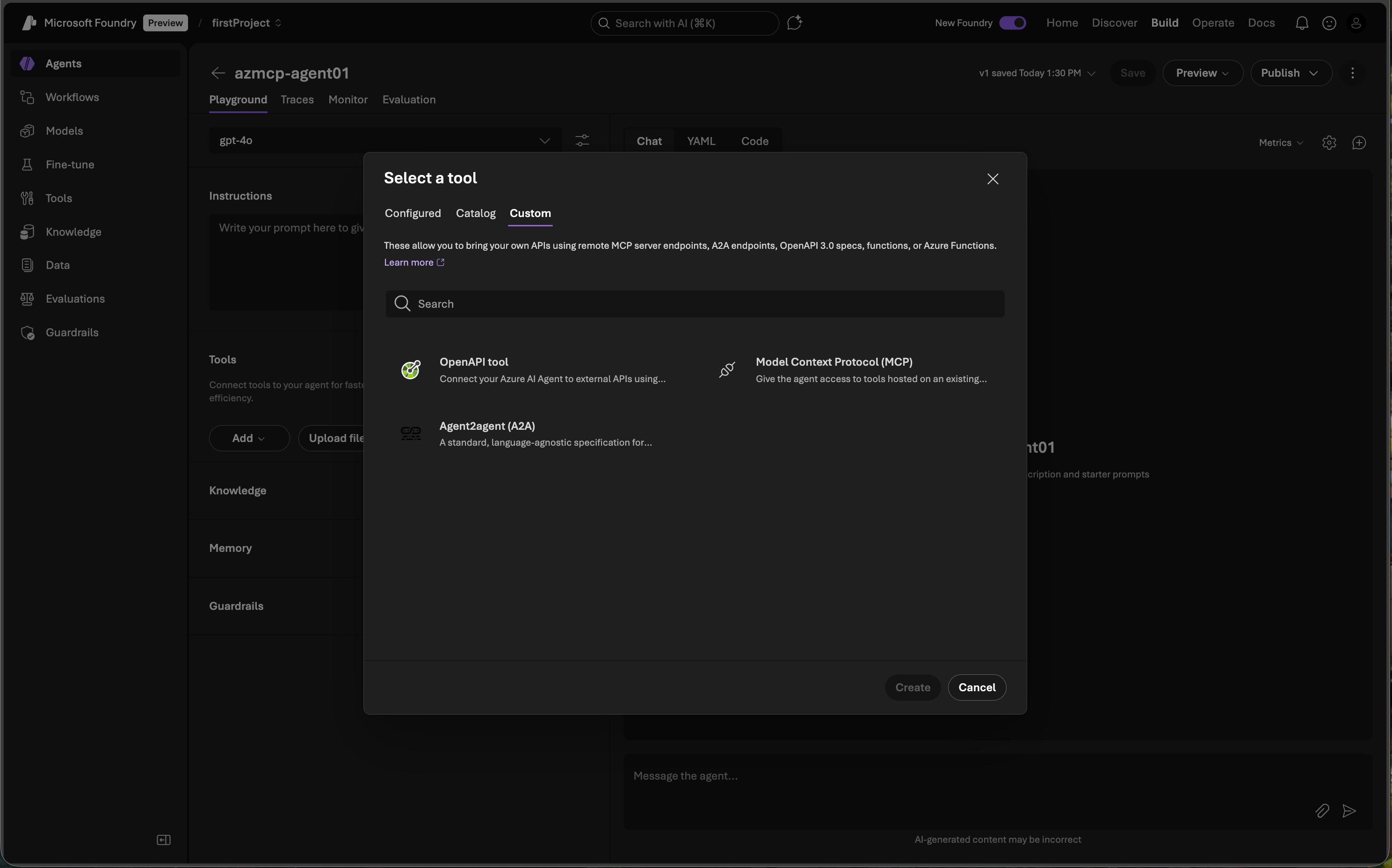
Go to your Foundry project at https://ai.azure.com/nextgen.
Select Build → Create agent.
Select + Add in the tools section.
Select the Custom tab.
Select Model Context Protocol, then select Create.
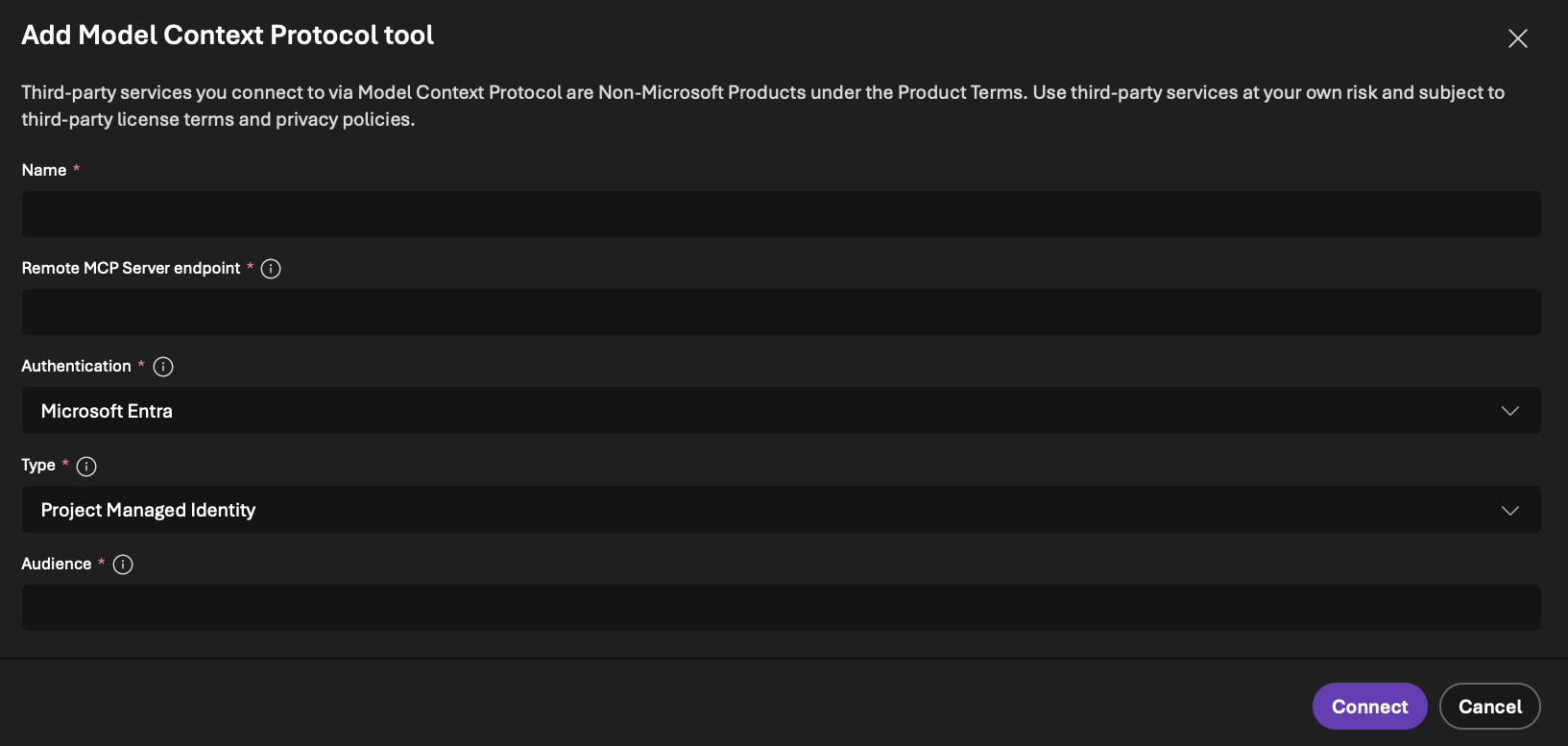
Configure the MCP connection values:
- Name: Provide a name for the tool.
- Remote MCP Server: Enter the
CONTAINER_APP_URLvalue from theazdoutput for the tool endpoint. - Authentication: Select Microsoft Entra → Project Managed Identity.
- Type: Select Project Managed Identity.
- Audience: Enter the
ENTRA_APP_CLIENT_IDvalue from theazdoutput.
Select Connect to associate the connection with the agent.
The agent is ready to assist you. It answers questions and uses tools from the Azure MCP Server to perform Azure operations for you.
Clean up resources
Run azd down to delete Azure resources.
azd down
Explore the Bicep modules
The azd template includes the following Bicep modules:
- main.bicep orchestrates deployment of all resources.
- aca-infrastructure.bicep deploys the container app hosting Azure MCP Server.
- aca-role-assignment-resource-storage.bicep assigns Azure Storage RBAC roles to the container app's managed identity on the storage account specified by the input storage account resource ID.
- entra-app.bicep creates an Entra app registration and a custom app role for OAuth 2.0 authentication.
- aif-role-assignment-entraapp.bicep assigns the Entra app role to the AI Foundry project's managed identity (specified by the input AI Foundry resource ID) for Azure MCP Server access.
- application-insights.bicep deploys Application Insights for telemetry and monitoring when enabled.