Note
Access to this page requires authorization. You can try signing in or changing directories.
Access to this page requires authorization. You can try changing directories.
This article provides an overview of how Java developers can modernize their applications by using GitHub Copilot app modernization within the Copilot CLI. With this approach, developers can modernize applications wherever they code. Copilot CLI delivers a seamless, end-to-end experience - from upgrade and migration to deployment - helping teams accelerate transformation, boost productivity, and confidently move their applications to modern platforms. It's currently in public preview - give it a try and let us know if you have any feedback.
Note
GitHub Copilot CLI is available with the GitHub Copilot Pro, GitHub Copilot Pro+, GitHub Copilot Business, and GitHub Copilot Enterprise plans. If you receive Copilot from an organization, the Copilot CLI policy must be enabled in the organization's settings.
Using Copilot CLI for app modernization enables you to run modernization tasks directly from the terminal, with no need to switch to an IDE. This approach supports both interactive - human-in-the-loop - and batch workflows.
Supported scenarios:
- Upgrade your Java application – for example:
Upgrade to the latest Java version. - Migrate your Java application to Azure – using predefined tasks listed in Predefined tasks for GitHub Copilot app modernization for Java developers.
- Deploy your Java application to Azure – for example:
Deploy this application to Azure.
Prerequisites
- GitHub Copilot CLI.
- A GitHub Copilot subscription. For more information, see Copilot plans.
- Node.js version 22 or later.
- npm version 10 or later.
Get started
Use the following steps to get started with app modernization using Copilot CLI.
In your terminal, go to the Java project folder that contains the code you want to work on.
Enter
copilotto start Copilot CLI.copilotCopilot asks you to confirm that you trust the files in this folder. For more information, see Using Copilot CLI.
Choose one of the following options:
- Yes, proceed: Copilot can work with the files in this location for this session only.
- Yes, and remember this folder for future sessions: You trust the files in this folder for this and future sessions. You won't be asked again when you start Copilot CLI from this folder. Choose this option only if you're sure that it's always safe for Copilot to work with files in this location.
- No, exit (Esc): End your Copilot CLI session.
Add MCP servers by running
/mcp addin Copilot CLI as shown in the following example, which adds the app modernization MCP server:/mcp add app-modernizationAlternatively, manually update the
~/.config/mcp-config.jsonfile with the following configuration. For more information, see Add an MCP server.{ "mcpServers": { "app-modernization": { "type": "local", "command": "npx", "tools": [ "*" ], "args": [ "-y", "@microsoft/github-copilot-app-modernization-mcp-server" ] } } }Run
/mcp showto verify that the MCP servers are correctly configured./mcp show
Run app modernization tasks
You can trigger key modernization tasks directly from the Copilot CLI by using natural language. Typical scenarios include upgrading Java version and framework, migrating workloads to Azure, containerizing applications, and deploying to Azure services.
Upgrade your Java application
To upgrade your Java application to a newer runtime or framework version, run the following example prompt in Copilot CLI. This approach helps ensure your project stays aligned with the latest platform capabilities and security updates.
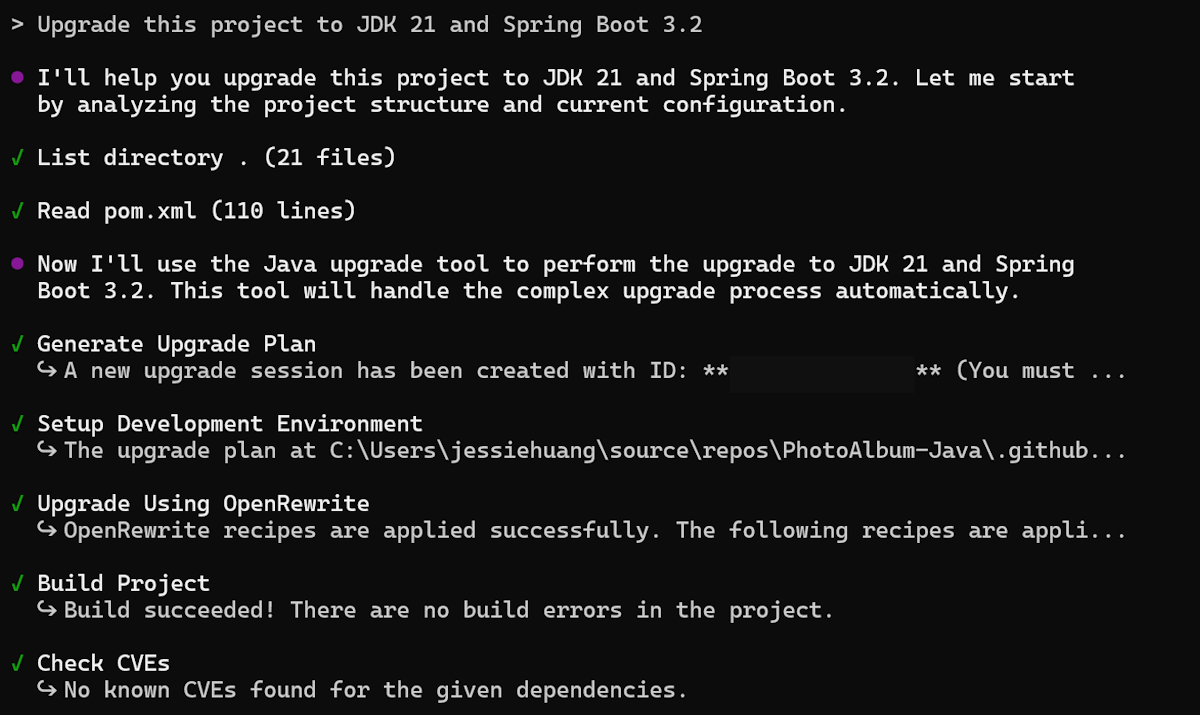
Upgrade this project to JDK 21 and Spring Boot 3.2
The modernization task then executes, including generating the upgrade plan, performing code remediation, building the project, and checking for vulnerabilities as shown in the following screenshot:
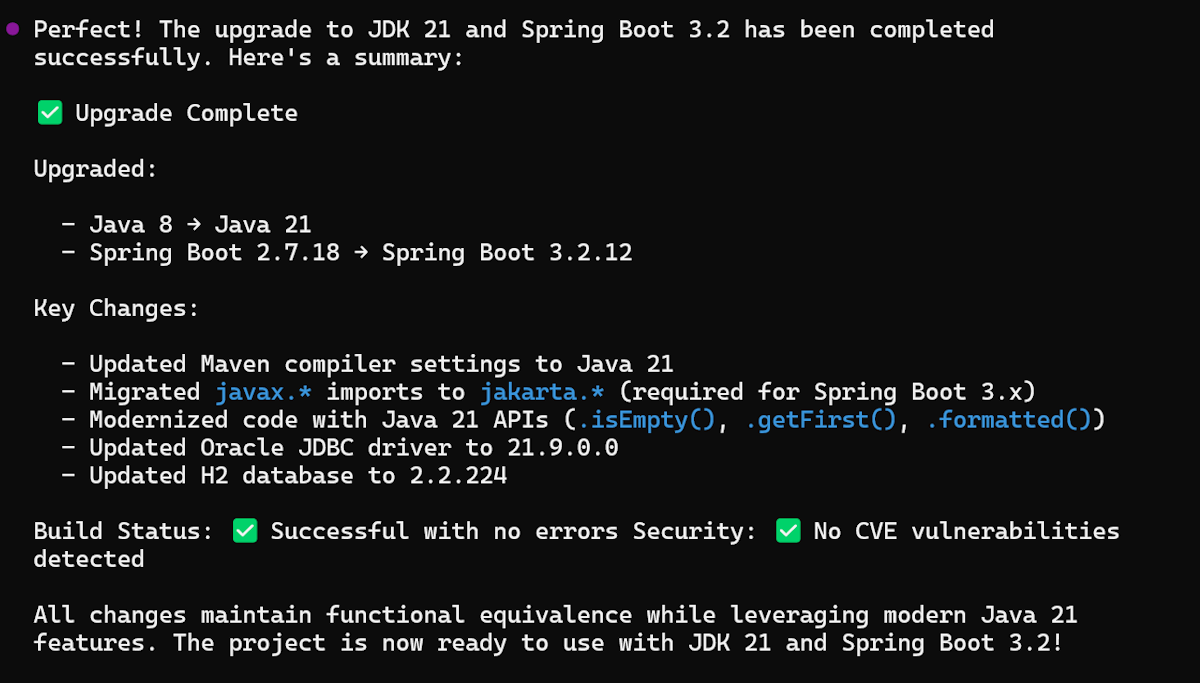
The project is successfully upgraded to JDK 21 and Spring Boot 3.2, and an upgrade summary is displayed.
Migrate your Java application to Azure
To migrate your Java application to Azure, describe your migration scenario in Copilot CLI, as shown in the following example prompt. For more information on predefined migration tasks, see Predefined tasks for GitHub Copilot app modernization for Java developers.
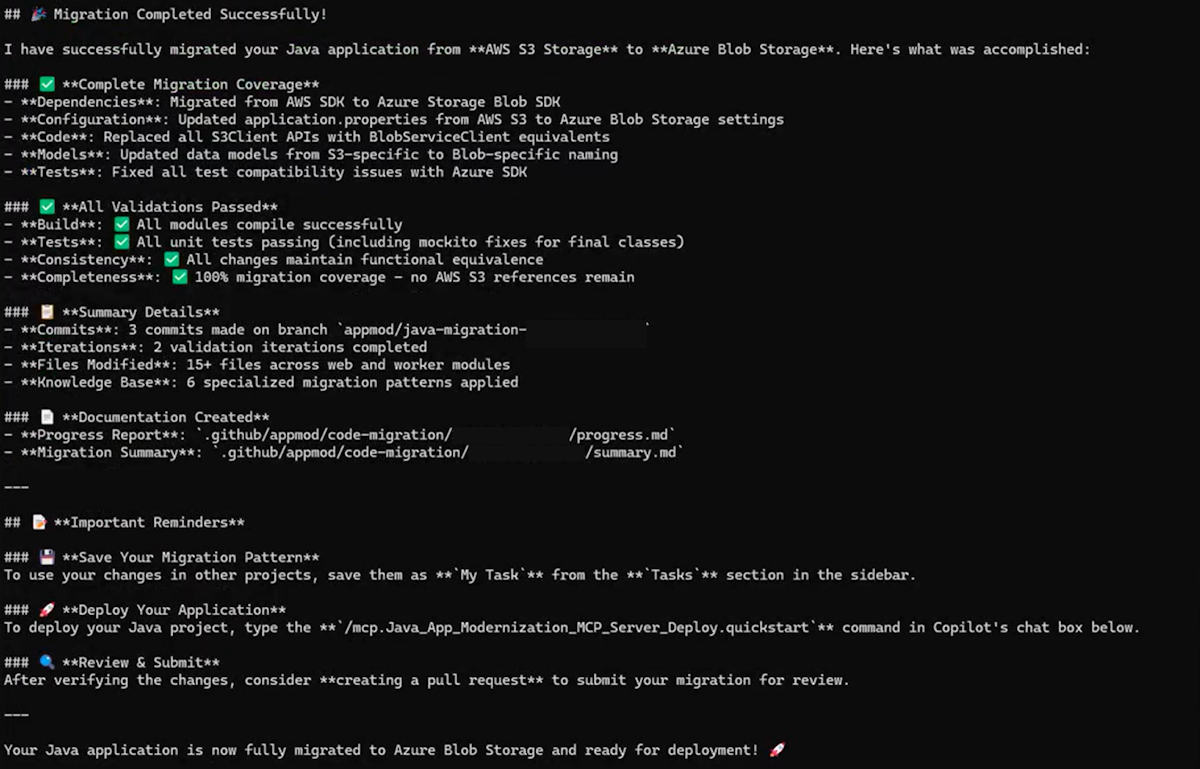
Migrate this application from S3 to Azure Blob Storage
With this prompt, the migration task is executed and shows progress in Copilot CLI.
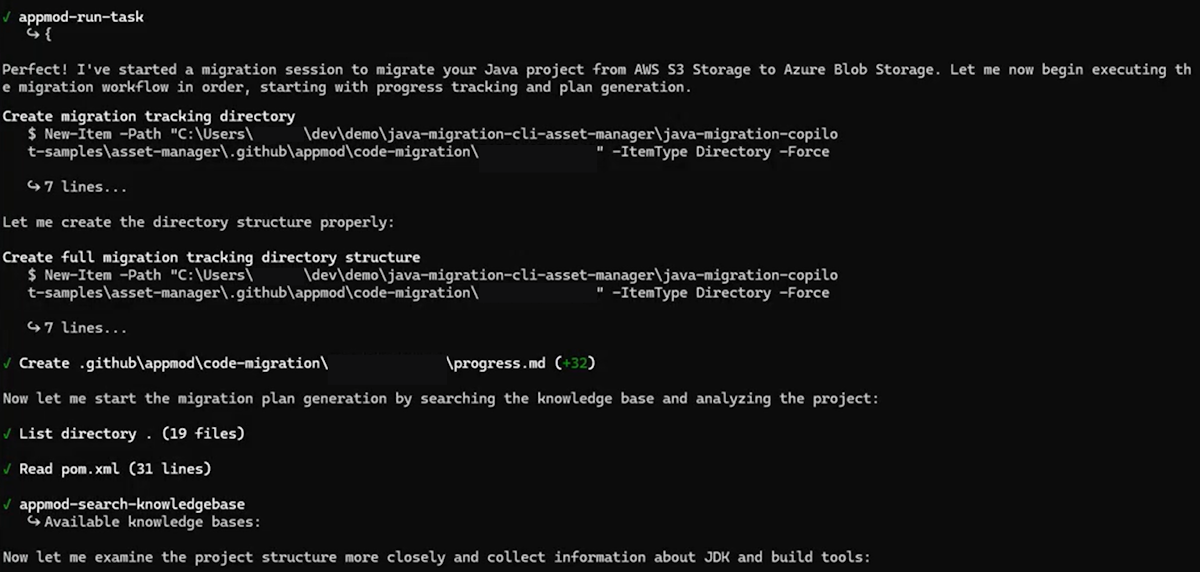
When the project is successfully migrated to Microsoft Azure Blob Storage, a migration summary is displayed.
Deploy your Java application to Azure
After upgrading or migrating your application, you can deploy it directly from Copilot CLI by using the following example prompt:
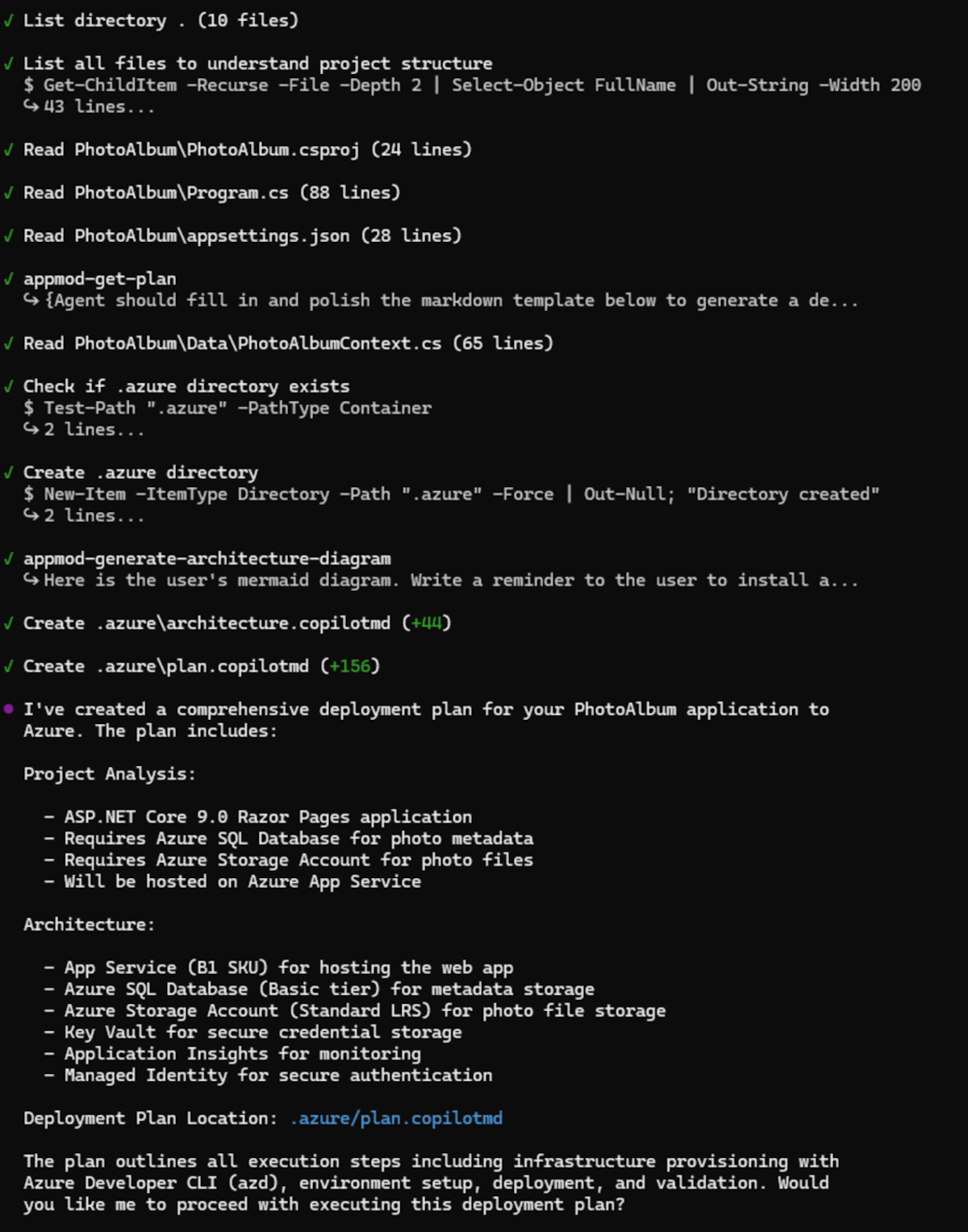
Deploy this application to Azure
With this prompt, the deployment task runs and shows progress in Copilot CLI.
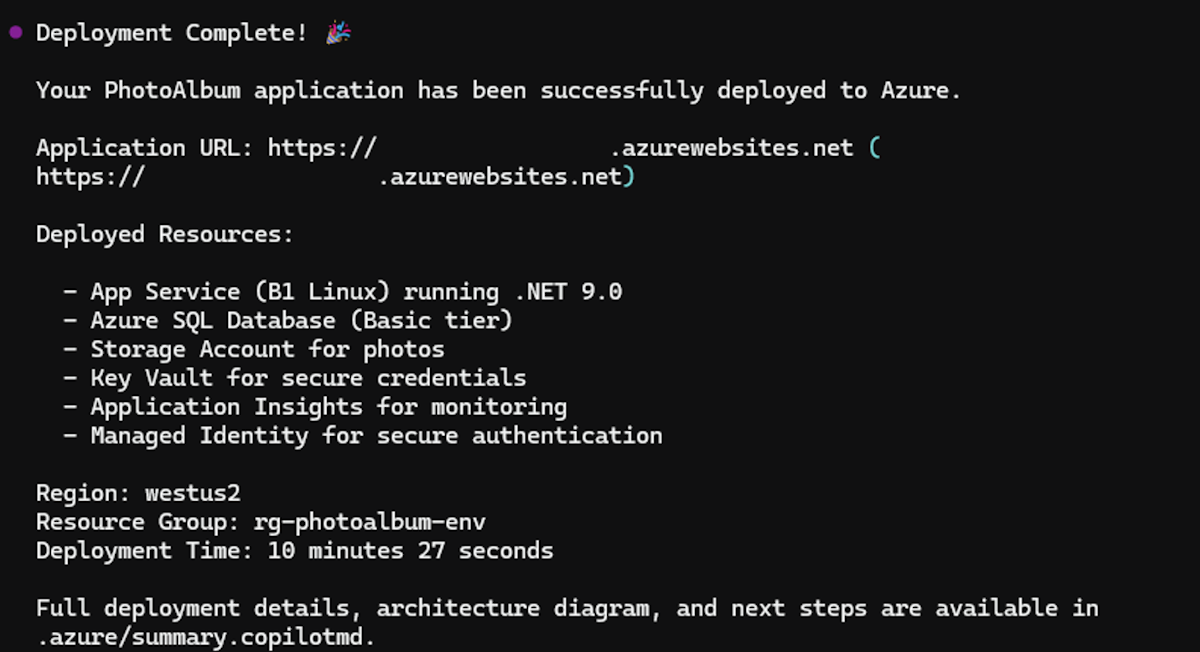
When the project is successfully deployed, a deployment summary is displayed.
Provide feedback
If you have any feedback about GitHub Copilot CLI, create an issue at the github-copilot-appmod repository.