Note
Access to this page requires authorization. You can try signing in or changing directories.
Access to this page requires authorization. You can try changing directories.
In this article, you learn how to create and manage Azure HDInsight clusters with Microsoft Entra ID authentication.
Users can employ Microsoft Entra ID to securely authenticate and manage access to HDInsight clusters, which helps to ensure enterprise-grade security and centralized identity governance.
With this capability, organizations can enforce role-based access, streamline user onboarding and offboarding, and enhance compliance by using existing Microsoft Entra ID policies. It simplifies cluster security management while providing a seamless sign-in experience for data engineers, analysts, and administrators.
Prerequisites
- An active Azure subscription with sufficient permissions to create HDInsight clusters
- Microsoft Entra ID tenant:
- Access to a Microsoft Entra ID tenant linked to your Azure subscription
- Permissions to create and assign Microsoft Entra ID groups and roles
- A resource group in Azure where the HDInsight cluster can be deployed
- HDInsight cluster requirements:
- The HDInsight cluster type (for example, Hadoop, Spark, HBase, or Kafka) that you're using for deployment
- A region that supports Microsoft Entra ID integration
Setting up Microsoft Entra ID authentication during cluster creation
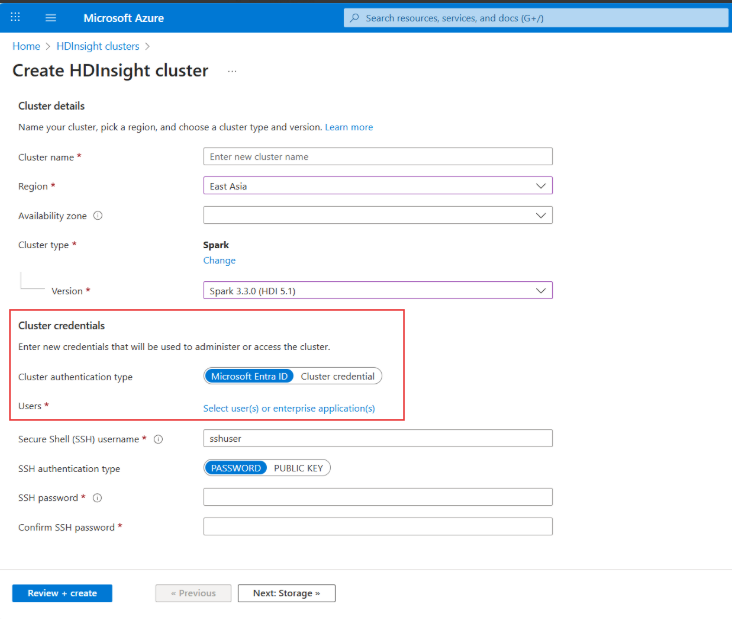
To set up Microsoft Entra ID authentication when you're creating an HDInsight cluster, follow these steps:
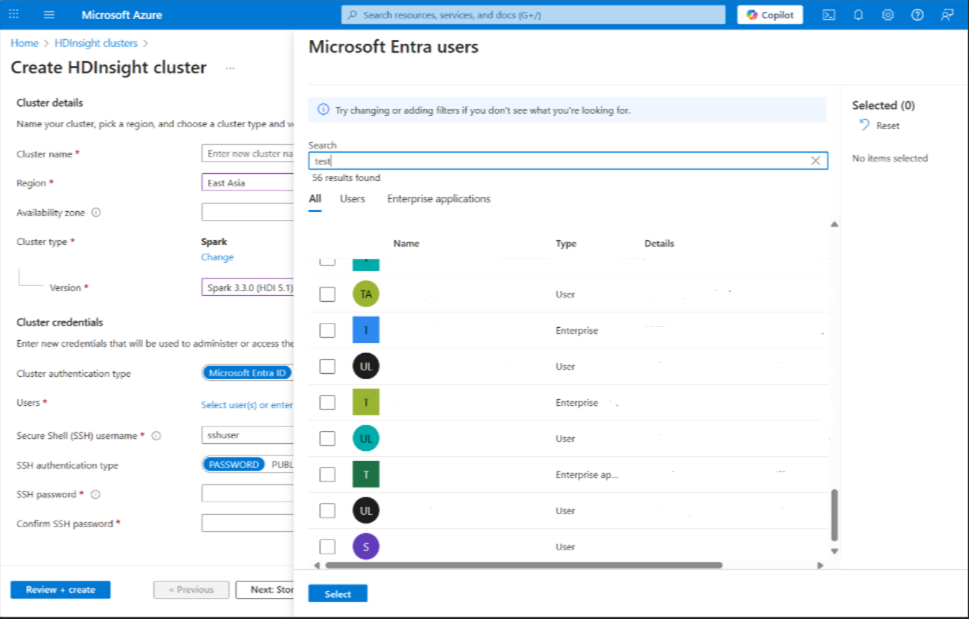
Select the Microsoft Entra ID authentication method.
When you create a cluster, add at least one Microsoft Entra ID user with admin credentials.

User profiles in Apache Ambari
You can assign Microsoft Entra ID-enabled users one of two profiles:
- Cluster Administrator: Admin permission.
- Cluster User: View-only permission.
You can use only one method of authentication for each cluster.
If you choose Microsoft Entra ID authentication when you create a cluster, all users in the cluster must be authenticated by using Microsoft Entra ID. During the entire lifecycle of that particular cluster, only Microsoft Entra ID authentication can be used.
If you choose basic authentication when you create a cluster, all users in the cluster must be authenticated by using basic authentication. During the entire lifecycle of that particular cluster, only basic authentication can be used.
Sign-in options
Users can sign in via multifactor authentication (MFA) after entering their Microsoft Entra ID credentials.
Adding users with an API
An admin can add multiple users at the same time by using an API, which is ideal for managing large clusters.
This operation allows users to change the cluster gateway HTTP credentials.
| Method | Request URI |
|---|---|
| POST | https://management.azure.com/subscriptions/{subscription Id}/resourceGroups/{resourceGroup Name}/providers/Microsoft.HDInsight/clusters/{cluster name}/updateGatewaySettings?api-version={api-version} |
| Entra ID cluster API version | Greater than or equal to 2025-01-15-preview |
		{
		"restAuthEntraUsers": [
			{
				"objectId": "0d7c4bd6-d042-45ec-9ae5-1ed7871c38e0",
						"displayName": "Hemant Gupta",
						"upn": "john@contoso.com"
					}
				]
			}
Response
If the operation finishes successfully, you receive the response HTTP 202 (accepted).
Authentication process
The authentication process varies based on the method that you choose when you create a cluster.
If you choose Microsoft Entra ID:
- The cluster creator provides an ID for the default cluster administrator user in Ambari.
- The default admin can add Ambari users after cluster creation. Users might have either Cluster Administrator or Cluster User permissions. You can set these permissions via the Ambari UI or the REST API.
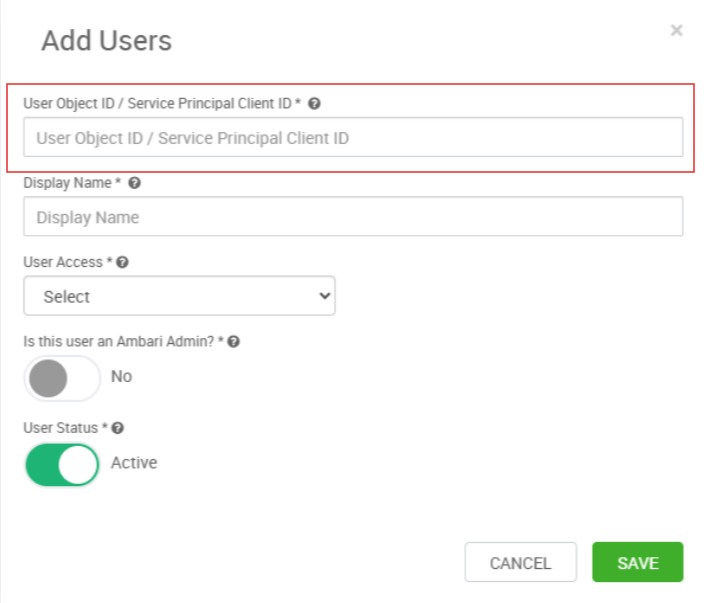
The cluster admin also has to fill in the object ID and display name, and then select Save.

A multifactor authentication prompt appears when the user logs in with their Microsoft Entra ID credentials.

Basic authentication
If you choose basic authentication:
- The user provides a user ID and password for the default admin user.
- You can create new users with various roles, similar to the current functionality.
- Users are prompted to enter their user ID and password after signing in.
Adding an object ID in the Ambari UI
Sign in to the Ambari portal.

Go to Manage Ambari.

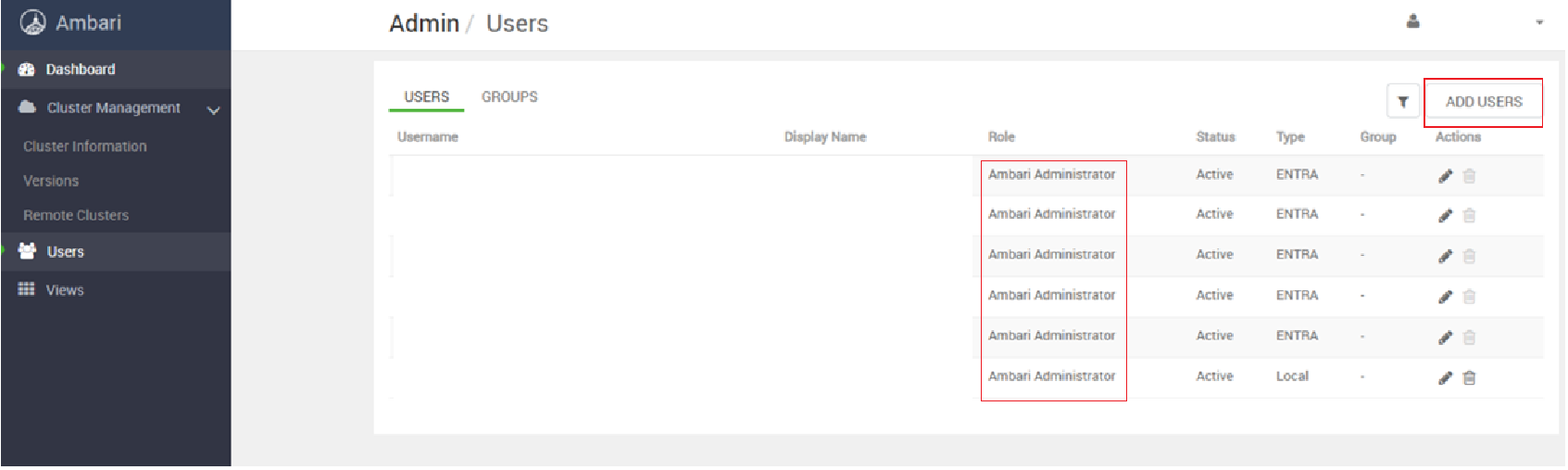
Select the Users tab to see all the current users.

To add new users, select ADD USERS.
Enter the values for Object ID and Display Name. Define the user's access level by selecting Cluster Administrator or Cluster User. Select Save.