Note
Access to this page requires authorization. You can try signing in or changing directories.
Access to this page requires authorization. You can try changing directories.
OPC UA servers are software applications that communicate with assets. OPC UA servers expose OPC UA data points that represent data points. OPC UA data points provide real-time or historical data about the status, performance, quality, or condition of assets.
An asset in Azure IoT Operations is a logical entity that you create to represent a physical asset or device. An Azure IoT Operations asset can have custom properties, data points, streams, and events that describe its behavior and characteristics. An asset is associated with one or more devices. Azure IoT Operations stores asset definitions in the Azure Device Registry.
A device in Azure IoT Operations is a logical entity that defines the connections to physical assets or devices. Without a device, data can't flow from a physical device or asset to the MQTT broker. When you configure a device and asset, a connection is established to the physical asset or device and data point values, events, and streams arrive in Azure IoT Operations instance. A device has one or more inbound endpoints. Azure IoT Operations stores device definitions in the Azure Device Registry.
This article describes how to use the operations experience web UI and the Azure CLI to:
- Define the devices that connect OPC UA servers to your Azure IoT Operations instance.
- Add assets, and define their data points and events to enable data flow from OPC UA servers to the MQTT broker.
These assets, data points, and events map inbound data from OPC UA servers to friendly names that you can use in the MQTT broker and data flows.
The connector can use anonymous or username password authentication when it connects to an OPC UA server.
Prerequisites
To configure devices and assets, you need an instance of Azure IoT Operations.
To sign in to the operations experience web UI, you need a Microsoft Entra ID account with at least contributor permissions for the resource group that contains your Kubernetes - Azure Arc instance. You can't sign in with a Microsoft account (MSA). For more information, see Troubleshoot access to the operations experience web UI.
Your IT administrator must have configured the OPC UA connector template for your Azure IoT Operations instance in the Azure portal.
An OPC UA server that you can reach from your Azure IoT Operations cluster. If you don't have an OPC UA server, use the OPC PLC simulator from the Azure IoT Operations samples repository.
Create a device
An Azure IoT Operations deployment can include a sample OPC PLC simulator. To create a device that uses the OPC PLC simulator:
Select devices and then Create device:

Tip
You can use the filter box to search for devices.
On the Basics page, enter a device name and select New on the Microsoft.OpcUa tile to add an endpoint for the device:

Enter your endpoint information. For example, to use the OPC PLC simulator, enter the following values:
Field Value Name opc-ua-connector-0Connector for OPC UA URL opc.tcp://opcplc-000000:50000User authentication AnonymousSelect Next and on the Additional Info page, enter any custom properties for the device.
Select Next to review your device details. Then select Create.


This configuration deploys a new device resource called opc-ua-connector to the cluster with an inbound endpoint called opc-ua-connector-0.
When the OPC PLC simulator is running, data flows from the simulator, to the connector for OPC UA, and then to the MQTT broker.
Configure a device to use a username and password
The previous example uses the Anonymous authentication mode. This mode doesn't require a username or password.
To use the UsernamePassword authentication mode, complete the following steps:
Follow the steps in Manage secrets for your Azure IoT Operations deployment to add secrets for username and password in Azure Key Vault, project them into Kubernetes cluster, and reference them from your device configuration.
Other security options
To manage the trusted certificates list for the connector for OPC UA, see Manage certificates for external communications.
When you create the inbound endpoint you can also select:
| Option | Type | Description |
|---|---|---|
| Auto accept untrusted server certificate | Yes/No | Automatically accept untrusted server certificates |
| Security policy | Dropdown | Security policy used to establish secure channel with the OPC UA server |
| Security mode | Dropdown | Security mode used to communicate within secure channel with the OPC UA server |
Add an asset, data points, and events
To add an asset in the operations experience:
Select the Assets tab. Before you create any assets, you see the following screen:

Tip
You can use the filter box to search for assets.
Select Create asset.
On the asset details screen, enter the following asset information:
- Inbound endpoint. Select your device inbound endpoint from the list.
- Asset name
- Description
Configure the set of custom properties that you want to associate with the asset. You can accept the default list of properties or add your own. The following properties are available by default:
- Manufacturer
- Manufacturer URI
- Model
- Product code
- Hardware version
- Software version
- Serial number
- Documentation URI

Select Next to go to the Datasets page.


Add a dataset to an asset
A dataset defines where the connector sends the data it collects from a collection of data points. An OPC UA asset can have multiple datasets. To create a dataset:
Select Create dataset.
Enter the details for the dataset such as its name and destination. For OPC UA assets, the destination is an MQTT topic. For example:

Use the Start instance field to specify the starting node for resolving relative browse paths for data points in the dataset. For more information, see Resolve nodes dynamically using browse paths.
Select Create and next to create the dataset.

Tip
Use the Manage default settings option to configure default dataset settings such as publishing interval, sampling interval, and queue size.
Add individual data points to a dataset
Important
The data point name _ErrorMessage is reserved and should not be used.
Now you can define the data points associated with the dataset. To add OPC UA data points:
Select Add data point.
Enter your data point details:
- Data source. This value is the node ID from the OPC UA server.
- Data point name (Optional). This value is the friendly name that you want to use for the data point. If you don't specify a data point name, the node ID is used as the data point name.
- Sampling interval (milliseconds). You can override the default value for this data point.
- Queue size. You can override the default value for this data point.

The following table shows some example data point values that you can use with the built-in OPC PLC simulator:
Data source Data point name ns=3;s=FastUInt10 Temperature ns=3;s=FastUInt100 Humidity Note
If you're using relative browse paths to resolve dynamic nodes, the Data source field contains a relative browse path. For more information, see Resolve nodes dynamically using browse paths.
On the data points page, select Next to go to the Add events page.

Add individual events to an asset
Now you can define the events associated with the asset. To add OPC UA events in the operations experience:
Create an event group by selecting Create event group.
Select Add event.
Enter your event details:
- Event notifier. This value is the event notifier from the OPC UA server.
- Event name (Optional). This value is the friendly name that you want to use for the event. If you don't specify an event name, the event notifier is used as the event name.
- Publishing interval (milliseconds). You can override the default value for this data point.
- Sampling interval (milliseconds). You can override the default value for this data point.
- Queue size. You can override the default value for this data point.
- Key frame count. You can override the default value for this data point.

Note
To resolve node IDs dynamically, use the Start instance field to specify the starting node ID, and the Data source field to specify the relative browse path. For more information, see Resolve nodes dynamically using browse paths.
Select Manage default settings to configure default event settings for the asset. These settings apply to all the OPC UA events that belong to the asset. You can override these settings for each event that you add. Default event settings include:
- Publishing interval (milliseconds): The rate at which OPC UA server should publish data.
- Queue size: The depth of the queue to hold the sampling data before publishing it.

Event filters
Define event filters to customize the information that's included in event notifications from the server. By default, the server sends a selection of standard fields in event notifications. The exact selection is determined by the server for the event type. For example:
{
    "EventId":"OkaXYhfr20yUoj1QBbzcIg==",
    "EventType":"i=2130",
    "SourceNode":"i=2253",
    "SourceName":"WestTank",
    "Time":"2025-10-10T15:09:13.3946878Z",
    "ReceiveTime":"2025-10-10T15:09:13.3946881Z",
    "Message":"Raising Events",
    "Severity":500
}
Use an event filter to:
- Include additional fields in event notifications.
- Exclude fields from event notifications.
- Modify field names in event notifications.
The following screenshot shows an example event filter:
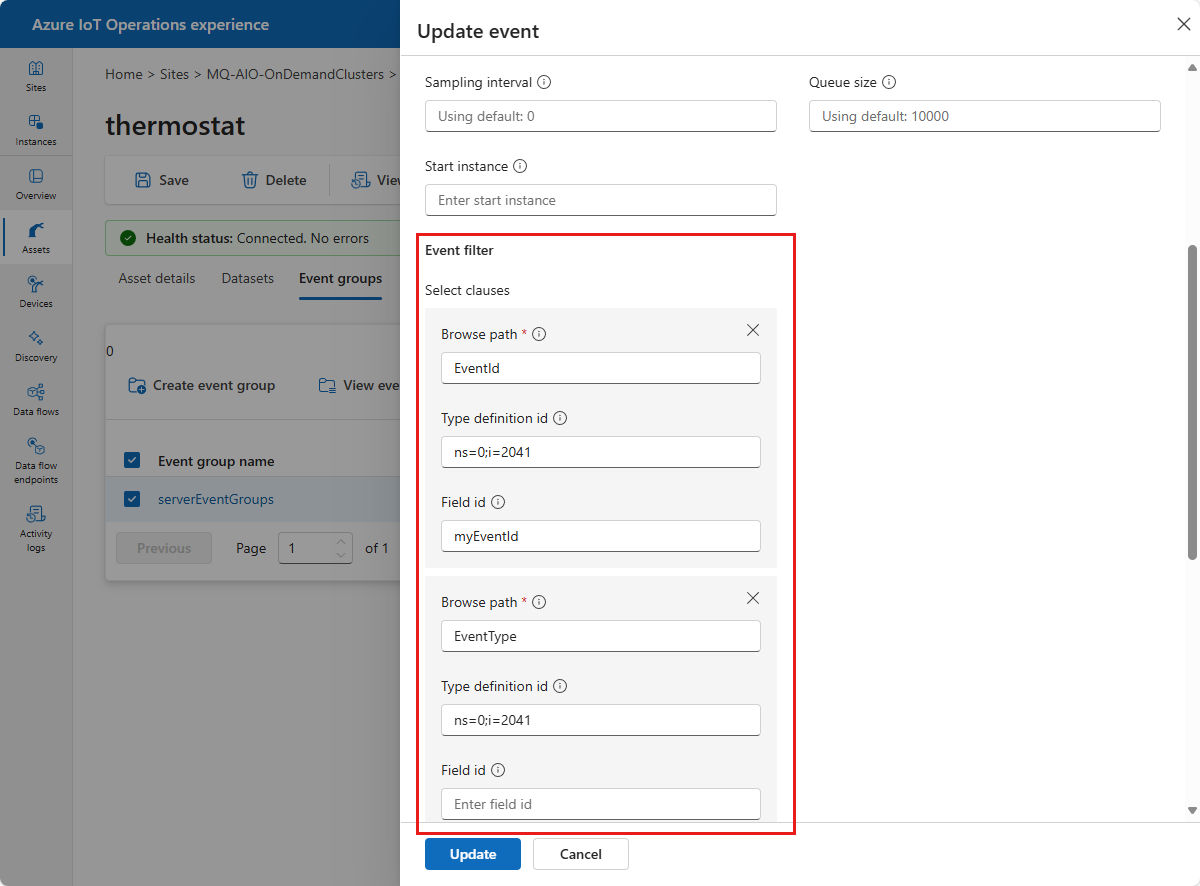
The complete event filter shown in the previous screenshot defines four output fields:
| Browse path | Type definition ID | Field ID |
|---|---|---|
EventId |
ns=0;i=2041 |
myEventId |
EventType |
ns=0;i=2041 |
blank |
SourceName |
blank | mySourceName |
Severity |
blank | blank |
The three properties for a filter row are:
- Browse path. Required value that identifies the source filed to include in the forwarded event notification.
- Type definition ID. Optional value that specifies the OPC UA type definition of the source field.
- Field ID. Optional value that specifies the name to use for the field in the forwarded event notification. If you don't specify a field ID, the original field name is used.
The resulting message forwarded by the connector now looks like the following:
{
    "myEventId":"OkaXYhfr20yUoj1QBbzcIg==",
    "EventType":"i=2130",
    "mySourceName":"WestTank",
    "Severity":500
}
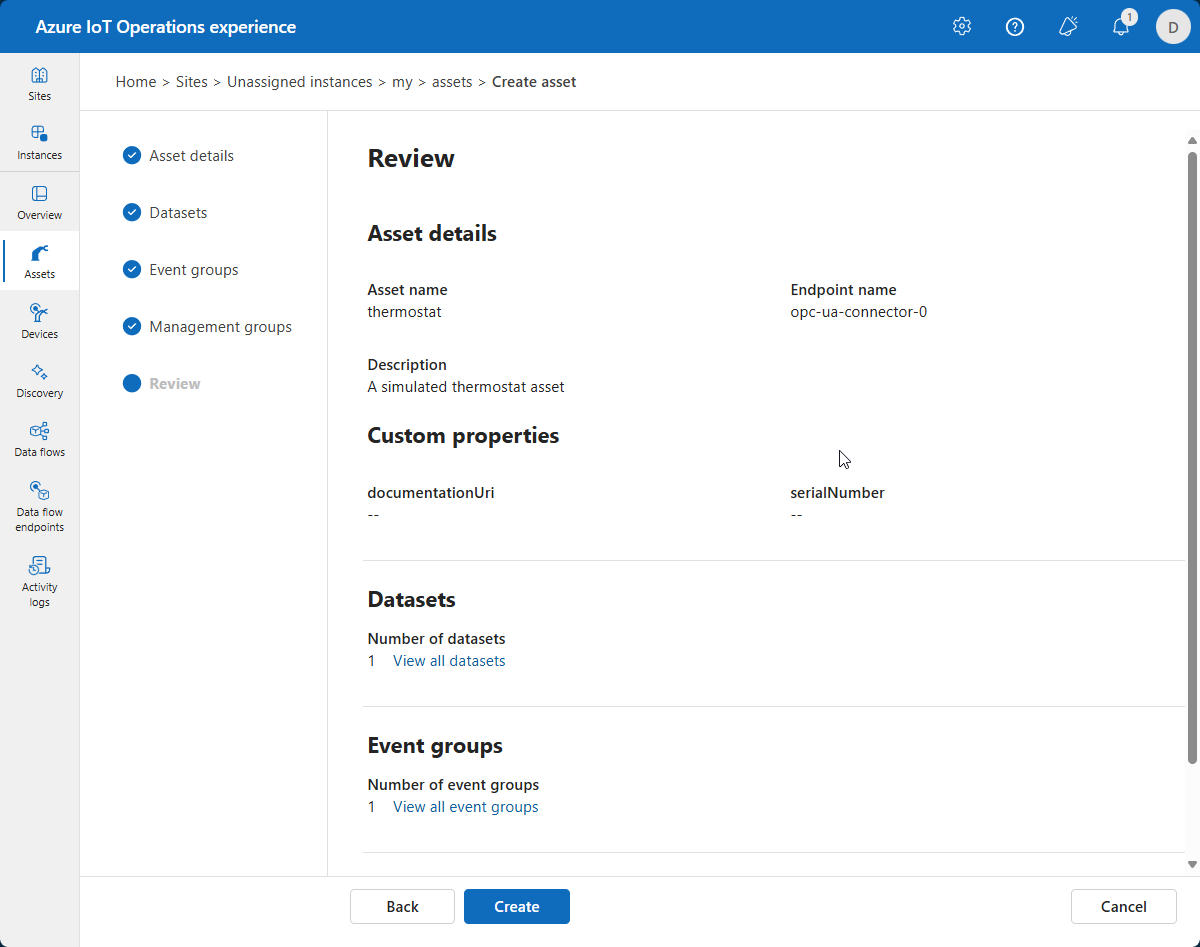
Review your changes
Review your asset and OPC UA data point and event details and make any adjustments you need:
Update an asset
Find and select the asset you created previously. Use the Asset details, data points, and Events tabs to make any changes:

On the view data points tab for a dataset, you can add data points, update existing data points, or remove data points.
To update a data point, select an existing data point and update the data point information. Then select Update:

To remove data points, select one or more data points and then select Remove data points:

You can also add, update, and delete events and properties in the same way.
When you're finished making changes, select Save to save your changes.
Delete an asset
To delete an asset, select the asset you want to delete. On the Asset details page, select Delete. Confirm your changes to delete the asset:
