Note
Access to this page requires authorization. You can try signing in or changing directories.
Access to this page requires authorization. You can try changing directories.
This article describes how to troubleshoot common errors in Azure Site Recovery during replication and recovery of Azure virtual machines (VM) from one region to another. For more information about supported configurations, see the support matrix for replicating Azure VMs.
Azure resource quota issues (error code 150097)
Make sure your subscription is enabled to create Azure VMs in the target region that you plan to use as your disaster recovery (DR) region. Your subscription needs sufficient quota to create VMs of the necessary sizes. By default, Site Recovery chooses a target VM size that's the same as the source VM size. If the matching size isn't available, Site Recovery automatically chooses the closest available size.
If there's no size that supports the source VM configuration, the following message is displayed:
Replication couldn't be enabled for the virtual machine <VmName>.
Possible causes
- Your subscription ID isn't enabled to create any VMs in the target region location.
- Your subscription ID isn't enabled, or doesn't have sufficient quota, to create specific VM sizes in the target region location.
- No suitable target VM size is found to match the source VM's network interface card (NIC) count (2), for the subscription ID in the target region location.
Workaround
Contact Azure billing support to enable your subscription to create VMs of the required sizes in the target location. Then retry the failed operation.
If the target location has a capacity constraint, disable replication to that location. Then, enable replication to a different location where your subscription has sufficient quota to create VMs of the required sizes.
Trusted root certificates (error code 151066)
If not all the latest trusted root certificates are present on the VM, your job to enable replication for Site Recovery might fail. Authentication and authorization of Site Recovery service calls from the VM fail without these certificates.
If the enable replication job fails, the following message is displayed:
Site Recovery configuration failed.
Possible cause
The trusted root certificates required for authorization and authentication aren't present on the virtual machine.
Workaround
For a VM running the Windows operating system, install the latest Windows updates so that all the trusted root certificates are present on the VM. Follow the typical Windows update management or certificate update management process in your organization to get the latest root certificates and the updated certificate revocation list on the VMs.
- If you're in a disconnected environment, follow the standard Windows update process in your organization to get the certificates.
- If the required certificates aren't present on the VM, the calls to the Site Recovery service fail for security reasons.
To verify that the issue is resolved, go to login.microsoftonline.com from a browser in your VM.
For more information, see Configure trusted roots and disallowed certificates.
Outbound URLs or IP ranges (error code 151037 or 151072)
For Site Recovery replication to work, outbound connectivity to specific URLs is required from the VM. If your VM is behind a firewall or uses network security group (NSG) rules to control outbound connectivity, you might face one of these issues. While we continue to support outbound access via URLs, using an allowlist of IP ranges is no longer supported.
Possible causes
- A connection can't be established to Site Recovery endpoints because of a Domain Name System (DNS) resolution failure.
- This problem is more common during reprotection when you have failed over the virtual machine but the DNS server isn't reachable from the disaster recovery (DR) region.
Workaround
If you're using custom DNS, make sure that the DNS server is accessible from the disaster recovery region.
To check if the VM uses a custom DNS setting:
- Open Virtual machines and select the VM.
- Navigate to the VMs Settings and select Networking.
- In Virtual network/subnet, select the link to open the virtual network's resource page.
- Go to Settings and select DNS servers.
Try to access the DNS server from the virtual machine. If the DNS server isn't accessible, make it accessible by either failing over the DNS server or creating the line of site between DR network and DNS.
Note
If you use private endpoints, ensure that the VMs can resolve the private DNS records.
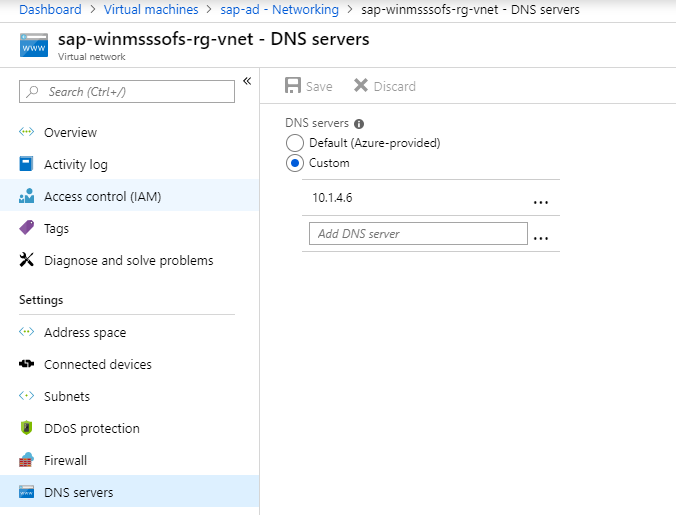
Issue 2: Site Recovery configuration failed (151196)
Possible cause
A connection can't be established to Microsoft 365 authentication and identity IP4 endpoints.
Workaround
Azure Site Recovery required access to Microsoft 365 IP ranges for authentication. If you're using Azure Network Security Group (NSG) rules/firewall proxy to control outbound network connectivity on the VM, ensure that you use Microsoft Entra service tag based NSG rule for allowing access to Microsoft Entra ID. We no longer support IP address-based NSG rules.
Issue 3: Site Recovery configuration failed (151197)
Possible cause
A connection can't be established to Azure Site Recovery service endpoints.
Workaround
If you're using Azure Network Security Group (NSG) rules/firewall proxy to control outbound network connectivity on the VM, ensure that you use service tags. We no longer support using an allowlist of IP addresses via NSGs for Azure Site Recovery.
Issue 4: Replication fails when network traffic uses on-premises proxy server (151072)
Possible cause
The custom proxy settings are invalid and the Mobility service agent didn't autodetect the proxy settings from Internet Explorer.
Workaround
The Mobility service agent detects the proxy settings from Internet Explorer on Windows and
/etc/environmenton Linux.If you prefer to set proxy only for the Mobility service, then you can provide the proxy details in ProxyInfo.conf located at:
- Linux:
/usr/local/InMage/config/ - Windows:
C:\ProgramData\Microsoft Azure Site Recovery\Config
- Linux:
The ProxyInfo.conf should have the proxy settings in the following INI format.
[proxy]
Address=http://1.2.3.4
Port=567
Note
The Mobility service agent only supports unauthenticated proxies.
More information
To specify the required URLs or the required IP ranges, follow the guidance in About networking in Azure to Azure replication.
COM+ or VSS (error code 151025)
When the COM+ or Volume Shadow Copy Service (VSS) error occurs, the following message is displayed:
Site Recovery extension failed to install.
Possible causes
- The COM+ System Application service is disabled.
- The Volume Shadow Copy Service is disabled.
Workaround
Set the COM+ System Application and Volume Shadow Copy Service to automatic or manual startup mode.
Open the Services console in Windows.
Make sure the COM+ System Application and Volume Shadow Copy Service aren't set to Disabled as their Startup Type.

Unsupported managed-disk size (error code 150172)
When this error occurs, the following message is displayed:
Protection couldn't be enabled for the virtual machine as it has <DiskName> with size <DiskSize> that is lesser than the minimum supported size 1024 MB.
Possible cause
The disk is smaller than the supported size of 1024 MB.
Workaround
Make sure that the disk size is within the supported size range, and then retry the operation.
Mobility service update finished with warnings (error code 151083)
The Site Recovery Mobility service has many components, one of which is called the filter driver. The filter driver is loaded into system memory only during system restart. Whenever a Mobility service update includes filter driver changes, the machine is updated but you still see a warning that some fixes require a restart. The warning appears because the filter driver fixes can take effect only when the new filter driver is loaded, which happens only during a restart.
Note
This is only a warning. The existing replication continues to work even after the new agent update. You can choose to restart whenever you want the benefits of the new filter driver, but the old filter driver keeps working if you don't restart.
Apart from the filter driver, the benefits of any other enhancements and fixes in the Mobility service update take effect without requiring a restart.
Protection not enabled if replica managed disk exists
This error occurs when the replica managed disk already exists, without expected tags, in the target resource group.
Possible cause
This problem can occur if the virtual machine was previously protected, and when replication was disabled, the replica disk wasn't removed.
Fix the problem
Delete the replica disk identified in the error message and retry the failed protection job.
Enable protection failed as the installer is unable to find the root disk (error code 151137)
This error occurs for Linux machines where the OS disk is encrypted using Azure Disk Encryption (ADE). This is a valid issue in Agent version 9.35 only.
Possible Causes
The installer is unable to find the root disk that hosts the root file-system.
Fix the problem
Perform the following steps to fix this issue.
Find the agent bits under the directory /var/lib/waagent on RHEL machines using the below command:
# find /var/lib/ -name Micro\*.gzExpected output:
/var/lib/waagent/Microsoft.Azure.RecoveryServices.SiteRecovery.LinuxRHEL7-1.0.0.9139/UnifiedAgent/Microsoft-ASR_UA_9.35.0.0_RHEL7-64_GA_30Jun2020_release.tar.gzCreate a new directory and change the directory to this new directory.
Extract the Agent file found in the first step here, using the below command:
tar -xf <Tar Ball File>Open the file prereq_check_installer.json and delete the following lines. Save the file after that.
   {
      "CheckName": "SystemDiskAvailable",
      "CheckType": "MobilityService"
   },
Invoke the installer using the command:
./install -d /usr/local/ASR -r MS -q -v AzureIf the installer succeeds, retry the enable replication job.
ProtectionContainerNameLengthExceeded (error code 150257)
Protection container name <protectionContainerName> is not valid.
Possible causes
Protection container name exceeds the maximum permissible length of protectionContainerNameMaxLength characters.
Fix the problem
Choose a different name and reattempt the operation.
Troubleshoot and handle time changes on replicated servers
This error occurs when the source machine's time moves forward and then moves back in short time, to correct the change. You may not notice the change as the time is corrected very quickly.
Workaround To resolve this issue, wait till system time crosses the skewed future time. Another option is to disable and enable replication once again, which is only feasible for forward replication (data replicated from primary to secondary region) and is not applicable for reverse replication (data replicated from secondary to primary region).