Note
Access to this page requires authorization. You can try signing in or changing directories.
Access to this page requires authorization. You can try changing directories.
Passkey profiles enable granular group-based configurations for passkey FIDO2 authentication. Instead of a single tenant-wide setting, you can define specific requirements such as attestation, passkey type (device-bound or synced), or Authenticator Attestation GUID (AAGUID) restrictions. You can apply requirements in separate passkey profiles for different user groups, such as admins versus frontline staff.
Note
An Authentication Policy Administrator needs to configure a passkey profile (preview) to enable synced passkeys (preview). For more information, see How to enable synced passkeys (FIDO2) in Microsoft Entra ID (preview).
What are passkey profiles?
A passkey profile is a named set of policy rules that governs how users in targeted groups can register and authenticate with passkeys (FIDO2). Profiles support advanced controls such as:
- Enforce attestation: Enabled, Disabled
- Target types: Device-bound, Synced
- Target specific authenticators: Allow or block specific authenticators by their AAGUID. For more information, see Authenticator Attestation GUID.
Before you begin
- Users must complete multifactor authentication (MFA) within the past five minutes before they can register a passkey (FIDO2).
- Users need an authenticator that supports Microsoft Entra ID's attestation requirements. For more information, see Microsoft Entra ID attestation for FIDO2 security key vendors.
- Devices must support passkey (FIDO2) authentication. For Windows devices that are joined to Microsoft Entra ID, the best experience is on Windows 10 version 1903 or higher. Hybrid-joined devices must run Windows 10 version 2004 or higher.
- If a passkey profile for both device-bound and synced passkeys targets Microsoft Authenticator, users need to run Microsoft Authenticator iOS version 6.8.37 or Android version 6.2507.4749.
- Policy size limit:
- The Authentication methods policy supports a size limit of 20KB. You can't save more passkey profiles after the size limit is reached. To check the size, use the Get authenticationMethodsPolicy Microsoft Graph API to retrieve the JSON for the Authentication methods policy. Save the output as a .txt file, then right-click and select Properties to view the file size.
- Reference sizes:
- Base passkey policy without changes: 1.44 KB
- Target with 1 applied passkey profile: 0.23 KB
- Target with 5 applied passkey profiles: 0.4 KB
- Passkey profile with no AAGUIDs: 0.4 KB
- Passkey profile with 10 AAGUIDs: 0.3 KB
Enable passkey profiles (preview)
Note
Upon opting-in to passkey profiles (preview), your global passkey (FIDO2) policy settings will be automatically transferred to a Default passkey profile. A maximum of 3 passkey profiles, including the Default passkey profile are supported. Support for more passkey profiles is in development.
Sign in to the Microsoft Entra admin center as at least an Authentication Policy Administrator.
Browse to Entra ID > Security > Authentication methods > Policies.
Select Passkey (FIDO2), and select Opt-in to public preview on the public preview banner to see the passkey profiles (preview).

Note
Previous Passkey (FIDO2) policy settings are automatically transferred to the Default passkey profile. Previous user targets are also automatically transferred to Enable and target.
To complete opting-in, select the Default passkey profile.

For Target Types, select the types of passkeys that you want to allow.

Select Save.


Create a new passkey profile
On the Configure tab, click + Add passkey profile.
Fill out the profile details. The following table explains the impact if you enforce attestation. For other vendor attestation requirements, see Microsoft Entra ID attestation for FIDO2 security key vendors.
Enforce attestation No (default) Yes Supported passkey types Synced and device-bound Device-bound only Passkey required to present valid attestation statement Doesn't require a passkey to present a valid attestation statement at registration time.
Microsoft Entra ID can't guarantee any attribute about a passkey, including if it's synced or device-bound, or the specific make, model, or provider, even if you select Target specific AAGUIDs. Use AAGUID lists as a policy guide rather than a strict security control when Enforce attestation is set to No.Required at registration time so Microsoft Entra ID can verify the authenticator’s make and model against trusted metadata. Attestation assures your organization that the passkey is genuine and comes from the stated vendor.
Attestation is checked only during registration; passkeys that you previously added without attestation aren’t blocked from sign-in if you enable attestation later.The next table describes profile target options.
Target Description Target types You can allow device-bound passkeys, and synced passkeys if Enforce attestation is set to No. Target specific AAGUIDs You can allow or block certain security key models or passkey providers, identified by their AAGUID, to control which authenticators users can use to register and sign in with passkeys.
If you remove an AAGUID that you previously allowed, users who registered that passkey (FIDO2) as an allowed method can no longer use it for sign-in.Select Save.
Apply a passkey profile to a targeted group
Select Enable and Target.
Select Add target and select either All users or Select targets to select groups.
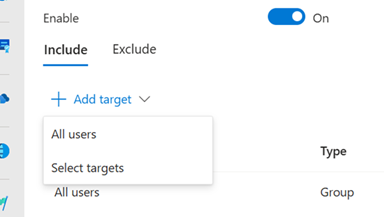
Select which passkey profiles you want assigned to a specific target.

Note
A target group (for example, Engineering) can be scoped for multiple passkey profiles. When a user is scoped for multiple passkey profiles, registration and authentication with a passkey is allowed if it fully satisfies the requirement of one of the scoped passkey profiles. There's no particular order to the check. If a user is a member of an excluded group in the Passkeys (FIDO2) authentication method policy, they're blocked from FIDO2 passkey registration or sign-in. Excluded groups take precedence over Included groups.

Delete a passkey profile
Select Configure.
Select the trash can to the right of the passkey profile you want to delete, and select Save.
Note
You can delete a profile only if it's not assigned to a group of users in Enable and target. If the trash can is gray, first remove any targets that are assigned that profile.


Disable passkey profiles (preview)
Note
Opting out of passkey profiles (preview) will:
- Remove all passkey profiles and their associated targets
- Revert your passkey policy to the configuration of your default passkey profile, including its user targets
- Disable support for synced passkeys
Ensure that no administrators will be locked out of their accounts due to these changes.
- Sign in to the Microsoft Entra admin center as at least an Authentication Policy Administrator.
- Browse to Entra ID > Security > Authentication methods > Policies.
- Select Passkey (FIDO2), and select Opt-out of public preview on the public preview banner.
- Review the conditions of opting out, and click opt-out if you accept.
Examples of use cases for passkey profiles
Note
If a passkey profile for both device-bound and synced passkeys targets Microsoft Authenticator, users need to run Microsoft Authenticator iOS version 6.8.37 or Android version 6.2507.4749.
Special consideration for high-privileged accounts
| Passkey profile | Target groups | Passkey types | Attestation enforcement | Key Restrictions |
|---|---|---|---|---|
| All device-bound passkeys (attestation enforced) | IT admins Executives Engineering |
Device-bound | Enabled | Disabled |
| All synced or device-bound passkeys | HR Sales |
Device-bound, Synced | Disabled | Disabled |
Targeted rollout of passkeys in Microsoft Authenticator
| Passkey profile | Target groups | Passkey types | Attestation enforcement | Key restrictions |
|---|---|---|---|---|
| All device-bound passkeys (excluding Microsoft Authenticator) | All users | Device-bound | Enabled | Enabled - Behavior: Block - AAGUIDs: Microsoft Authenticator for iOS, Microsoft Authenticator for Android |
| Passkeys in Microsoft Authenticator | Pilot group 1 Pilot group 2 |
Device-bound | Enabled | Enabled Behavior: Allow - AAGUIDs: Microsoft Authenticator for iOS, Microsoft Authenticator for Android |
Related content
How to enable synced passkeys (FIDO2) in Microsoft Entra ID (preview)