The script
<#
.SYNOPSIS
    Automates deployment of custom mouse cursors via Active Directory GPO.

.DESCRIPTION
    Creates a Group Policy Object that deploys custom cursor files and configures
    registry settings to apply them.

.PARAMETER GPOName
    Name of the GPO to create. Default: "Custom Mouse Cursors"

.PARAMETER Target
    Distinguished Name of the OU or domain to link the GPO to.
    Example: "DC=contoso,DC=com"

.PARAMETER SourcePath
    UNC path where cursor files are located.
    Example: "\\domain.com\share\cursors"

.EXAMPLE
    .\Deploy-CursorGPO.ps1 -Target "DC=contoso,DC=com" -SourcePath "\\domain.com\share\cursors"
#>

[CmdletBinding()]
param(
    [Parameter(Mandatory=$false)]
    [string]$GPOName = "Custom Mouse Cursors",

    [Parameter(Mandatory=$true)]
    [string]$Target,

    [Parameter(Mandatory=$true)]
    [string]$SourcePath
)

# Import required modules
Import-Module GroupPolicy -ErrorAction Stop
Import-Module ActiveDirectory -ErrorAction Stop

# Define cursor mappings
$cursorMappings = @(
    @{
        Name = "Normal Select"
        SourceFile = "Normal Select.cur"
        RegistryValue = "Arrow"
    },
    @{
        Name = "Help Select"
        SourceFile = "Help Select.cur"
        RegistryValue = "Help"
    },
    @{
        Name = "Working in Background"
        SourceFile = "Working in Background.ani"
        RegistryValue = "AppStarting"
    },
    @{
        Name = "Busy"
        SourceFile = "Busy.ani"
        RegistryValue = "Wait"
    },
    @{
        Name = "Text Select"
        SourceFile = "Text Select.cur"
        RegistryValue = "IBeam"
    },
    @{
        Name = "Handwriting"
        SourceFile = "Handwriting.cur"
        RegistryValue = "Crosshair"
    },
    @{
        Name = "Link Select"
        SourceFile = "Link Select.cur"
        RegistryValue = "Hand"
    }
)

try {
    Write-Host "Starting GPO creation process..." -ForegroundColor Cyan

    # Validate source path
    if (-not (Test-Path $SourcePath)) {
        throw "Source path '$SourcePath' does not exist or is not accessible."
    }

    # Validate cursor files exist
    Write-Host "Validating cursor files..." -ForegroundColor Yellow
    foreach ($cursor in $cursorMappings) {
        $filePath = Join-Path $SourcePath $cursor.SourceFile
        if (-not (Test-Path $filePath)) {
            throw "Cursor file not found: $filePath"
        }
    }
    Write-Host "All cursor files validated successfully." -ForegroundColor Green

    # Create GPO
    Write-Host "Creating GPO '$GPOName'..." -ForegroundColor Yellow
    $gpo = New-GPO -Name $GPOName -Comment "Deploys Archaeological cursor theme to domain computers"
    Write-Host "GPO created with GUID: $($gpo.Id)" -ForegroundColor Green

    # Link GPO to target
    Write-Host "Linking GPO to: $Target..." -ForegroundColor Yellow
    New-GPLink -Name $GPOName -Target $Target -LinkEnabled Yes | Out-Null
    Write-Host "GPO linked successfully." -ForegroundColor Green

    # Configure registry preferences
    Write-Host "Configuring registry preferences..." -ForegroundColor Yellow
    $registryKey = "HKEY_CURRENT_USER\Control Panel\Cursors"

    foreach ($cursor in $cursorMappings) {
        $destinationPath = "C:\Windows\Cursors\$($cursor.SourceFile)"

        Set-GPPrefRegistryValue -Name $GPOName `
            -Context User `
            -Action Update `
            -Key $registryKey `
            -ValueName $cursor.RegistryValue `
            -Value $destinationPath `
            -Type String | Out-Null

        Write-Host "  - Set registry value: $($cursor.RegistryValue)" -ForegroundColor Gray
    }
    Write-Host "Registry preferences configured successfully." -ForegroundColor Green

    # Get domain information
    $domain = Get-ADDomain
    $domainDN = $domain.DistinguishedName
    $domainName = $domain.DNSRoot

    # Build GPO path in SYSVOL
    $gpoPath = "\\$domainName\SYSVOL\$domainName\Policies\{$($gpo.Id)}"
    $machinePrefsPath = Join-Path $gpoPath "Machine\Preferences\Files"

    # Create Files preference directory
    Write-Host "Creating Files preference directory..." -ForegroundColor Yellow
    if (-not (Test-Path $machinePrefsPath)) {
        New-Item -Path $machinePrefsPath -ItemType Directory -Force | Out-Null
    }

    # Generate Files.xml for file copy preferences
    Write-Host "Generating Files.xml for file copy operations..." -ForegroundColor Yellow

    $filesXml = @"
<?xml version="1.0" encoding="utf-8"?>
<Files clsid="{215B2E53-57CE-475c-80FE-9EEC14635851}">
"@

    foreach ($cursor in $cursorMappings) {
        $sourceFile = Join-Path $SourcePath $cursor.SourceFile
        $destFile = "C:\Windows\Cursors\$($cursor.SourceFile)"
        $uid = [guid]::NewGuid().ToString("B").ToUpper()

        $filesXml += @"

    <File clsid="{50BE44C8-567A-4ed1-B1D0-9234FE1F38AF}" name="$($cursor.SourceFile)" status="$($cursor.SourceFile)" image="2" changed="$(Get-Date -Format 'yyyy-MM-dd HH:mm:ss')" uid="$uid" userContext="0" removePolicy="0">
        <Properties action="U" fromPath="$sourceFile" targetPath="$destFile" readOnly="0" archive="1" hidden="0" suppress="0"/>
    </File>
"@
    }

    $filesXml += @"

</Files>
"@

    # Write Files.xml
    $filesXmlPath = Join-Path $machinePrefsPath "Files.xml"
    $filesXml | Out-File -FilePath $filesXmlPath -Encoding utf8 -Force
    Write-Host "Files.xml created successfully." -ForegroundColor Green

    # Update GPT.ini version numbers
    Write-Host "Updating GPT.ini version..." -ForegroundColor Yellow
    $gptIniPath = Join-Path $gpoPath "GPT.ini"
    $gptContent = Get-Content $gptIniPath -Raw

    # Increment both machine and user versions
    if ($gptContent -match 'Version=(\d+)') {
        $currentVersion = [int]$matches[1]
        $newVersion = $currentVersion + 65537  # Increment both machine (65536) and user (1)
        $gptContent = $gptContent -replace 'Version=\d+', "Version=$newVersion"
        $gptContent | Out-File -FilePath $gptIniPath -Encoding ascii -Force
    }

    Write-Host "GPT.ini updated successfully." -ForegroundColor Green

    Write-Host "`n========================================" -ForegroundColor Cyan
    Write-Host "GPO Deployment Complete!" -ForegroundColor Green
    Write-Host "========================================" -ForegroundColor Cyan
    Write-Host "GPO Name: $GPOName" -ForegroundColor White
    Write-Host "GPO GUID: {$($gpo.Id)}" -ForegroundColor White
    Write-Host "Linked to: $Target" -ForegroundColor White
    Write-Host "`nNext Steps:" -ForegroundColor Yellow
    Write-Host "1. Verify GPO settings in Group Policy Management Console" -ForegroundColor White
    Write-Host "2. Run 'gpupdate /force' on client computers to apply immediately" -ForegroundColor White
    Write-Host "3. Or wait 90-120 minutes for automatic policy refresh" -ForegroundColor White

} catch {
    Write-Host "`nError: $($_.Exception.Message)" -ForegroundColor Red
    Write-Host "Stack Trace: $($_.ScriptStackTrace)" -ForegroundColor Red
    exit 1
}
After running the script and gpupdate /force, the key registries get setup and in the GPO in Computer Configuration > Preferences > Windows Settings > Files the entries for the cursors files are present with correct source and target paths. But next to their names there are tiny yellow triangles. I open properties for any of the files and just click Ok without changing anything.
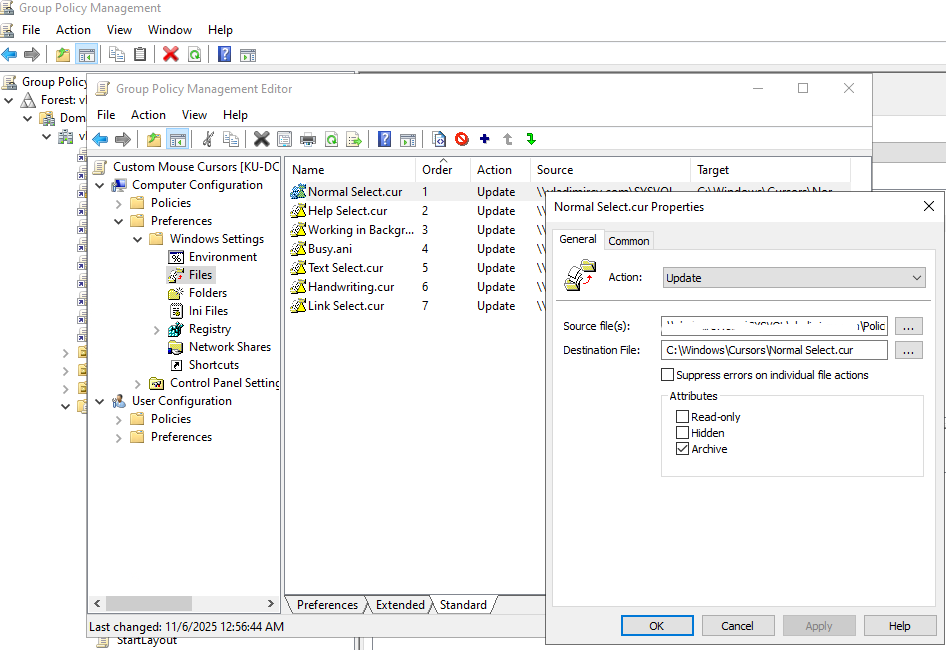 And after this when I run gpupdate /force on client PCs or on the server all the files are sent/copied to the destination folder.
When I configure the same GPO using the GUI console I don't face with this issue.
What I'm missing in the script?
' cx='32' cy='32' r='32' /%3E%3Ctext x='50%25' y='55%25' dominant-baseline='middle' text-anchor='middle' fill='%23FFF' %3EVJ%3C/text%3E%3C/svg%3E)

' cx='32' cy='32' r='32' /%3E%3Ctext x='50%25' y='55%25' dominant-baseline='middle' text-anchor='middle' fill='%23FFF' %3EQQ%3C/text%3E%3C/svg%3E)