Dear @Baber Kari F,
Thank you for posting your question in the Microsoft Q&A forum.
I understand you're trying to locate responses to a poll you distributed via email in Outlook on the web.
Your poll was created using the Outlook “Poll” feature, which is powered by Microsoft Forms. After sending the email with the poll, you can view it in your Sent Items or check the results directly in Microsoft Forms.
Why results might not be visible: No responses yet. The Tracking tab will only appear after at least one recipient has responded.
Here’s how you can access your poll results:
Option 1: View Results in Outlook (Sent Items)
Open Outlook on the web.
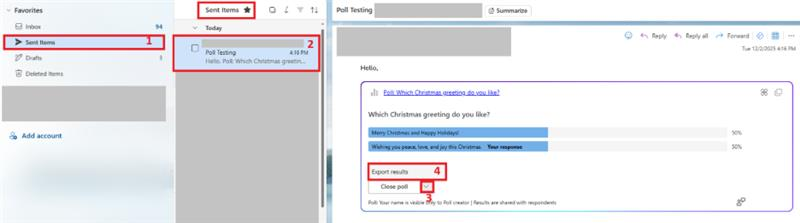
Go to Sent Items and select the email that contains your poll.
If recipients have responded, you’ll see the results displayed.
You can also click Export results to download the data.

Option 2: View Results in Microsoft Forms
Go to https://forms.office.com and sign in with your work or school account.
Under "My Forms", locate the poll you sent.

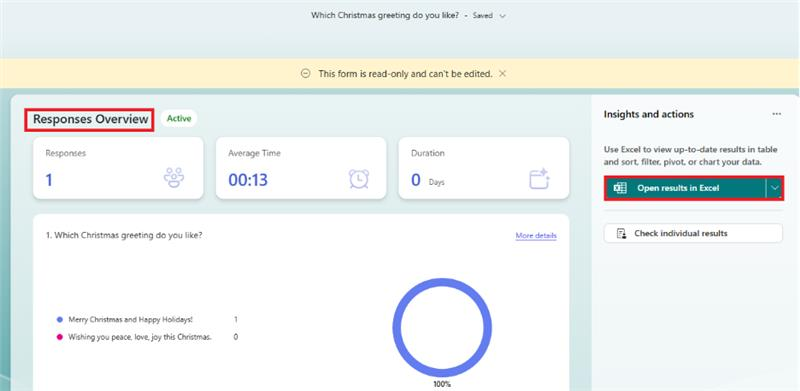
Click on it, then go to the Responses tab to see:
- A summary dashboard.
- Individual responses.
- Charts and response counts.
- You can also click “Open results in Excel” to export the data.
Additional information is available in the following resource: Create a poll in Outlook - Microsoft Support
As community moderators, we kindly ask for your understanding that our access to internal development details is limited. Our primary role is to guide users toward the appropriate resources and support channels. While we may not have visibility into performing deeper backend analysis, we’ll continue doing our best to support you within the scope of our responsibilities.
I hope this information is helpful. Please follow these steps and let me know if it works for you. If not, we can work together to resolve this.
Thank you for your patience and understanding. If you have any questions or need further assistance, please feel free to share them in the comments on this post so I can continue to support you.
If the answer is helpful, please click "Accept Answer" and kindly upvote it. If you have any extra questions about this answer, please click "Comment".
Note: Please follow the steps in our documentation to enable e-mail notifications if you want to receive the related email notification for this thread.
' cx='32' cy='32' r='32' /%3E%3Ctext x='50%25' y='55%25' dominant-baseline='middle' text-anchor='middle' fill='%23FFF' %3EBK%3C/text%3E%3C/svg%3E)


' cx='32' cy='32' r='32' /%3E%3Ctext x='50%25' y='55%25' dominant-baseline='middle' text-anchor='middle' fill='%23FFF' %3ERN%3C/text%3E%3C/svg%3E)