Hi @Stacie Shifflett,
Welcome to Microsoft Q&A forum.
Thank you for reaching out and sharing your experience with us.
To find out whether your Outlook for Windows is the new or classic version, look for the Settings in the top right corner. If you have the Settings button, you have the new Outlook. If the Settings button is missing, you're using classic Outlook.
For more information on how to find your Outlook version, please refer to this article What version of Outlook do I have? - Microsoft Support
If you are using classic Outlook, I would recommend you check the following steps to resolve the issue:
- Enable AutoComplete
It’s possible that the AutoComplete setting is not enabled, leading to the Outlook AutoComplete not working issue. You can follow the below steps to check and enable the option:
- Open your Outlook and go to File > Options > Mail.
- Under the Send messages section, make sure the Use Auto-Complete List to suggest names when typing in the To, Cc, and Bcc lines box is checked.
- Also, click Empty Auto-Complete List and click Yes to confirm.
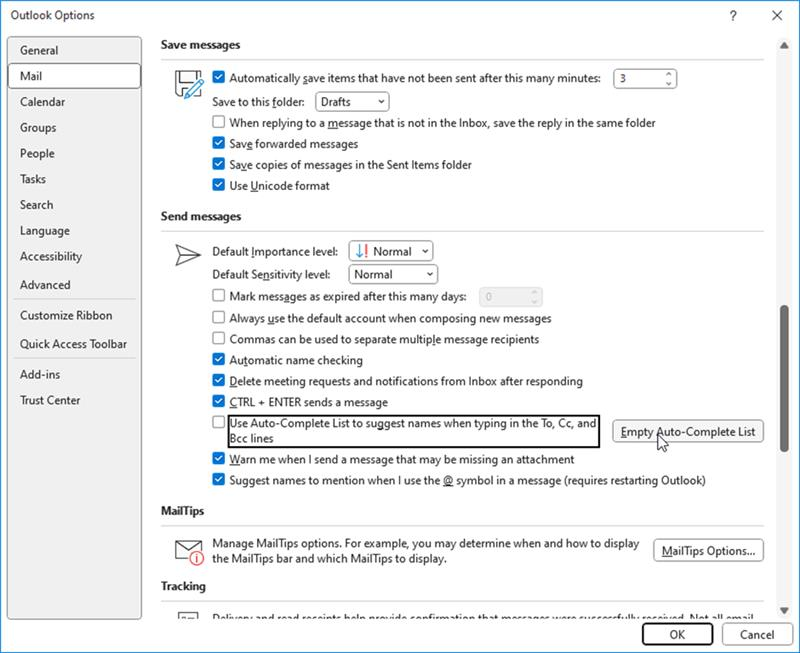
Once done, try sending a new email and see if the issue has been resolved.
- Update Outlook
Outdated Outlook can also impact the AutoComplete feature. To check and update the Outlook to the latest version, follow these steps:
- In classic Outlook, go to File > Office Account.
- Choose Update Options.
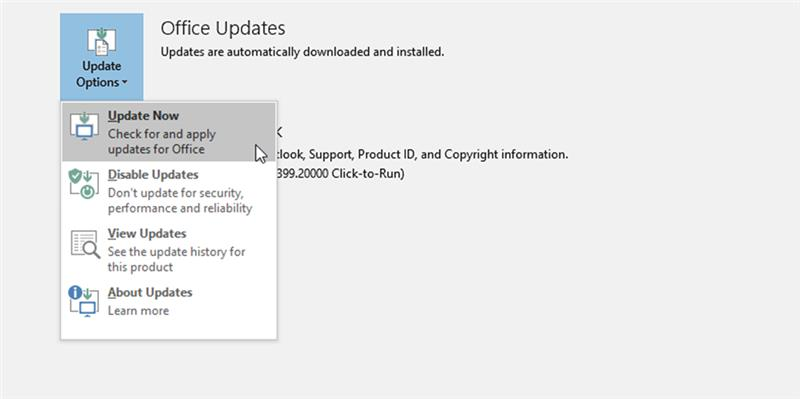
- From the available options, choose Update Now to download and install the Outlook updates.
You can also check the Windows updates and install them. After the update, restart the system and check if the issue is resolved.
- Recreate RoamCache
You can recreate the RoamCache folder to fix the AutoComplete not working issue in Outlook. To do this, rename or delete it from the default location. Here’s how:
- Open Outlook and go to File > Info > Account Settings > Account Settings.
- Choose the email account and click Change > More Settings > Advanced.
- Make sure Use Cached Exchange Mode is enabled (if you are using Exchange, Office 365, or Outlook.com account). Then, click OK.
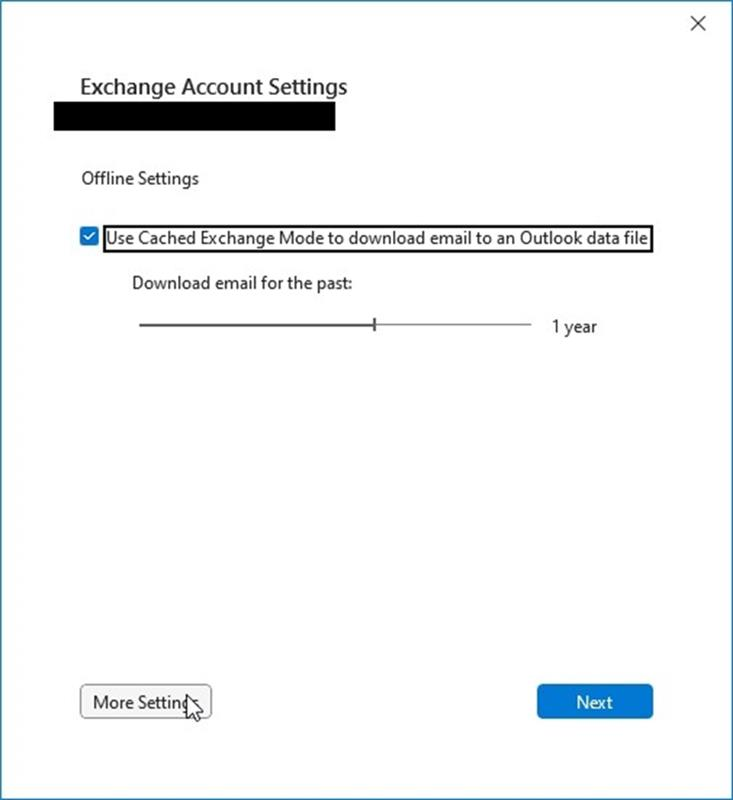
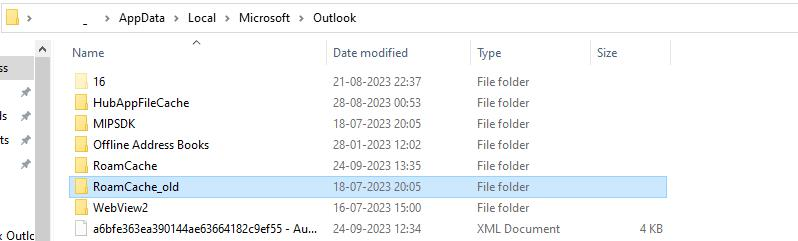
- Press the Windows+R keys, type %LOCALAPPDATA%/Microsoft/Outlook in the box and press Enter.
- Find and rename the RoamCache folder as “RoamCache_old”.
- Launch the Outlook application and then wait for a while. A new RoamCache will be created after some time.
- Open a new email compose window and check if the Outlook autofill is working.
- Rebuild the AutoComplete List
If you find that the AutoComplete feature is not suggesting the correct email addresses, you can manually rebuild the AutoComplete list. For this, you need to send emails to your contacts. This will refresh and rebuild a new cache.
- Create a New Profile
Corrupt profile may also cause issues with some Outlook features, such as AutoComplete. Follow these steps to create and set up a new profile in Outlook to resolve the issue:
- Close Outlook and open Control Panel.
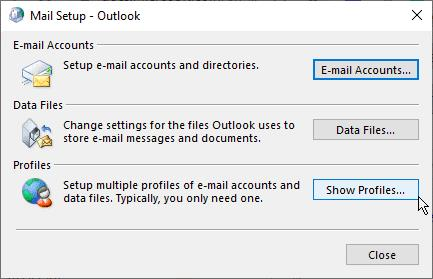
- Navigate to User Accounts > Mail > Show Profiles > Add.
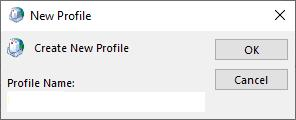
- Type a new profile name and click OK.
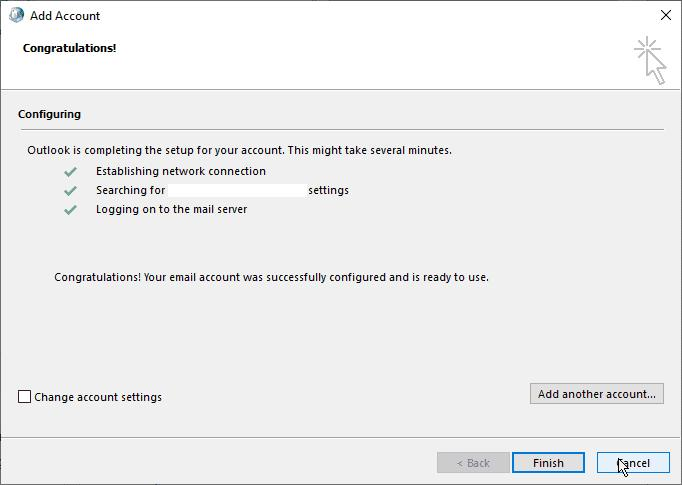
- Follow the instructions to add your email account and then click Next > Finish.
- After creating the new profile, make it default or choose ‘Prompt for a profile to be used.’
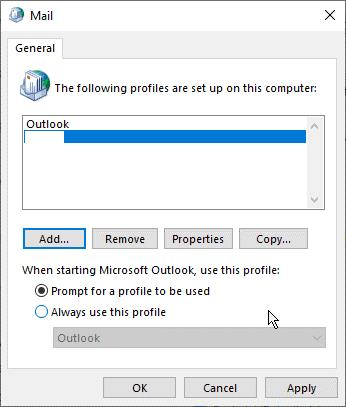
- Click OK and then close the Mail dialog box.
- Remove Incompatible Third-Party Add-Ins
The third-party add-ins that you have recently installed can also cause the AutoComplete feature to not work in Outlook. You can check and remove such add-ins. The steps are as follows:
- Press the Windows key + R, type Outlook.exe /safe, and press the Enter key or click OK.
- Then, navigate to the File > Options > Add-Ins.
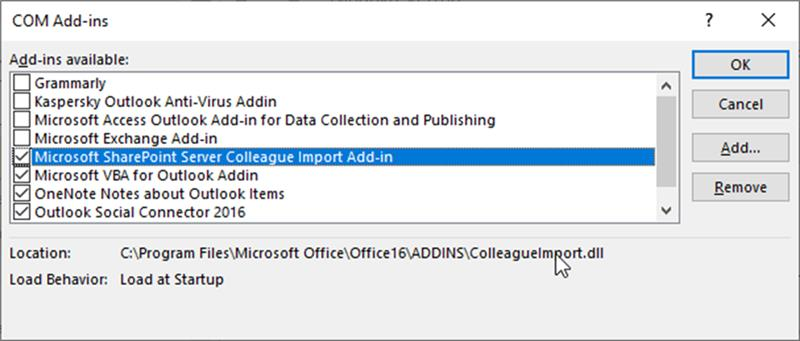
- Click the GO button next to COM add-ins.
- Unselect all the add-ins and click OK.
- After this, restart Outlook normally.
If you find out that you are using new Outlook, please let me know and I will provide you with steps to resolve the issue in new Outlook.
Note: Please understand that our initial response does not always resolve the issue immediately. However, with your help and more detailed information, we can work together to find a solution.
I hope this information is helpful. Please follow these steps and let me know if it works for you. If not, we can work together to resolve this.
Thank you for your patience and your understanding. If you have any questions or need further assistance, please feel free to share them in the comments on this post so I can continue to support you.
I look forward to continuing the conversation.
If the answer is helpful, please click "Accept Answer" and kindly upvote it. If you have extra questions about this answer, please click "Comment".
Note: Please follow the steps in our documentation to enable e-mail notifications if you want to receive the related email notification for this thread.
' cx='32' cy='32' r='32' /%3E%3Ctext x='50%25' y='55%25' dominant-baseline='middle' text-anchor='middle' fill='%23FFF' %3ESS%3C/text%3E%3C/svg%3E)


' cx='32' cy='32' r='32' /%3E%3Ctext x='50%25' y='55%25' dominant-baseline='middle' text-anchor='middle' fill='%23FFF' %3EJT%3C/text%3E%3C/svg%3E)