Note
Access to this page requires authorization. You can try signing in or changing directories.
Access to this page requires authorization. You can try changing directories.
Use AI Gateway in Microsoft Foundry to enforce tokens-per-minute (TPM) rate limits and total token quotas for model deployments at the project scope. This integration uses Azure API Management behind the scenes and applies limits per project to prevent runaway token consumption and align usage with organizational guardrails. Only token rate limiting and quota enforcement are in scope for this release. You configure all settings in the Foundry portal.
Prerequisites
- Azure subscription (create one for free) with permission to create or reuse an Azure API Management (APIM) instance.
- Access to the Foundry portal (Admin console) for the target Foundry resource.
- Reference material for AI Gateway capabilities in APIM.
- Decision on whether to create a dedicated APIM instance or reuse an existing one.
Understand AI Gateway scope
An AI Gateway sits between clients and model deployments. All requests flow through the APIM instance once associated. Limits apply at the project level (each project can have its own TPM and quota settings). Supported features for this release are TPM rate limits and token quotas only. No other policy types are enforced.

Choose API Management usage model
When you create a new AI Gateway, you need to decide whether to create a new APIM instance (isolated governance, predictable usage boundary), or reuse an existing APIM instance (centralized management, shared cost). You can use any existing APIM instance in the same Azure region as the Foundry resource.
When you create a new instance from the Foundry portal flow, the SKU defaults to Basic v2. Refer to API Management Pricing to learn more about associated costs and pricing for the API Management service.
Create an AI Gateway
Follow these steps in the Foundry portal to enable AI Gateway for a resource.
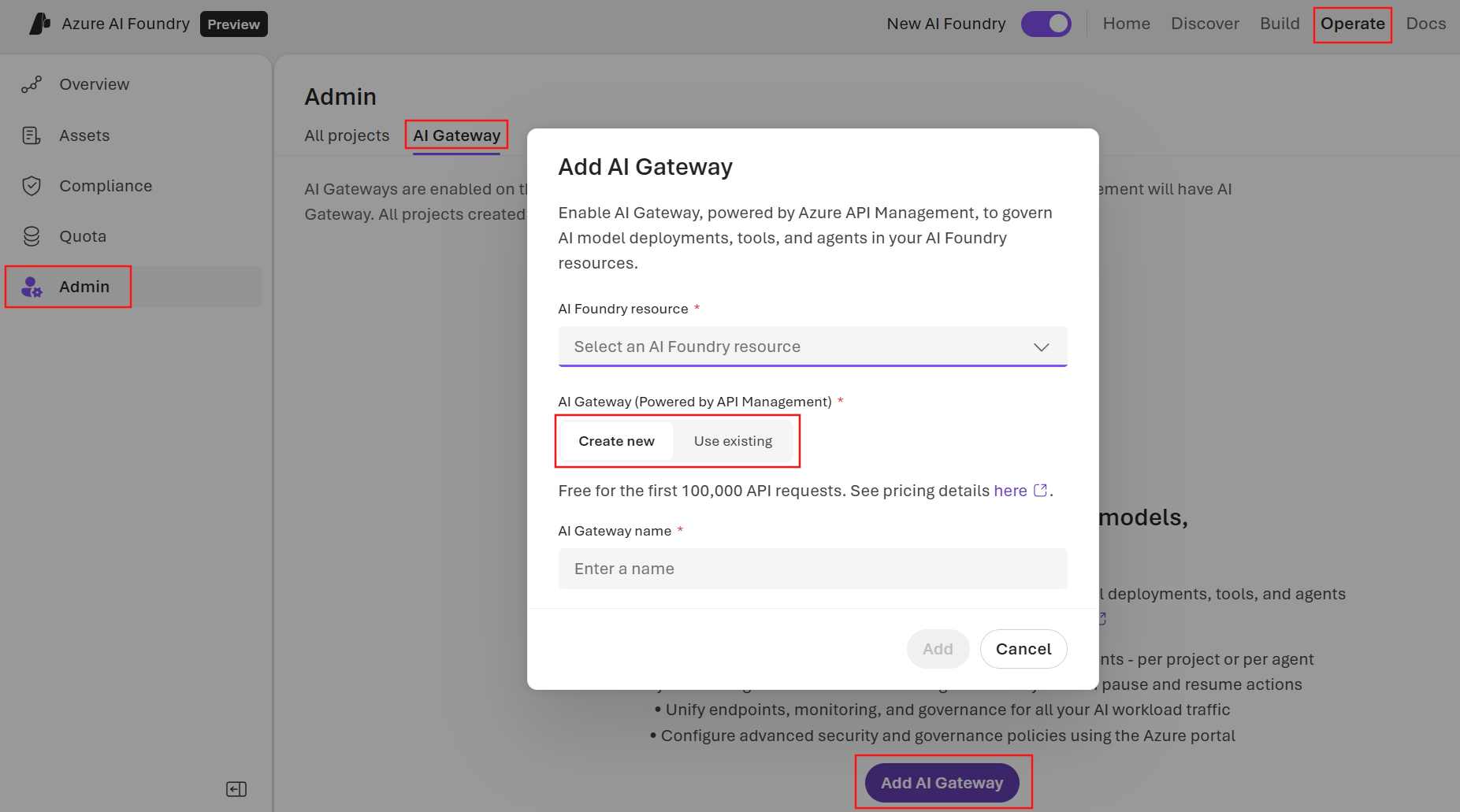
- Sign in to Microsoft Foundry. Make sure the New Foundry toggle is on. These steps refer to Foundry (new).

- Select Operate > Admin console.
- Open the AI Gateway tab.
- Select Add AI Gateway.
- Select the Foundry resource you want to connect with the gateway.
- Select Create new or Use existing APIM.
- If creating new, review the Basic v2 SKU limitation and trial cost details.
- Name the gateway, and select Add to create or associate the APIM instance.
- Validate that the Gateway status shows Enabled once provisioning completes.
Configure token limits
You can configure token limits for specific model deployments within your projects.
- Select the gateway you want to use from the AI Gateway gateway list.
- Select Token management in the gateway details pane that appears.
- Select + Add limit to create a new limit for a model deployment.
- Select the project and deployment you want to restrict then, and enter a value for Limit (Token-per-minute).
- Select Create to save your changes.
Expected result: Subsequent requests that exceed the TPM threshold receive rate-limit responses. Requests that exceed the quota produce quota-exceeded responses indicating 429 Too Many Requests, if the rate limit is exceeded, or 403 Forbidden, if the total token quota is exhausted.

Quota window behavior
Token limits have two complementary enforcement dimensions:
Tokens per minute (TPM) rate limit: Evaluated on a rolling 60‑second window. Each request's token usage is aggregated, and once the rolling window total exceeds the configured TPM value, subsequent requests within that window receive
429 Too Many Requestsresponses until usage falls below the threshold.Total token quota: Aggregates tokens consumed across the defined quota window (for example, daily or monthly allocation). When cumulative usage reaches the configured quota, further requests receive
403 Forbiddenuntil the window resets. The quota counter automatically resets at the start of the next window boundary.
Adjusting a quota or TPM value mid-window affects only subsequent enforcement decisions; it does not retroactively clear already consumed tokens. To effectively "reset" a quota before the natural window boundary, temporarily increase the quota value or remove and recreate the limit.
Refer to AI Gateway capabilities in APIM and API Management access restriction policies for more details on how these policies function.
Verify enforcement
- Send test requests to a model deployment endpoint by using the project’s gateway URL and key.
- Gradually increase request frequency until the TPM limit triggers.
- Track cumulative tokens until the quota triggers.
- Validate that rate-limited errors are returned once the TPM is exceeded, and quota error appears once the total token allocation is exhausted.
Success criteria:
- Rate-limited responses appear once TPM exceeded.
- Quota error appears once total token allocation exhausted.
Adjust limits
- Return to project AI Gateway settings.
- Modify TPM or quota values.
- Save; new limits apply immediately to subsequent requests.
Governance scenarios
Use AI Gateway for:
- Multi-team token containment (prevent one project from monopolizing capacity).
- Cost control by capping aggregate usage.
- Compliance boundaries for regulated workloads (enforce predictable usage ceilings).
Troubleshooting
| Issue | Possible cause | Action |
|---|---|---|
| APIM instance doesn't appear | Provisioning delay | Refresh after a few minutes. |
| Limits aren't enforced | Misconfiguration or project not linked | Reopen settings; confirm enforcement toggle is on. Confirm that the AI Gateway is enabled for the project and if correct limits are configured. |
| High latency after enablement | APIM cold start or region mismatch | Check APIM region vs resource region. Call the model directly and compare the result with the call proxied through the AI Gateway to identify if performance issues are related to the gateway. |
If the Admin console is slow, retry after a brief interval.
Limitations
- You can configure settings only through the Foundry portal; no support yet for CLI, ARM, or API.
- Dedicated APIM isolates governance, while shared APIM centralizes operations.
- Enforcement of token quotas is project-scoped; resource-level global limits aren't managed by the AI gateway.
Clean up resources
If you created a dedicated APIM instance for this purpose:
- Confirm that no other workloads depend on it.
- Disable the AI Gateway for all projects in the Foundry resource it's associated with.
- Remove linked resources in Azure portal.
- Delete the APIM instance with the same name as the AI gateway in Azure portal (if it's not used for any other purpose).