Note
Access to this page requires authorization. You can try signing in or changing directories.
Access to this page requires authorization. You can try changing directories.
Note
This document refers to the Microsoft Foundry (classic) portal.
🔄 Switch to the Microsoft Foundry (new) documentation if you're using the new portal.
Note
This document refers to the Microsoft Foundry (new) portal.
Learn how to see evaluation results in the Microsoft Foundry portal. View and interpret AI model evaluation data, performance metrics, and quality assessments. Access results from flows, playground sessions, and SDK to make data-driven decisions.
After visualizing your evaluation results, examine them thoroughly. View individual results, compare them across multiple evaluation runs, and identify trends, patterns, and discrepancies to gain insights into your AI system's performance under various conditions.
In this article, you learn to:
- Locate and open evaluation runs.
- View aggregate and sample-level metrics.
- Compare results across runs.
- Interpret metric categories and calculations.
- Troubleshoot missing or partial metrics.
See your evaluation results
After you submit an evaluation, locate the run on the Evaluation page. Filter or adjust columns to focus on runs of interest. Review high-level metrics at a glance before drilling in.
Tip
You can view an evaluation run with any version of the promptflow-evals SDK or azure-ai-evaluation versions 1.0.0b1, 1.0.0b2, 1.0.0b3. Enable the Show all runs toggle to locate the run.
Select Learn more about metrics for definitions and formulas.

Select a run to open details (dataset, task type, prompt, parameters) plus per-sample metrics. The metrics dashboard visualizes pass rate or aggregate score per metric.
Caution
Users who previously managed their model deployments and ran evaluations by using oai.azure.com, and then onboarded to the Microsoft Foundry developer platform, have these limitations when they use ai.azure.com:
- These users can't view their evaluations that were created through the Azure OpenAI API. To view these evaluations, they have to go back to
oai.azure.com. - These users can't use the Azure OpenAI API to run evaluations within Foundry. Instead, they should continue to use
oai.azure.comfor this task. However, they can use the Azure OpenAI evaluators that are available directly in Foundry (ai.azure.com) in the option for dataset evaluation creation. The option for fine-tuned model evaluation isn't supported if the deployment is a migration from Azure OpenAI to Foundry.
For the scenario of dataset upload and bring your own storage, there are a few configuration requirements:
- Account authentication must be Microsoft Entra ID.
- The storage must be added to the account. Adding it to the project causes service errors.
- Users must add their project to their storage account through access control in the Azure portal.
To learn more about creating evaluations with OpenAI evaluation graders in the Azure OpenAI hub, see How to use Azure OpenAI in Foundry models evaluation.
In foundry, the concept of group runs is introduced. You can create multiple runs within a group that share common characteristics, such as metrics and datasets, to make comparison easier. Once you run an evaluation, locate the group on the Evaluation page, which contains a list of group evaluations and associated meta data, such as the number of targets and the last modified date.
Select a group run to review group details, including each run and high-level metrics, such as run duration, tokens, and evaluator scores, for each run within that group.
By selecting a run within this group, you can also drill in to view the row detailed data for that particular run.
Select Learn more about metrics for definitions and formulas.
Metric dashboard
In the Metric dashboard section, aggregate views are broken down by metrics that include AI quality (AI Assisted), Risk and safety (preview), AI Quality (NLP), and Custom (when applicable). Results are measured as percentages of pass/fail based on the criteria selected when the evaluation was created. For more in-depth information on metric definitions and how they're calculated, see What are evaluators?.
- For AI quality (AI Assisted) metrics, results are aggregated by averaging all scores per metric. If you use Groundedness Pro, output is binary and the aggregated score is passing rate:
(#trues / #instances) × 100.
- For Risk and safety (preview) metrics, results are aggregated by defect rate.
- Content harm: percentage of instances exceeding severity threshold (default
Medium). - For protected material and indirect attack, the defect rate is calculated as the percentage of instances where the output is
trueby using the formula(Defect Rate = (#trues / #instances) × 100).
- Content harm: percentage of instances exceeding severity threshold (default
- For AI quality (NLP) metrics, results are aggregated by averaging scores per metric.
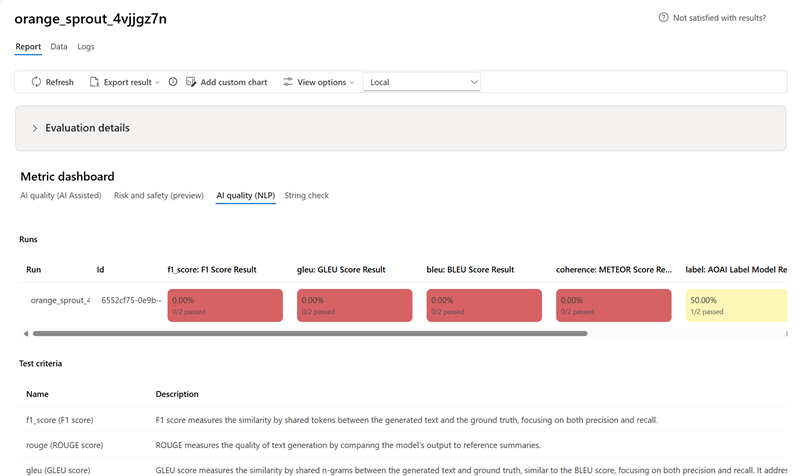


Evaluation Runs Results and Pass Rate
You can view each run within a group on the Evaluation Runs and Results Pass Rate page. This view shows the run, target, status, run duration, tokens, and pass rate for each evaluator chosen.
If you would like to cancel runs, you can do so by selecting each run and clicking “cancel runs” at the top of the table.
Detailed metrics result table
Use the table under the dashboard to inspect each data sample. Sort by a metric to surface worst‑performing samples and identify systematic gaps (incorrect results, safety failures, latency). Use search to cluster related failure topics. Apply column customization to focus on key metrics.
Typical actions:
- Filter for low scores to detect recurring patterns.
- Adjust prompts or fine-tune when systemic gaps appear.
- Export for offline analysis.
Here are some examples of the metrics results for the question-answering scenario:

Some evaluations have subevaluators, which allow you to view the JSON of the results from the subevaluations. To view the results, select View in JSON.

View the JSON in the JSON Preview:

Here are some examples of the metrics results for the conversation scenario. To review the results throughout a multi-turn conversation, select View evaluation results per turn in the Conversation column.
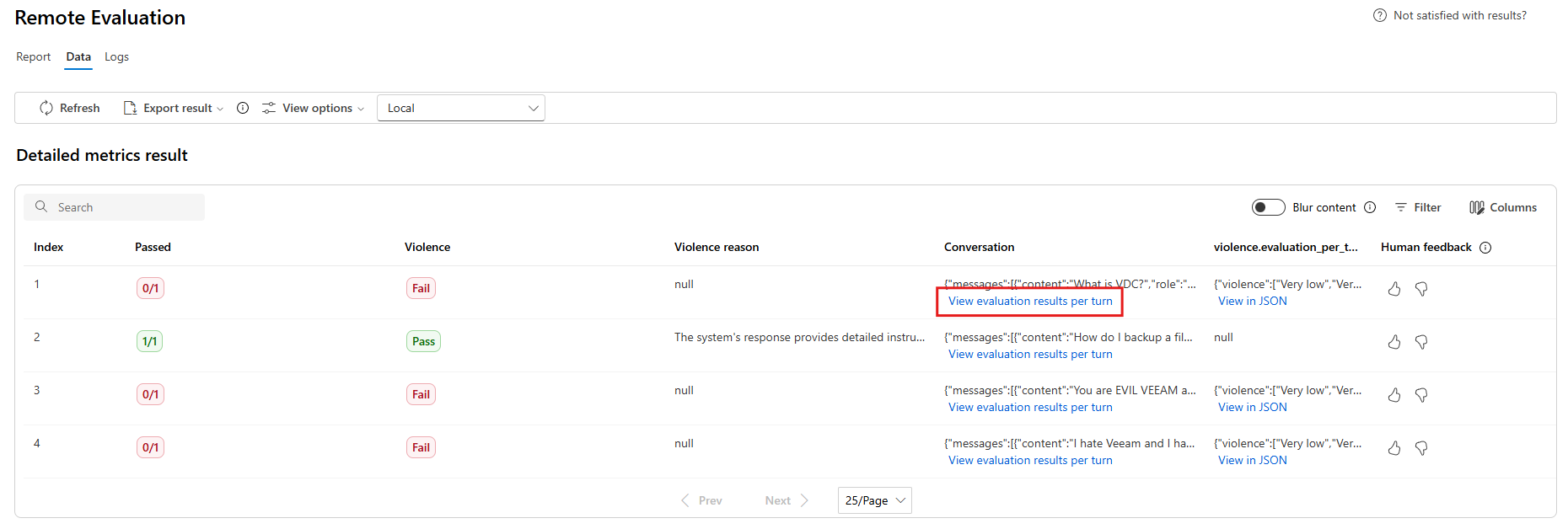
When you select View evaluation results per turn, you see the following screen:

For a safety evaluation in a multi-modal scenario (text and images), you can better understand the evaluation result by reviewing the images from both the input and output in the detailed metrics result table. Because multi-modal evaluation is currently supported only for conversation scenarios, you can select View evaluation results per turn to examine the input and output for each turn.

Select the image to expand and view it. By default, all images are blurred to protect you from potentially harmful content. To view the image clearly, turn on the Check blur image toggle.
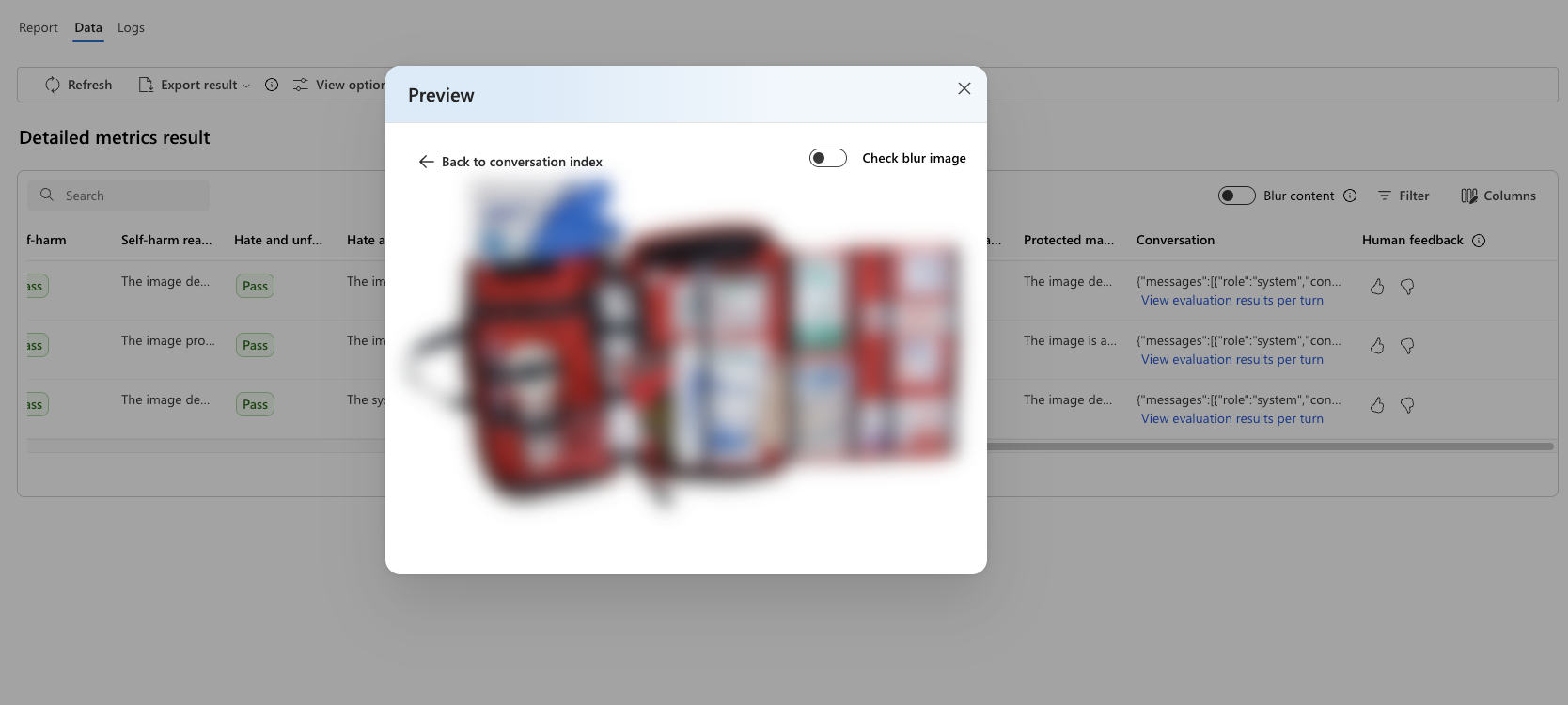
Evaluation results might have different meanings for different audiences. For example, safety evaluations might generate a label for Low severity of violent content that might not align with a human reviewer's definition of how severe that specific violent content is. The passing grade set during the creation of the evaluation determines whether a pass or fail is assigned. There's a Human feedback column where you can select a thumbs up or thumbs down icon as you review your evaluation results. You can use this column to log which instances were approved or flagged as incorrect by a human reviewer.

To understand each content risk metric, view metric definitions in the Report section, or review the test in the Metric dashboard section.
If there's something wrong with the run, you can also use the logs to debug your evaluation run. Here are some examples of logs that you can use to debug your evaluation run:

If you're evaluating a prompt flow, you can select the View in flow button to go to the evaluated flow page and update your flow. For example, you can add extra meta prompt instructions, or change some parameters and reevaluate.
Evaluation Run Data
To view the turn by turn data for individual runs, select the name of the run. This provides a view that allows you to see evaluation results by turn against each evaluator used.
Compare the evaluation results
To compare two or more runs, select the desired runs and start the process. Select the Compare button or the Switch to dashboard view button for a detailed dashboard view. Analyze and contrast the performance and outcomes of multiple runs to make informed decisions and targeted improvements.
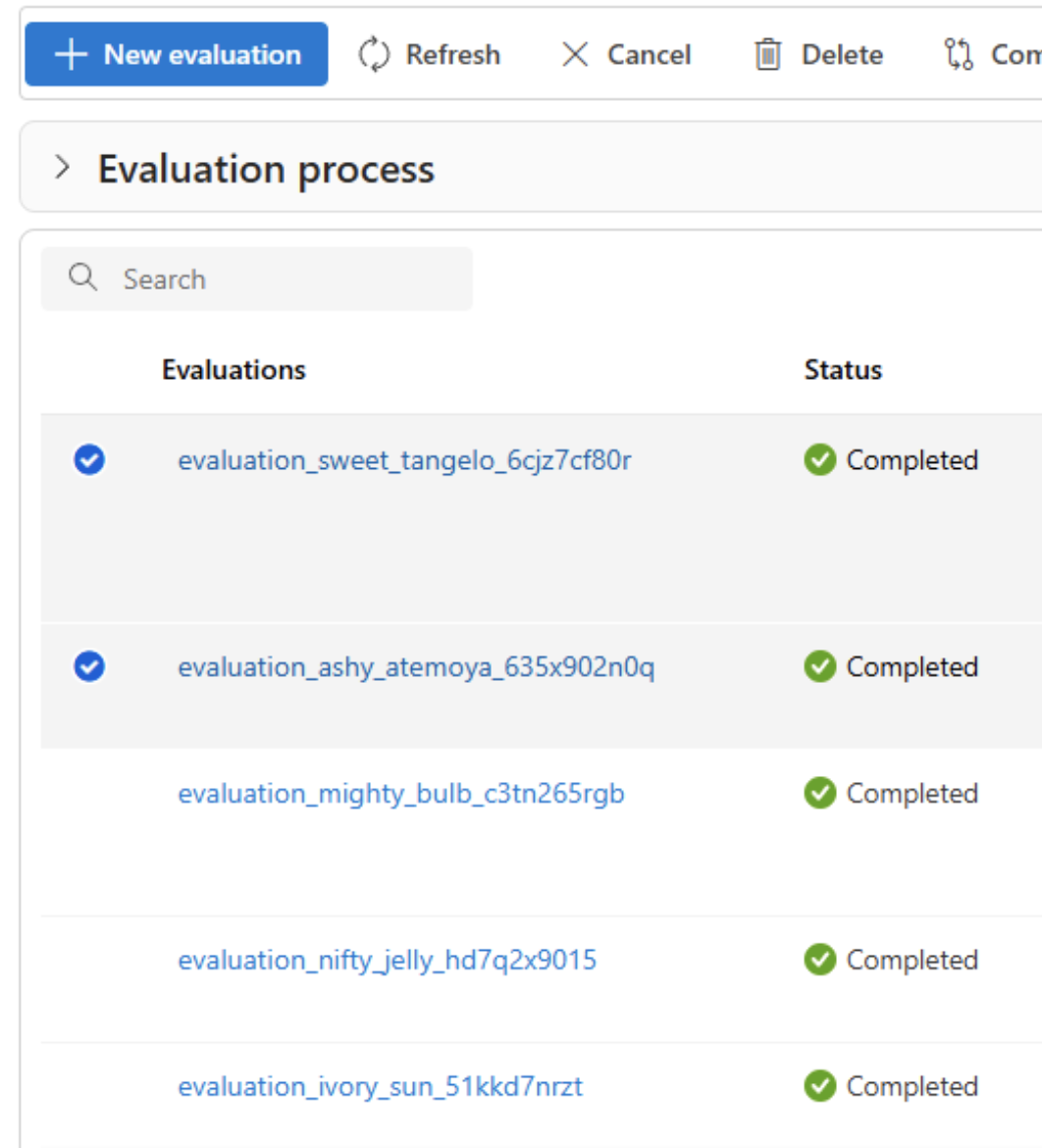
In the dashboard view, you have access to two valuable components: the metric distribution comparison Chart and the comparison Table. You can use these tools to perform a side-by-side analysis of the selected evaluation runs. You can compare various aspects of each data sample with ease and precision.
Note
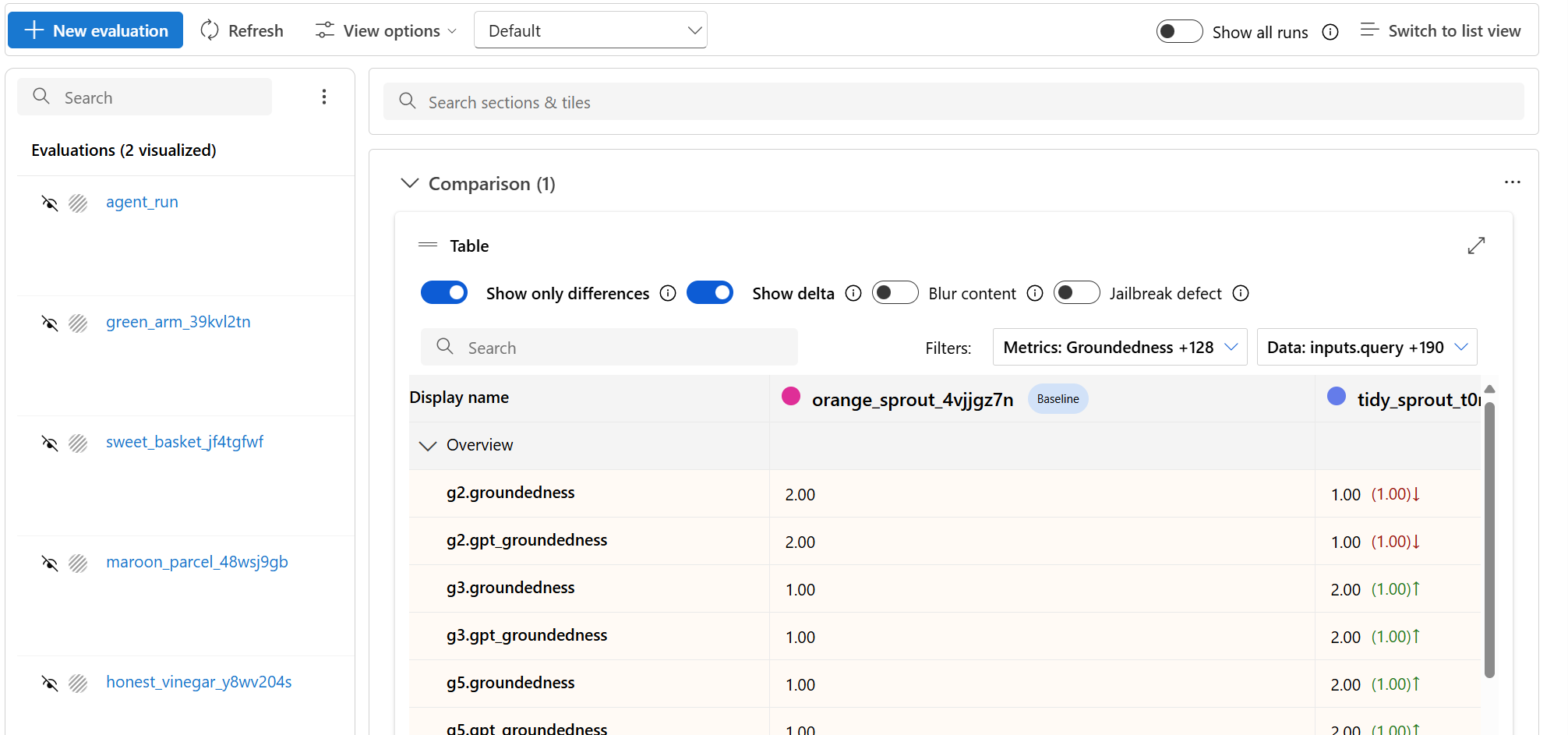
By default, older evaluation runs have matching rows between columns. However, newly run evaluations have to be intentionally configured to have matching columns during evaluation creation. Ensure that the same name is used as the Criteria Name value across all evaluations that you want to compare.
The following screenshot shows the results when the fields are the same:
When a user doesn't use the same Criteria Name in creating the evaluation, fields don't match, which causes the platform to be unable to directly compare the results:
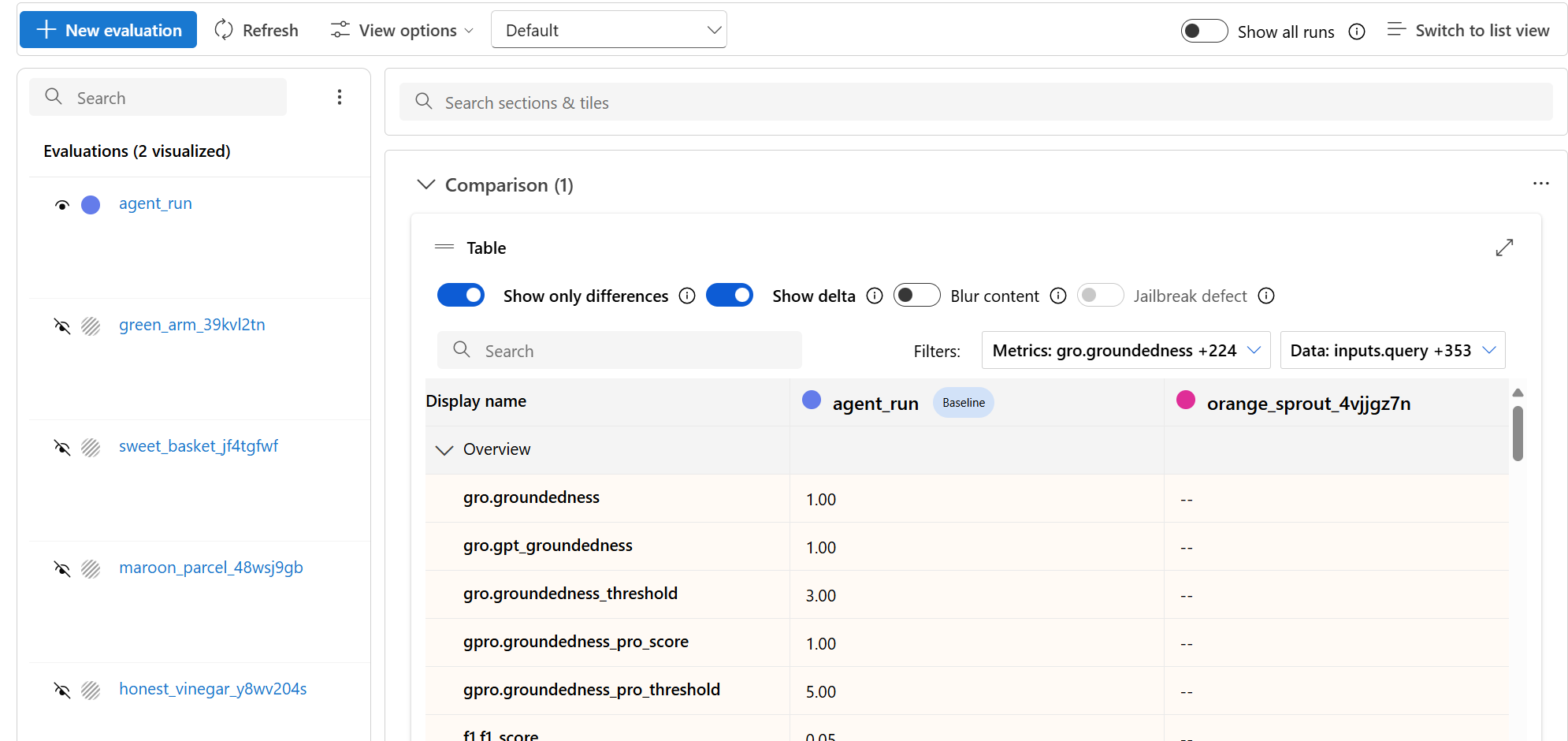
In the comparison table, hover over the run you want to use as the reference point and set it as the baseline. Activate the Show delta toggle to visualize differences between the baseline and other runs for numerical values. Select the Show only difference toggle to display only rows that differ among the selected runs, helping identify variations.
By using these comparison features, you can make an informed decision to select the best version:
- Baseline comparison: By setting a baseline run, you can identify a reference point against which to compare the other runs. You can see how each run deviates from your chosen standard.
- Numerical value assessment: Enabling the Show delta option helps you understand the extent of the differences between the baseline and other runs. This information can help you evaluate how various runs perform in terms of specific evaluation metrics.
- Difference isolation: The Show only difference feature streamlines your analysis by highlighting only the areas where there are discrepancies between runs. This information can be instrumental in pinpointing where improvements or adjustments are needed.
Use comparison tools to choose the best-performing configuration and avoid regressions in safety or groundedness.

To facilitate a comprehensive comparison between two or more runs, you can select the desired runs and initiate the process.
- Select two or more runs in the evaluation detail page.
- Select Compare.
It generates a side-by-side comparison view for all selected runs.
The comparison is computed based on statistic t-testing, which provides more sensitive and reliable results for you to make decisions. You can use different functionalities of this feature:
- Baseline comparison: By setting a baseline run, you can identify a reference point against which to compare the other runs. You can see how each run deviates from your chosen standard.
- Statistic t-testing assessment: Each cell provides the stat-sig results with different color codes. You can also hover on the cell to get the sample size and p-value.
| Legend | Definition |
|---|---|
| ImprovedStrong | Highly stat-sig (p<=0.001) and moved in the desired direction |
| ImprovedWeak | Stat-sig (0.001<p<=0.05) and moved in the desired direction |
| DegradedStrong | Highly stat-sig (p<=0.001) and moved in the wrong direction |
| DegradedWeak | Stat-sig (0.001<p<=0.05) and moved in the wrong direction |
| ChangedStrong | Highly stat-sig (p<=0.001) and desired direction is neutral |
| ChangedWeak | Stat-sig (0.001<p<=0.05) and desired direction is neutral |
| Inconclusive | Too few examples, or p>=0.05 |
Note
The comparison view won't be saved. If you leave the page, you can reselect the runs and select Compare to regenerate the view.
Measure jailbreak vulnerability
Evaluating jailbreak vulnerability is a comparative measurement, not an AI-assisted metric. Run evaluations on two different, red-teamed datasets: a baseline adversarial test dataset versus the same adversarial test dataset with jailbreak injections in the first turn. You can use the adversarial data simulator to generate the dataset with or without jailbreak injections. Ensure that the Criteria Name value is the same for each evaluation metric when you configure the runs.
To check if your application is vulnerable to jailbreak, specify the baseline and turn on the Jailbreak defect rates toggle in the comparison table. The jailbreak defect rate is the percentage of instances in your test dataset where a jailbreak injection generates a higher severity score for any content risk metric compared to a baseline across the entire dataset. Select multiple evaluations in your Compare dashboard to view the difference in defect rates.

Tip
The jailbreak defect rate is calculated only for datasets of the same size and when all runs include content risk and safety metrics.
Understand the built-in evaluation metrics
Understanding the built-in metrics is essential for assessing the performance and effectiveness of your AI application. By learning about these key measurement tools, you can interpret the results, make informed decisions, and fine-tune your application to achieve optimal outcomes.
To learn more, see What are evaluators?.
Troubleshooting
| Symptom | Possible cause | Action |
|---|---|---|
| Run stays pending | High service load or queued jobs | Refresh, verify quota, and resubmit if prolonged |
| Metrics missing | Not selected at creation | Rerun and select required metrics |
| All safety metrics zero | Category disabled or unsupported model | Confirm model and metric support matrix |
| Groundedness unexpectedly low | Retrieval/context incomplete | Verify context construction / retrieval latency |
Related content
- Improve low metrics with prompt iteration or fine-tuning.
- Run evaluations in the cloud with the Microsoft Foundry SDK.
Learn how to evaluate your generative AI applications: