Note
Access to this page requires authorization. You can try signing in or changing directories.
Access to this page requires authorization. You can try changing directories.
Suppose you have files of different types—such as documents, images, audio, or video—and you want to automatically extract key information from them. With Content Understanding, you can create a task to organize your data processing, define a field schema that specifies the information to extract or generate, and then build an analyzer. The analyzer becomes an API endpoint that you can integrate into your applications or workflows.
This guide shows you how to use Content Understanding Standard and Pro modes in the Microsoft Foundry (classic) portal to build and test a custom analyzer that extracts structured information from your data.
Note
Foundry (classic) portal uses a preview API (2025-05-01-preview).
Choosing between Standard and Pro modes (Preview)
Content Understanding offers two modes for different scenarios:
Standard mode - Ideal for processing single files with straightforward field extraction. Use standard mode when you need to extract structured data from individual documents, images, audio, or video files without cross-file analysis or complex reasoning requirements.
Pro mode - Designed for advanced scenarios requiring multi-step reasoning and cross-file analysis. Use pro mode when you need to:
- Process multiple input files in a single request
- Apply reasoning across different documents to validate, enrich, or aggregate data
- Use reference data (knowledge base) to guide extraction and validation
- Perform complex multi-step analysis that goes beyond simple field extraction
For detailed guidance on which mode to choose for your scenario, see Azure Content Understanding standard and pro modes (preview).
Note
Pro mode is a preview feature available only in this preview API version (2025-05-01-preview). For Standard Mode, you can transition to the GA API (2025-11-01) with minimal changes. See GA Migration Guide
Prerequisites
To get started, make sure you have the following resources and permissions:
An Azure subscription. If you don't have an Azure subscription, create a free account.
A Foundry project in a supported region. For a full list of supported regions, check out language and region support. See the instructions below to learn how to create your first project.
Create your first project
To get started with Content Understanding in the Foundry portal, follow these steps to create a project. A project lets you organize your work and save state while building customized AI apps. All work with Content Understanding happens in a project.
From the home page of Foundry portal, select "Create new" in the top right corner.
Foundry supports two project types:
Foundry resourceandAI hub resource. Both project types work with Content Understanding. For the most up-to-date experience, use theFoundry resource. For more context on the project types, see Create a project for Foundry.If you're creating a Foundry project, select
Advanced optionsand choose a supported region.If you're creating a hub-based project, select or create a hub to proceed. Ensure that the hub is in a supported region. If you don't have a hub or your hub isn't in a supported region, select the option at the top of the dropdown to create a new hub and fill out the required inputs.
Create your single-file task powered by Content Understanding Standard mode
Follow these steps to create a custom task in the Foundry. Use this task to build your first analyzer.
- Go to the Home page of Foundry.
- Select your project. You might need to select View all resources to see your project.
- Select Content Understanding from the left navigation pane.
- Select + Create.
- Select to create a
Single-file taskthat uses Content Understanding Standard mode. For more information on which mode is right for your scenario, check out Azure Content Understanding in Foundry Tools pro and standard modes (preview). - Enter a name for your task. Optionally, enter a description and change other settings.
- Select Create.
Create your first analyzer
Now that everything is configured, you can build your first analyzer.
When you create a single-file Content Understanding task, you start by uploading a sample of your data and building your field schema. The schema is the customizable framework that allows the analyzer to extract insights from your data. In this example, you create the schema to extract key data from an invoice document, but you can bring in any type of data and the steps remain the same. For a complete list of supported file types, see input file limits.
Upload a sample file of an invoice document or any other data relevant to your scenario.

Next, the Content Understanding service suggests analyzer templates based on your content type. Check out Analyzer templates offered with Content Understanding for a full list of all templates offered for each modality. For this example, select Document analysis to build your own schema tailored to the invoice scenario. When using your own data, select the analyzer template that best fits your needs, or create your own. See Analyzer templates for a full list of available templates.
Select Create.

Next, add fields to your schema to reflect all of the outputs you want to generate.
Specify clear and simple field names. Some example fields might include vendorName, items, price.
Indicate the value type for each field (strings, dates, numbers, lists, groups). To learn more, see supported field types.
[Optional] Provide field descriptions to explain the desired behavior, including any exceptions or rules.
Specify the method to generate the value for each field.
For best practices on how to define your field schema, refer to best practices for Content Understanding. It might take a few minutes to build out your schema.
When your schema is ready to test, select Save. You can always come back and make changes if needed.

With the completed schema, Content Understanding now generates the output on your sample data. At this step, you can add more data to test the analyzer's accuracy or make changes to the schema if needed.

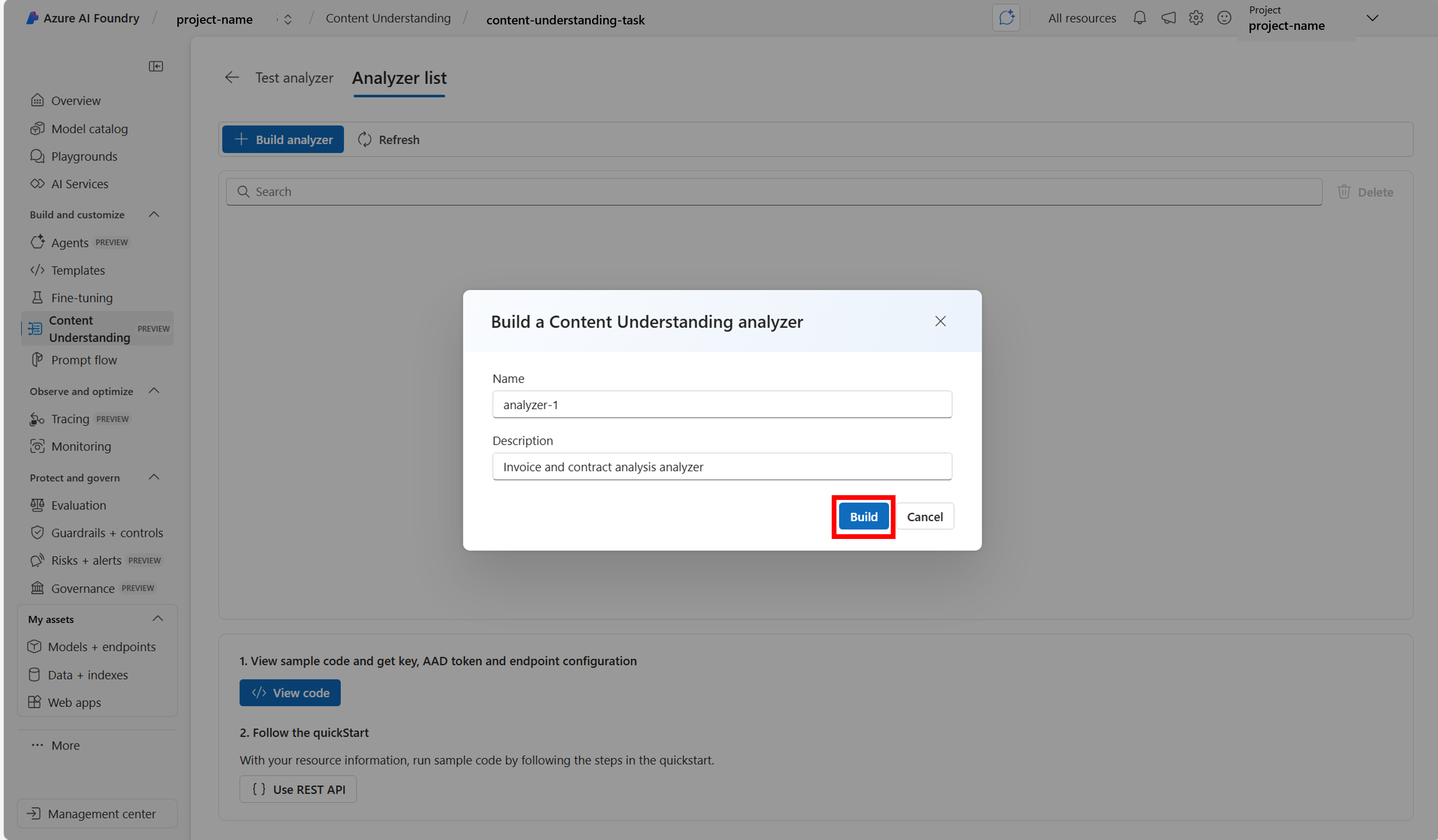
When you're satisfied with the quality of your output, select Build analyzer. This action creates an analyzer ID that you can integrate into your own applications, allowing you to call the analyzer from your code.

You've successfully built your first Content Understanding analyzer and are ready to start extracting insights from your data. Check out Quickstart: Content Understanding REST APIs to utilize the REST API to call your analyzer.



Sharing your project
To share the project you created and manage access, go to the Management Center. You can find it at the bottom of the navigation pane for your project:

In the Management Center, you can manage users and assign individual roles:

Next steps
- Learn how to call the REST API at Quickstart: Content Understanding REST APIs