Note
Access to this page requires authorization. You can try signing in or changing directories.
Access to this page requires authorization. You can try changing directories.
In this tutorial, you learn to categorize and triage incoming email using custom text classification. With this Power Automate flow, a new email is received, its contents are classified, and, depending on the result, a message is sent to a designated channel on Microsoft Teams.
Prerequisites
- Azure subscription - Create one for free
- A Language resource
- A trained custom text classification model.
- You need the key and endpoint from your Language resource to authenticate your Power Automate flow.
- A successfully created and deployed single text classification custom model
Create a Power Automate flow
From the left side menu, select My flows and create a Automated cloud flow

Name your flow
EmailTriage. Below Choose your flow's triggers, search for email and select When a new email arrives. Then select create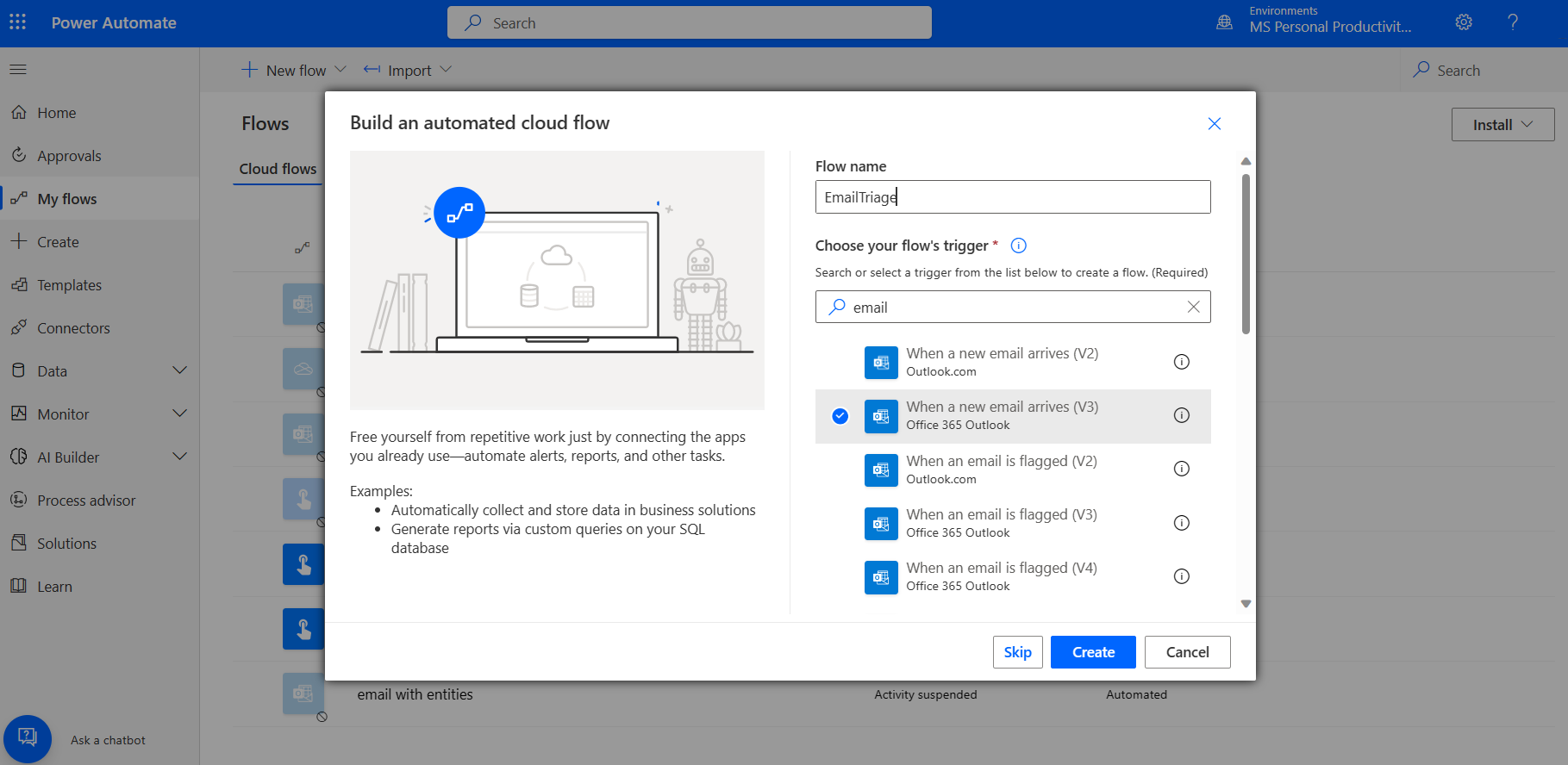
Add the right connection to your email account. This connection is used to access the email content.
To add a Language connector, search for Azure Language in Foundry Tools.
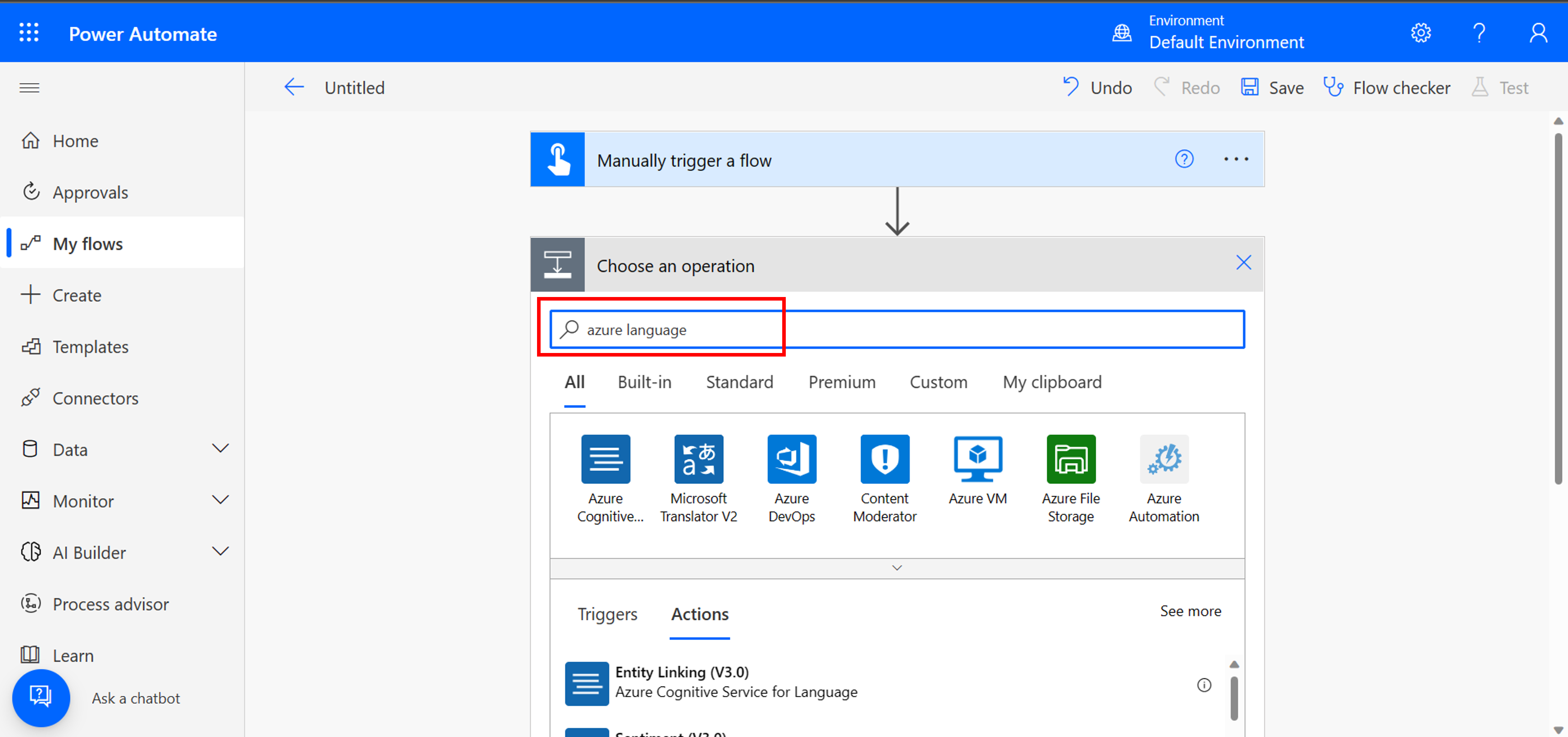
Search for CustomSingleLabelClassification.

Start by adding the right connection to your connector. This connection is used to access the classification project.
In the documents ID field, add 1.
In the documents text field, add body from dynamic content.
Fill in the project name and deployment name of your deployed custom text classification model.

Add a condition to send a Microsoft Teams message to the right team by:
- Select results from dynamic content, and add the condition. For this tutorial, we're looking for
Computer_sciencerelated emails. In the Yes condition, choose your desired option to notify a team channel. In the No condition, you can add other conditions to perform alternative actions.

- Select results from dynamic content, and add the condition. For this tutorial, we're looking for


