Note
Access to this page requires authorization. You can try signing in or changing directories.
Access to this page requires authorization. You can try changing directories.
After you deploy your custom translation model, you can access it with the Azure Translator API by using the Category ID parameter.
How to translate
Use the Category ID when making a custom translation request via Microsoft Translator Text API V3.
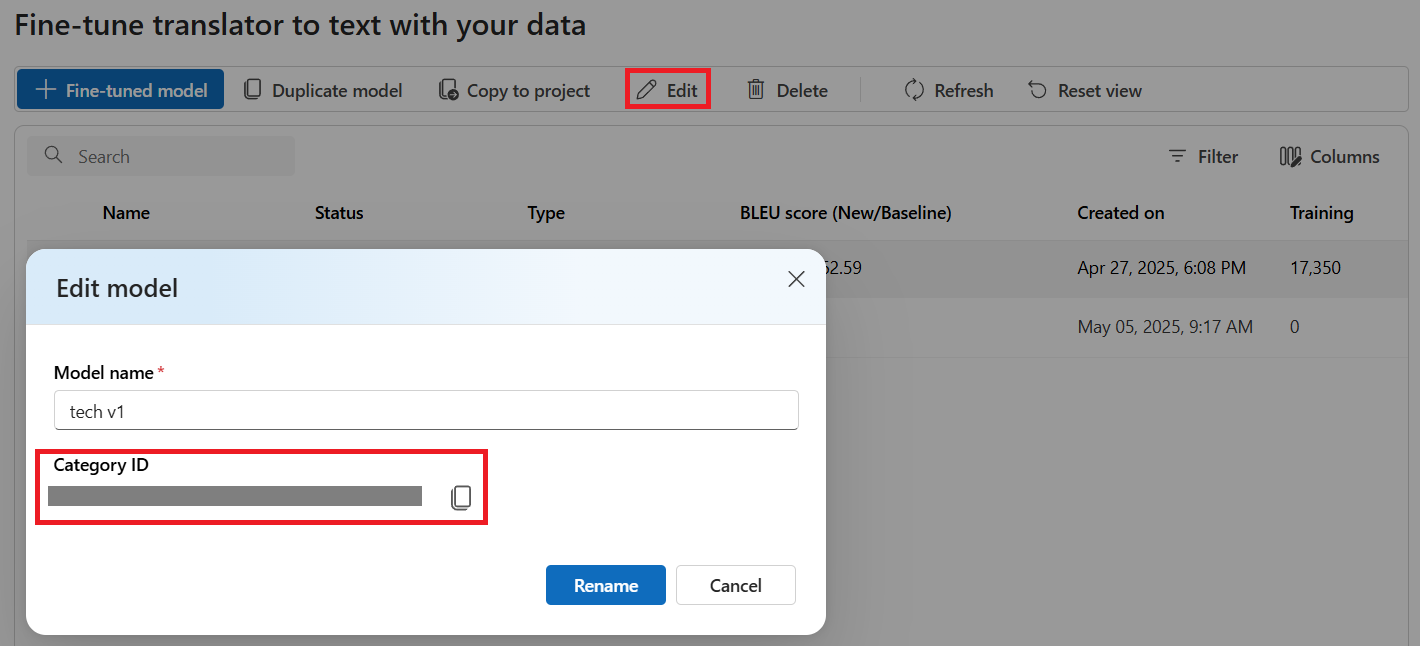
To find the model Category ID, select Train model from the left menu then select the model name.
Select Edit and copy the Category ID.
  curl.exe -X POST "https://<resource-name>.cognitiveservices.azure.com/translator/text/v3.0/translate?api-version=3.0&from=en&to=de&category=<category-id>" \
  -H "Ocp-Apim-Subscription-Key:<resource- key>" \
  -H "Ocp-Apim-Subscription-Region:<your-region>" \
  -H "Content-Type: application/json" -d "[{'Text':'Hello, what is your name?'}]"
More information about the Translator Text API can be found on the Translator API Reference page.
You can also use Microsoft Foundry > AI Services > Language + Translator > Translation > Text translation

Note
Use Category ID for Custom translator model ID.