Note
Access to this page requires authorization. You can try signing in or changing directories.
Access to this page requires authorization. You can try changing directories.
APPLIES TO: All API Management tiers
This tutorial shows how to import an OpenAPI specification backend API in JSON format into Azure API Management. For this example, you import the open source Petstore API.
Tip
API teams can use this feature in workspaces. Workspaces provide isolated administrative access to APIs and their own API runtime environments.
When you import the backend API into API Management, your API Management API becomes a façade for the backend API. You can customize the façade to your needs in API Management without changing the backend API. For more information, see Transform and protect your API.
In this tutorial, you learn how to:
- Import an API into API Management
- View and modify API settings
- Test the API in the Azure portal
- Route API requests through API Management
After import, you can manage the API in the Azure portal.
Prerequisites
Go to your API Management instance
In the Azure portal, search for and select API Management services:

On the API Management services page, select your API Management instance:


Import and publish a backend API
This section shows how to import and publish an OpenAPI specification backend API.
In the left navigation of your API Management instance, under APIs, select APIs.
Select the OpenAPI tile.
In the Create from OpenAPI specification window, select Full.
Enter the values from the following table.
You can set API values during creation or later by going to the Settings tab.

Setting Value Description OpenAPI specification https://petstore3.swagger.io/api/v3/openapi.json -or- https://petstore.swagger.io/v2/swagger.json Specifies the backend service implementing the API and the operations that the API supports.
The backend service URL appears later as the Web service URL on the API's Settings page.
After import, you can add, edit, rename, or delete operations in the specification.Include query parameters in operation templates Selected (default) Specifies whether to import required query parameters in the specification as template parameters in API Management. Display name After you enter the OpenAPI specification URL, API Management fills out this field based on the JSON. The name displayed in the developer portal. Name After you enter the OpenAPI specification URL, API Management fills out this field based on the JSON. A unique name for the API. Description After you enter the OpenAPI specification URL, API Management fills out this field based on the JSON. An optional description of the API. URL scheme HTTPS Which protocols can access the API. API URL suffix petstore The suffix appended to the base URL for the API Management service. API Management distinguishes and routes APIs by their suffix, so the suffix must be unique for every API for a given publisher. Learn more about how API Management routes requests. Tags Tags for organizing APIs for searching, grouping, or filtering. Products Unlimited Association of one or more APIs. In certain tiers, API Management instance comes with two sample products: Starter and Unlimited. You publish an API in the developer portal by associating the API with a product.
You can include several APIs in a product and offer product subscriptions to developers through the developer portal. To add this API to another product, type or select the product name. Repeat this step to add the API to multiple products. You can also add APIs to products later from the Settings page.
For more information about products, see Create and publish a product.Gateways Managed API gateway(s) that expose the API. This field is available only in Developer and Premium tier services.
Managed indicates the gateway built into the API Management service and hosted by Microsoft in Azure. Self-hosted gateways are available only in the Premium and Developer service tiers. You can deploy them on-premises or in other clouds.
If you don't select any gateways, the API isn't available and your API requests don't succeed.Version this API? Select or deselect For more information, see Publish multiple versions of your API. Select Create to create your API.
If you have problems importing an API definition, see the list of known issues and restrictions.
View and modify API settings
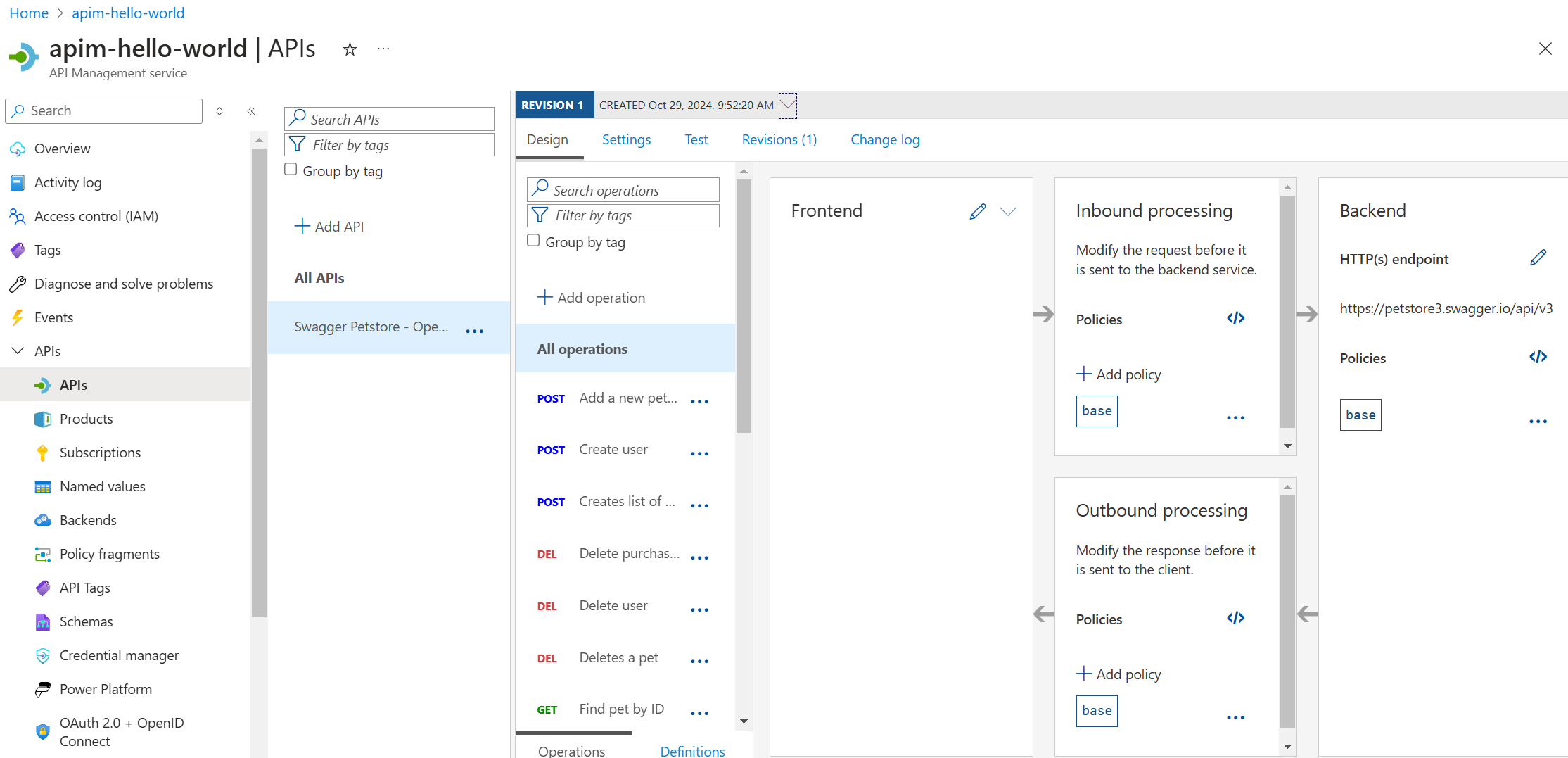
After importing your API, you can view and modify its settings and operations in the Azure portal.
In the left navigation of your API Management instance, under APIs, select APIs.
Select your imported API (for example, Swagger Petstore).

Select the Design tab to view and modify API operations in the OpenAPI specification, including:
- Operation details such as URL, method, and description
- Request and response definitions
- Policies to modify requests and responses
Select the Settings tab to view and modify API configuration details, including:
- Display name, name, and description
- Web service URL (backend service), URL scheme, and API URL suffix
- Products, tags, and versioning
- More advanced settings, such as subscription requirements, security, and monitoring

As you go through the API Management tutorials, you learn more about configuring API settings. You can update these settings at any time to customize your API configuration.
Test the new API in the Azure portal
You can call API operations directly from the Azure portal, which provides a convenient way to view and test the operations. In the portal's test console, by default, APIs are called by using a key from the built-in all-access subscription. You can also test API calls by using a subscription key scoped to a product.
In the left navigation of your API Management instance, select APIs > APIs > Swagger Petstore.
Select the Test tab, and then select Finds Pets by status. The page shows the status Query parameter. Select one of the available values, such as pending. You can also add query parameters and headers here.
In the HTTP request section, the Ocp-Apim-Subscription-Key header is filled in automatically for you, which you can see if you select the "eye" icon.
Select Send.
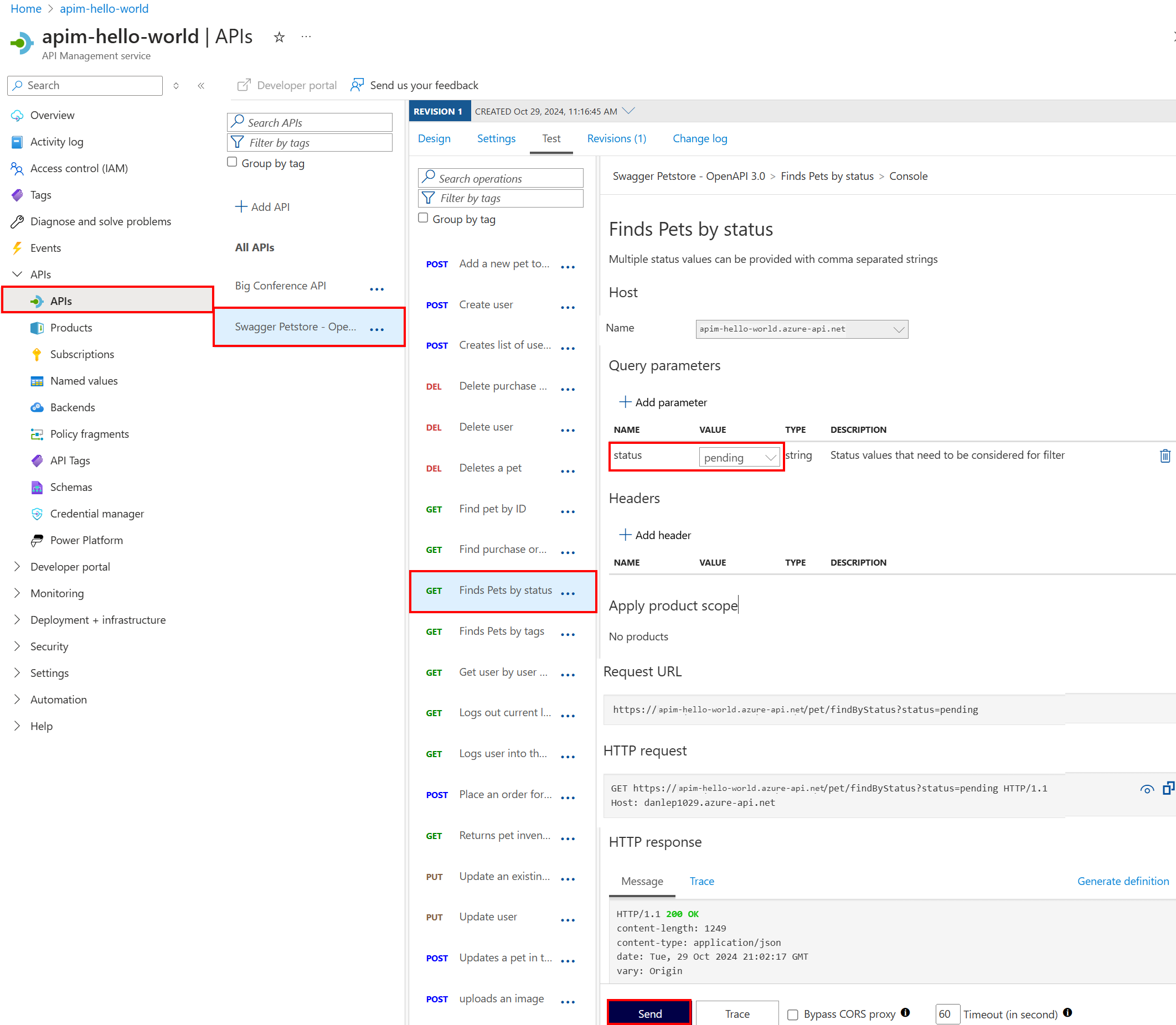
The backend responds with 200 OK and some data.
How API Management routes requests
API Management acts as a gateway between your API clients and your backend services. When a client makes a request to an API managed by API Management, the routing follows this pattern:
Client request URL:
[API Management gateway URL] + [API URL suffix] + [Operation endpoint]
API Management forwards the request to the backend service using this pattern:
Backend service URL:
[Web service URL] + [Operation endpoint]
Note
The Operation endpoint must be identical in both the API Management API definition and the backend service for routing to work correctly. Mismatched operation endpoints result in 404 or other routing errors.
The following table describes each routing parameter in the context of the Petstore API example used in this tutorial:
| Parameter | Description | Example (Petstore API) |
|---|---|---|
| API Management gateway URL | The base URL of your API Management instance | https://apim-hello-world.azure-api.net |
| API URL suffix | The unique suffix that identifies your API in API Management (configured during API creation) | petstore |
| Web service URL | The base URL of your backend service derived from the OpenAPI specification | https://petstore3.swagger.io/api/v3 |
| Operation endpoint | The path to a specific operation endpoint (derived from your API specification) | /pet/findByStatus |
Example: Finding pets by status
Using the Petstore API imported in this tutorial:
Client calls API Management:
https://apim-hello-world.azure-api.net/petstore/pet/findByStatus?status=pending- API Management gateway URL:
https://apim-hello-world.azure-api.net - API URL suffix:
petstore - Operation endpoint:
/pet/findByStatus
- API Management gateway URL:
API Management routes to backend:
https://petstore3.swagger.io/api/v3/pet/findByStatus?status=pending- Web service URL:
https://petstore3.swagger.io/api/v3 - Operation endpoint:
/pet/findByStatus(same as in the API Management definition)
- Web service URL:
Next steps
In this tutorial, you learned how to:
- Import your first API
- View and modify API settings
- Test the API in the Azure portal
- Route API requests through API Management
Advance to the next tutorial to learn how to create and publish a product: