Note
Access to this page requires authorization. You can try signing in or changing directories.
Access to this page requires authorization. You can try changing directories.
In this quickstart, you learn how to debug your Playwright tests by using the reporting feature in Playwright Workspaces. Perform advanced diagnostics on your Playwright tests by saving your test reports to Azure storage and viewing them in Azure portal by using the Playwright Workspaces reporter.
Prerequisites
- An Azure account with an active subscription. If you don't have an Azure subscription, create a free account before you begin.
- Your Azure account needs the Owner, Contributor, or one of the classic administrator roles.
- A Playwright project that uses Playwright runner and JavaScript SDK (NUnit and other runners aren't currently supported). If you don't have a project, create one by using the Playwright getting started documentation or use the Playwright Workspaces sample project.
- The Playwright project must use Playwright package (@plawright/test) version 1.57 or later.
- Azure CLI. If you don't have Azure CLI, see Install Azure CLI.
- The Playwright Workspace must use Microsoft Entra ID authentication. Authentication using an access token isn't supported for reporting.
Enable reporting and link a storage account to a workspace
To get started with Playwright Workspaces reporting, the first step is to enable reporting in your workspace and link a storage account to store your reporting artifacts. You can get started with a new workspace or use your existing workspace.
Sign in to the Azure portal by using the credentials for your Azure subscription.
From the portal Home page, search for and select Azure App Testing.

On the Azure App Testing hub, select Create under Playwright Workspaces

On the Create a Playwright workspace resource page, enter the following information:
Field Description Subscription Select the Azure subscription that you want to use for this Playwright workspace. Resource group Select an existing resource group. Or select Create new, and then enter a unique name for the new resource group. Name Enter a unique name for your workspace.
The name can only consist of alphanumerical characters and hyphens, and have a length between 3 and 24 characters.Location Select a geographic location for your workspace.
This location also determines where the test execution results are stored.Reporting Toggle is set to Enabled by default to enable users to save and view their test run reports from Playwright Workspace. If you want to turn off reporting, toggle the setting to Disabled. Storage account Toggle is set to Enabled by default to enable users to save and view their test run reports from Playwright Workspace. If you want to turn off reporting, toggle the setting to Disabled. Note
Playwright Workspaces reporting uses Azure Storage to store your test reports and other artifacts. Storage costs are determined based on your storage account's data-retention settings.
Note
Optionally, you can configure more details on the Tags tab. Tags are name/value pairs that enable you to categorize resources and view consolidated billing by applying the same tag to multiple resources and resource groups.
After you finish configuring the resource, select Review + Create.
Review the settings you provide, and then select Create. It takes a few minutes to create the workspace. Wait for the portal page to display Your deployment is complete before moving on.
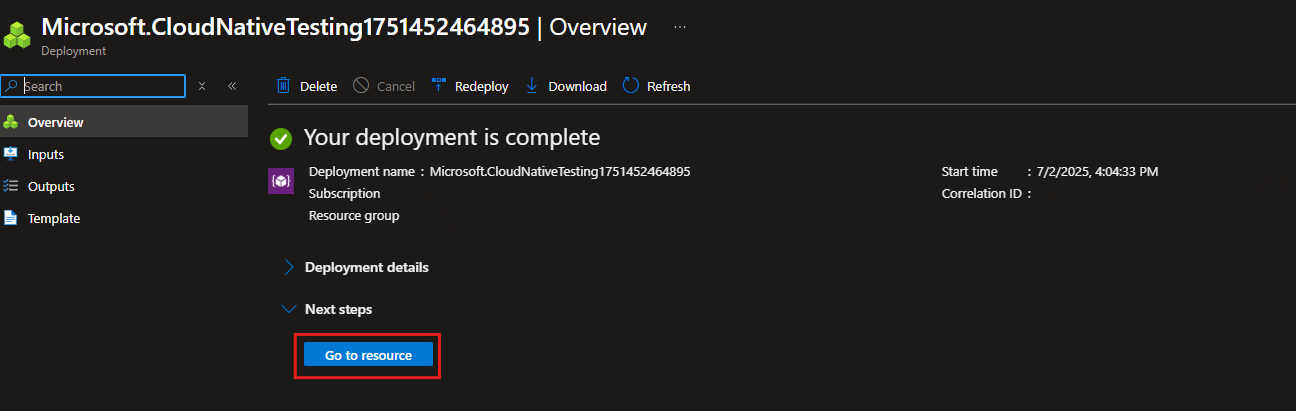


Add Role Based Access Control (RBAC) roles for the linked storage account
Open the linked storage account in Azure portal.
Go to the Access Control (IAM) tab.

Select Add role assignment.

Under Job function roles, search for and select Storage Blob Data Contributor role and click Next.

Select and add all members who run tests.

Click Review + assign.


Install Playwright Workspaces package
To use Playwright Workspaces, install the Playwright Workspaces package.
npm init @azure/playwright@latest
This command generates a playwright.service.config.ts file, which directs and authenticates Playwright to Playwright Workspaces.
If you already have this file, the package asks you to overwrite it.
Enable HTML and Playwright Workspaces reporter
To use the Playwright Workspaces reporting feature, enable the html and Playwright Workspaces reporter by adding the following setting in the playwright.service.config.ts file –
reporter: [
    ["html", { open: "never" }], // HTML reporter must come first
    ["@azure/playwright/reporter"], // Azure reporter uploads HTML report
]
Enable artifacts in your Playwright setup
In the playwright.config.ts file of your project, make sure you are collecting all the required artifacts.
use:
{
    trace: 'on-first-retry',
    video:'retain-on-failure',
    screenshot:'on'
}
Configure the browser endpoint
In your setup, you have to provide the region-specific browser endpoint. The endpoint depends on the Azure region you selected when creating the workspace.
To get the browser endpoint URL, perform the following steps:
Sign in to the Azure portal with your Azure account and navigate to your workspace.
Select the Get Started page.

In Add the browser endpoint to your setup, copy the endpoint URL.
Make sure this URL is available in the
PLAYWRIGHT_SERVICE_URLenvironment variable.


Set up your environment
To set up your environment, you have to configure the PLAYWRIGHT_SERVICE_URL environment variable with the value you obtained in the previous steps.
Use the dotenv module to manage your environment. Using the dotenv, you can define your environment variables in the .env file.
Add the
dotenvmodule to your project:npm i --save-dev dotenvAdd the following code snippet in
playwright.service.config.ts:require('dotenv').config();Create a
.envfile alongside theplaywright.config.tsfile in your Playwright project:PLAYWRIGHT_SERVICE_URL={MY-REGION-ENDPOINT}Make sure to replace the
{MY-REGION-ENDPOINT}text placeholder with the value you copied earlier.
Set up authentication
To run your Playwright tests in your Playwright workspace, you need to authenticate the Playwright client where you're running the tests with the service. Authenticate from either your local dev machine or CI machine.
Note
Playwright Workspaces reporter supports only Microsoft Entra ID based authentication. If you're using access tokens for authentication, you can't use reporting.
Set up authentication using Microsoft Entra ID
Microsoft Entra ID is the only supported authentication for using reporting feature in Playwright Workspace. From your local dev machine, you can use Azure CLI to sign in
az login
Note
If you're a part of multiple Microsoft Entra tenants, make sure you sign in to the tenant where your workspace belongs. You can get the tenant ID from Azure portal. See Find your Microsoft Entra Tenant. Once you get the ID, sign in using the command az login --tenant <TenantID>
Run your tests with Playwright Workspaces
You completed the configuration for running your Playwright tests in the cloud with Playwright Workspaces. You can either use the Playwright CLI to run your tests, or use the Playwright Test Visual Studio Code extension.
Open a terminal window.
Enter the following command to run your Playwright test suite on remote browsers in your workspace:
npx playwright test --config=playwright.service.config.ts --workers=20Depending on the size of your test suite, this command runs your tests on up to 20 parallel workers.
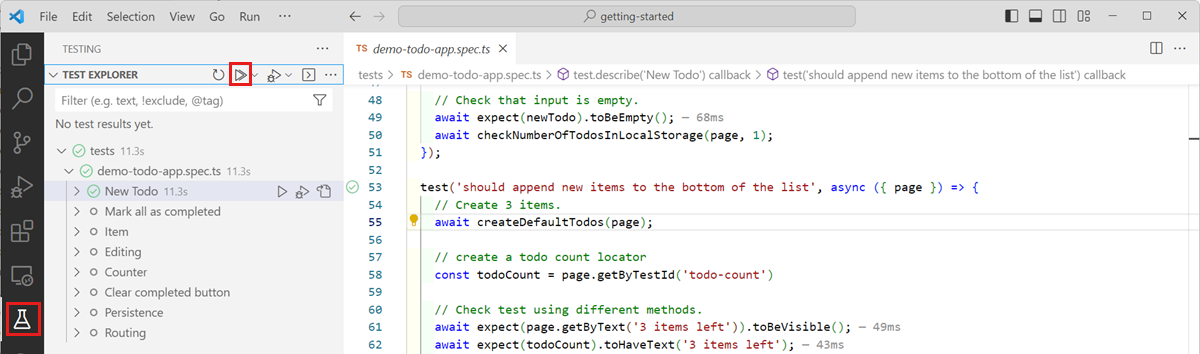
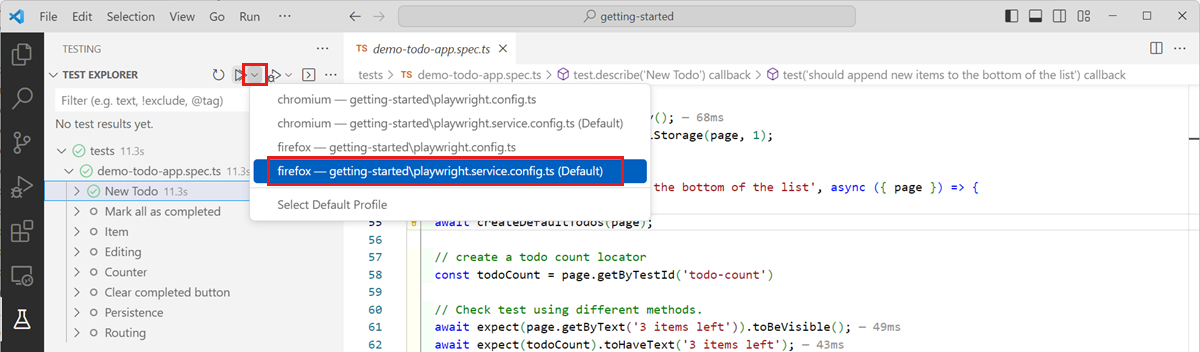
Debug test runs and results in the Azure portal
Add Role Based Access Control (RBAC) roles for the linked storage account
Open the linked storage account in Azure portal.
Go to the Access Control (IAM) tab.
Select Add role assignment.
Under Privileged administrator roles, search for and select Contributor* role and click Next.

Select and add all members who can view the test reports.

Click Review + assign.


(Only if trace is enabled) Allow list public trace viewer in the linked storage account
Open the linked storage account in Azure portal.
Go to Settings -> Resource sharing (CORS).

Under Blob service, add a new record:
- Allowed origins:
https://trace.playwright.dev - Allowed methods:
GET,OPTIONS - Max age: Enter a value between 0 and 2147483647.

- Allowed origins:
Select Save.


View saved test reports in Azure portal
You can now troubleshoot the failed test cases in the Azure portal.
After your test run completes, the reporter generates a link to the Test runs page in Azure portal. Open this link to view detailed test results and associated artifacts.

The Test runs page provides all the necessary information for troubleshooting. You can:
- View detailed error logs, test steps, and attached artifacts such as screenshots or videos.
- Navigate directly to the Trace Viewer for deeper analysis.

The Trace Viewer allows you to step through your test execution visually. You can:
- Use the timeline to hover over individual steps, revealing the page state before and after each action.
- Inspect detailed logs, DOM snapshots, network activity, errors, and console output for each step.


Tip
For a better experience, open the trace viewer in a new browser tab by pressing the Ctrl button and selecting View trace.