Note
Access to this page requires authorization. You can try signing in or changing directories.
Access to this page requires authorization. You can try changing directories.
Configure data queries and model settings for your Edge RAG chat solution to optimize your chat results. Adjust search types, tune model parameters, and refine your chat experience in the Edge RAG developer portal.
Important
Edge RAG Preview, enabled by Azure Arc is currently in PREVIEW. See the Supplemental Terms of Use for Microsoft Azure Previews for legal terms that apply to Azure features that are in beta, preview, or otherwise not yet released into general availability.
Prerequisites
Before you begin:
- Make sure you are in Knowledge-based chat mode.
- Review Search types in Edge RAG to understand the available search types and when to use them.
- Review Configuring the chat solution for Edge RAG to plan for data ingestion and choose the right prompt and model parameters.
- Add data source for the chat solution in Edge RAG
- To access the developer portal, you must have both the "EdgeRAGDeveloper" and "EdgeRAGEndUser" roles in Microsoft Entra.
Configure model settings
To get started, configure the model settings.
Go to the local portal using the domain name provided at deployment and app registration. For example,
https://arcrag.contoso.com.Sign in with developer credentials that have both "EdgeRAGDeveloper" and "EdgeRAGEndUser" roles assigned. If you have the right access configured, you're automatically redirected to the developer portal.
Select the Chat tab to get to the Chat playground.
In the Data inferencing pane, select the Search parameters section.
Select the Type of search.
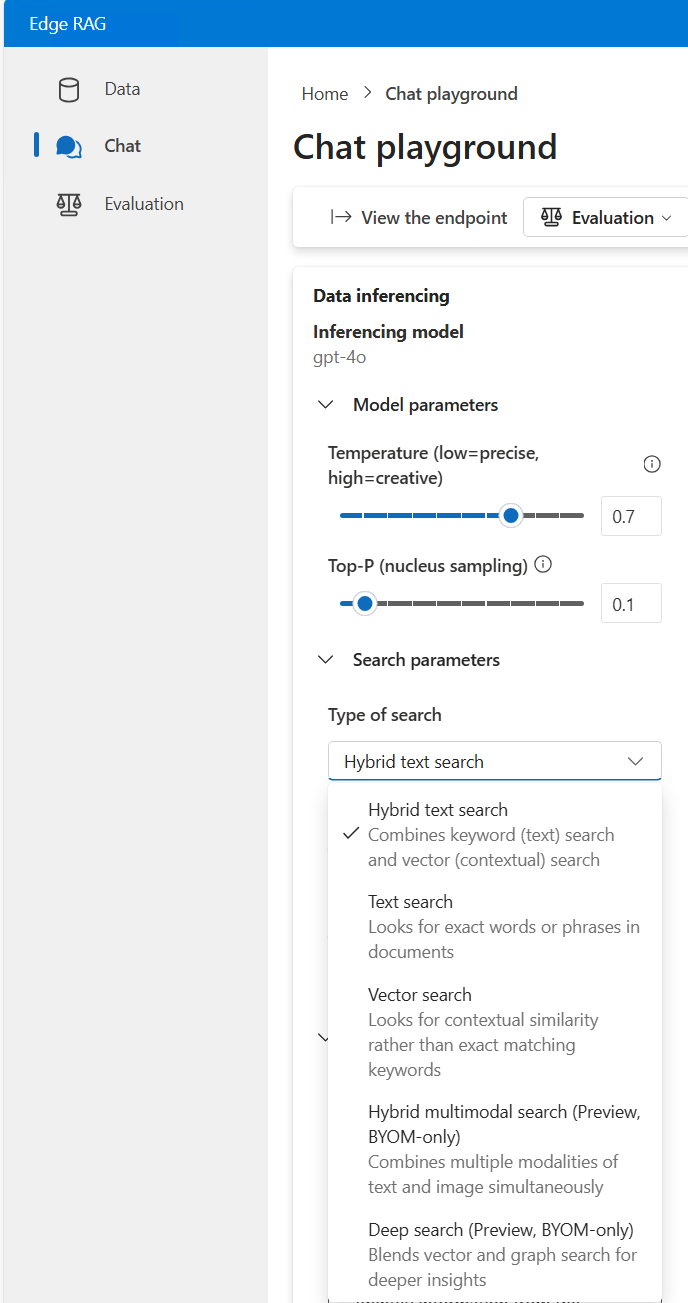
The available search types depend on your deployment:
Search type Edge RAG-provided model Bring your own model (BYOM) Hybrid text search (default value) Yes Yes Text search Yes Yes Vector search Yes Yes Hybrid multimodal search No Yes Deep search No Yes For any of the search types except Deep search:
- Under Model parameters, at the top of the Data inferencing pane, adjust the model parameters for Temperature and Top P as needed.
- Under Parameters, adjust the model parameters for Top-N documents and Text strictness as needed.
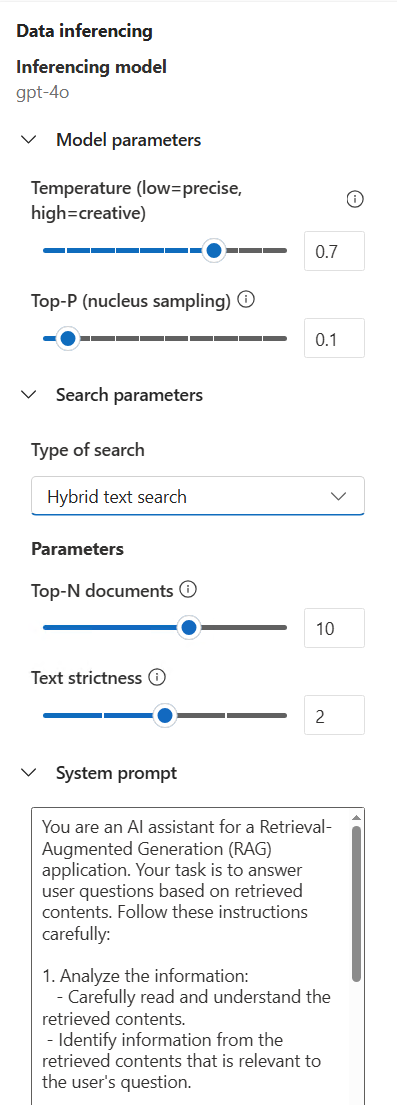
- Review and update the System prompt as needed for your solution.
If you select Deep search, adjust parameters such as Query expansion and Number of sub-queries as needed.
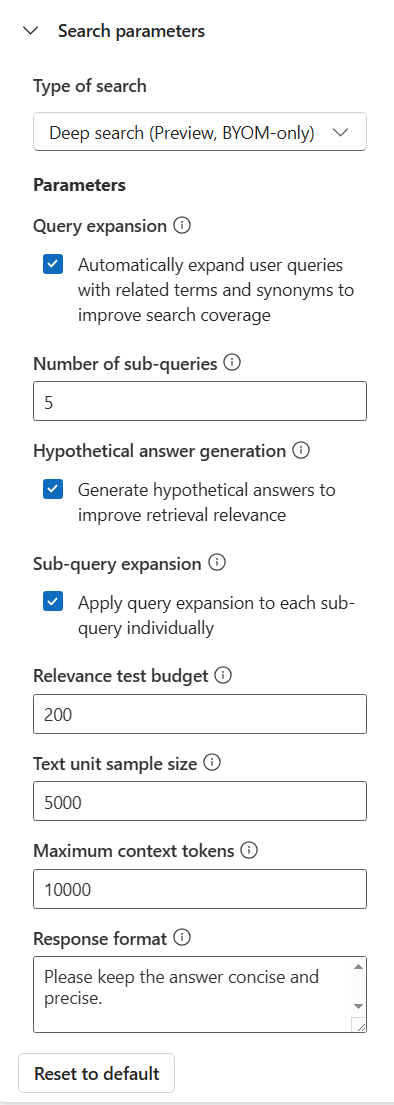
Any changes that you make are applied when you submit a new question in the chat.
Test chat results
Next, test the chat endpoint.
In the chat window, enter a question that uses a simple question and answer format. Queries that require summarization across multiple documents might not return accurate answers.
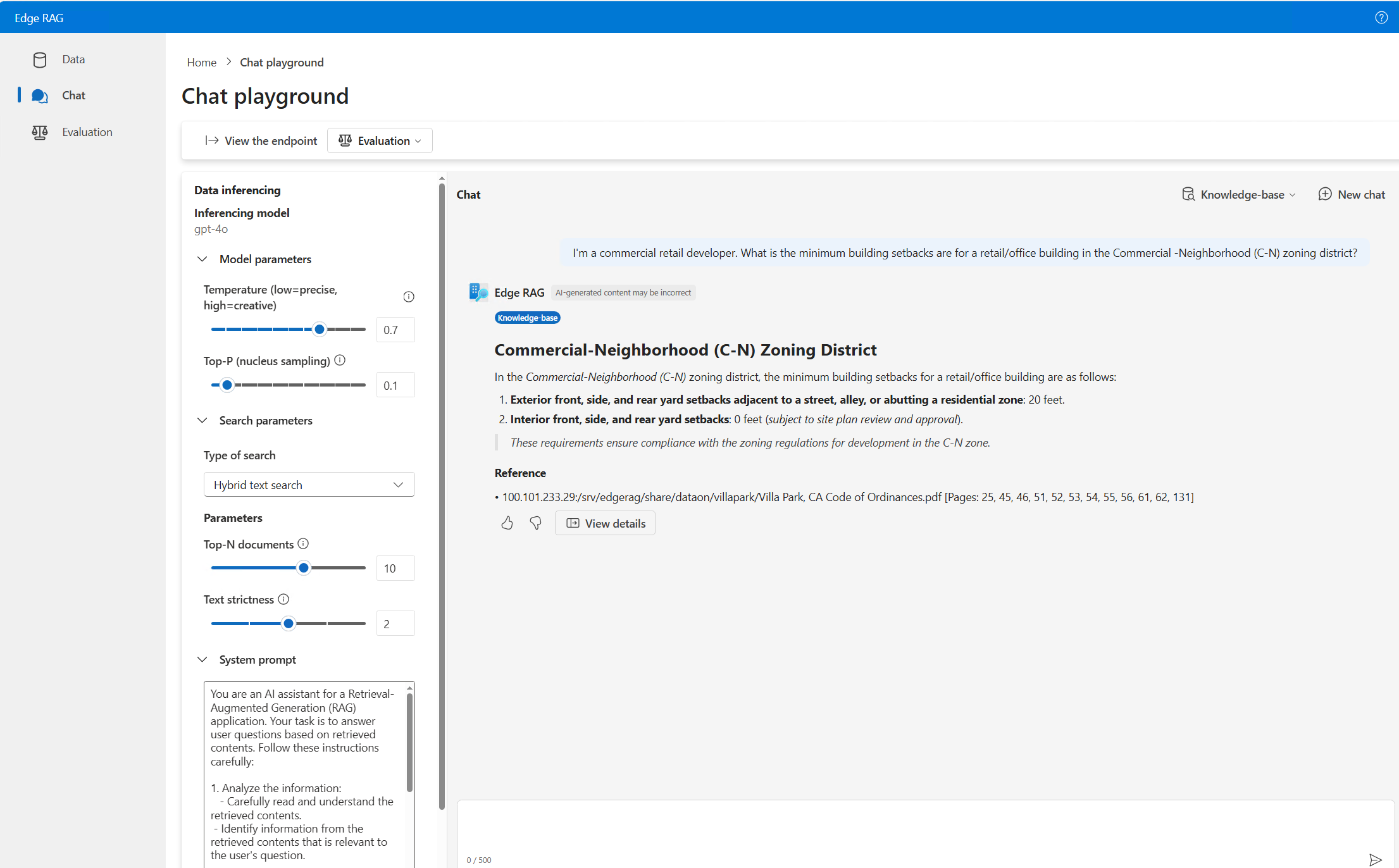
Be aware that with Edge RAG extension version
0.1.5and later each question is answered based on retrieved content only. The answer doesn't include the context of the chat history. Chat history isn't saved between questions. Treat each question as a new chat.(Optional) To see how the language model responds without using your ingested data, switch the chat mode to Model-only and enter your question. Switch back to Knowledge-based chat to keep refining your solution with your ingested data.
(Optional) Test the end user experience by using the chat solution app for Edge RAG.
View details to refine settings
Use the chat response details to analyze and fine-tune your model and search parameters to optimize your chat responses.
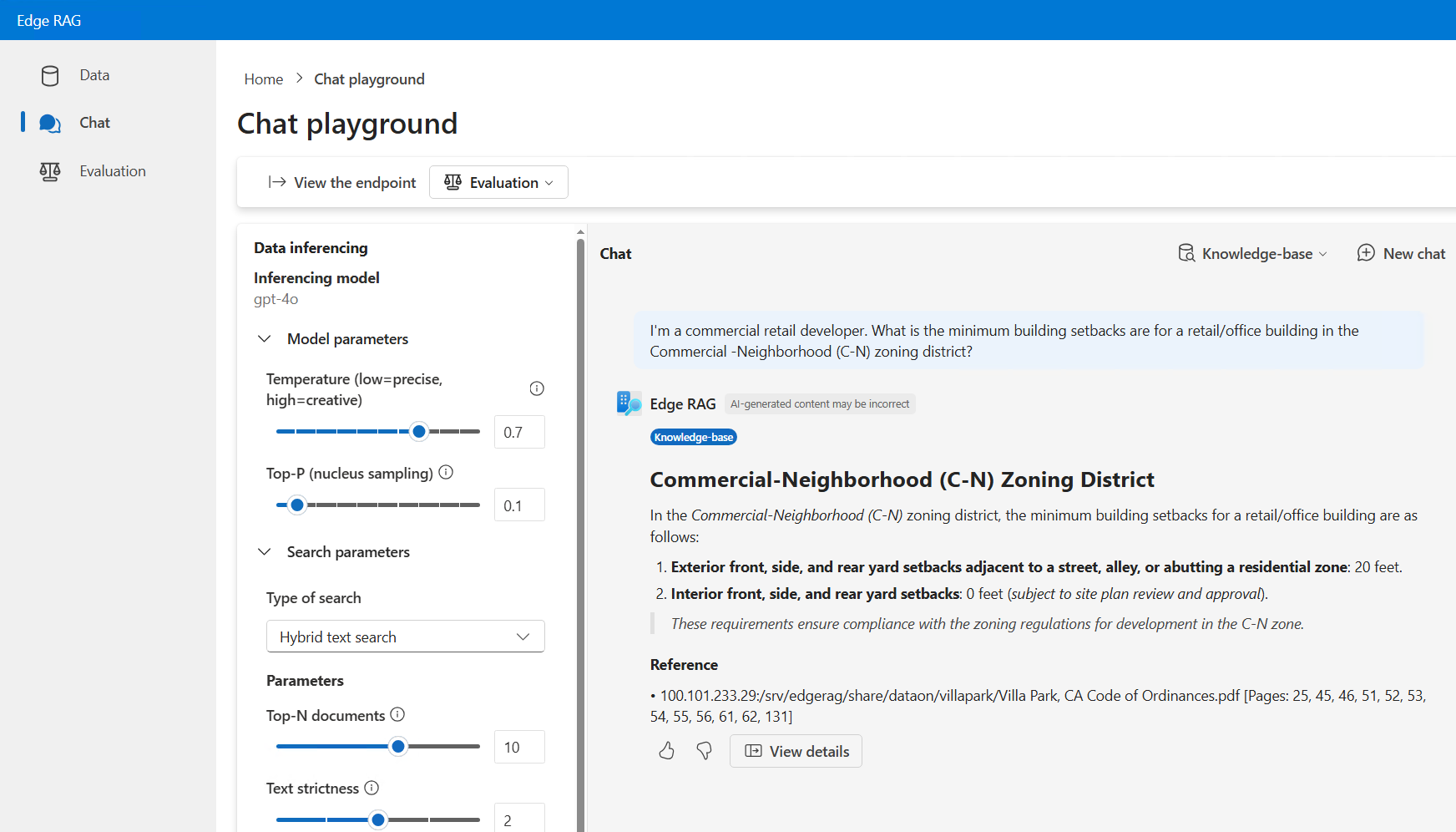
Under the chat response, select View details.
Use the chat details to understand the impact of the inferencing parameters on the language model's response to your question.
Field Description LLM response Response from the large language model (LLM) for the corresponding question. User question Question asked by user. Search type The method used to find relevant information for your question, such as hybrid, text, vector, or deep search. Parameters Parameters that are used to search content and generate LLM response. System prompt The custom instructions set by the developer to guide the language model’s responses. This information is available for all search types except deep search. Reranked chunks Shows search IDs by reranking score. This information is available for all search types except deep search. LLM Input chunks Relevant chunks passed to LLM as retrieved content; the chunks are selected based on text strictness and image strictness. This information is available for all search types except deep search. Search details Shows search details. Results from text search Results from textual search for a query; each result shows reranking score, search distance, text, file path, chunk ID, and last modified date. Results from vector search Results from semantic search for a query; each result shows reranking score, search distance, text, file path, chunk ID, and last modified date. Results from image search Results from image search for a query, each result shows reranking score, file path, last modified date. 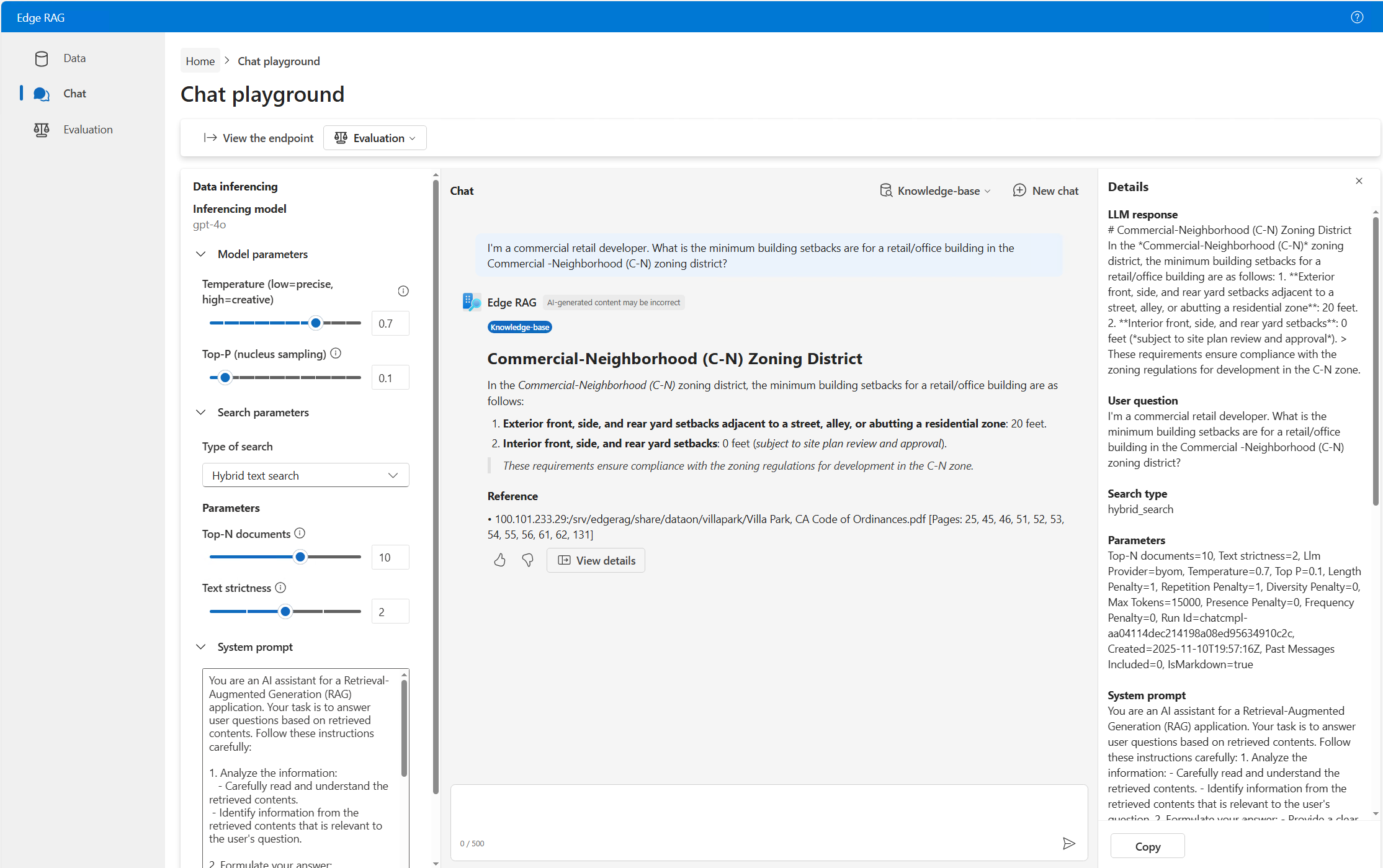
To analyze the Details, select Copy to paste a JSON version of the text into a text editor.
Tune the inferencing parameters to get the type of responses that you want for your ingested data.
Get the API endpoint
When you're satisfied with the solution, select on View the endpoint to get the API endpoint to use in your downstream applications.