Note
Access to this page requires authorization. You can try signing in or changing directories.
Access to this page requires authorization. You can try changing directories.
The auto-export feature for Azure Managed Lustre is a capability that automatically synchronizes changes in your Azure Managed Lustre file system with a linked Azure Blob Storage container.
Using this feature can help ensure that new and modified files in the file system are reflected in the associated Blob Storage container without manual intervention. This streamlines data management and improves synchronization for long-term storage.
Auto-export functionality
Auto-export operates by continuously monitoring changes in the Azure Managed Lustre file system. Based on the configured export policy, it updates the contents of the associated Blob Storage container to reflect these changes. This feature provides users with a seamless and automated process for replicating data.
Configuration
Auto-export is enabled on an existing Azure Managed Lustre file system that has an associated Blob Storage container configured. You can configure auto-export by using the Blob integration settings in the Azure portal.
To create a new auto-export job, follow these steps:
In the Azure portal, open your Azure Managed Lustre file system. Under Settings, select Blob integration.
Select + Create new job.
In the Job Type dropdown, select Auto-Export.
In the File system path field, you can specify a directory path by entering a string.
All new or changed files in the file system under this path (prefix) are continually exported. Files are written to the blob container with the same file path (or prefix) that they have in the Lustre file system. To avoid overwriting existing files in the blob container, ensure that the path of the file in your Lustre file system doesn't overlap with the existing path of the file in the blob container. (The only exception is if your Lustre file was imported from that path in the blob container.)

Auto-export behavior
Here's how auto-export handles different types of changes:
- New file creation, new directory, and file content changes: The blob integration process identifies new files, and directories and data that changed. It starts an export job automatically. Auto-export ensures that the latest version of the file is transferred to Blob Storage.
- Metadata changes: Changes such as renames, ownership updates, or permission adjustments are currently not synchronized.
- Deletion: When files, directories, or symbolic links are deleted in the file system, they are not removed from the Blob Storage container.
No more than one blob integration job (like manual export, auto-export, and import) can run at a time.
Auto-export works via continuous export iterations. When an iteration finishes, the blob integration process scans the file system for any new files, directories, or content changes. It starts a new iteration of an export job.
Export job logs in your configured logging container can help identify synchronization issues and help you understand the reasons why operations fail.
Monitoring and managing auto-export
You can monitor auto-export activities and manage configurations by using the Azure portal.
The Blob integration pane displays details of export activities in the Recent jobs section, including the status of recent jobs and metrics related to automatic synchronization.
To cancel an in-process job, select the Cancel link for that job in the Recent jobs table. The Cancel link is available only for the current job.
To view the metrics of an auto-export job, select the Name value of the job. The Metrics pane appears on the side panel in the portal.
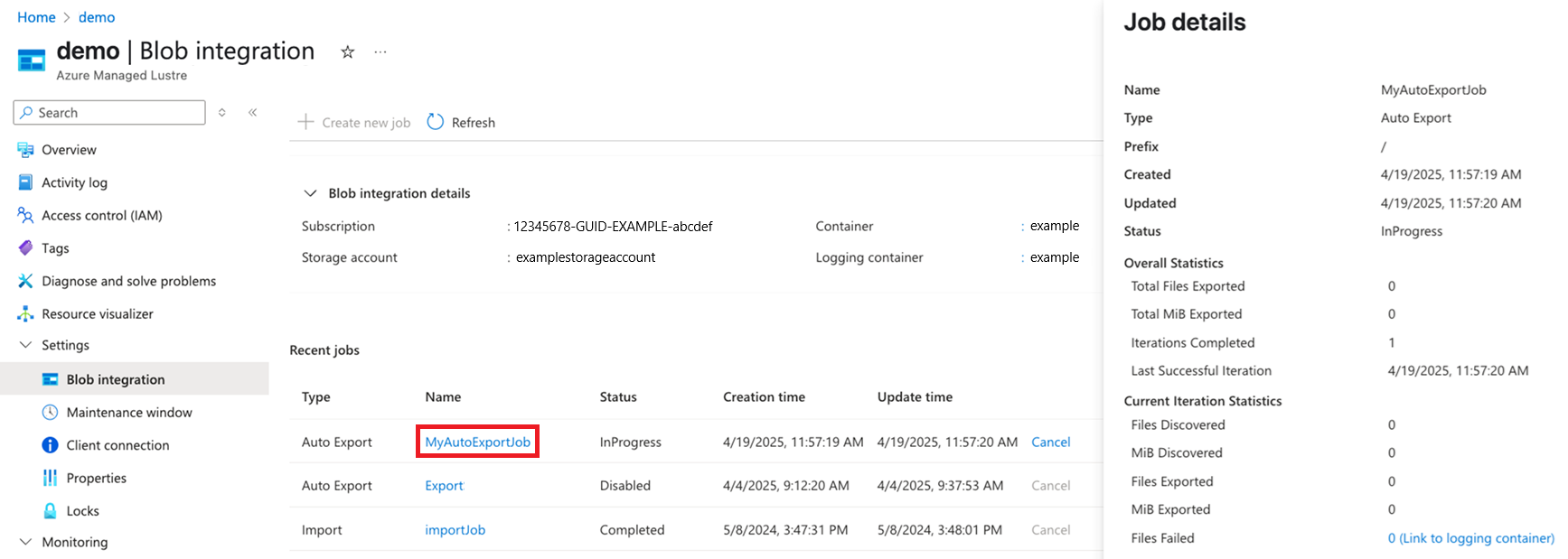
Auto-export job monitoring
The Blob integration pane displays details of export activities in the Recent jobs section, including the status of recent jobs and metrics related to automatic synchronization.
To cancel an in-progress job, select the Cancel link for that job in the Recent jobs table. The Cancel link is available only for the current job.
To view the metrics of an auto-export job, select the Name value of the job. The Metrics pane appears on the side panel in the portal.
Metrics
In the portal, metrics are grouped into two main categories: Overall and Current Iteration.
Overall statistics
Statistics after enabling Auto-Export
Total Files Exported
Count of files successfully copied to the associated blob container after enabling auto-export.
Total MiB Exported
Aggregate file size (in MiB) successfully copied to the associated blob container after you enable auto-export.
Iterations Completed
Count of times the blob integration process identified new or changed data and initiated a new export job.
Last Successful Iteration
The finish time stamp of the last iteration that successfully exported all data to the associated blob container.
Current Iteration Statistics
Statistics about the current activity
Files Discovered
Count of files that the export job is currently exporting, including files already successfully copied to the associated blob container in this iteration.*
MiB Discovered
Aggregate file size (in MiB) that the export job is currently exporting, including files already successfully copied to the associated blob container in this iteration.*
Files Exported
Count of new and changed files successfully copied to the associated blob container.
MiB Exported
The aggregate file size (in MiB) of new and changed data successfully copied to the associated blob container.
Files Failed
Total number of files that failed to copy during the current iteration. Select this link to go to the Logging Container page to view the logs associated with this auto-export job.
* The metrics for the current ongoing iteration should be read as so far. For example, Files Discovered is the number of the files discovered for exporting at the moment of reporting. The next reporting cycle might show that more files are discovered.
Considerations and best practices
When you use the auto-export feature, consider the following best practices to ensure smooth operation:
- Conflict management: If a file is modified in both the file system and Blob Storage, there's a risk of overwrite. Use application-level coordination to prevent conflicting edits.
- Disable auto-export before deletion: Before you delete a file system or its blob integration process, ensure that all queued updates are synchronized. Verify that the Last Successful Iteration Time is recent and the Files Failed metric is zero to avoid data loss. Then, disable auto-export.
Related content
- Learn more about Azure Blob Storage integration with Azure Managed Lustre file systems.