Note
Access to this page requires authorization. You can try signing in or changing directories.
Access to this page requires authorization. You can try changing directories.
You can configure a network security group to filter inbound and outbound network traffic to and from Azure resources in an Azure virtual network. A network security group can contain security rules that filter network traffic by IP address, port, and protocol. When a network security group is associated with a subnet, security rules are applied to resources deployed in that subnet.
This article describes how to configure network security group rules to secure access to an Azure Managed Lustre file system cluster as part of a Zero Trust strategy.
Prerequisites
- An Azure subscription. If you don't have an Azure subscription, create a free account before you begin.
- A virtual network with a subnet configured for Azure Managed Lustre file system support. To learn more, see Networking prerequisites.
- An Azure Managed Lustre file system deployed in your Azure subscription. To learn more, see Create an Azure Managed Lustre file system.
Create and configure a network security group
To create a network security group in the Azure portal:
In the portal search box, enter Network security group, and then select Network security groups.
Select Create.
On the Create network security group pane, on the Basics tab, enter or select the following values:
Setting Action Project details Subscription Select your Azure subscription. Resource group Select an existing resource group, or create a new one by selecting Create new. This example uses the sample-rg resource group. Instance details Network security group name Enter a name for the network security group. Region Select the Azure region to use. 
Select Review + create.
After Validation passed appears, select Create.

Associate the network security group to a subnet
After you create the network security group, you can associate it to the unique subnet in your virtual network where the Azure Managed Lustre file system is located.
To associate the network security group to a subnet by using the Azure portal:
In the portal search box, enter Network security group, and then select Network security groups.
Select the name of your network security group, and then select Subnets.
To associate a network security group to the subnet, select Associate. Then select your virtual network and a subnet to associate the network security group.
Select OK.

Configure network security group rules
When you configure your network security group, it's important to align with the guidelines that are provided. If you correctly set up your network security group, Managed Lustre operates essential services like the Managed Lustre protocol, engineering and diagnostic support, Azure Blob Storage, and security monitoring. Disabling any of these essential services might result in degraded product and support experience.
To configure network security group rules for Azure Managed Lustre file system support, add inbound and outbound security rules to the network security group associated with the Managed Lustre subnet. The following sections describe how to create and configure the inbound and outbound security rules for Azure Managed Lustre file system support.
Note
The security rules described in this section are based on an Azure Managed Lustre file system test deployment in the East US region and with Blob Storage integration enabled. Adjust the rules for your deployment region, virtual network subnet IP address, and other configuration settings for your Managed Lustre file system.
Create inbound security rules
The following example shows how to create and configure a new inbound security rule in the Azure portal.
- In the Azure portal, go to your network security group resource.
- Under Settings, select Inbound security rules.
- On the command bar, select Add.
- On the Add inbound security rule pane, configure the settings for the rule, and then select Add.

Add the following inbound rules to the network security group. For a description of all Azure service tags, see the Azure service tags overview.
| Priority | Name | Ports | Protocol | Source | Destination | Action | Description |
|---|---|---|---|---|---|---|---|
| 110 | rule-name | Any | Any | IP address/CIDR range for the Managed Lustre file system subnet | IP address/CIDR range for the Managed Lustre file system subnet | Allow | Allows traffic flow between Managed Lustre hosts for file system activities. The system also requires TCP port 22 (Secure Shell) for initial deployment and configuration. |
| 111 | rule-name | 988, 1019 to 1023 | TCP | IP address/CIDR range for the Managed Lustre client subnet | IP address/CIDR range for the Managed Lustre file system subnet | Allow | Allows your Managed Lustre clients to interact with all Managed Lustre storage nodes for file system activities. The Azure Managed Lustre file system protocol requires ports 988 and 1019 to 1023. |
| 112 | rule-name | Any | TCP | AzureMonitor |
VirtualNetwork |
Allow | Allows the AzureMonitor service to detect health or security issues with the Managed Lustre service hosts. |
| 120 | rule-name | Any | Any | Any | Any | Deny | Denies all other inbound flows. |
The inbound security rules in the Azure portal should look similar to the following example:
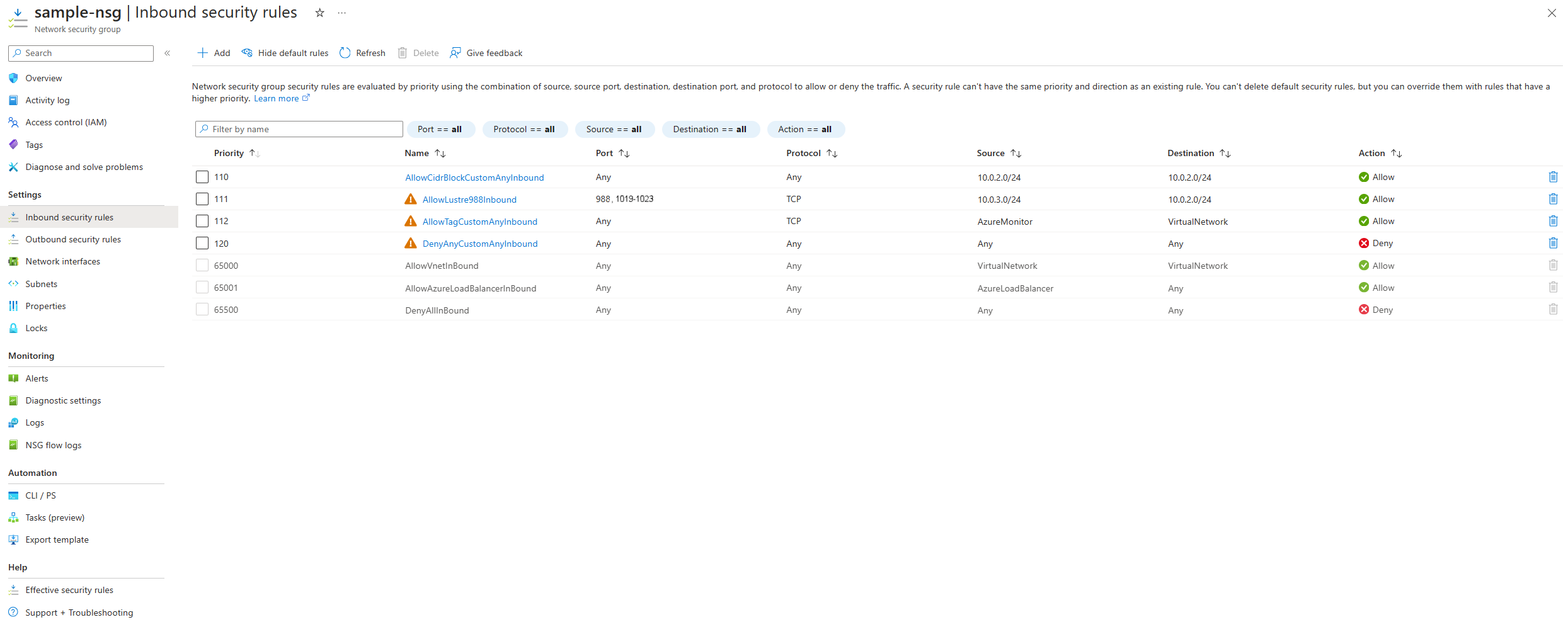
The figure is provided as an example. For the complete list of rules, see the preceding table. Adjust the subnet IP address, CIDR range, and other settings for your deployment.
Create outbound security rules
To create and configure a new outbound security rule:
- In the Azure portal, open the network security group resource.
- Under Settings, select Outbound security rules.
- On the command bar, select Add.
- On the Add outbound security rule pane, configure the settings for the rule, and then select Add.

Add the following outbound rules and network service tags to the network security group. For a description of all Azure service tags, see the Azure service tags overview.
| Priority | Name | Ports | Protocol | Source | Destination | Action | Description |
|---|---|---|---|---|---|---|---|
| 100 | rule-name | 443 | TCP | VirtualNetwork |
AzureMonitor |
Allow | Allows the AzureMonitor service to report health and security issues diagnosed by the Managed Lustre service hosts. |
| 101 | rule-name | 443 | TCP | VirtualNetwork |
AzureKeyVault.EastUS |
Allow | Allows access to the AzureKeyVault network service to store essential security secrets for basic operation and storage access. |
| 102 | rule-name | 443 | TCP | VirtualNetwork |
AzureActiveDirectory |
Allow | Allows access to AzureActiveDirectory for the secure Microsoft Entra ID service used during deployment and support activities. |
| 103 | rule-name | 443 | TCP | VirtualNetwork |
Storage.EastUS |
Allow | Allows access to storage account endpoints that are required for the Managed Lustre hardware security module, system health signals, and other communication flows to the Managed Lustre resource provider. |
| 104 | rule-name | 443 | TCP | VirtualNetwork |
GuestAndHybridManagement |
Allow | Allows access to GuestAndHybridManagement so that the service can use Azure Log Analytics for supportability workflows. |
| 105 | rule-name | 443 | TCP | VirtualNetwork |
ApiManagement.EastUS |
Allow | Allows access to ApiManagement for security and performance of Managed Lustre interactions with other services. |
| 106 | rule-name | 443 | TCP | VirtualNetwork |
AzureDataLake |
Allow | Allows access to AzureDataLake so that security and health services running on the Managed Lustre platform can log essential information for platform supportability. |
| 107 | rule-name | 443 | TCP | VirtualNetwork |
AzureResourceManager |
Allow | Allows access to AzureResourceManager for deployment and maintenance of internal resources. |
| 108 | rule-name | 988, 1019-1023 | TCP | IP address/CIDR range for the Managed Lustre file system subnet | IP address/CIDR range for the Managed Lustre client subnet | Allow | Allows the essential ports for Managed Lustre protocol operation between the storage servers and Managed Lustre client VMs. |
| 109 | rule-name | 123 | UDP | IP address/CIDR range for the Managed Lustre file system subnet | 168.61.215.74/32 |
Allow | Allows access to the Microsoft NTP server for time sync of Managed Lustre storage servers and client VMs. |
| 110 | rule-name | 443 | TCP | VirtualNetwork |
20.34.120.0/21 |
Allow | Allows Managed Lustre to upload telemetry to its telemetry service so that Azure engineering can provide product support. |
| 111 | rule-name | Any | Any | IP address/CIDR range for the Managed Lustre file system subnet | IP address/CIDR range for the Managed Lustre file system subnet | Allow | Allows Managed Lustre servers to communicate with each other within the subnet. The system uses port 22 (Secure Shell) during initial deployment and configuration. |
| 112 | rule-name | 443 | TCP | VirtualNetwork |
EventHub |
Allow | Allows access to EventHub so that security and monitoring services running on the Managed Lustre platform can store real-time system events. |
| 1000 | rule-name | Any | Any | VirtualNetwork |
Internet |
Deny | Denies outbound flows to the internet. |
| 1010 | rule-name | Any | Any | Any | Any | Deny | Deny all other outbound flows. |
The outbound security rules in the Azure portal should look similar to the following example:
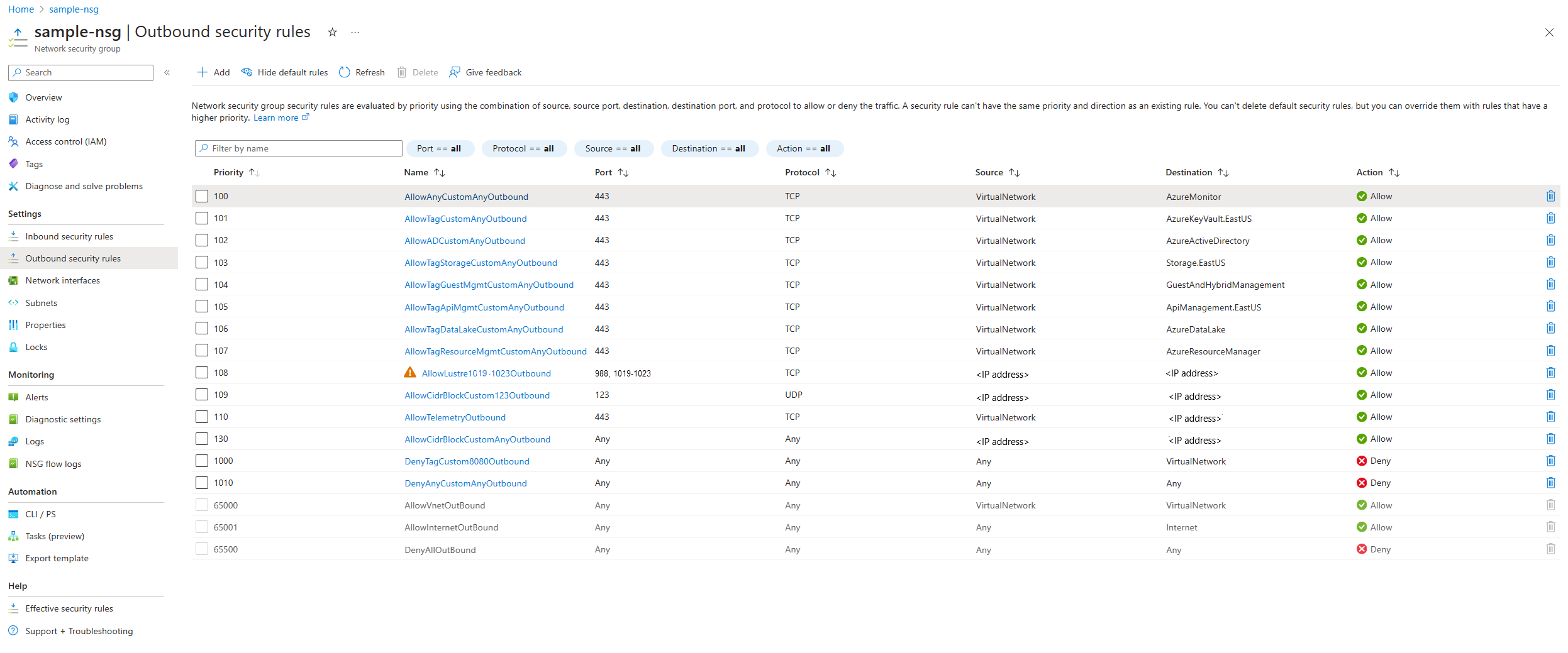
This figure is provided as an example. For the complete list of rules, see the preceding table. Adjust the subnet IP address, the CIDR range, and other settings for your deployment.