Note
Access to this page requires authorization. You can try signing in or changing directories.
Access to this page requires authorization. You can try changing directories.
All data stored in Azure is encrypted at rest by default with Microsoft-managed keys. You can use Azure Key Vault to control ownership of the keys you use to encrypt your data stored in an Azure Managed Lustre file system. This article describes how to use customer-managed keys for data encryption with Managed Lustre.
Virtual machine host encryption protects all information on the managed disks in a Managed Lustre file system. Even if you add a customer-managed key for Managed Lustre disks for an extra level of security in high-security scenarios, your data is encrypted. For more information, see Server-side encryption of Azure disk storage.
Overview steps to enable customer-managed key encryption for Managed Lustre:
- Set up a key vault to store the keys.
- Create a managed identity that can access the key vault.
- When you create the file system, choose customer-managed key encryption and specify the key vault, key, and managed identity to use.
The next sections describe the steps in more detail.
After you create the file system, you can't switch from a customer-managed key to a Microsoft-managed key.
Prerequisites
You can use an existing key vault and key or you can create a new key vault and key to use with Managed Lustre. See the following required settings to ensure that you properly configure your key vault and key.
Create a key vault and key
Set up a key vault in Azure to store your encryption keys. To work with Managed Lustre, the key vault and key must meet the requirements described in the next sections.
Key vault properties
To use a key vault with Managed Lustre, some settings are required. You can configure other options as needed.
Basic settings:
- Subscription: Use the same subscription that you use for the Managed Lustre cluster.
- Region: The key vault must be in the same region as the Managed Lustre cluster.
- Pricing tier: The Standard tier is sufficient to use with Managed Lustre.
- Soft delete: Managed Lustre enables soft delete if you don't configure it on the key vault.
- Purge protection: Enable purge protection.
Access policy settings:
- Access Configuration: Set to Azure role-based access control (Azure RBAC).
Networking settings:
- Public Access: Must be enabled.
- Allow Access: Select All networks. To restrict access, you can instead choose Selected networks. If you choose Selected networks, you must enable the Allow trusted Microsoft services to bypass this firewall option in the Exception section.
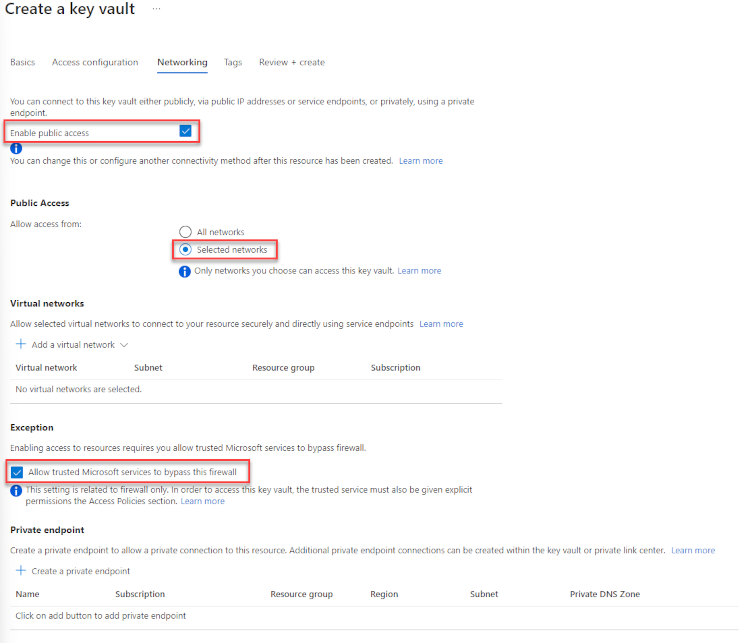
Note
If you use an existing key vault, review the network settings section to verify that Allow access from is set to Allow public access from all networks. You can also make other changes.
Key properties
- Key type: RSA
- RSA key size: 2048
- Enabled: Yes
Key vault access permissions:
- The user that creates the Managed Lustre system must have permissions equivalent to the Key Vault contributor role. You must have the same permissions to set up and manage Azure Key Vault. For more information, see Secure access to a key vault.
Learn more Azure Key Vault basics.
Create a user-assigned managed identity
To access the key vault, the Managed Lustre file system requires a user-assigned managed identity.
A user-assigned managed identity is a standalone identity credential that takes the place of a user identity when a user accesses Azure services through Microsoft Entra ID. Like other user identities, managed identities can be assigned roles and permissions. Learn more about managed identities.
Before you can create the file system, you must create this identity and give the identity access to the key vault.
For more information, see Create a user-assigned managed identity.
Create the Managed Lustre file system with customer-managed encryption keys
When you create your Managed Lustre file system, on the Disk encryption keys tab under Disk encryption key type, select Customer managed. Then, other settings appear under Customer Key settings and Managed identities.
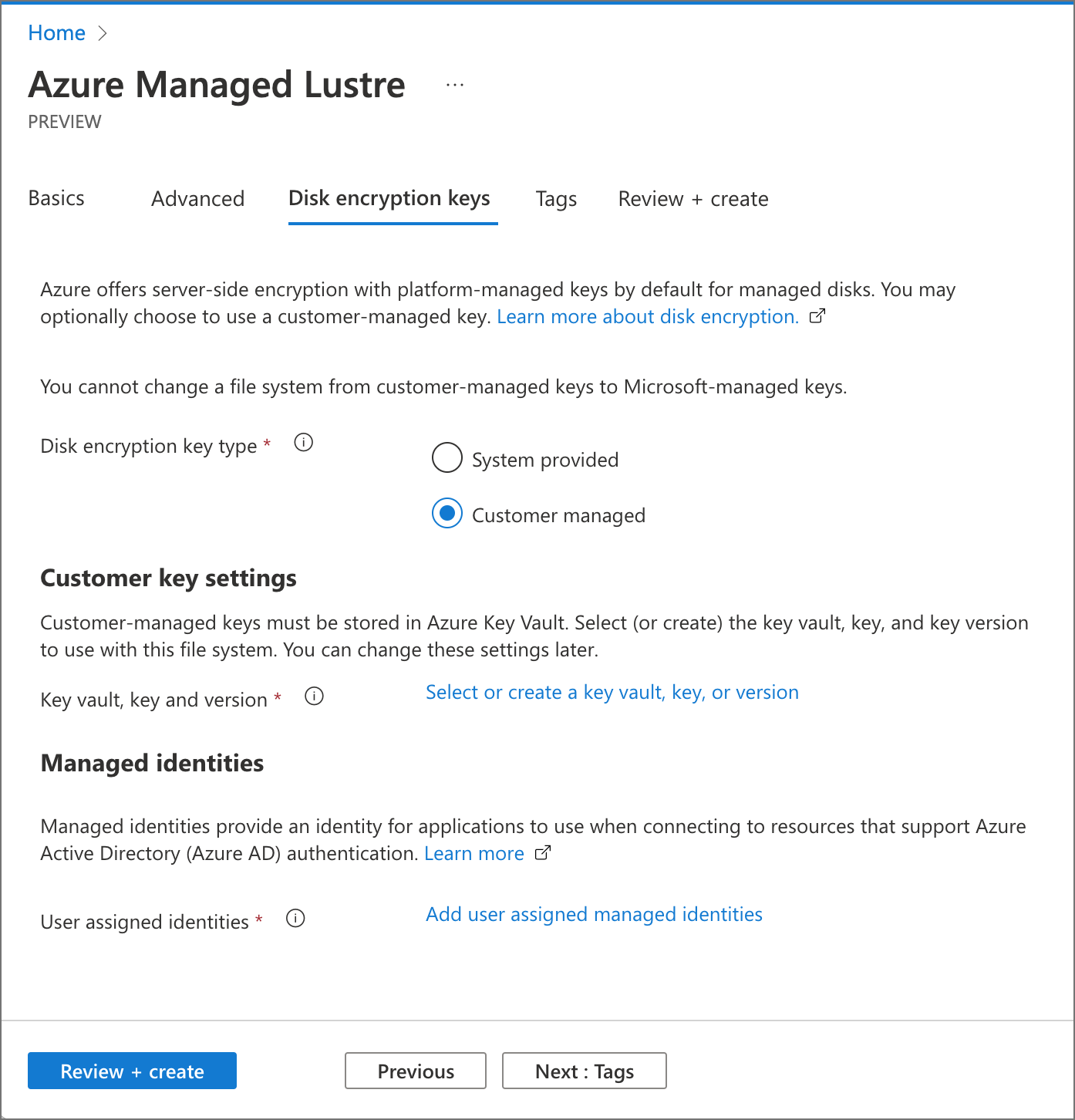
You can set up customer-managed keys only when you create the file system. You can't change the type of encryption keys used for an existing Managed Lustre file system.
Customer key settings
In Customer Key settings, select the link to select the key vault, the key, and version settings. You can also create a new key vault on this pane. If you create a new key vault, be sure to give your managed identity access to the key vault.
If your key vault doesn't appear in the list, check these requirements:
- Is the file system in the same subscription as the key vault?
- Is the file system in the same region as the key vault?
- Is there network connectivity between the Azure portal and the key vault?
After you select a vault, select the individual key from the available options, or create a new key. The key must be a 2,048-bit RSA key.
Specify the version for the selected key. For more information about versioning, see the Azure Key Vault documentation.
Managed identities settings
In Managed identities, select the link. Then select the identity that the Managed Lustre file system uses for key vault access.
After you configure these encryption key settings, select the Review + create tab and finish creating the file system for deployment.