Note
Access to this page requires authorization. You can try signing in or changing directories.
Access to this page requires authorization. You can try changing directories.
Azure Monitor health models allow you to define and track the health of your Azure workloads and the resources they depend on. This article describes different methods for creating and configuring health models.
Prerequisites
Before you create a health model, you must have a service group that includes the Azure resources you want to monitor. See Quickstart: Create a service group (preview) in the portal.
Permissions required
To create a health model:
- You must have at least Contributor role on the resource group or inherited from the subscription where you want to create the health model. If you create a new resource group for the health model, then you must have the Contributor role on the subscription.
To manage an existing health model:
- You must have at least Monitoring Contributor role on the health model.
- • To add resources to your health model you must add them as Members to your Service Group. Adding members to a service group requires at least Contributor role on the service.
To view an existing health model:
- You must have at least Monitoring Reader role on the health model.
- To view the service group, you must have Service Group reader on the service group.
Managed entity
The managed identity that you select for the health model requires the following permissions. If you use a system assigned managed identity, these permissions are automatically assigned. If you use a user assigned managed identity, you must assign the following permissions before you create the health model.
- Service Group reader on the service group.
- Monitoring reader on any members in the service group.
- Monitoring reader on the Log Analytics workspace and Azure Monitor workspace if you create those signals.
Create a health model
There are two methods to create an Azure Monitor health model in the Azure portal.
From the menu for the service group, select Monitoring and then click creating a health model. This will open the Create a new Azure Monitor health model pane where you can provide the details for the new health model.

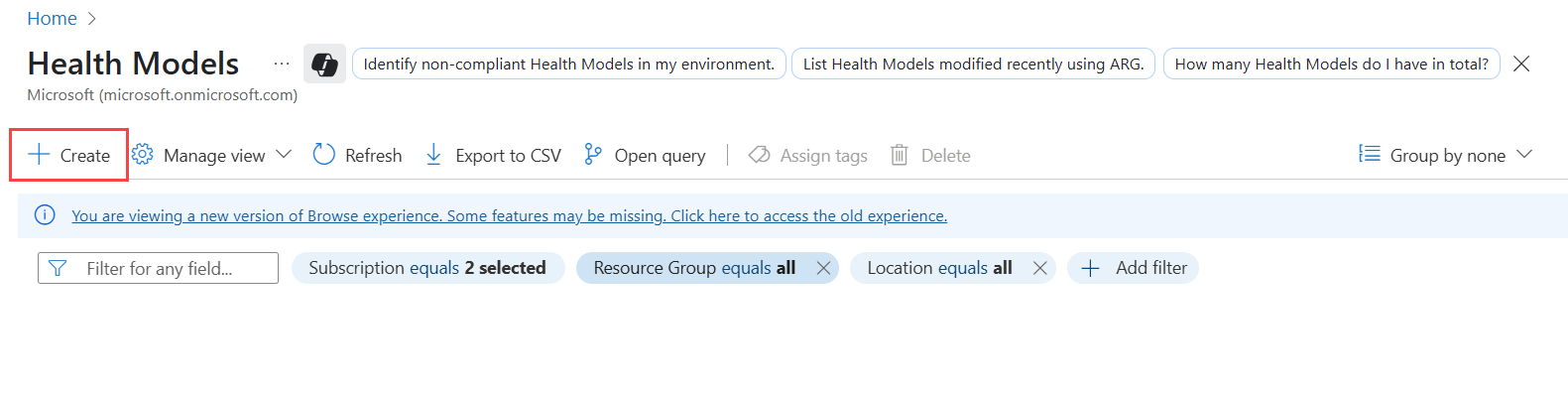
Using either method, you need to provide the details for the new health model in the following table.
| Tab | Description |
|---|---|
| Basics | Select the subscription, resource group, and region for the health model in addition to a descriptive name. The Azure resources don't need to be in the same subscription or resource group as the health model. |
| Identity | Configure the identity for the health model access the service group. This is used to enumerate the members of the service group and add them as entities to the health model. It's also used by default to access telemetry for the Azure resources represented by each entity, although this identity can later be changed for each entity. See Permissions required for the requirements of this identity. |
| Discovery | Select a service group for the health model. An entity will be created for each member of the service group. Select the option to Add recommended signals to automatically add a set of recommended signals to each entity for that Azure resource type. |
| Tags | Add any tags to help categorize the health model in your environment. |
Configure a health model
When you create a new health model, it will include an entity for each of the Azure resources in the service group, but none of the entities will be monitored. The next step is to configure the health model by adding signals to each entity to measure their health and optionally add alerts to notify you when the health state of an entity changes.
You'll perform most of the configuration in the Designer, which is a visual tool that provides access to all the configuration options for the entities in the health model. Get complete details on the designer and the different configuration options it provides in Configure an Azure Monitor health model using the designer.
The following sections describe the different views aside from the designer that are available in the Azure portal.
Entities view
The Entities view is useful for quickly finding and editing the signals and alerts for entities in the model. Use it as an alternative to the designer view when you want to focus on the entities and their properties rather than the visual layout of the model.
The view includes a list of all the entities in the health model with their current health state. You can open the same Entity editor from this view as you can in the designer view by clicking the entity link.
Modify the filter to show only entities matching particular criteria. For example, set the Contains signals filter to Doesn't contain signals to list only those entities that don't have any signal definitions associated with them. You can then select each of those entities to add signal definitions.

Discovery view
The discovery view allows you to configure the service group and auto-discovery settings for the health model. This includes changing the identity used for accessing the service group.
To change the service group associated with your health model, click the Change link and select a service group from the list. The tenant root service group cannot be used as model discovery scope.

Note
If you remove the service group for the health model, the health model will include only the root entity, and you'll receive a warning message that the health model will not be populated.
Signal definitions
The signal definitions view is useful for understanding the signals that are available in the model and their current thresholds and for cleaning up any unused signals. It provides a list of all the signal definitions in the health model and their thresholds.
You can't add or edit signal definitions from this view, because that requires the context of an entity, but you can delete any signal definitions that aren't used by any entities in the model (indicated by the green tick icon). Select any signal definitions to delete and click Delete at the top of the screen. This button will be disabled if any signals that are in use are selected.

Authentication settings
The authentication settings view lets you view and manage the authentication settings available in the health model. Each entity in the model uses an authentication setting to access to the Azure resource being monitored, and different entities may require different authentication settings.
When you create a new authentication setting, you can select from the managed identities in the health model that are managed from the Identity menu item. Delete an entity by selecting it and them clicking Delete.
