Note
Access to this page requires authorization. You can try signing in or changing directories.
Access to this page requires authorization. You can try changing directories.
The object REST API feature enables Azure Databricks to read and write data to Azure NetApp Files volumes, supporting end-to-end data science workflows from ingestion to model deployment.
To connect to Azure Databricks, you configure an initialization (init) script to load the SSL certificate on the Databricks compute endpoints. Using this setup ensures secure communication between Azure Databricks and your Azure NetApp Files object REST API-enabled volume.
Before you begin
Ensure you have:
- Configured an Azure NetApp Files object REST API-enabled volume
- An active Azure Databricks workspace
Create the init script
The init script runs during cluster startup. For more information about init scripts, see What are init scripts?
Write a bash script to load the SSL certificate. Save the script with an .sh extension. For example:
#!/bin/bash

cat << 'EOF' > /usr/local/share/ca-certificates/myca.crt

-----BEGIN CERTIFICATE-----


-----END CERTIFICATE-----

EOF

update-ca-certificates

PEM_FILE="/etc/ssl/certs/myca.pem"

PASSWORD="changeit"

JAVA_HOME=$(readlink -f /usr/bin/java | sed "s:bin/java::")

KEYSTORE="$JAVA_HOME/lib/security/cacerts"

CERTS=$(grep 'END CERTIFICATE' $PEM_FILE| wc -l)

# To process multiple certificates with keytool, you need to extract each one from the PEM file and import it into the Java KeyStore.

for N in $(seq 0 $(($CERTS - 1))); do

ALIAS="$(basename $PEM_FILE)-$N"

echo "Adding to keystore with alias:$ALIAS"

cat $PEM_FILE |

    awk "n==$N { print }; /END CERTIFICATE/ { n++ }" |

    keytool -noprompt -import -trustcacerts \

            -alias $ALIAS -keystore $KEYSTORE -storepass $PASSWORD

done

echo "export REQUESTS_CA_BUNDLE=/etc/ssl/certs/ca-certificates.crt" >> /databricks/spark/conf/spark-env.sh

echo "export SSL_CERT_FILE=/etc/ssl/certs/ca-certificates.crt" >> /databricks/spark/conf/spark-env.sh

#echo "volume IP URL of the bucket >> /etc/hosts
Use the Databricks CLI or the Databricks UI to upload the bash script to the Databricks File System (DBFS). For more information, see, work with files on Azure Databricks.
Configure the cluster
Navigate to your Azure Databricks workspace. Open the cluster configuration settings.
In the Advanced Options section, add the path to the init script under Init Scripts. For example:
dbfs:/path/to/your/script.sh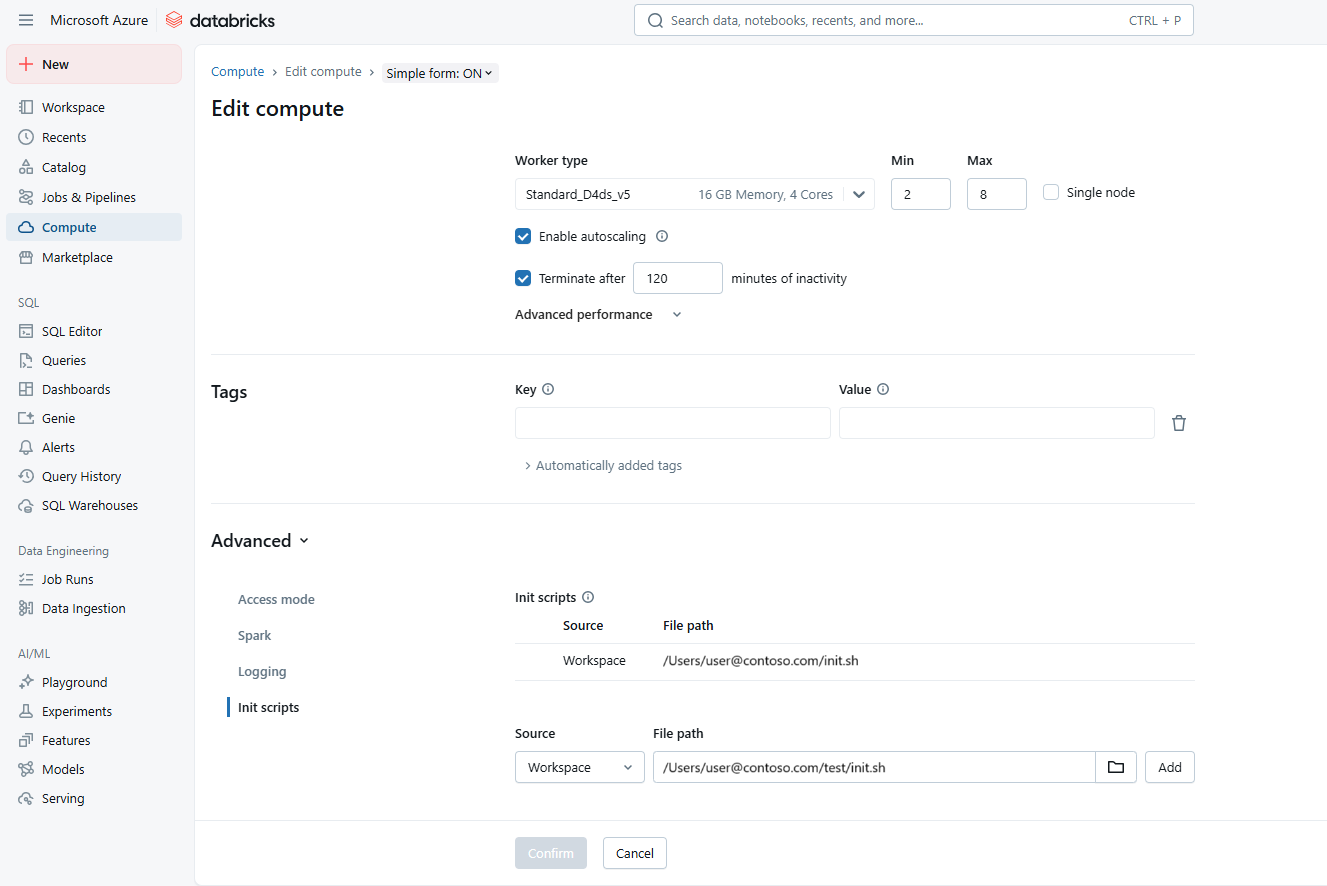
Select the init.sh script. Select Add then Confirm.
To apply the changes and load the SSL certificate, restart the cluster.
In the logs, validate if the certificate is placed correctly.
Connect to an Azure NetApp Files bucket
Databricks recommends using secret scopes for storing all credentials. For more information, see Manage secret scopes.
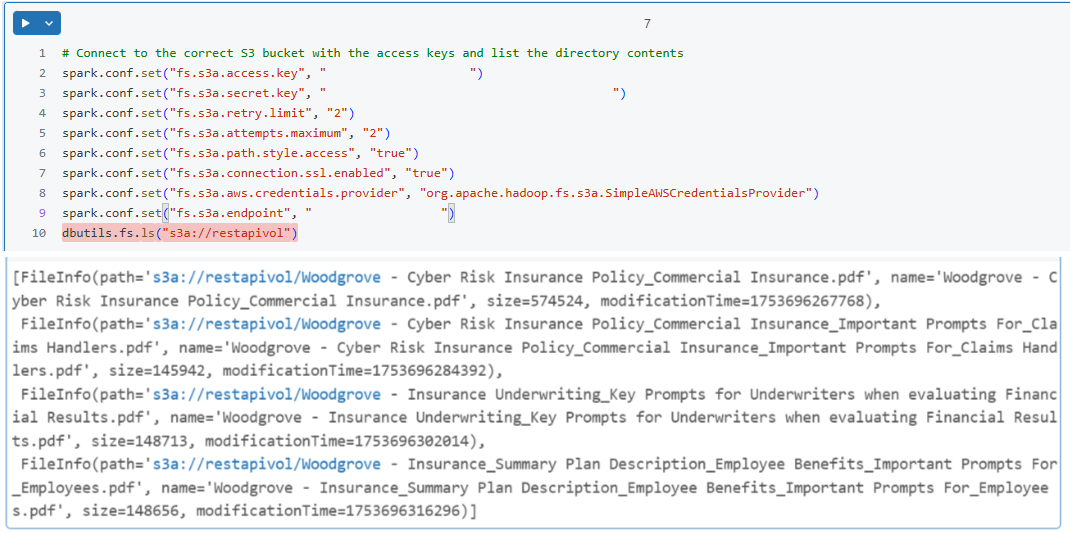
In your Databricks notebook, configure the Spark session to connect to the Azure NetApp Files bucket. For example:
spark.conf.set("fs.s3a.endpoint", "https://your-s3-endpoint")
spark.conf.set("fs.s3a.access.key", "your-access-key")
spark.conf.set("fs.s3a.secret.key", "your-secret-key")
spark.conf.set("fs.s3a.connection.ssl.enabled", "true")
Verify the connection by performing a simple read operation. For example:
df = spark.read.csv("s3a://your-bucket/path/to/data.csv")
df.show()