Note
Access to this page requires authorization. You can try signing in or changing directories.
Access to this page requires authorization. You can try changing directories.
This article describes how to manage backup for Azure Data Lake Storage using Azure portal.
Modify the Azure Data Lake Storage backup instance
After the backup configuration, you can update the policy associated with a backup instance. For vaulted backups, you can also modify the selected backup containers.
To modify the backup instance, follow these steps:
Go to the Backup vault.
On the Backup Items tile, select Azure Data Lake Storage as the Datasource type.
On the Backup instance pane, select the backup instance for which you want to change the Backup policy, and then select Edit backup instance.

On the Edit backup instance pane, under Select policy, select the appropriate policy from the dropdown list to apply it to the storage account blobs.
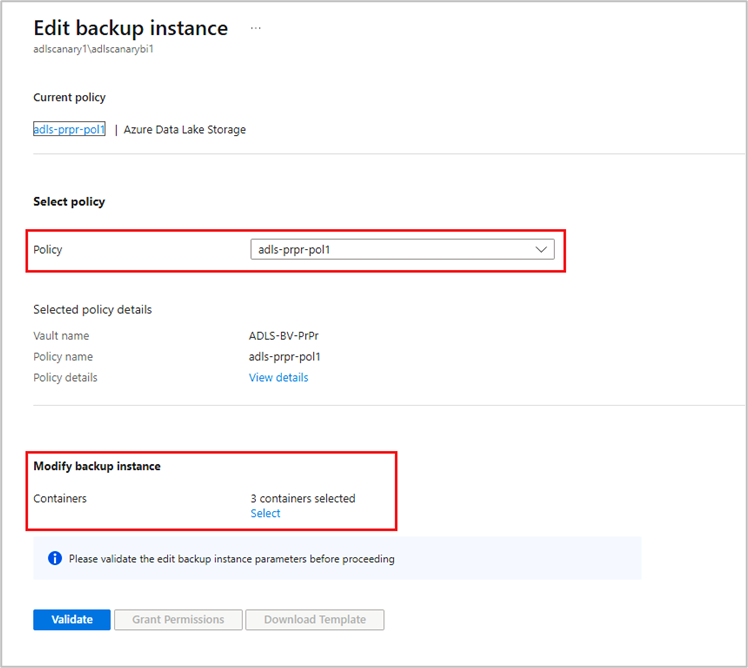
Select Save.

Stop protection for Azure Data Lake Storage
You can stop the backup for the storage account as per your requirements.
Caution
When you remove backups, the object replication policy is removed from the source. The stop protection operation dissociates the storage account from the Backup vault and doesn’t disable any configured change feed.
To stop backup for a storage account, follow these steps:
Go to the Backup vault.
On the Backup Items tile, select Azure Data Lake Storage as the Datasource type.
On the Backup instance pane, select the backup instance for which you want to stop backup from the list.
On the selected backup instance pane, select Stop Backup.


Note
After the backup is stopped, you can disable other storage data protection capabilities (enabled for configuring backups) from the data protection pane of the storage account.
Next steps
Troubleshoot Azure Data Lake Storage backup and restore errors.