Note
Access to this page requires authorization. You can try signing in or changing directories.
Access to this page requires authorization. You can try changing directories.
You can use the Azure Blob Storage digest backed by the Azure confidential ledger managed application to help ensure that the blobs within a blob container are trusted and not tampered with. After the application is connected to a storage account, it tracks all blobs that are added to every container in the storage account in real time. It also calculates and stores the digests in confidential ledger. You can perform audits at any time to check the validity of the blobs and to ensure that the blob container wasn't tampered with.
Prerequisites
- An Azure Storage account.
- The Azure CLI (optional).
- The Python version that's supported by the Azure SDK for Python (optional).
Deploy the managed application
To find the managed application in Azure Marketplace, see Blob Storage digests backed by confidential ledger (preview).
Resources to be created
After the required fields are filled and the application is deployed, the following resources are created under a managed resource group:
- Confidential ledger
- Azure Service Bus queue with sessions enabled
- Storage account (publisher-owned storage account used to store digest logic and audit history)
- Azure Functions app
- Application Insights
Connect a storage account to the managed application
After the managed application is successfully deployed, you can connect it to an Azure Storage account to enable the processing and recording of blob container digests into confidential ledger.
The managed application currently supports the following types of storage accounts:
- Standard General-Purpose v2 storage accounts, including the accounts configured for hot, cool, or archive tiers.
- Azure Data Lake Storage Gen2 accounts, with Hierarchical Namespace enabled.
- Storage accounts with either public or private endpoint configurations if appropriate network and identity permissions are granted.
- Standard or Premium performance tiers if Blob service is enabled.
Only Blob Storage is supported. Other services (for example, Azure Files, Table Storage, or Queue Storage) aren't applicable for use with the managed application.
Create a topic and event subscription for the storage account
The managed application uses a Service Bus queue to track and record all Create Blob and Delete Blob events. You use the queue created in the managed resource group by the managed application and add it as an event subscriber for any storage account for which you're creating blobs. Also, ensure that the System Topic Name value that's associated with the storage account that you're tracking is assigned Azure Service Bus Data Sender for the Service Bus queue created by the managed app.
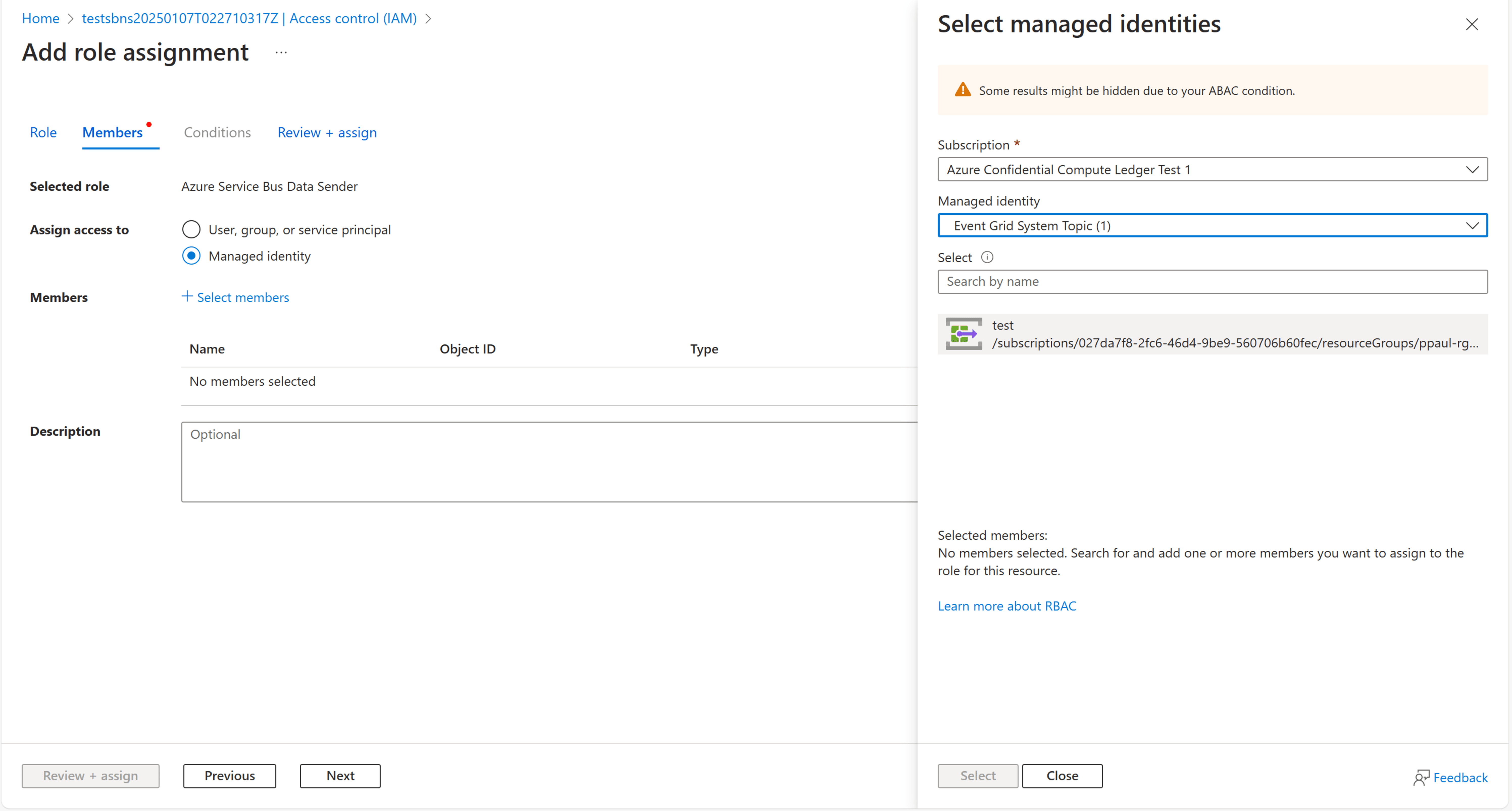
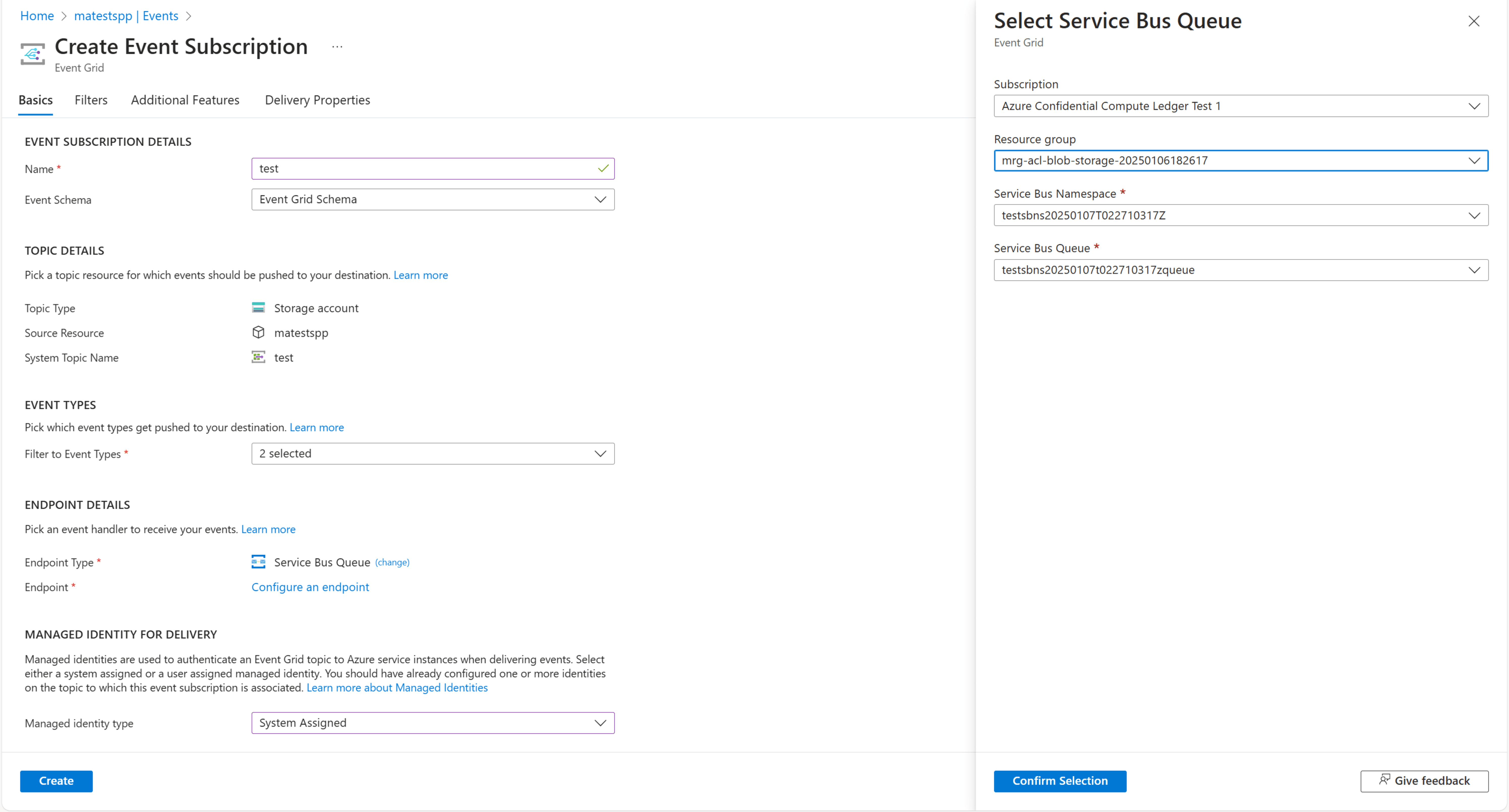
In the Azure portal, you can go to the storage account for which you want to start creating blob digests and go to the Events pane. There you can create an event subscription and connect it to the Service Bus queue endpoint. For Managed identity type, select System Assigned.

The queue uses sessions to maintain ordering across multiple storage accounts so that you also need to go to the Delivery Properties tab to enter a unique session ID for this event subscription.
Add required role to a storage account
The managed application requires the Storage Blob Data Owner role to read and create hashes for each blob. You must add this role so that the digest is calculated correctly.

Note
You can connect multiple storage accounts to a single managed application instance. We currently recommend a maximum of 10 storage accounts that contain high-usage blob containers.
Add blobs and digest creation
After the storage account is properly connected to the managed application, you can start to add blobs to the containers within the storage account. The blobs are tracked in real time. Digests are calculated and stored in confidential ledger.
Transaction and block tables
All blob creation events are tracked in internal tables stored within the managed application.
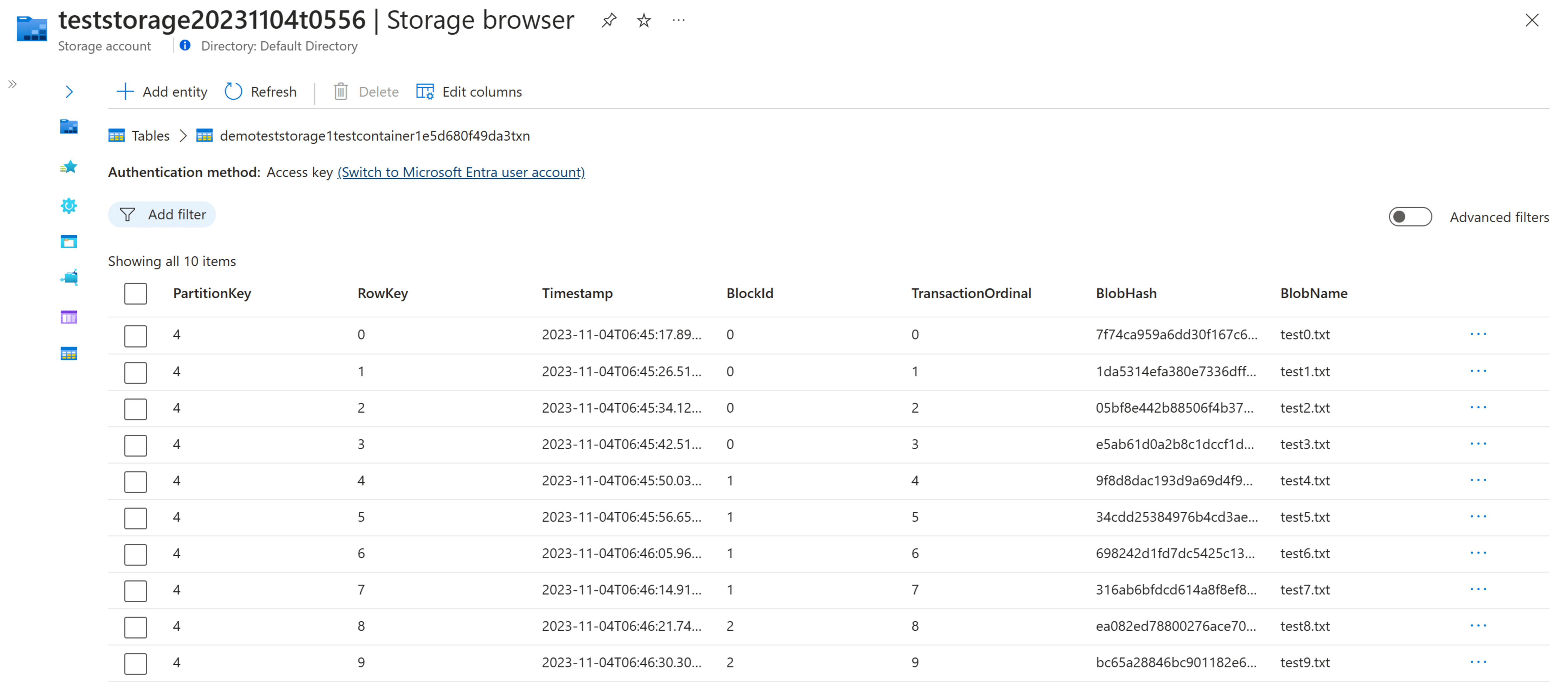
The transaction table holds information about each blob and a unique hash that's generated by using a combination of the blob's metadata or contents.
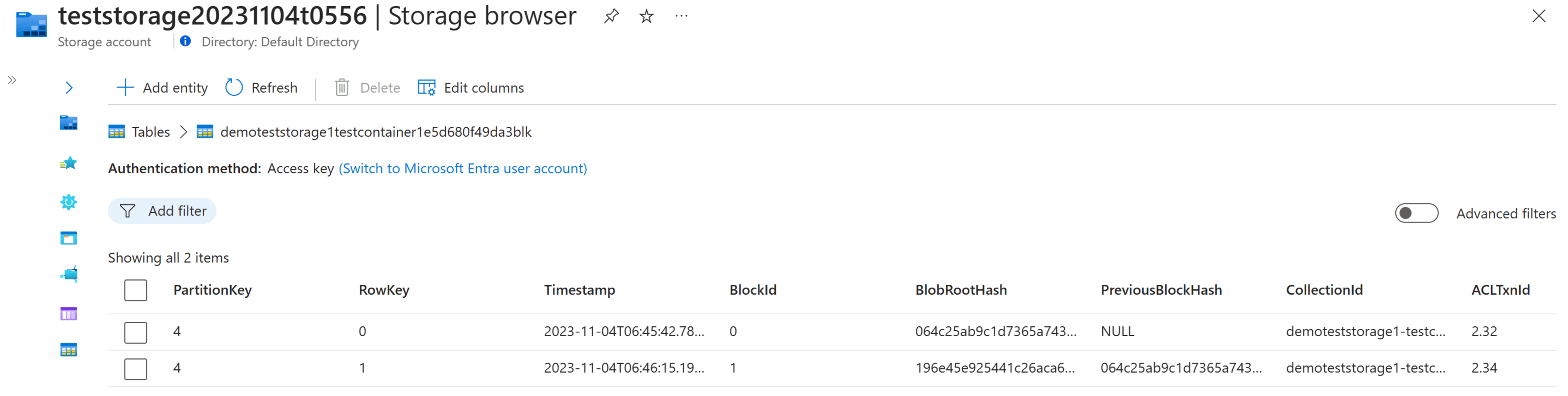
The block table holds information related to every digest that was created for the blob container. The associated transaction ID for the digest is stored in confidential ledger.
Digest settings

You can select a few digest settings when you create the managed application:
- Hashing algorithm: Select MD5 or SHA256 for the algorithm that's used to create the digests.
- Hash contents: Select File Contents + Metadata or File Contents to identify the value of each blob and what is hashed when each digest is created.
- Digest size: Select the number of blobs that are contained within each digest. The digest size ranges from 1 to 16 and is the number of blobs that are hashed together within each block.
View the digest in confidential ledger
You can view the digests that are stored directly in confidential ledger by going to the Ledger explorer pane.

Perform an audit
To check the validity of the blobs that were added to a container to ensure that they weren't tampered with, you can run an audit at any point. The audit replays every blob creation event and recalculates the digests with the blobs that are stored in the container during the audit. It then compares the recalculated digests with the digests stored in confidential ledger. The audit provides a report that displays all digest comparisons and whether or not the blob container was tampered with.
Trigger an audit
You can trigger an audit by including the following message to the Service Bus queue associated with your managed application:
{
    "eventType": "PerformAudit",
    "storageAccount": "<storage_account_name>",
    "blobContainer": "<blob_container_name>"
}

Be sure to include a session ID as the queue enables sessions.
View audit results
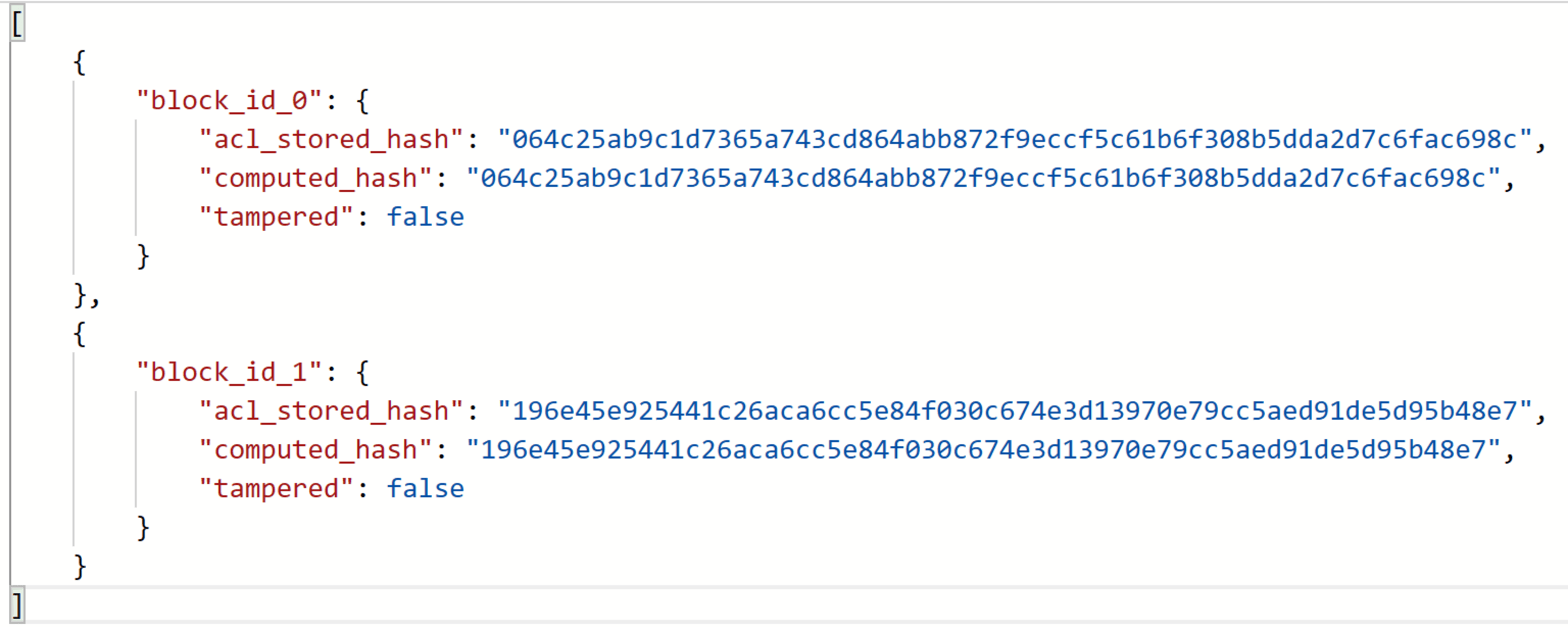
After an audit is performed successfully, you can find the results of the audit under a container named <managed-application-name>-audit-records found within the respective storage account. The results contain the recalculated digest, the digest retrieved from confidential ledger, and whether or not the blobs were tampered with.

If you opt in for email alerts when you create the managed application, you get an alert sent to your email address. You can select Audit Failure or Audit Success and Failure.
Enable user tracking audits
You can track which users uploaded or deleted blobs by using diagnostic logs sent to the internal storage account created by the managed app.
1. Enable diagnostic settings
- Go to your storage account and select Monitoring > Diagnostic settings.
- Add a new setting for the blob service.
- Enable the following options:
- Storage Write
- Storage Delete
- Set the destination to the internal archive storage account that the managed application created.
2. Send the following message to the Service Bus queue (with a session ID)
After you see the diagnostic logs flowing into the storage account, you can add the getUsers field when an audit event is triggered:
{
"eventType": "PerformAudit",
"storageAccount": "<storage_account_name>",
"blobContainer": "<blob_container_name>",
"getUsers": true
}
3. Check the audit results
After an audit is successfully processed, each entry includes the user who performed the operation along with their OID, if found:
"user": {
  "upn": "user@example.com",
  "oid": "<object-id>"
}
Logging and errors
You can see error logs under a container named <managed-application-name>-error-logs that you can find within the respective storage account. If a blob creation event or audit process fails, the cause of the failure is recorded and stored in this container. If you have any questions about the error logs or application functionality, contact the Azure confidential ledger support team. Contact information is provided in the managed application details.
Clean up the managed application
You can delete the managed application to clean up and remove all associated resources. Deleting the managed application stops all blob transactions from being tracked. It also stops all digests from being created. Audit reports remain valid for the blobs that were added before the deletion.
More resources
For more information about managed applications and the deployed resources, see the following articles: