Note
Access to this page requires authorization. You can try signing in or changing directories.
Access to this page requires authorization. You can try changing directories.
This page describes how to perform common Git operations in your Azure Databricks workspace using Git folders, including cloning, branching, committing, and pushing.
This guide covers the following Git operations:
| Setup and configuration | Daily workflow | Advanced operations |
|---|---|---|
Clone a repo
When you clone a remote repository, Databricks creates a Git folder in your workspace that contains the repo contents and tracks changes. You can create Git folders using the Azure Databricks UI or the web terminal.
Note
- You must have
CAN MANAGEpermission on the parent folder where you want to create the Git folder. - Your workspace must have Git credentials configured. See Connect your Git provider to Databricks.
Clone from the UI
In the sidebar, select Workspace and browse to the folder where you want to create the Git repo clone.
Click Create > Git folder.
In the Create Git folder dialog, provide the following information:
Field Description Git repository URL The URL of the Git repository you want to clone, in the format https://example.com/organization/project.git.Git provider The Git provider for the repository you want to clone. Git folder name The name of the folder in your workspace that contains the contents of the cloned repo. Sparse checkout mode Whether to use sparse checkout, which clones only a subset of your repository's directories using a cone pattern. This is useful if your repository exceeds the size limits. Use Git CLI (Beta) Enable running standard Git commands directly from a Azure Databricks terminal. This provides access to advanced operations like pre-commit hooks, Git submodules, and Large File Storage (LFS). See Use Git CLI commands (Beta). Click Create Git folder. The remote repository contents are cloned to your workspace, and you can start working with supported Git operations.
Clone from the web terminal
You can also create Git folders with CLI access directly from the web terminal:
Access the web terminal. See Run shell commands in Azure Databricks web terminal.
Navigate to the parent directory in
/Workspace:cd /Workspace/Users/<your-email>/<project>Note
You can't create Git folders with Git CLI access in
/Reposor in existing Git folders.Clone your repository:
git clone <remote-url>The
git clonecommand uses the Git credentials configured in your workspace. See Connect your Git provider to Databricks.Refresh your browser to see the new folder in the workspace file browser.
Use Git CLI commands (Beta)
Important
This feature is in Beta. Workspace admins can control access to this feature from the Previews page. See Manage Azure Databricks previews.
Git folders with Git CLI access let you run standard Git commands directly from a Azure Databricks terminal. You can:
- Run any Git command including
git stash,git pull --force, andgit rebase -i. - Integrate linting and code scanning with pre-commit hooks.
- Work with repositories that exceed the 2 GB memory and 4 GB disk limits of standard Git folders.
- Use Git submodules and Large File Storage (LFS).
- Stage multiple commits locally before pushing to the remote repository.
To use Git CLI access, your workspace must have serverless compute enabled with environment version 4 or above.
Create a Git folder with Git CLI access
To create a Git folder with CLI access:
- If you use the web terminal, any repository that you clone has Git CLI access automatically.
- If you use the UI, enable Use Git CLI when you create the Git folder.
After you create a Git folder with CLI access, run any standard Git command from the web terminal:
cd /Workspace/Users/<your-email>/<project>/my-repo

# Interactive rebase
git rebase -i main

# Stash uncommitted changes
git stash

# Work with submodules
git submodule update --init --recursive
Git CLI limitations
Git folders with CLI access have the following limitations:
- Workspaces with remote URL allowlists enabled can't use Git CLI features.
- Git CLI commands ignore the admin setting that blocks committing notebook outputs.
- The Repos API isn't supported for Git folders with CLI access.
- You can't enable Git CLI access for existing Git folders.
Troubleshoot Git CLI operations
- Terminal prompts for credentials on every operation: The Git CLI feature isn't enabled on your workspace. Contact your workspace admin to verify that the preview is enabled.
- Can't enable CLI access: Workspaces with remote URL allowlists can't use Git CLI features. Contact your workspace admin to review your workspace's network configuration.
- Git operations fail with permission errors: Verify that you have
CAN MANAGEpermission on the parent folder and that your workspace Git credentials are valid. See Connect your Git provider to Databricks.
Access the Git dialog
Access the Git dialog from a notebook or from the Azure Databricks Git folders browser.
From a notebook, click the button next to the notebook name that identifies the current Git branch.

From the Azure Databricks Git folders browser, click Git beside the repo name.
A full-screen dialog appears where you can perform Git operations.

- Your current working branch. You can select other branches here. If other users have access to this Git folder, changing the branch also changes the branch for them if they share the same workspace. See a recommended best practice to avoid this problem.
- Create a new branch.
- File assets and subfolders checked into your current branch.
- Show the current branch history.
- Pull content from the remote Git repository.
- Add a commit message and optional expanded description for your changes.
- Commit your work to the working branch and push the updated branch to the remote Git repository.
Click the  kebab menu to choose from additional Git branch operations, such as a hard reset, merge, or rebase.

Create a new branch
To create a new branch:
- Open the Git dialog.
- Click Create Branch.
- Enter a name for the new branch and select the base branch.
- Click Create.

Switch to a different branch
To check out a different branch, use the branch dropdown in the Git dialog:

Uncommitted changes on the current branch carry over and show as uncommitted changes on the new branch, if the uncommitted changes don't conflict with code on the new branch. Discard the changes before or after branch switches if you don't intend to carry over the uncommitted changes.
The local version of a branch can remain present in the associated Git folder for up to 30 days after you delete the remote branch. To completely remove a local branch in a Git folder, delete the repository.
Important
Switching branches might delete workspace assets when the new branch doesn't contain these assets. Switching back to the current branch recreates the deleted assets with new IDs and URLs. This change can't be reversed.
If you shared or bookmarked assets from a Git folder, verify the asset exists on the new branch before switching.
Commit and push changes
When you add new notebooks or files, or make changes to existing notebooks or files, the Git folder UI highlights the changes.

Add a required commit message for the changes, and click Commit & Push to push the changes to the remote Git repository.
If you don't have permission to commit to the default branch, create a new branch and use your Git provider's interface to create a pull request and merge it into the default branch.
Note
Notebook outputs aren't included in commits by default when notebooks are saved in source file formats (.py, .scala, .sql, .r). For information on committing notebook outputs using the IPYNB format, see Control IPYNB notebook output artifact commits.
Pull changes
To pull changes from the remote Git repository, click Pull in the Git operations dialog. Notebooks and other files update automatically to the latest version in your remote Git repository. If the changes pulled from the remote repo conflict with your local changes in Azure Databricks, resolve the merge conflicts.
Important
Git operations that pull upstream changes clear the notebook state. See Incoming changes clear the notebook state.
Collaborate in Git folders
Azure Databricks Git folders behave as embedded Git clients in your workspace, letting you collaborate through Git-based source control and versioning. For effective team collaboration:
- Each team member has their own Git folder mapped to the remote Git repository, where they work in their own development branch.
- Only one user performs Git operations on each Git folder. Multiple users performing Git operations on the same folder can cause branch management issues, such as one user unintentionally switching branches for everyone.
To share your Git folder configuration with a collaborator:
- Click Share.
- Click Copy link to create Git folder.
- Send the URL to your collaborator.
- When your collaborator opens the URL, they see a dialog pre-populated with your Git folder configuration.
- They click Create Git folder to clone the repository into their own workspace under their current working folder.
Merge branches
The merge function in Azure Databricks Git folders uses git merge to combine the commit history from one branch into another. For Git beginners, Databricks recommends using merge instead of rebase because it doesn't require force pushing and doesn't rewrite commit history.
To merge one branch into another, click the kebab menu and select Merge.
- If there's a merge conflict, resolve it in the Git folders UI.
- If there's no conflict, the merge pushes to the remote Git repo using
git push.
Resolve merge conflicts
Merge conflicts occur when Git can't automatically reconcile changes to the same lines of a file from different sources, such as during a pull, rebase, or merge operation.
To resolve a merge conflict, use the Git folders UI which displays conflicting files and resolution options.
- Manually edit the file to choose which changes to keep.
- Select Keep all current changes or Take all incoming changes to accept one version entirely.
- Abort the operation and discard conflicting changes to try again.
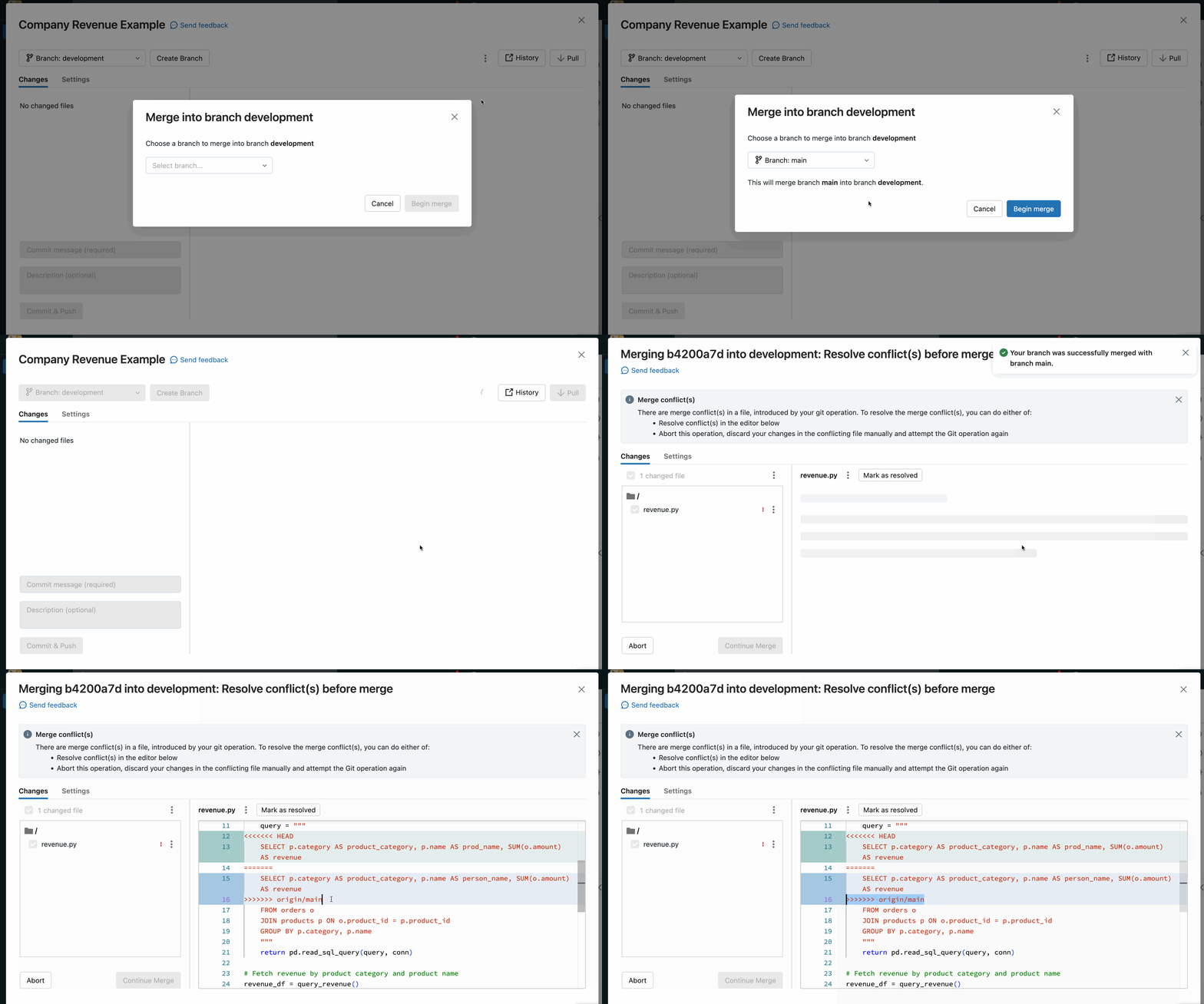
Manually resolve conflicts
Manual conflict resolution lets you determine which conflicting lines to accept. Edit the file contents directly to resolve the conflicts.
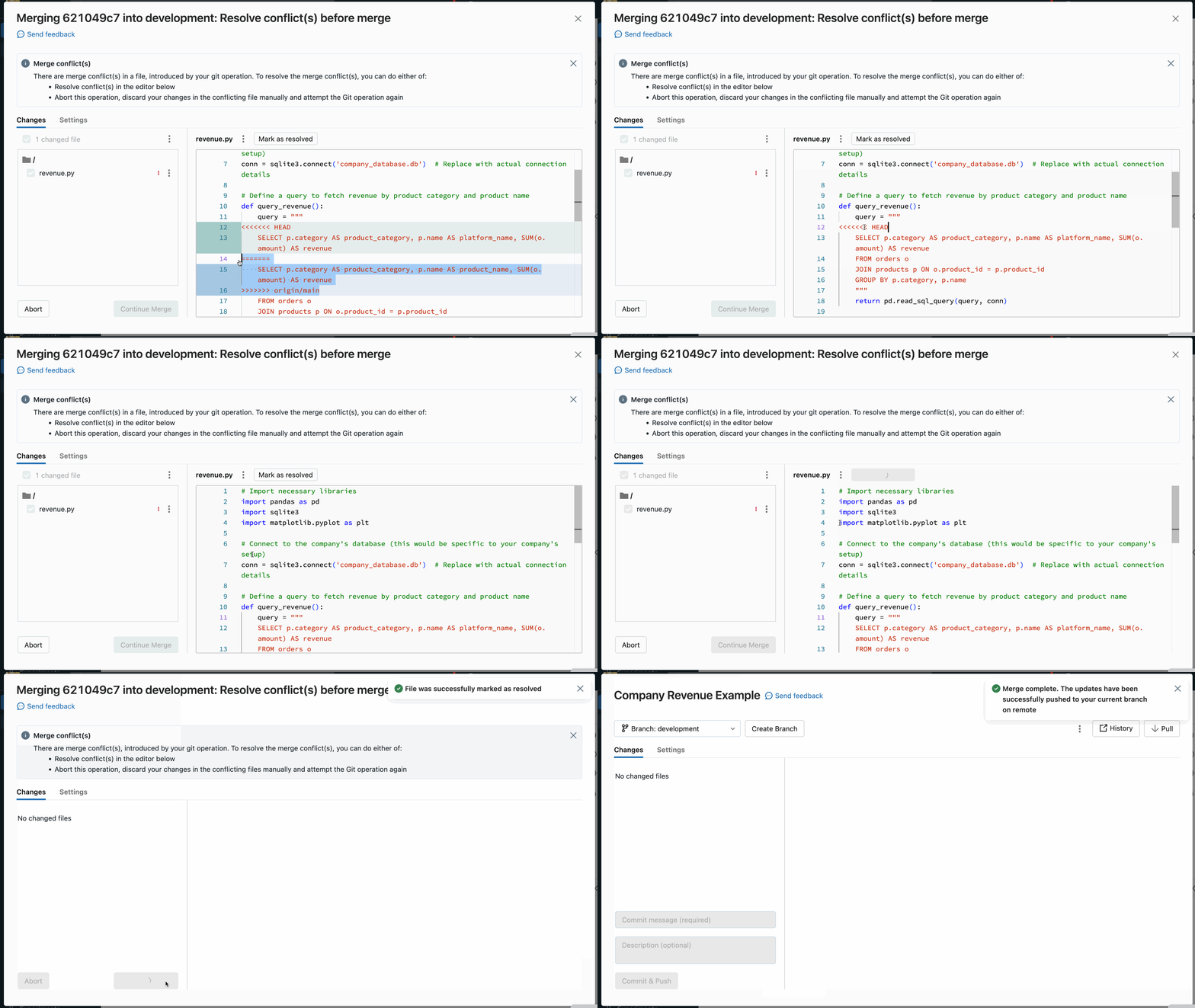
To resolve the conflict, select the code lines you want to preserve and delete everything else, including the Git merge conflict markers. When you're done, select Mark As Resolved.
If you made the wrong choices when resolving merge conflicts, click Abort to abort the process and undo everything. Once all conflicts are resolved, click Continue Merge or Continue Rebase to resolve the conflict and complete the operation.
Rebase a branch
The rebase function in Azure Databricks Git folders uses git rebase to integrate changes from one branch into another by reapplying your commits on top of the target branch, creating a linear history.
To rebase a branch on another branch, click the kebab menu and select Rebase, then select the target branch.
- After the rebase, Git folders run
git commitandgit push --forceto update the remote repo. - Rebase rewrites commit history, which can cause versioning issues for collaborators working in the same repo.
Reset a branch
Perform a Git reset from the Git folders UI. This operation is equivalent to git reset --hard combined with git push --force.
Git reset replaces the branch contents and history with the most recent state of another branch. You can use this when edits conflict with the upstream branch, and you don't mind losing those edits when you reset to the upstream branch. Read more about git reset --hard.
Reset to a remote branch
With git reset in this scenario:
- You reset your selected branch (for example,
feature_a) to a different branch (for example,main). - You also reset the upstream (remote) branch
feature_ato main.
Important
When you reset, you lose all uncommitted and committed changes in both the local and remote version of the branch.
To reset a branch to a remote branch:
In the Git folders UI from the Branch menu, choose the branch you want to reset.
Select Reset from the
kebab menu.
Select the branch to reset and click Run Git Reset.
Configure sparse checkout mode
Sparse checkout is a client-side setting that allows you to clone and work with only a subset of the remote repository's directories in Azure Databricks. This is especially useful if your repository's size exceeds the Azure Databricks supported limits.
Enable sparse checkout mode when you clone a new repo. You can't disable sparse checkout mode after you enable it.
In the Create Git folder dialog, enable Sparse checkout mode.

In the Cone patterns box, specify the cone checkout patterns you want. Separate multiple patterns by line breaks.
How cone patterns work
To understand how cone patterns work in sparse checkout mode, see the following diagram representing the remote repository structure.
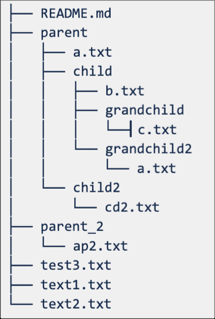
If you select Sparse checkout mode, but don't specify a cone pattern, the default cone pattern applies. This includes only the files in root and no subdirectories, resulting in a repo structure as follows:

Setting the sparse checkout cone pattern as parent/child/grandchild recursively includes all contents of the grandchild directory. The files immediately in the /parent, /parent/child and root directory are also included. See the directory structure in the following diagram:

Note
Exclusion behaviors (!) aren't supported in Git cone pattern syntax.
Modify sparse checkout settings
After you create a repo, edit the sparse checkout cone pattern from Settings > Advanced > Cone patterns.
Note the following behavior:
Removing a folder from the cone pattern removes it from Azure Databricks if there are no uncommitted changes.
Adding a folder by editing the sparse checkout cone pattern adds it to Azure Databricks without requiring an additional pull.
Sparse checkout patterns can't be changed to remove a folder when there are uncommitted changes in that folder.
For example, if you edit a file in a folder and don't commit changes, then try to change the sparse checkout pattern to exclude that folder, the pattern is accepted but the folder isn't deleted. You need to revert the pattern to include that folder, commit your changes, and then reapply the new pattern.
Make changes with sparse checkout
Edit existing files and commit and push them from the Git folder. When creating new folders of files, include them in the cone pattern you specified for that repo.
Including a new folder outside of the cone pattern results in an error during the commit and push operation. To fix it, edit the cone pattern to include the new folder you're trying to commit and push.
Sparse checkout limitations
- Sparse checkout doesn't work for Azure DevOps repositories larger than 4 GB.
- You can't disable sparse checkout for a repo that was created with sparse checkout enabled.
Manage Git folders programmatically
To manage Git folders using the API, see the Repos API reference.
Delete a Git folder
To remove a Git folder from your workspace:
- Right-click the Git folder and select Move to Trash.
- Click Confirm and move to Trash.
Next steps
- Set up authentication to connect Azure Databricks to your Git provider. See Connect your Git provider to Databricks.
- Learn about size limits and other constraints for Git folders. See Databricks Git folder limits and reference.
- Configure workspace-level settings for Git integration. See Set up Databricks Git folders.