Note
Access to this page requires authorization. You can try signing in or changing directories.
Access to this page requires authorization. You can try changing directories.
Note
This capability is currently in preview.
For details about current gaps and restrictions, see Known limitations.
Cloud scopes and unified role-based access control (unified RBAC) in the Microsoft Defender portal let you segment multicloud resources (Azure, AWS, GCP and connected DevOps / registry sources) into meaningful groupings and apply least‑privilege access consistently. They provide:
- Centralized, product-wide security permissions management
- Granular scoping across heterogeneous cloud environments
- Persistent filtering across inventory, posture, vulnerabilities, and exposure management
- Clear separation from Azure (platform) RBAC
Important
Unified RBAC in the Defender portal is distinct from Azure RBAC. Permissions don't flow between the portals; you must configure unified RBAC separately.
Core concepts
| Concept | Description |
|---|---|
| Cloud scope | Logical grouping of one or more cloud/native environment primitives (for example: Azure subscriptions, AWS accounts, GCP projects, DevOps orgs, registries) aligned to business or operational structure. |
| Unified RBAC role | A Defender portal security role defining permission groups (Security operations / Security posture) plus scope-bound assignments. |
| Scope filter | Global UX filter letting users focus data views to selected cloud scopes or device groups. |
| Environments filter | Secondary filter for drilling into individual environments (optionally within a selected scope). |
Key benefits
- Avoid broad tenant-wide access; enforce least privilege
- Align security operations to business units, geography, application domains, or ownership models
- Simplify multicloud delegation with repeatable scope patterns
- Maintain consistent contextual filtering while navigating experiences
- Separate operational security permissions from Azure management constructs
What are cloud scopes?
Cloud scopes are tenant-level logical groupings of heterogeneous cloud environment primitives (Azure subscriptions, AWS accounts, GCP projects, DevOps organizations, container registries, artifact repositories, and more). Instead of mirroring just one provider’s native hierarchy, a cloud scope lets you assemble only the environments that matter for a specific operational or business purpose—then use that grouping consistently for:
- Permission (unified RBAC) assignment
- Data filtering across inventory, posture, vulnerabilities, initiatives, attack paths, and map
- Reporting and delegated ownership boundaries
Key properties:
- Multicloud & multi–data source: A single scope can mix Azure + AWS + GCP + DevOps/org registry sources.
- Non-hierarchical & flexible: Membership is an explicit list; it doesn’t inherit from Azure management groups or AWS organizations.
- Many‑to‑many: An environment can belong to multiple scopes; a scope can contain unlimited environments.
- Manual membership control: Newly connected environments aren’t auto-added—preventing accidental privilege expansion.
- Consistent filter surface: Once selected, a scope persists as you navigate supported Defender portal experiences.
How scopes differ from device groups:
- Device groups focus on endpoint / machine-centric segmentation (historically for Defender for Endpoint & VM scenarios).
- Cloud scopes span broader cloud resource and exposure contexts (posture, attack paths, multicloud asset inventory).
- Experiences may present both; each category applies where semantically relevant (for example, Devices tab vs Cloud tab).
Common design patterns for creating scopes:
- Business unit or division (Finance, Retail, R&D)
- Application / product line (Payments-Service, Mobile-App)
- Environment stage (Production, Staging, Test)
- Regional / regulatory boundary (EU-Data-Residency, US-HIPAA)
- M&A or isolated initiative (AcquiredCo-Integration)
- High-value / sensitive workloads (Crown-Jewels)
Relationship to unified RBAC:
- Unified RBAC roles reference one or more scopes (or “All”).
- A user’s effective cloud data visibility and permitted actions are the union of all scopes tied to their assigned roles.
- Scope changes (adding or removing environments) immediately alter access for users relying on that scope.
- Least privilege: Granularity allows narrowing powerful permissions (for example, response or manage) to only the intended environments.
Planning guidance:
- Start coarse (major org / region boundaries).
- Validate operational ownership and review cadence.
- Introduce finer scopes only when risk, confidentiality, or compliance requires it.
- Document purpose and owner for each scope to support lifecycle and audit.
Prerequisites
- Global Admin or Security Admin (for configuration)
- Access to the Microsoft Defender portal
- Connected cloud / DevOps / registry environments
1. Create cloud scopes
Navigation: Settings > Permissions > Microsoft XDR Roles > Scopes > Cloud scopes.
Characteristics:
- Unlimited scopes
- A scope can include multiple heterogeneous environments
- An environment can belong to multiple scopes
- Membership isn't automatic; newly connected environments must be explicitly added
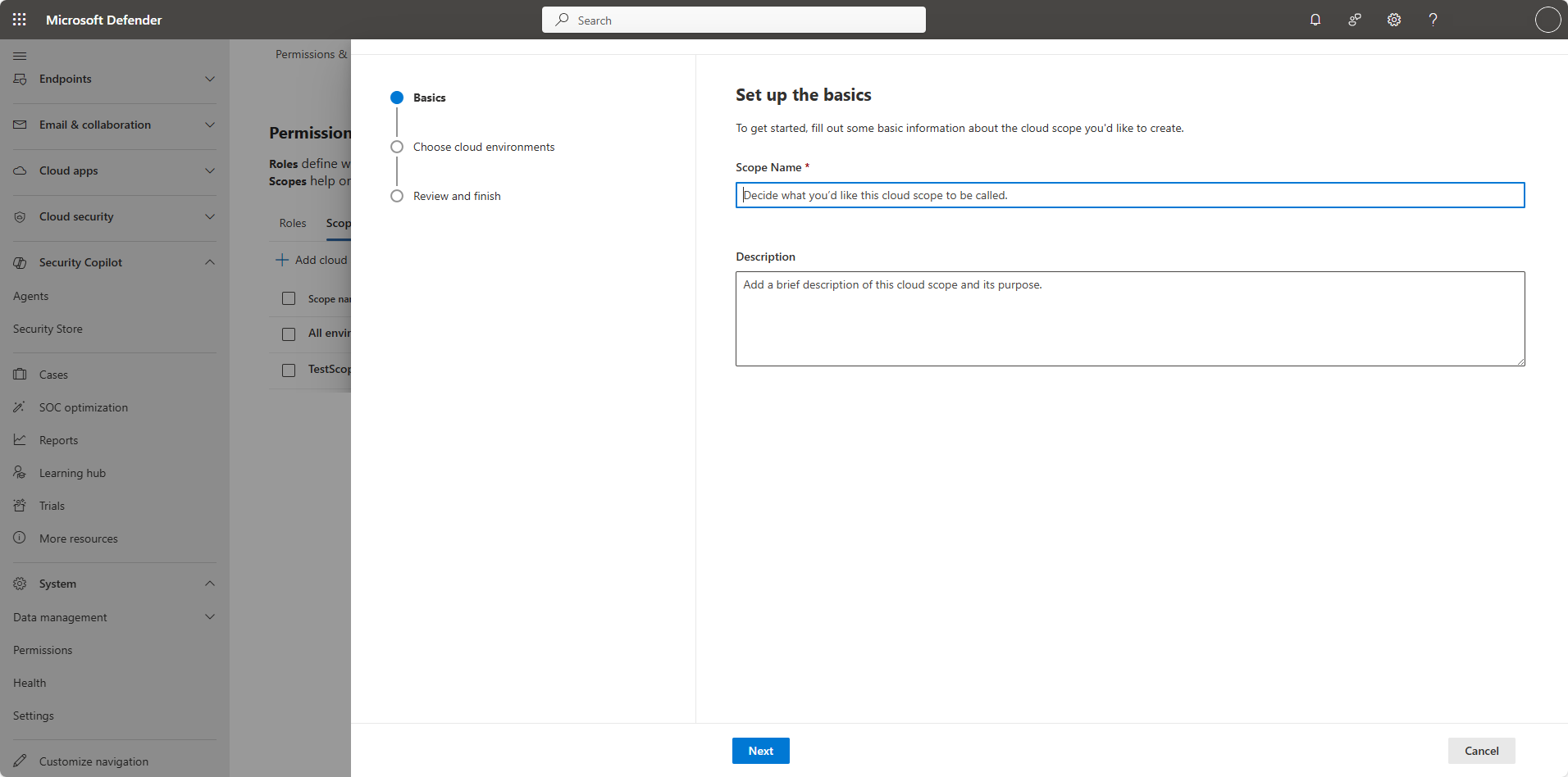
Create a scope (wizard)
- Select Create new cloud scope.

- Enter name and description.
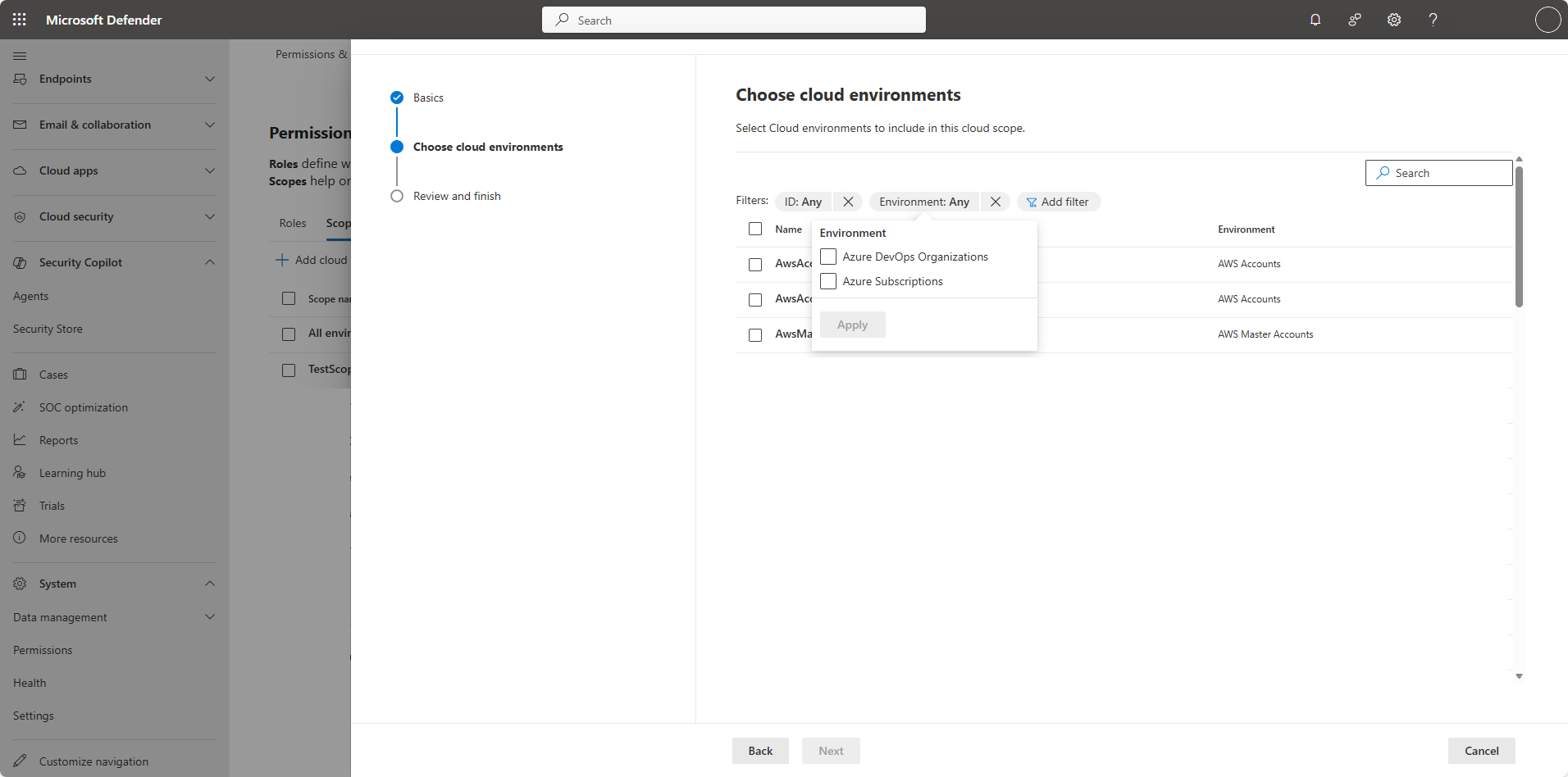
- Select environment primitives (individually or via filters).
- Review and finish.


2. Activate cloud scopes (one-time)
Before scopes can be used in role assignments, run the activation wizard if prompted. This:
- Enumerates existing unified RBAC roles referencing Microsoft Defender for Cloud data sources
- Lets you map those roles to chosen cloud scopes
- Highlights manage / sensitive permissions (for example: response actions) 1 Finalizes activation (irreversible; future changes are through normal management)
If no device groups or unified RBAC roles exist yet, the wizard may be skipped until needed.
Activation & bulk assignment wizard


Guidelines:
- Create at least one scope if none exist
- Review which roles include manage-level permissions (these extend VM-related capabilities)
- Approve to complete activation
3. Define unified RBAC roles and assignments
Navigation: Settings > Permissions > Microsoft XDR Roles > Roles.
Permission groups (select one or both):
- Security operations – incidents, alerts, and cloud inventory
- Security posture – recommendations, vulnerability management, security score, exposure/posture features
Note
For posture access, include data source: Exposure Management (XSPM). Some Microsoft Defender for Cloud features surface within Exposure Management views.
During the role wizard:
- Choose permission groups
- Select data sources: All / MDC / Exposure Management (XSPM)
- Assign users / groups
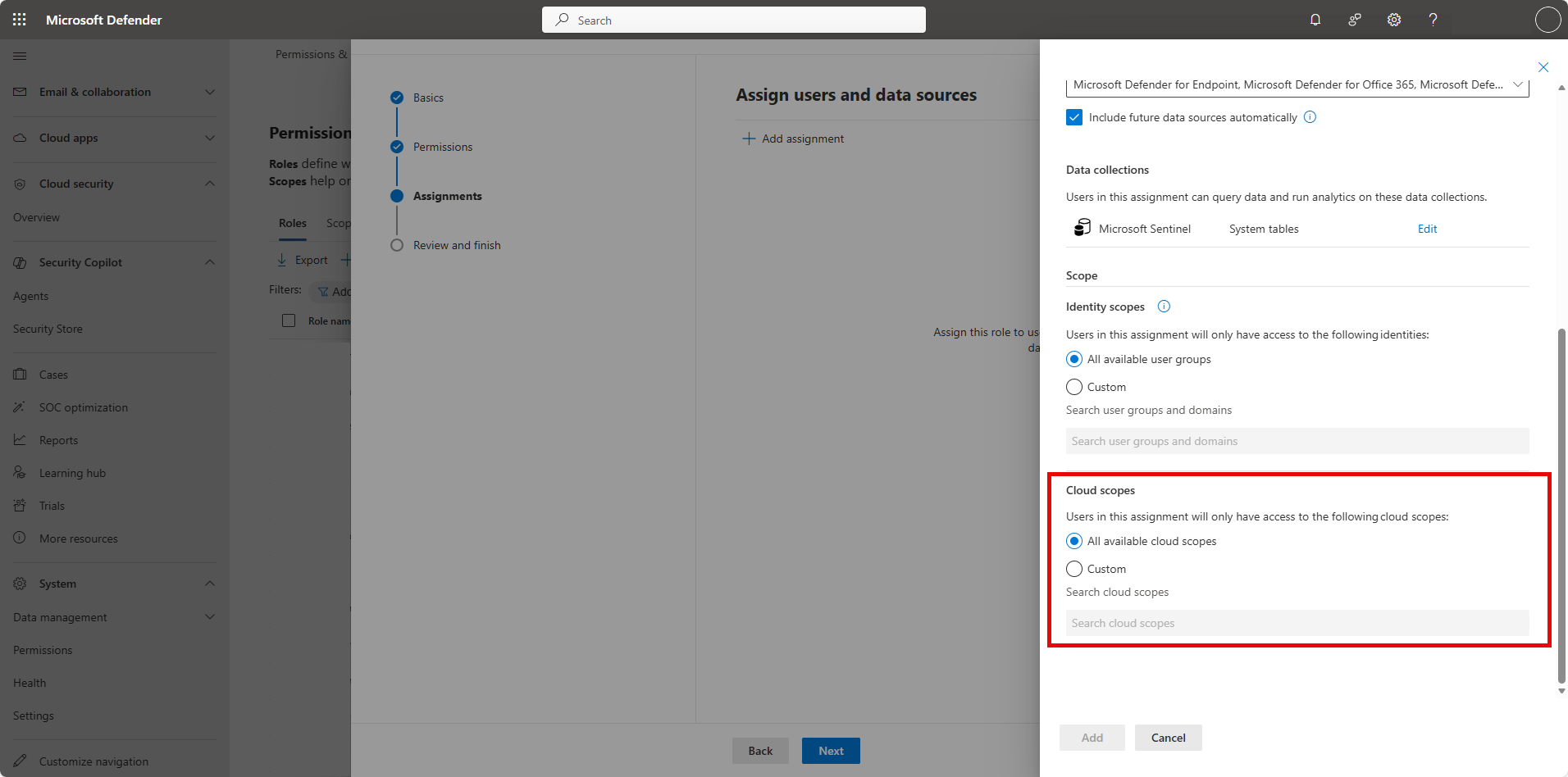
- Select scope option:
- All cloud scopes
- Custom (pick specific scopes)


4. Use scope and environment filters
Scope filter (global)
The scopes filter (cloud scopes + device groups) persists across:
- Recommendations (Cloud tab / Devices tab context)
- Initiatives
- Vulnerability management
- Cloud inventory
- Cloud overview & initiatives dashboards
- Attack paths
- Map view
Behavior:
- Users see only values they are authorized for
- Device group filtering applies where device-centric data is relevant
- Mixed experiences apply scope category contextually (for example: Recommendations: device groups affect Devices tab; cloud scopes affect Cloud tab)


Environments filter
Purpose: deep investigation, mitigation, remediation focus.
Characteristics:
- Available in cloud initiatives, overview dashboards, cloud inventory, cloud recommendations
- Shows only permitted environments
- With no scope selected: lists all accessible environments
- With a scope selected: constrained to that scope’s members
- Orders of application:
- Scope first, then environment (subset refine)
- Environment first, then scope (scope selection overrides previous set)

5. Ongoing management
After creation and activation you can:
- Add / remove environments from scopes
- Adjust role assignments
- Audit usage (who has which scope access)
- Review manage-level permissions periodically
- Remove obsolete scopes to reduce complexity
Best practices
| Practice | Rationale |
|---|---|
| Align scopes to stable business or operational boundaries | Reduces churn and redesign |
| Use clear, descriptive names (BU-App-Region) | Eases auditing and delegation |
| Enforce least privilege | Limits blast radius |
| Schedule periodic access reviews | Detects permission drift |
| Document scope purpose & owner | Supports lifecycle governance |
| Avoid excessive overlapping scopes | Minimizes complexity & evaluation effort |
Supported environment primitives (current)
- AWS Accounts
- AWS Master Accounts
- Azure Subscriptions
- GCP Projects
- Azure DevOps Organizations
- GitHub Organizations
- GitLab Groups
- Docker Hub Organizations
- JFrog Artifactory
(Additional primitives like management groups and container resources planned.)
Floating (unscoped) assets
Certain asset types remain globally visible (not scope-bound) due to graph model or missing hierarchical anchors:
- Microsoft Entra ID users and groups
- GCP users and groups
- Service principals
- Container images
- IP addresses
- Certificates
- SSH private keys
- Secrets and Managed Identities (some may become scopable when resource IDs are available)
These appear in inventory, attack paths, maps, and related exposure experiences for all authorized portal users.
Known issues & limitations
| Area | Limitation / Status |
|---|---|
| RBAC model separation | Unified RBAC is independent of Azure RBAC (must be configured separately). |
| API support | Portal only today for scope CRUD & assignments; API coming soon. |
| Dynamic selection | Conditional/dynamic inclusion rules not yet supported. |
| Filtering in XDR (incidents/alerts) | Global scopes filter not fully integrated; partial table-level inheritance only. |
| Cross-experience coverage | Some aggregated scores (for example: exposure score, Secure Score variants) may not fully scope-filter. |
| Visualization constraints | Asset-rich views honor scoping but may limit related asset detail due to permission boundaries. |
| Future primitives | Management groups, additional container/resource primitives planned. |
Frequently asked questions
Q: How do cloud scopes improve operational alignment across business units?
Cloud scopes improve operational alignment across business units by allowing administrators to group resources according to business value, function, or organizational structure. This targeted grouping enables tailored access control and visibility, ensuring that each business unit receives the specific permissions and oversight it requires. As a result, teams can operate efficiently within their designated environments, while administrators maintain clear boundaries and flexibility when managing multicloud resources. This approach streamlines operations and supports strategic objectives across the organization.
Q: What is unified RBAC in the Defender Portal?
Unified role-based access control (Unified role-based access control) is a centralized permissions model in the Defender Portal that allows administrators to manage user access across multiple security solutions. It is distinct from Azure role-based access control and requires separate configuration.
Q: What are Cloud scopes?
Cloud scopes are a cloud-aware scoping method that lets administrators group resources by business units, value, or strategic function. This enables tailored access control and visibility across multicloud environments.
Q: How do I manage Cloud Scopes?
Navigate to: Settings → Permissions → Microsoft XDR Roles → Roles → Cloud scopes tab
From there, you can:
- Create unlimited scopes
- Include multiple environments per scope
- Assign environments to multiple scopes
- Manage scopes with full CRUD permissions (Global admin only)
Q: How do I activate and assign Cloud Scopes?
- Use the activation wizard to configure permissions for Defender for Cloud data sources
- Assign roles to scopes during this process
- Activation is a one-time setup and must be completed before assigning roles
Q: Why can't I assign Cloud Scopes in role assignment?
To enable cloud scopes for the first time, you must configure permissions for roles associated with Defender for Cloud data sources. This step also controls access to shared assets like VMs via Device Groups or Cloud Scope. Begin by completing the activation process, which guides Authorization admins through role-based access control configuration in the unified role-based access control experience. Cloud scopes are effective only after activation.
Q: Who can manage Cloud Scopes?
Only Global Admins have full management rights.
Q: How does unified RBAC assignment work?
- Assign roles to specific cloud scopes
- Permissions are scoped to the selected environments
- Unified role-based access control is not transferable from Azure; it must be configured separately in the Defender Portal
Q: How does unified RBAC differ from Azure RBAC in terms of permission granularity?
Unified role-based access control in the Defender Portal offers a permissions model that is distinct from Azure role-based access control, particularly in terms of permission granularity. While Azure role-based access control provides role assignments at the Azure resource level and is managed through Azure's centralized access control, unified role-based access control is configured separately within the Defender Portal and allows administrators to define permissions specifically for security-related resources and actions across multiple Defender solutions. This enables more targeted control within the Defender environment, such as assigning roles to specific cloud scopes or environments, rather than relying on broader Azure resource group or subscription boundaries. As a result, unified role-based access control grants administrators the flexibility to tailor security permissions with finer granularity for users who need access to Defender capabilities, independent of their Azure role-based access control roles.
Q: What are the implications of assigning roles across multiple cloud scopes?
Assigning roles across multiple cloud scopes allows users to access resources and perform actions in all environments included in those scopes. This approach enables administrators to tailor permissions for users who need visibility or control over several business units or strategic areas. However, it also increases the importance of carefully managing scope definitions and role assignments to prevent unnecessary access. Overlapping scopes can lead to complex permission models, so it's essential to regularly review and audit assignments to ensure users have only the access they require. Effective management helps maintain security boundaries and operational clarity.
Q: What criteria should be used to define cloud scopes effectively?
Cloud scopes can be leveraged to reflect your organizational hierarchy and structure. They're configurable in a flexible manner to support various criteria, such as: business unit or function, resource value and sensitivity, operational unit by geographic location, application unit, and more.
Next steps
Cloud scopes and unified RBAC (Azure portal view)
Full lifecycle management (creation, membership, advanced filtering, multicloud assignments) is performed in the Microsoft Defender portal. In the Azure portal you can still:
- View Azure RBAC assignments at subscription / resource group levels
- Manage classic Azure access for platform resources
For end-to-end cloud scopes and unified RBAC administration, use the Defender portal.
Note
Understanding Permissions in Defender vs. Azure
Defender uses uRBAC (Unified Role-Based Access Control), which is separate from Azure RBAC.
- Azure RBAC controls access at the Azure resource level (subscriptions, resource groups).
- uRBAC provides finer-grained permissions within the Defender portal, letting you assign roles for specific security actions and cloud scopes across Defender solutions.
This means permissions in Defender are tailored for security tasks and do not depend on Azure RBAC roles.
Important: Users will require two separate permissions: their existing Azure RBAC permissions as well as an additional uRBAC role. In addition to the existing Azure RBAC permissions, you must provide users with a new uRBAC role in order to grant them access to the new portal.