Note
Access to this page requires authorization. You can try signing in or changing directories.
Access to this page requires authorization. You can try changing directories.
Defender for Cloud CLI supports two authentication methods to align with enterprise security practices: connector-based authentication for Azure DevOps and GitHub, which handles authentication automatically, and token-based authentication, which provides flexibility across different build systems and local environments.
Connector Based (ADO and GitHub)
Connector‑based authentication integrates Azure DevOps and GitHub directly with Microsoft Defender for Cloud through a secure connector. Once the connection is established, authentication is managed automatically, removing the need to store or inject tokens in your pipelines.
This method is the preferred authentication method for Azure DevOps and GitHub. Learn how to create a connector:
Token Based
Token‑based authentication allows security admins to generate tokens in the Microsoft Defender for Cloud portal and configure them as environment variables in CI/CD pipelines or local terminals. This method provides flexibility across different build systems and ensures secure, scoped access without embedding credentials in scripts.
Sign in to the Azure portal and open Microsoft Defender for Cloud.
Navigate to Management ▸ Environment settings ▸ Integrations.

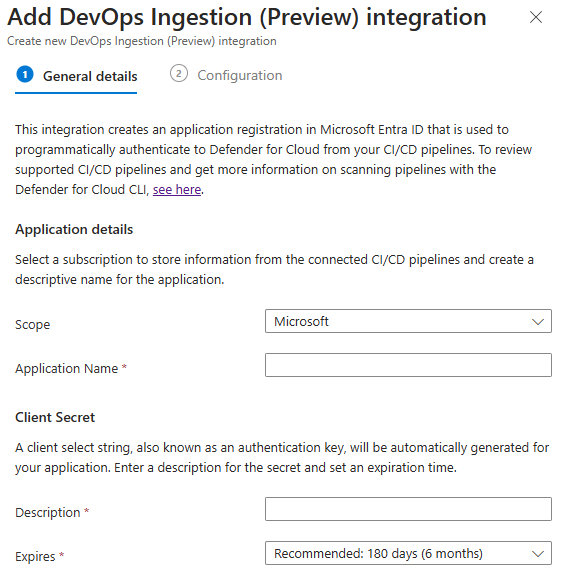
Select + Add integration ▸ DevOps Ingestion (Preview)

Enter an application name.
- Choose the tenant to store the secret.
- Set an expiration date, and enable the token.
- Select Save.

After saving, copy the Client ID, Client Secret, and Tenant ID. You can't retrieve them again.
