Note
Access to this page requires authorization. You can try signing in or changing directories.
Access to this page requires authorization. You can try changing directories.
When you enable Microsoft Defender for Cloud for the first time on your Azure subscription, you automatically start a 30-day free trial. During this trial period, you can explore the capabilities of Defender for Cloud, foundational Cloud Security Posture Management (CSPM), and access to Microsoft Defender XDR.
The free trial lasts for 30 days, or until you reach the usage limit for certain plans, whichever comes first.
Once the usage limit is met or once the 30-day trial ends, charges begin based on the plans enabled in your environment. To learn more about these plans, their usage limits, and associated costs, see the Defender for Cloud pricing page. You can also estimate costs with the Defender for Cloud cost calculator.
If you have multiple subscriptions, each subscription has its own free trial period. You need to check the status of each subscription's free trial individually. Azure gives you a 30-day free trial every time you activate a new plan. For example, if you activate Defender for Servers, you get 30 days free. If at a later time you activate Defender for Cloud Security Posture Management (DCSPM), you get another 30 days for that plan. Amazon Web Service (AWS) and Google Cloud Project get one trial per account or GCP project, regardless of which plan is enabled or when.
Prerequisites
You need a Microsoft Azure subscription. If you don't have an Azure subscription, you can sign up for a free subscription.
You must enable Microsoft Defender for Cloud on your Azure subscription.
To check the status of a free trial, you must have a role of Reader or higher on the subscription.
To enable a plan on your subscription, you must have the Security Admin or Owner role.
Check your free trial status with Azure CLI
Azure allows you to check the status of your free trial by using the built-in Azure Command Line Interface (CLI).
Sign in to the Azure portal.
Go to Microsoft Defender for Cloud.
Select CLI.
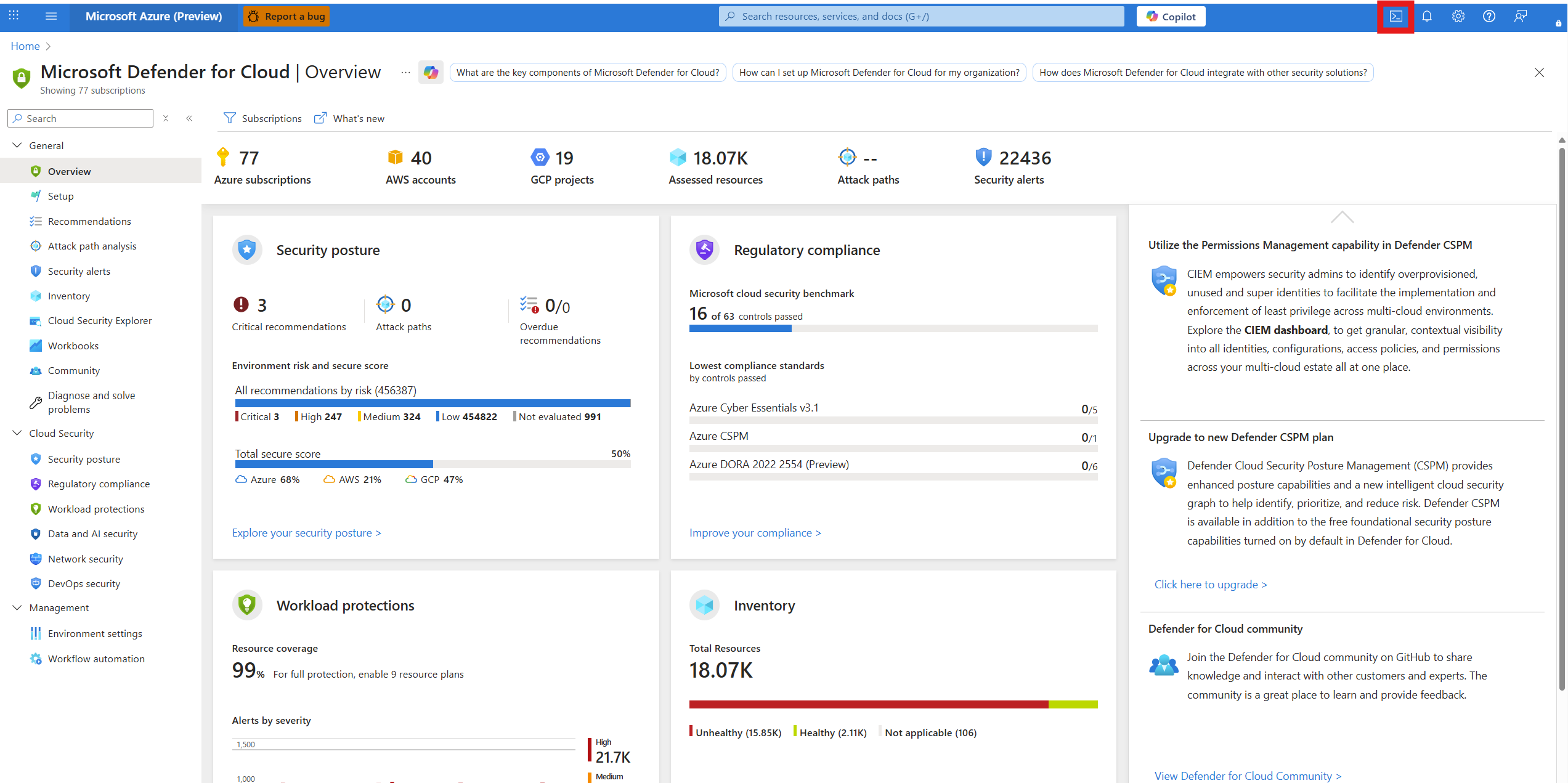
Select PowerShell.
Run the following command to check the status of your free trial:
Get-AzSecurityPricing
The FreeTrialRemainingTime field shows the remaining time, if any, of the free trial. If the field shows “00:00:00”, it means that the free trial is complete.
Check your free trial status with Azure Resource Graph Explorer
You can check the status of your free trial by using the Azure Resource Graph Explorer in the Azure portal.
Sign in to the Azure portal.
Search for and select Resource Graph Explorer.
Run the following query:
 // Total volume
 securityresources
 | where type == "microsoft.security/pricings"
 | extend iso = tostring(properties.freeTrialRemainingTime)
 | extend
 days = extract(@"P(\d+)D", 1, iso),
 hours = extract(@"T(\d+)H", 1, iso),
 minutes = extract(@"H(\d+)M", 1, iso)
 | extend enablementDate = format_datetime(todatetime(properties.enablementTime), "yyyy-MM-dd HH:mm:ss")
 | project
 subscriptionId,
 name,
 pricingTier = properties.pricingTier,
 FreeTrialRemainingTime = strcat(
     coalesce(days, "0"), " days, ",
     coalesce(hours, "0"), " hours, ",
     coalesce(minutes, "0"), " minutes"
 ),
 resourcesCoverageStatus = properties.resourcesCoverageStatus,
 enablementDate
 | sort by subscriptionId asc
The FreeTrialRemainingTime column shows the remaining time, if any, of the free trial. If the column shows “0 days, 0 hours, 0 minutes”, it means that the free trial is complete.
Check your free trial status with Defender for Cloud
You can check the status of your free trial directly within the Microsoft Defender for Cloud portal.
Sign in to the Azure portal.
Search for and select Microsoft Defender for Cloud > Environment settings.
Select the relevant subscription.
Locate the icon that applies to your subscription:
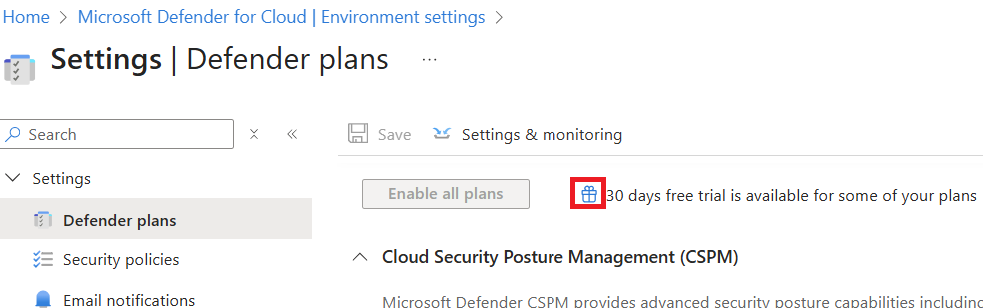
Icon Description 
The full trial is still available. 
The free trial is active. Hover over the icon to see the remaining time. No icon The free trial is over.
Disable the free trial
If you decide not to continue using Microsoft Defender for Cloud during your free trial, you can disable it.
Sign in to the Azure portal.
Go to Microsoft Defender for Cloud > Environment settings.
Select the relevant subscription.
Disable the relevant plan.
Select Save.