Note
Access to this page requires authorization. You can try signing in or changing directories.
Access to this page requires authorization. You can try changing directories.
Defender for Cloud uses a proprietary algorithm to locate potential attack paths specific to your multicloud environment. Defender for Cloud focuses on real, externally-driven and exploitable threats rather than broad scenarios. The algorithm detects attack paths that begin outside your organization and progress to business-critical targets, helping you cut through the noise and act faster.
You can use attack path analysis to address security issues that pose immediate threats and have the greatest potential for exploitation in your environment. Defender for Cloud analyzes which security issues are part of externally-exposed attack paths that attackers could use to breach your environment. It also highlights the security recommendations you need to resolve to mitigate these issues.
By default attack paths are organized by risk level. The risk level is determined by a context-aware risk-prioritization engine that considers the risk factors of each resource. Learn more about how Defender for Cloud prioritizes security recommendations.
Note
This capability is currently in preview.
For details about current gaps and restrictions, see Known limitations.
Prerequisites
You must enable Defender Cloud Security Posture Management (CSPM) and have agentless scanning enabled.
Required roles and permissions: Security Reader, Security Admin, Reader, Contributor, or Owner.
Note
You may see an empty Attack Path page, as attack paths now focus on real, externally-driven and exploitable threats rather than broad scenarios. This helps reduce noise and prioritize imminent risks.
To view attack paths that are related to containers:
You must enable agentless container posture extension in Defender CSPM or
You can enable Defender for Containers, and install the relevant agents in order to view attack paths that are related to containers. This also gives you the ability to query containers data plane workloads in security explorer.
Required roles and permissions: Security Reader, Security Admin, Reader, Contributor, or Owner.
Identify attack paths
You can use Attack path analysis to locate the biggest risks to your environment and to remediate them.
The attack path page shows you an overview of all of your attack paths. You can also see your affected resources and a list of active attack paths.

To identify attack paths in the Azure portal:
Sign in to the Azure portal.
Navigate to Microsoft Defender for Cloud > Attack path analysis.

Select an attack path.
Select a node.
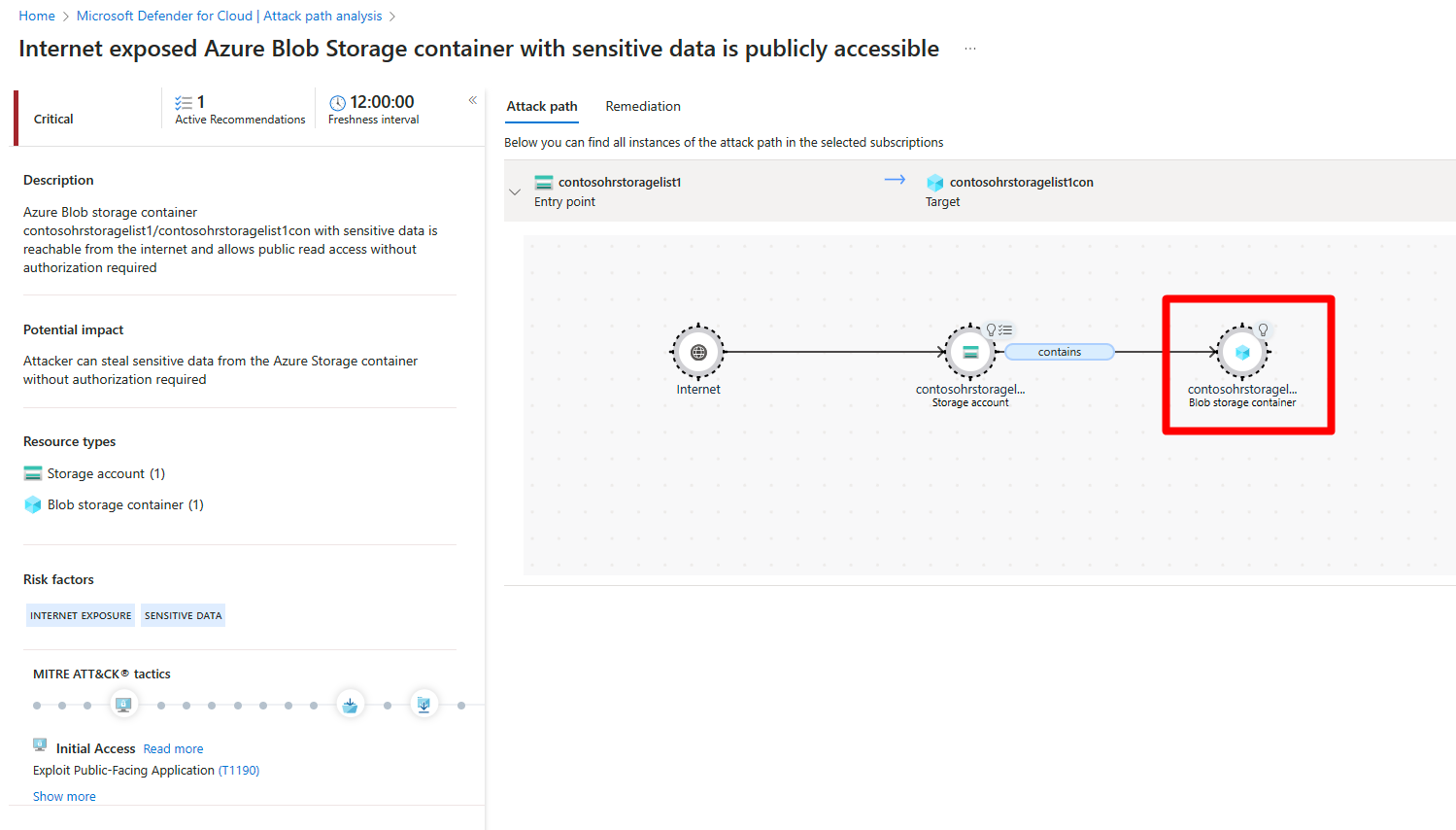
Note
If you have limited permissions—especially across subscriptions—you might not see full attack path details. This is expected behavior designed to protect sensitive data. To view all details, make sure you have the necessary permissions.
Select Insight to view the associated insights for that node.

Select Recommendations.

Select a recommendation.


To identify attack paths in the Defender portal:
Sign in to the Microsoft Defender portal.
Navigate to Exposure Management > Attack surface > Attack paths. You will see an overview of your attack paths.
The attack paths experience provides multiple views:
- Overview tab: View attack paths over time, top 5 choke points, top 5 attack path scenarios, top targets, and top entry points
- Attack paths list: Dynamic, filterable view of all attack paths with advanced filtering capabilities
- Choke points: List of nodes where multiple attack paths converge, flagged as high-risk bottlenecks


Note
In the Defender portal, attack path analysis is part of the broader Exposure Management capabilities, providing enhanced integration with other Microsoft security solutions and unified incident correlation.
Select the Attack paths tab.

Use advanced filtering in the Attack paths list to focus on specific attack paths:
- Risk level: Filter by High, Medium, or Low risk attack paths
- Asset type: Focus on specific resource types
- Remediation status: View resolved, in-progress, or pending attack paths
- Time frame: Filter by specific time periods (e.g., last 30 days)
Select an attack path to view the Attack Path Map, a graph-based view highlighting:
- Vulnerable nodes: Resources with security issues
- Entry points: External access points where attacks could begin
- Target assets: Critical resources attackers are trying to reach
- Choke points: Convergence points where multiple attack paths intersect
Select a node to investigate detailed information:

Note
If you have limited permissions—especially across subscriptions—you might not see full attack path details. This is expected behavior designed to protect sensitive data. To view all details, make sure you have the necessary permissions.
Review node details including:
- MITRE ATT&CK tactics and techniques: Understanding the attack methodology
- Risk factors: Environmental factors contributing to risk
- Associated recommendations: Security improvements to mitigate the issue
Select Insight to view the associated insights for that node.
Select Recommendations to see actionable guidance with remediation status tracking.

Select a recommendation. Once you're done with your investigation of an attack path and you review all of the associated findings and recommendations, you can start to remediate the attack path.


Once an attack path is resolved, it can take up to 24 hours for an attack path to be removed from the list.
Remediate attack paths
Once you're done with your investigation of an attack path and you review all of the associated findings and recommendations, you can start to remediate the attack path.
To remediate an attack path in the Azure portal:
Navigate to Microsoft Defender for Cloud > Attack path analysis.
Select an attack path.
Select Remediation.
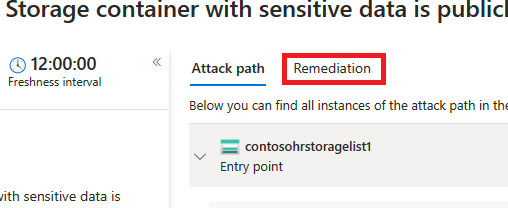
Select a recommendation.
Once an attack path is resolved, it can take up to 24 hours for an attack path to be removed from the list.
Remediate all recommendations within an attack path
Attack path analysis grants you the ability to see all recommendations by attack path without having to check each node individually. You can resolve all recommendations without having to view each node individually.
The remediation path contains two types of recommendation:
- Recommendations - Recommendations that mitigate the attack path.
- Additional recommendations - Recommendations that reduce the exploitation risks, but don't mitigate the attack path.
To resolve all recommendations in the Azure portal:
Sign in to the Azure portal.
Navigate to Microsoft Defender for Cloud > Attack path analysis.
Select an attack path.
Select Remediation.
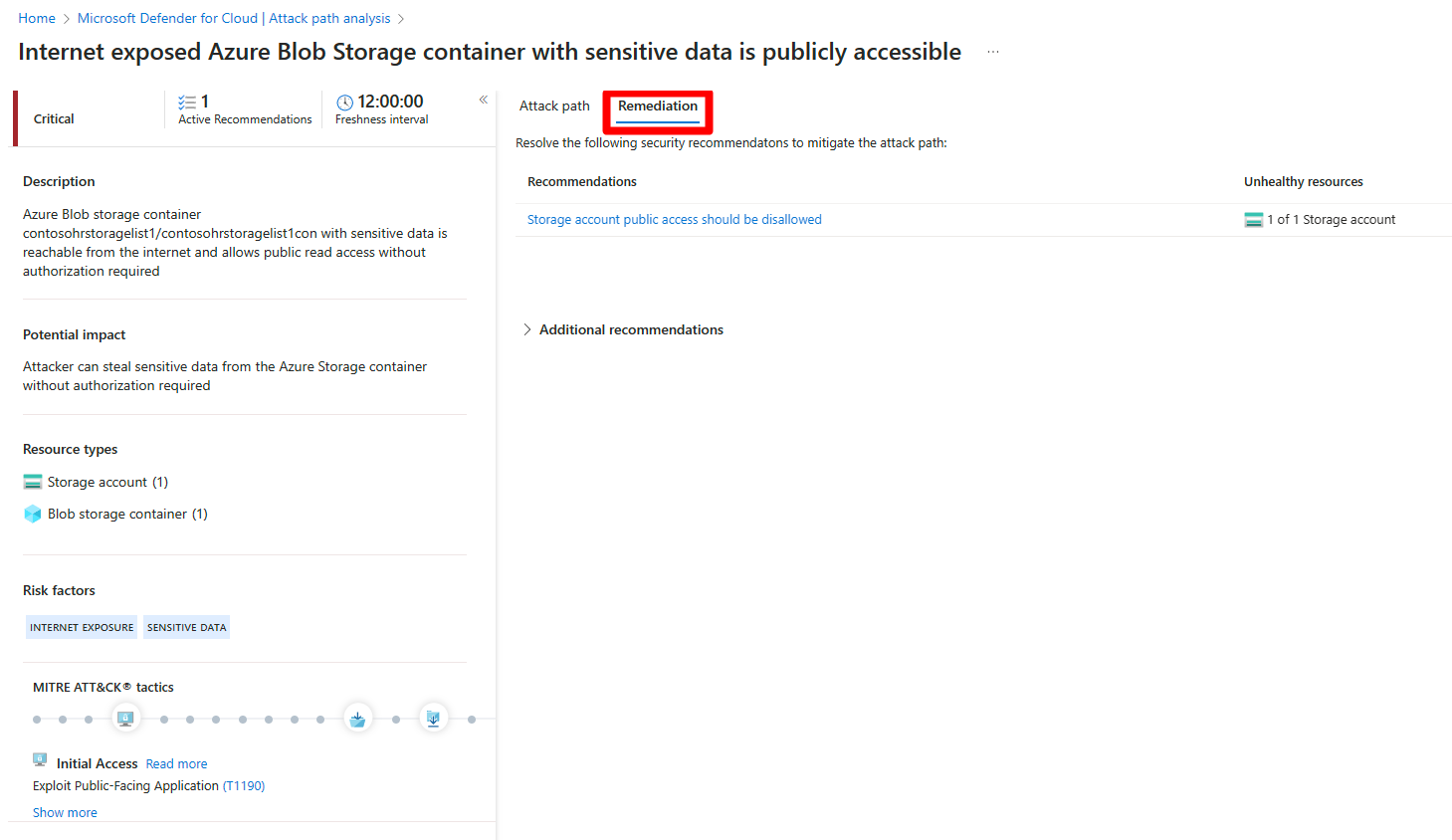
Expand Additional recommendations.
Select a recommendation.
Once an attack path is resolved, it can take up to 24 hours for an attack path to be removed from the list.
To resolve all recommendations in the Defender portal:
Sign in to the Microsoft Defender portal.
Navigate to Exposure Management > Attack path analysis.
Select an attack path.
Select Remediation.
Note
The Defender portal provides enhanced tracking of remediation progress and can correlate remediation activities with broader security operations and incident management workflows.
Expand Additional recommendations.
Select a recommendation.
Once an attack path is resolved, it can take up to 24 hours for an attack path to be removed from the list.
Enhanced exposure management capabilities
The Defender portal provides additional capabilities for attack path analysis through its integrated Exposure Management framework:
- Unified incident correlation: Attack paths are automatically correlated with security incidents across your Microsoft security ecosystem.
- Cross-product insights: Attack path data is integrated with findings from Microsoft Defender for Endpoint, Microsoft Sentinel, and other Microsoft security solutions.
- Advanced threat intelligence: Enhanced context from Microsoft threat intelligence feeds to better understand attack patterns and actor behaviors.
- Integrated remediation workflows: Streamlined remediation processes that can trigger automated responses across multiple security tools.
- Executive reporting: Enhanced reporting capabilities for security leadership with business impact assessments.
These capabilities provide a more comprehensive view of your security posture and enable more effective response to potential threats identified through attack path analysis.
Learn more about attack paths in Defender for Cloud.