Note
Access to this page requires authorization. You can try signing in or changing directories.
Access to this page requires authorization. You can try changing directories.
Microsoft Defender for Cloud helps protect workloads running in Amazon Web Services (AWS). To assess your AWS resources and get security recommendations, you need to connect your AWS account to Defender for Cloud. The connector gathers configuration and security signals from AWS services. By using this information, Defender for Cloud can analyze posture, generate recommendations, and surface alerts.
For more information, watch the New AWS connector in Defender for Cloud video from the Defender for Cloud in the Field video series.

Important
If you already connected your AWS account to Microsoft Sentinel, you might need to do extra configuration when connecting it to Defender for Cloud. This extra configuration prevents deployment or ingestion problems. For more information, see Connect a Sentinel connected AWS account to Defender for Cloud.
Authentication architecture
When you connect an AWS account, Microsoft Defender for Cloud authenticates to AWS using federated trust and short-lived credentials, without storing long-lived secrets.
Learn more about how authentication is established between Microsoft Entra ID and AWS, including the IAM roles and trust relationships created during onboarding.
Prerequisites
Before you connect your AWS account, make sure you have:
A Microsoft Azure subscription. If you don't have one, sign up for a free subscription.
Microsoft Defender for Cloud enabled on that subscription.
Access to an AWS account.
Permission to create resources in Azure (Contributor or above).
Additional requirements apply when enabling specific Defender plans. Review the native connector plan requirements.
Note
The AWS connector isn't available on the national government clouds (Azure Government, Microsoft Azure operated by 21Vianet).
Native connector plan requirements
Each Defender plan has specific setup requirements.
- Defender for Containers
- Defender for SQL
- Defender for open-source databases (Preview)
- Defender for Servers
- Defender CSPM
- At least one Amazon EKS cluster with access to the Kubernetes API server. If you don't have one, create a new EKS cluster.
- Capacity to create an Amazon SQS queue, Kinesis Data Firehose delivery stream, and Amazon S3 bucket in the same region as the cluster.
Connect your AWS account
Sign in to the Azure portal.
Go to Defender for Cloud > Environment settings.
Select Add environment > Amazon Web Services.

Enter the AWS account details, including the Azure region where the connector resource will be created.
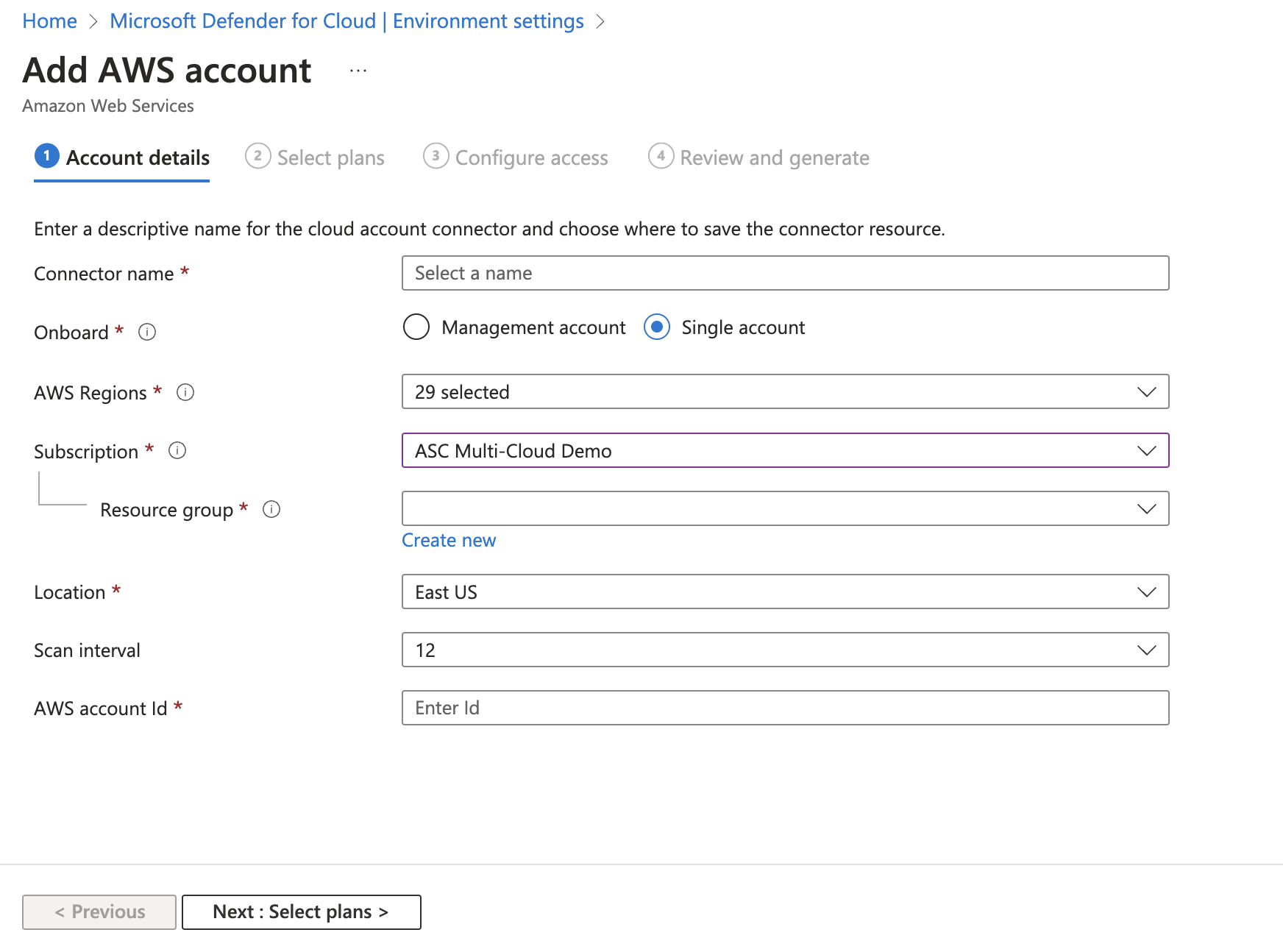
Use the AWS regions dropdown to select the regions Defender for Cloud monitors. Regions you deselect don't receive API calls from Defender for Cloud.
Select a scan interval (4, 6, 12, or 24 hours).
This selection defines the standard interval for most posture checks. Some data collectors with fixed intervals run more frequently, regardless of this setting:
Scan interval Data collectors 1 hour EC2Instance, ECRImage, ECRRepository, RDSDBInstance, S3Bucket, S3BucketTags, S3Region, EKSCluster, EKSClusterName, EKSNodegroup, EKSNodegroupName, AutoScalingAutoScalingGroup 12 hours EcsClusterArn, EcsService, EcsServiceArn, EcsTaskDefinition, EcsTaskDefinitionArn, EcsTaskDefinitionTags, AwsPolicyVersion, LocalPolicyVersion, AwsEntitiesForPolicy, LocalEntitiesForPolicy, BucketEncryption, BucketPolicy, S3PublicAccessBlockConfiguration, BucketVersioning, S3LifecycleConfiguration, BucketPolicyStatus, S3ReplicationConfiguration, S3AccessControlList, S3BucketLoggingConfig, PublicAccessBlockConfiguration Select Next: Select plans, and choose the Defender plans you want to enable.
Review the default plan selections, as some plans might be enabled automatically depending on your configuration. For example, the Databases plan extends Defender for SQL coverage to AWS EC2, RDS Custom for SQL Server, and open-source relational databases on RDS.

Each plan might incur charges. Learn more about Defender for Cloud pricing.
Important
To present up-to-date recommendations, Defender CSPM queries AWS resource APIs several times a day. These read-only API calls incur no AWS charges. However, if you enable read-event logging, CloudTrail might record them. Exporting this data to external SIEM systems might increase ingestion costs. If required, filter read-only calls from:
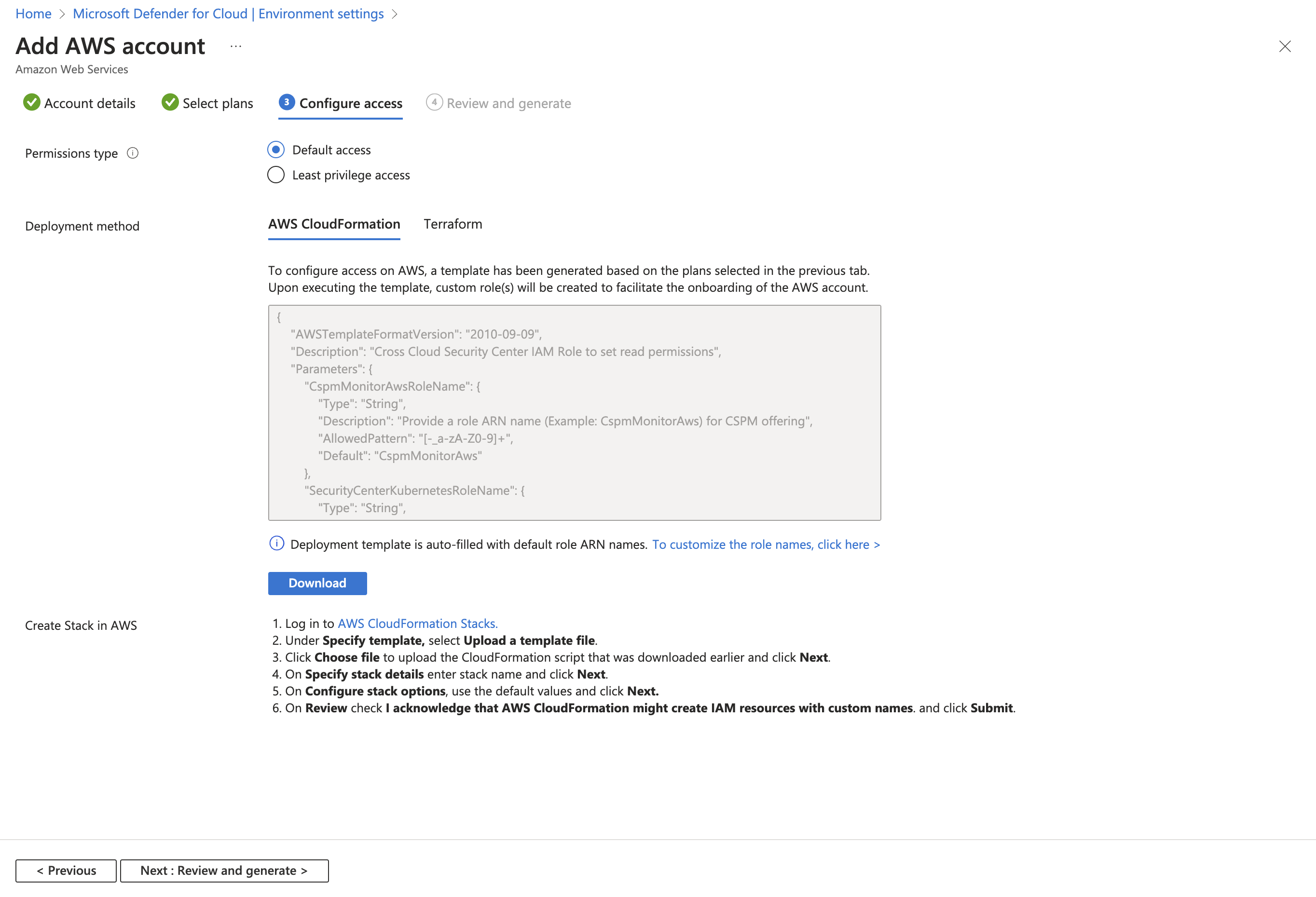
arn:aws:iam::<accountId>:role/CspmMonitorAwsSelect Configure access, and choose:
- Default access: Grants permissions required for current and future capabilities.
- Least privilege access: Grants only the permissions required today. You might receive notifications if additional access is needed later.
Select a deployment method:
- AWS CloudFormation
- Terraform.
Note
When onboarding a management account, Defender for Cloud uses AWS StackSets and automatically creates connectors for child accounts. Autoprovisioning is enabled for newly discovered accounts.
Note
If you select Management account to create a connector to a management account, the tab for onboarding by using Terraform isn't visible in the UI. Terraform onboarding is still supported. For guidance, see Onboarding your AWS/GCP environment to Microsoft Defender for Cloud with Terraform.
Follow the on-screen instructions to deploy the CloudFormation template. If you select Terraform, follow the equivalent deployment instructions provided in the portal.
Select Next: Review and generate.
Select Create.


Defender for Cloud starts scanning your AWS resources. Security recommendations appear within a few hours. After onboarding, you can monitor AWS posture, alerts, and resource inventory in Defender for Cloud. For more information, see monitoring connected AWS resources.
Validate connector health
To confirm that your AWS connector is operating correctly:
Sign in to the Azure portal.
Go to Defender for Cloud > Environment settings.
Locate the AWS account and review the Connectivity status column to see whether the connection is healthy or has issues.
Select the value shown in the Connectivity status column to view more details.
The Environment details page lists any detected configuration or permission issues affecting the connection to the AWS account.

If an issue is present, you can select it to view a description of the problem and the recommended remediation steps. In some cases, a remediation script is provided to help resolve the issue.
Learn more about troubleshooting multicloud connectors.
Deploy a CloudFormation template to your AWS account
As part of onboarding, deploy the generated CloudFormation template:
- As a Stack (single account)
- As a StackSet (management account)

Template deployment options
Amazon S3 URL: Upload the downloaded CloudFormation template to your own S3 bucket with your own security configurations. Provide the S3 URL in the AWS deployment wizard.
Upload a template file: AWS automatically creates an S3 bucket to store the template. This configuration might trigger the
S3 buckets should require requests to use Secure Socket Layerrecommendation. You can fix it by applying the following bucket policy:
{
  "Id": "ExamplePolicy",
  "Version": "2012-10-17",
  "Statement": [
    {
      "Sid": "AllowSSLRequestsOnly",
      "Action": "s3:*",
      "Effect": "Deny",
      "Resource": [
        "<S3_Bucket_ARN>",
        "<S3_Bucket_ARN>/*"
      ],
      "Condition": {
        "Bool": {
          "aws:SecureTransport": "false"
        }
      },
      "Principal": "*"
    }
  ]
}
Note
When running the CloudFormation StackSets when onboarding an AWS management account, you might encounter the following error message:
You must enable organizations access to operate a service managed stack set
This error message indicates that you didn't enable the trusted access for AWS Organizations.
To fix this error, the CloudFormation StackSets page has a prompt with a button that you can select to enable trusted access. After trusted access is enabled, run the CloudFormation Stack again.
Do you need to update the CloudFormation template?
This table helps you determine whether you need to update the CloudFormation template deployed in your AWS account.
| Step | Question | If YES | If NO |
|---|---|---|---|
| 1 | Did you enable a new Defender plan (for example, CSPM, Databases, Defender for Containers)? | Update the CloudFormation Stack with the latest template. | Go to Step 2. |
| 2 | Are you modifying plan configuration (for example, enabling autoprovisioning or changing region)? | Update the CloudFormation Stack with the latest template. | Go to Step 3. |
| 3 | Did Microsoft release a new version of the template? (For example, support new features, fix bugs, or update runtime) | Update the CloudFormation Stack with the latest template. | Go to Step 4. |
| 4 | Are you experiencing deployment errors1 (for example, Access Denied error, Entity already exist, Lambda runtime)? | Update the CloudFormation Stack with the latest template. | No update of CloudFormation template needed. |
1 If you're receiving specific errors, or errors with the CloudFormation template deployment, refer to the CloudFormation error resolution table.
Enable AWS CloudTrail log ingestion (Preview)
AWS CloudTrail management event ingestion can enhance identity and configuration insights by adding context for CIEM assessments, activity-based risk indicators, and configuration change detection.
Learn more about integrating AWS CloudTrail logs with Microsoft Defender for Cloud (Preview).
Learn more
Check out the following blogs:
- Ignite 2021: Microsoft Defender for Cloud news
- Security posture management and server protection for AWS and GCP
Next steps
- Assign access to workload owners.
- Protect all of your resources with Defender for Cloud.
- Monitor connected AWS resources.
- Set up your on-premises machines and GCP projects.
- Get answers to common questions about onboarding your AWS account.
- Troubleshoot your multicloud connectors.