Note
Access to this page requires authorization. You can try signing in or changing directories.
Access to this page requires authorization. You can try changing directories.
Microsoft Defender for Cloud provides SQL vulnerability assessment for your Azure SQL databases. SQL vulnerability assessment scans your databases for software vulnerabilities and provides a list of findings. Use the findings to fix software vulnerabilities and disable findings.
SQL vulnerability assessment is available in two configurations: express (managed storage in the logical server region) and classic (user-owned storage account in a chosen region).
Prerequisites
Make sure that you know whether you're using the express or classic configurations before you continue.
To see which configuration you're using:
- In the Azure portal, open the specific resource in Azure SQL Database, SQL Managed Instance Database, or Azure Synapse.
- Under the Security heading, select Defender for Cloud.
- In the Enablement Status, select Configure to open the Microsoft Defender for SQL settings pane for either the entire server or managed instance.
If the vulnerability settings show the option to configure a storage account, you're using the classic configuration. If not, you're using the express configuration.
Find vulnerabilities in your Azure SQL databases
Configuration comparison
| Configuration | Storage location | Storage ownership | Additional roles beyond SQL Security Manager | Baseline refresh needed |
|---|---|---|---|---|
| Express | Logical server region | Microsoft | None | No (immediate) |
| Classic | User-selected storage account region | Customer | Storage Blob Data Reader (view email-linked results); Owner + Storage Blob Data Reader (change settings) | Yes (run new scan) |
Scope: Stores scan results in the same Azure region as the logical SQL server. Microsoft Defender for Cloud fully manages storage (no user-owned storage account required).
Express configuration: permissions and data residency
| Task | Required roles |
|---|---|
| View SQL vulnerability assessment results in Microsoft Defender for Cloud recommendations | Security Admin OR Security Reader |
| Change SQL vulnerability assessment settings | SQL Security Manager |
| Access scan results from automated email links or view resource-level scan results | SQL Security Manager |
Data residency: SQL Vulnerability Assessment queries the SQL server by using publicly available queries under Defender for Cloud recommendations and stores the query results in the same Azure region as the logical server. For example, if you enable vulnerability assessment on a logical server in West Europe, the scan results are stored in West Europe. Data is collected only when you enable SQL Vulnerability Assessment on the server.
Run scans and manage baselines
Use the same scan workflow for both configurations. The only difference is when the baseline application happens.
- From the resource's Defender for Cloud page, select View additional findings in Vulnerability Assessment to access previous scan results.

- Select Scan from the toolbar to run an on-demand SQL vulnerability assessment.

- (Optional) Mark acceptable findings as baseline.
- View baseline-approved findings in subsequent results (timing differs by configuration).


Success criteria: The scan completes within seconds, appears in the Vulnerability Assessment tab, and is read-only (no database modifications).
Note
The scan is lightweight, safe, and read-only. It makes no changes to your database.
Baseline outcome quick reference
| Action | Express result timing | Classic result timing |
|---|---|---|
| Approve finding as baseline | Immediately marked Passed | Marked Passed after next scan |
Remediate vulnerabilities
Both configurations share the remediation workflow and baseline management. The following section describes configuration-specific baseline behavior.
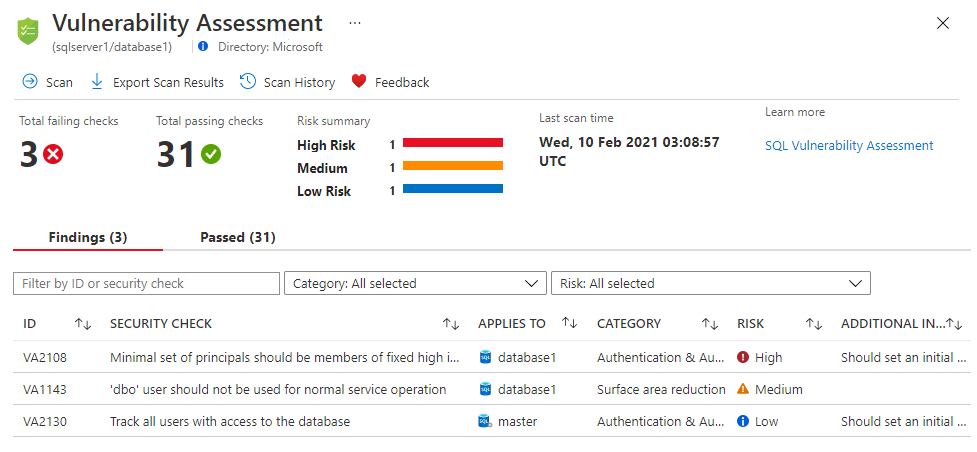
When a vulnerability scan completes, the report shows:
- An overview of your security state
- The number of issues found
- A severity summary of risks
- A list of findings for investigation
Remediation and baseline procedure
- Review results to identify true security issues for your environment.
- Select each failed result to see impact and failure reasons.
Tip
Each finding details page includes actionable remediation guidance.


- Mark acceptable results as baseline to customize subsequent scan output.

- View Passed status for baseline-approved findings:
- Express: Appears immediately without a new scan.
- Classic: Requires running another on-demand scan.


Outcome: SQL vulnerability assessment scan cycles help maintain a high security level and alignment with organizational policy.
Troubleshooting
| Issue | Likely cause | Resolution |
|---|---|---|
| Scan results not visible | Missing viewer role | Ensure Security Admin or Security Reader role is assigned. |
| Can't change settings | Insufficient configuration role | Assign SQL Security Manager (and for classic: Owner + Storage Blob Data Reader on storage account). |
| Baseline not reflected (classic) | New scan not run yet | Run another on-demand scan to apply baseline changes. |
| Baseline not reflected (express) | Expectation mismatch | Baseline applies immediately; refresh the Vulnerability Assessment tab. |
| Access error opening email link (classic) | Storage role missing | Add Storage Blob Data Reader for the storage account containing scan results. |
Next steps
- Learn more about Microsoft Defender for Azure SQL.
- Learn more about data discovery and classification.
- Learn more about storing vulnerability assessment scan results in a storage account accessible behind firewalls and VNets.