Note
Access to this page requires authorization. You can try signing in or changing directories.
Access to this page requires authorization. You can try changing directories.
This article helps you fix common issues when you set up or use gated deployment in Kubernetes with Microsoft Defender for Containers.
Gated deployment enforces container image security policies at deploy time based on vulnerability scan results from supported container registries. It integrates with the Kubernetes admission controller to check images before they enter the cluster.
Onboarding and configuration issues
Issue: Gated deployment isn't active after enabling Defender for Containers
Possible causes:
- Required plan extensions are disabled
- Defender Sensor is disabled or not provisioned to the cluster
- Kubernetes cluster version is earlier than 1.31
- Defender for Containers plan or relevant extensions (Registry Access or Security Findings extensions) are disabled in the container registry scope
Resolution:
Confirm the following toggles are enabled in the Defender for Containers plan:
- Defender Sensor
- Security Gating
- Registry Access
- Security Findings
Make sure your Kubernetes cluster runs version 1.31 or later.
For Azure: Check that the cluster has access to the container registry (ACR) and that Microsoft Entra ID authentication is configured. For AKS clusters, make sure the cluster has a kubelet identity, and that the admission controller pod's service account is included in the kubelet identity's federated credentials.
Issue: Security rule doesn't trigger
Possible causes:
- Rule scope doesn't match the deployed resource.
- CVE conditions aren't met.
- The image deploys before scan results are available.
Resolution:
Check the rule scope and matching criteria.
Check that the image has vulnerabilities that match the rule conditions.
Make sure the image is in a supported container registry. The registry must belong to a subscription, account, or project with Registry Access and Security Findings enabled.
Make sure Defender for Cloud scans the image before deployment. If it doesn't, gating doesn't apply.
Note
Defender for Containers scans an image in a supported container registry within a few hours after the initial push event. For more information about scanning triggers, see Vulnerability assessments for Defender for Container supported environments.
Issue: Exclusion not applied
Possible causes:
- The exclusion scope doesn't match the resource.
- The exclusion expired.
- The matching criteria are misconfigured.
Resolution:
- Review the exclusion configuration when you create the rule.
- Confirm the exclusion is still active.
- Check that the resource (like image, pod, or namespace) matches the exclusion criteria.

Developer experience and CI/CD integration
Gated deployment enforces policies when you deploy. You might see specific messages or behaviors when you deploy container images.
Common developer messages
| Scenario | Message |
|---|---|
| Image blocked due to CVE | Error from server: admission webhook "defender-admission-controller.kube-system.svc" denied the request: mcr.microsoft.com/mdc/dev/defender-admission-controller/test-images:one-high:Image contains 2 high or higher CVEs, which is more than the allowed count of: 0” |
| Image blocked because scan results are missing | No valid reports found on ratify response Unscanned images are not allowed by policy |
| Image allowed but monitored (audit mode) | Admission request allowed. A security scan runs in the background (audit mode). Learn more: https://aka.ms/KubernetesDefenderAuditRule |
| Image allowed without scan results (audit mode) | Admission request allowed. A security scan runs in the background (audit mode). Learn more: https://aka.ms/KubernetesDefenderAuditRule| |
Best practices for developers
- Scan images before deployment to avoid bypassing gating.
- Use audit mode during initial rollout to monitor impact without blocking.
- Coordinate with security teams to request exclusions when needed.
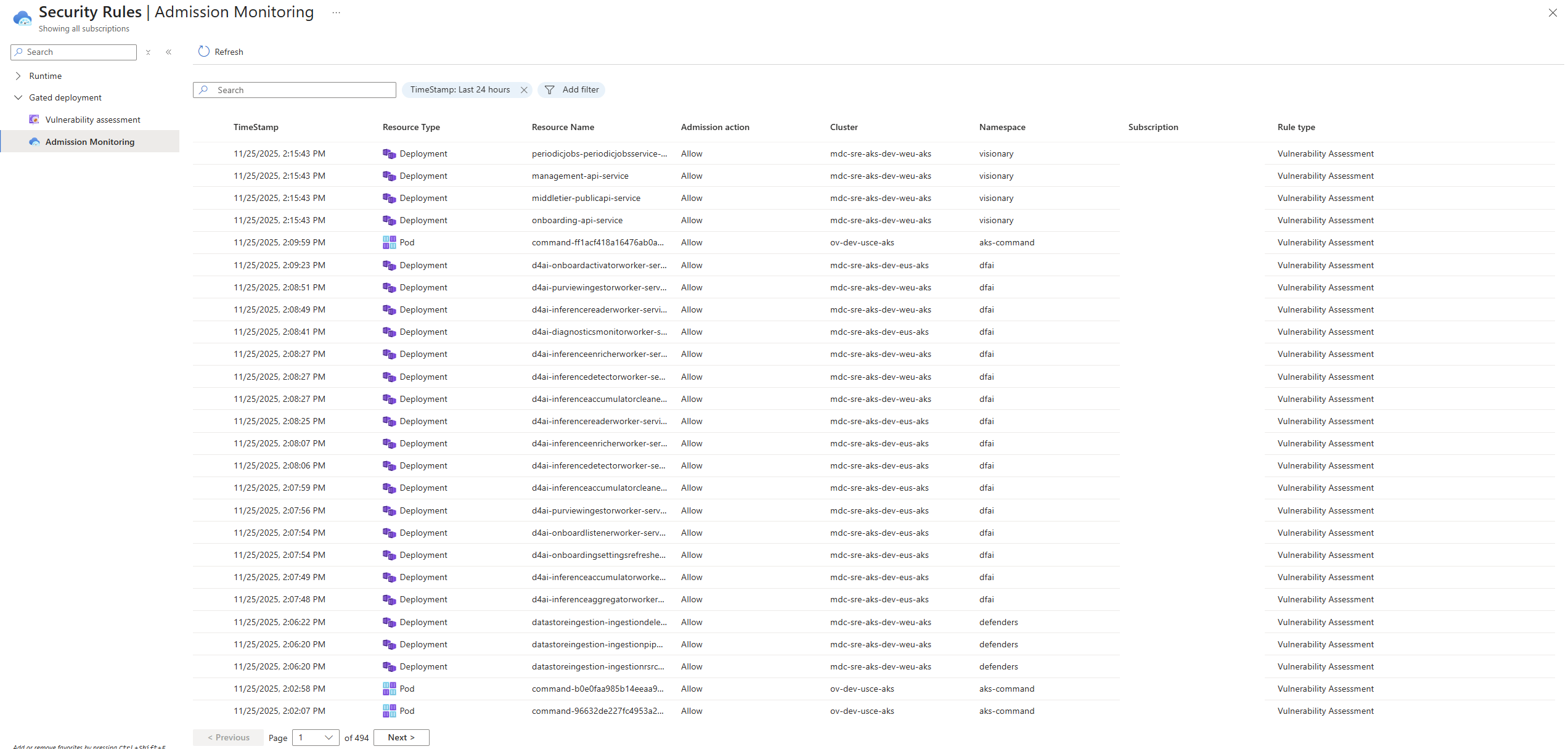
- Monitor the Admission Monitoring view to see rule evaluation and enforcement.
Related content
For detailed guidance and support, see these articles:
Overview: Gated Deployment of Container Images to a Kubernetes Cluster Introduction to the feature, its value, and how it works
Enablement Guide: Configure Gated Deployment for Kubernetes Clusters Step-by-step instructions for onboarding, rule creation, Exclusions, and monitoring
FAQ: Gated Deployment in Defender for Containers Answers to common customer questions about gated deployment behavior and configuration