Note
Access to this page requires authorization. You can try signing in or changing directories.
Access to this page requires authorization. You can try changing directories.
This article shows you how to enable Microsoft Defender for Containers on your Arc-enabled Kubernetes clusters through the Azure portal. You can choose to enable all security features at once for comprehensive protection, or selectively deploy specific components based on your requirements.
When to use this guide
Use this guide if you want to:
- Set up Defender for Containers on Arc-enabled clusters for the first time
- Enable all security features for comprehensive protection
- Selectively deploy specific components
- Fix or add missing components to an existing deployment
- Deploy using a controlled, selective approach
- Exclude certain clusters from protection
Prerequisites
Network requirements
Validate that the following endpoints for public cloud deployments are configured for outbound access. Configuring them for outbound access helps ensure that the Defender sensor can connect to Microsoft Defender for Cloud to send security data and events.
Note
The Azure domains *.ods.opinsights.azure.com and *.oms.opinsights.azure.com no longer required for outbound access. For more information, see the deprecation announcement.
| Azure domain | Azure Government domain | Azure operated by 21Vianet domain | Port |
|---|---|---|---|
| *.cloud.defender.microsoft.com | N/A | N/A | 443 |
You also need to validate the Azure Arc-enabled Kubernetes network requirements.
Additional Arc-specific requirements:
- CNCF-certified Kubernetes cluster (on-premises or IaaS)
- Cluster version 1.19 or later
- Outbound HTTPS connectivity to Azure endpoints
- Azure CLI installed locally or Azure Cloud Shell
Connect your cluster to Azure Arc
If your Kubernetes cluster isn't already connected to Azure Arc, follow these steps:
Sign in to the Azure portal.
Go to Azure Arc in the Azure portal.
Select Kubernetes clusters from the left menu.
Select Add.
Select Add a Kubernetes cluster with Azure Arc.
Follow the connection instructions:
- Select or create a resource group
- Enter a cluster name
- Choose a region
- Add tags (optional)
In the Cluster details tab, copy and run the registration script on your cluster:
# The portal will generate a script similar to this
az connectedk8s connect --name <cluster-name> \
    --resource-group <resource-group> \
    --location <region>
Wait for the connection to complete and verify the cluster appears as Connected.
Enable Defender for Containers plan
Go to Microsoft Defender for Cloud.
Select Environment settings from the left menu.
Select the subscription that contains your Arc-enabled cluster.
Turn on the Containers plan.


Configure plan components
Select Settings next to the Containers plan.
Choose your deployment approach:
- Enable all components (recommended): Enable all features for comprehensive protection
- Enable specific components: Select only the components you need

Note
To disable automatic installation of components during the onboarding process, select Edit configuration for the Containers plan. The advanced options appear, and you can disable automatic installation for each component.
Available components:
- Agentless discovery for Kubernetes - Discovers all Kubernetes clusters
- Agentless container vulnerability assessment - Scans container images
- Defender DaemonSet - Runtime threat detection
- Azure Policy for Kubernetes - Security recommendations
Select Continue and then Save.

Deploy all components
Follow these steps to enable comprehensive protection for all your Arc-enabled clusters.
Deploy extensions to Arc-enabled clusters
Option 1: Deploy via recommendations (recommended)
Go to Microsoft Defender for Cloud > Recommendations.
Search for "Azure Arc-enabled Kubernetes clusters should have Defender extension installed".

Select the recommendation.
Select your Arc-enabled clusters.
Important
Select the check box next to the cluster name, not the hyperlinked name itself.
Select Fix to automatically deploy the extensions.
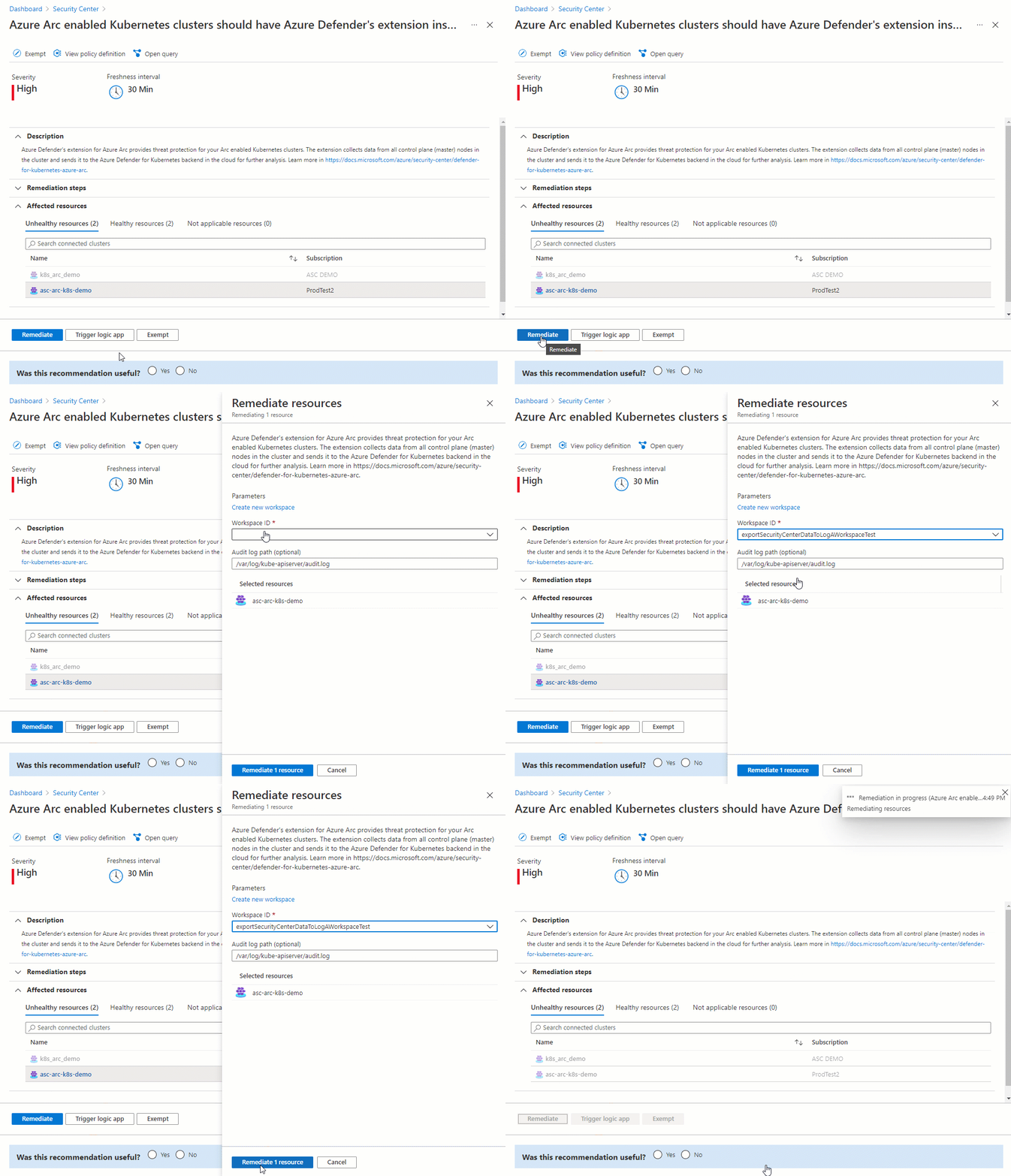

Option 2: Deploy manually
Go to your Arc-enabled Kubernetes cluster.
Under Settings, select Extensions.
Select + Add.
Install the Microsoft Defender for Containers extension:
- Search for "Microsoft Defender"
- Select the extension
- Configure the Log Analytics workspace
- Complete installation
Repeat to install Azure Policy for Kubernetes extension if needed.
Deploy the Defender sensor
After installing the extension, deploy the Defender sensor to your Arc-enabled clusters:
Option 1: Deploy through recommendations
Go to Microsoft Defender for Cloud > Recommendations.
Search for "Azure Arc-enabled Kubernetes clusters should have Defender extension installed".
Select the recommendation.
Select your Arc-enabled clusters where you want to deploy the sensor.
Select Fix.
Review the deployment configuration:
- Log Analytics workspace assignment
- Resource allocation settings
- Namespace configuration
Select Fix X resources to deploy.
Option 2: Deploy via Arc cluster
Go to your Arc-enabled Kubernetes cluster.
Under Settings, select Extensions.
Verify the Microsoft Defender extension shows as Succeeded.
If the sensor pods aren't running, select the extension and choose Manage.
Configure deployment settings:
- Enable runtime protection
- Set resource limits if needed
- Configure namespace exclusions
Select Apply.
Verify sensor deployment
After deployment, verify the sensor is running:
# Check sensor pods
kubectl get pods -n kube-system -l app=microsoft-defender

# Check DaemonSet status
kubectl get ds microsoft-defender-collector-ds -n kube-system
All nodes should have a running sensor pod within 5-10 minutes.
Configure Log Analytics workspace
During extension deployment, you can:
Select an existing Log Analytics workspace or create a new one.
Use the default workspace: DefaultWorkspace-[subscription-id]-[region].
Or select a custom workspace in a supported region.
Enable vulnerability scanning
For Arc-enabled clusters, configure registry scanning:
If you're using Azure Container Registry:
- Vulnerability scanning is automatically enabled
- Ensure the Azure Container Registry is in the same subscription or connected
For private registries:
# Create registry credentials
kubectl create secret docker-registry regcred \
    --namespace mdc \
    --docker-server=<registry-url> \
    --docker-username=<username> \
    --docker-password=<password>
Update the extension configuration to use credentials.