Note
Access to this page requires authorization. You can try signing in or changing directories.
Access to this page requires authorization. You can try changing directories.
This article explains what serverless GPU compute is, how it works, and key scenarios for its use. Serverless GPU compute in Microsoft Dev Box (preview) lets you spin up dev boxes with GPU acceleration—no extra setup needed. Dev Box serverless GPU compute lets developers use GPU resources on demand without permanent infrastructure or complex setup.
Common scenarios for serverless GPU compute include compute-intensive workloads like AI model training, inference, and data processing. Serverless GPU compute lets you:
- Use GPU resources only when you need them
- Scale GPU resources based on workload demands
- Pay only for the GPU time you use
- Work in your organization's secure network environment
This capability integrates Microsoft Dev Box with Azure Container Apps to deliver GPU power without requiring developers to manage infrastructure.
Serverless GPU compute in Dev Box uses Azure Container Apps (ACA). When a developer starts a GPU-enabled shell or tool, Dev Box automatically:
- Creates a connection to a serverless GPU session
- Provisions the necessary GPU resources
- Makes those resources available through the developer's terminal or integrated development environment
- Automatically terminates the session when no longer needed
Prerequisites
- An Azure subscription
- Microsoft.App registered for your subscription
- Microsoft.CognitiveServices registered for your subscription
- A dev center and project
- For more information on creating a dev center and project, see Quickstart: Configure Microsoft Dev Box
- A managed service identity (MSI) configured for the dev center
- For more information on configuring MSI, see Managed Service Identity.
Configure serverless GPU
Administrators control serverless GPU access at the project level through Dev Center. Key management capabilities include:
- Enable/disable GPU access: Control whether projects can use serverless GPU resources.
- Set concurrent GPU limits: Set the maximum number of GPUs that can be used at the same time in a project.
Access to serverless GPU resources is managed through project-level properties. When the serverless GPU feature is enabled for a project, all Dev Boxes in that project can use GPU compute. This simple access model removes the need for custom roles or pool-based configurations.
Important
Serverless GPU is available only in specific regions. Your project must be in one of the following regions: BrazilSouth, CanadaCentral, CentralUS, EastUS, EastUS2, SouthCentralUS, or WestUS3.
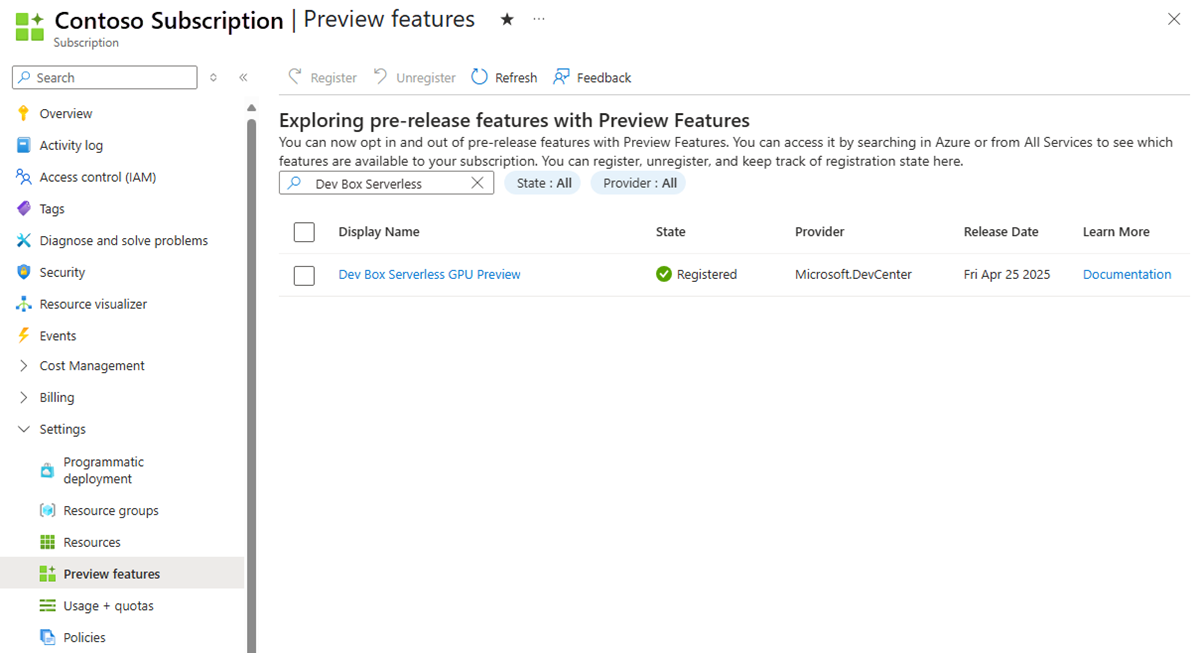
Register serverless GPU for the subscription
- Sign in to the Azure portal.
- Navigate to your subscription.
- Select Settings > Preview features.
- Select Dev Box Serverless GPU Preview, and then select Register.
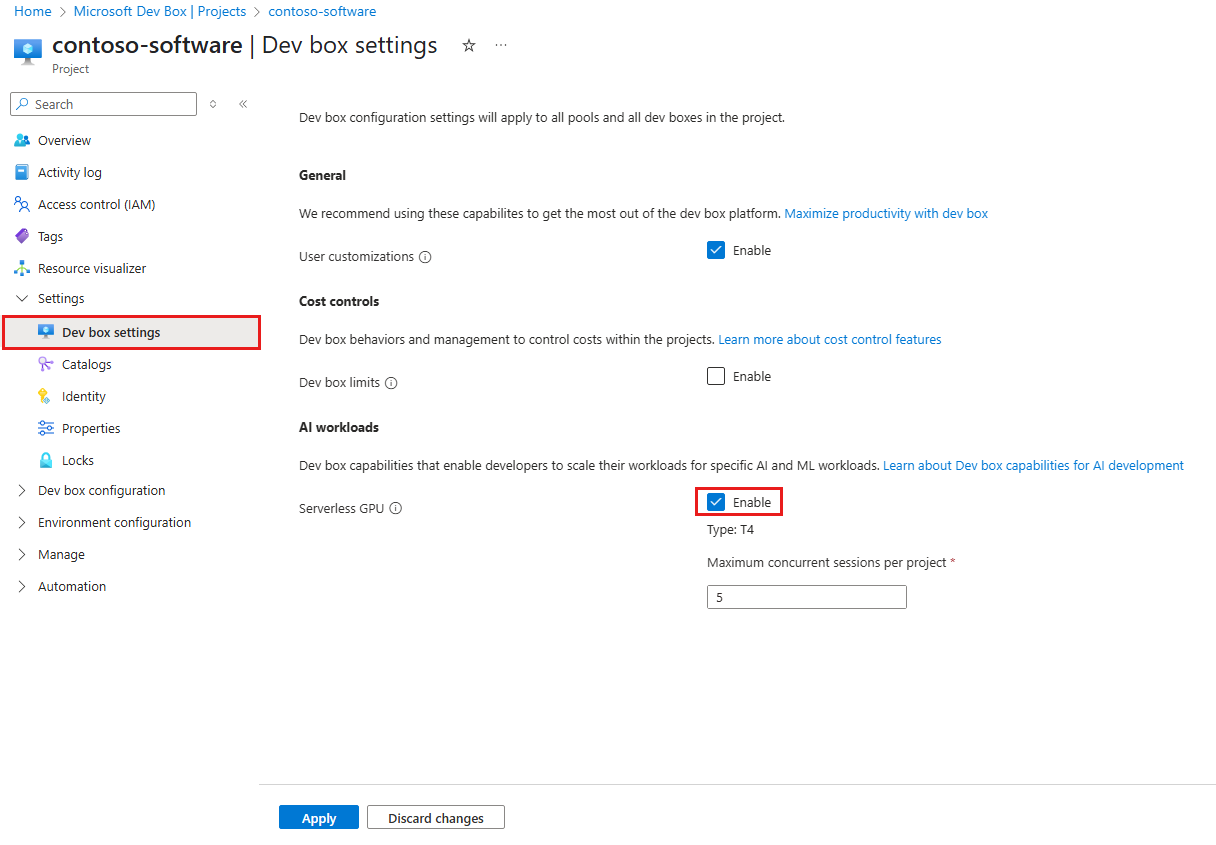
Enable serverless GPU for a project
- Go to your project.
- Select Settings > Dev box settings.
- Under AI workloads, select Enable, and then select Apply.
Connect to a GPU
After you enable serverless GPU, Dev Box users in that project see GPU options in their terminal and Visual Studio (VS) Code environments.
You can connect using one of these methods:
Method 1: Launch a Dev Box GPU shell
- Open Windows Terminal on your dev box.
- Run the following command:
devbox gpu shell - Connects you to a preconfigured GPU container.
Method 2: Use VS Code with remote tunnels
- Open Windows Terminal on your dev box.
- Run the following command:
devbox gpu shell - Launch Visual Studio Code.
- Install the Remote Tunnels extension.
- Connect to the gpu-session tunnel.