Note
Access to this page requires authorization. You can try signing in or changing directories.
Access to this page requires authorization. You can try changing directories.
Remote builds enable you to offload the process of building container images from your local development environment to a managed build service in the cloud. This is especially useful for large or complex builds, or when your local machine lacks the necessary resources or dependencies. The Azure Developer CLI (azd) supports remote builds through Azure Container Registry (ACR) when deploying to Azure Container Apps.
Azure Container Registry supports remote builds by providing a secure, cloud-based environment where your source code and Dockerfiles can be built into container images. With ACR Tasks, you can automate image builds and deployments, ensuring consistency and scalability across your development and production environments.
Using remote builds in your Azure Developer CLI (azd) templates offers several benefits:
- Resource efficiency: Offload compute-intensive builds to the cloud.
- Consistency: Ensure builds are reproducible and isolated from local environment differences.
- Scalability: Build multiple images in parallel without taxing your local machine.
- Security: Keep sensitive build secrets and credentials in Azure, not on your local device.
Configure remote builds
To configure the Azure Developer CLI to use remote builds with Azure Container Registry, follow these steps:
Update your infrastructure files:
- Ensure your infrastructure-as-code (IaC) templates (such as Bicep, ARM, or Terraform) provision an Azure Container Registry resource.
- Grant the necessary permissions for your build process to push and pull images from the registry.
In your project’s
azure.yaml, update thedockerconfiguration to use remote builds:services: webapp: project: ./src/webapp language: js host: containerapp docker: path: ./Dockerfile remoteBuild: trueRun the
azd uporazd deploycommand.azddetects the remote build configuration and submits your build to the Azure Container Registry provisioned by the template.
Verify the remote build
After the azd up workflow completes, verify the remote build run in the Azure portal:
Navigate to the provisioned container registry.
In the left navigation, select Services > Repositories.
Select the repository from the list, and then select the most recent tag.
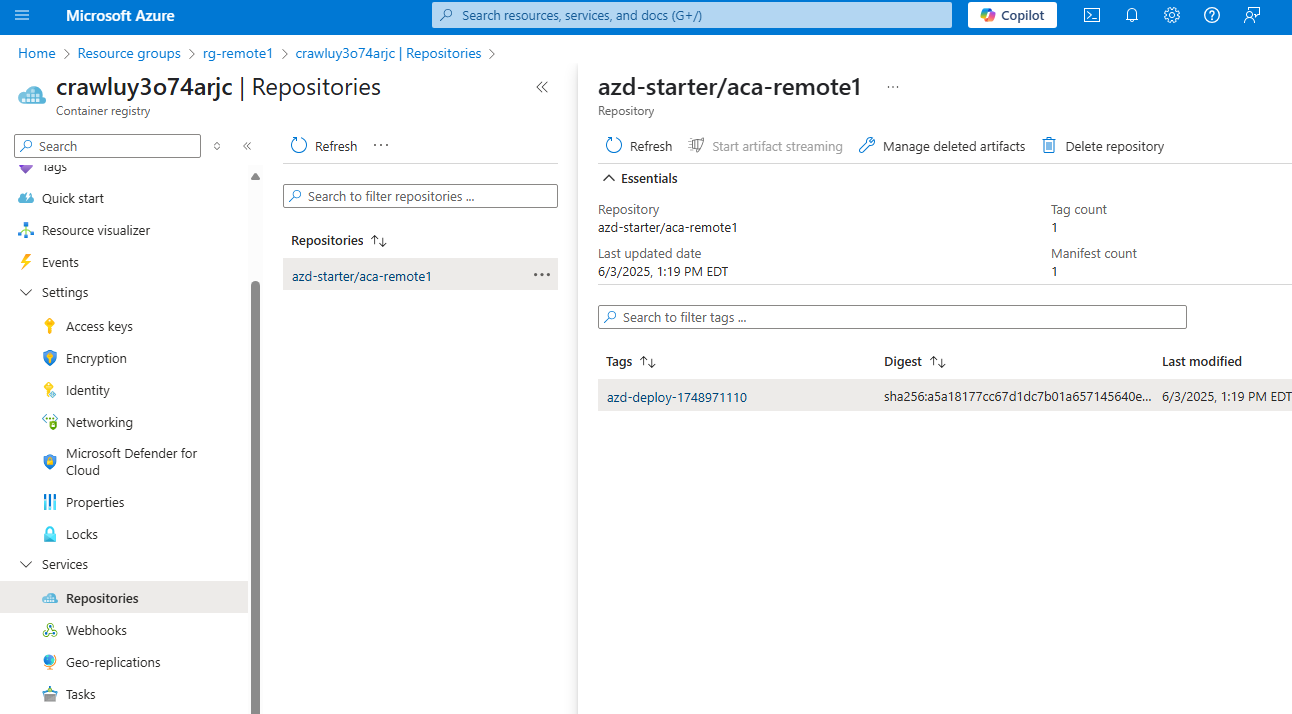
Select the Run ID to view the output logs for the container build process.

Browse the logs to view key build steps, such as the retrieval of Docker base images or source code compilation.