Note
Access to this page requires authorization. You can try signing in or changing directories.
Access to this page requires authorization. You can try changing directories.
Azure DevOps Services | Azure DevOps Server | Azure DevOps Server 2022
Azure Artifacts feeds are organizational constructs that allow you to store, manage, and share your packages while controlling access. A single feed can host multiple package types, including npm, NuGet, Maven, Python, Cargo, and Universal Packages packages. Azure Artifacts feeds also support saving packages from public registries like nuget.org through upstream sources, ensuring continued access to your packages even if the public source becomes temporarily unavailable.
Feed types
Azure Artifacts feeds can be scoped to an organization or a project. A feed can also be public if it's scoped to a public project:
Project-scoped feeds: Feeds scoped to a project. They’re only viewable within the hosting project, and only project-scoped feeds can be designated as public feeds by switching the project's visibility to Public in Project Settings.
Organization-scoped feeds: Feeds scoped to an organization. They’re viewable from any project within the organization. Organization-scoped feeds cannot be converted into project-scoped feeds.
Private feeds: Can be either project-scoped (private project) or organization-scoped. Packages in a private feed are available only to authenticated users with at least Feed Reader permission.
Public feeds: Feeds scoped to a public project. Packages in a public feed are available to both authenticated and anonymous users.
See Feed scoped to learn more about the differences between project-scoped feeds and organization scoped feeds.
Create a new feed
Follow these steps and choose the appropriate scope to create a project-scoped or organization-scoped feed:
Sign in to your Azure DevOps organization and navigate to your project.
Select Artifacts, then select Create Feed.
Provide a Name for your feed, define its Visibility (who can view packages in your feed), and specify the Scope of your feed (project-scoped or organization-scoped). To enable upstream sources and include packages from public sources, check the Upstream sources checkbox.
Select Create when you're done.

Sign in to your Azure DevOps collection, then navigate to your project.
Select Artifacts, and then select Create Feed.
Provide a Name for your feed, define its Visibility (who can view packages in your feed), and specify the Scope of your feed (project-scoped or organization-scoped). To enable upstream sources and include packages from public sources, check the Upstream sources checkbox.
Select Create when you're done.

Public feeds
Public feeds allow you to share your packages publicly with anyone on the internet. Users do not need to be members of your organization, or sign in to the Azure DevOps portal to access packages in a public feed.
Public feeds are project-scoped and inherit the visibility settings of the hosting project. Here are some important key points:
Public feeds can only be created within public projects.
Public feeds are not intended to replace existing public registries such as NuGet.org, npmjs.com, etc..
Public users cannot download universal Packages, but all other package types are supported for public access.
Note
All feed views in a public feed are accessible to everyone on the internet.
Create a public feed
Important
Only organizations with the Allow public project policy already enabled can create projects or change the visibility of a project to public. The policy is no longer available to organizations that aren't using it already. Microsoft recommends using GitHub for all your public project needs.
Public feeds are project-scoped feeds in a public project. Follow these steps to create a new public feed:
Sign in to your Azure DevOps organization and navigate to your project. Make sure that your project is Public in order to create a public feed.
Select Artifacts > Create Feed.
Provide a Name for your feed, then select Project for the feed's scope.
Select Create when you're done.

Delete a feed
Note
You must be a Feed Owner to delete a feed.
Sign in to your Azure DevOps organization and navigate to your project.
Select Artifacts, then select your feed from the dropdown menu.
Select the gear icon
 to navigate to Feed Settings.
Select Delete feed, then select Delete again to confirm.

Restore deleted feeds
If you accidentally delete a feed, Azure Artifacts offers a 30-days window to restore it to its original state. After this period, the feed is permanently deleted. During the recovery window:
The feed name remains reserved.
Packages are unavailable for download.
Write access is suspended.
To restore a feed pending permanent deletion:
Sign in to your Azure DevOps organization and navigate to your project.
Select Artifacts, open the feed picker dropdown menu, and select the Deleted Feeds tab.
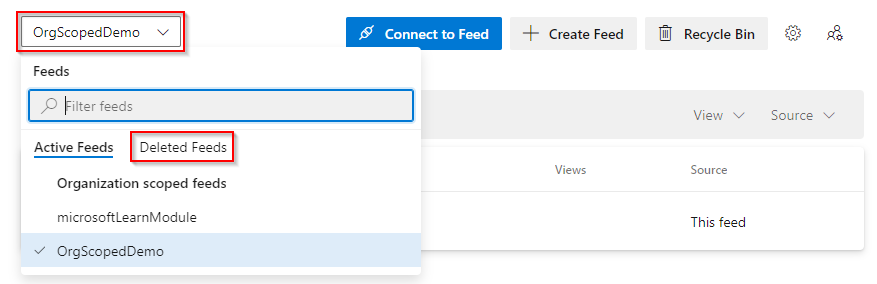
Select the feed you want to restore, then select Feed Settings, then select Restore Feed when you're ready to restore your feed.

Permanently delete a feed
A feed pending deletion continues to use storage space. You must be a Feed Owner to permentantly delete a feed. To delete your feed before the 30-day period ends, follow these steps:
Sign in to your Azure DevOps organization and navigate to your project.
Select Artifacts, open the feed picker dropdown menu, and select the Deleted Feeds tab.
Select the feed you want to delete, then select Feed Settings.
Select Permanently Delete Feed, and then select Delete to confirm.
Note
Once a feed is permanently deleted, users will no longer have access to view or restore its packages. The feed name will become available for reuse approximately 15 minutes after deletion.