Note
Access to this page requires authorization. You can try signing in or changing directories.
Access to this page requires authorization. You can try changing directories.
Azure DevOps Services
Note
This feature is in Private Preview. Access is limited and functionality might change before general availability.
Azure Boards integrates with GitHub Copilot to streamline your development workflow. You can use work items directly with Copilot, which automatically creates branches, implements code changes, and generates draft pull requests while keeping your work item updated with progress.
This integration allows you to:
- Initiate automated coding from work items
- Track GitHub Copilot's progress directly in Azure DevOps
- Automatically link generated pull requests and branches to work items
- Monitor when draft pull requests are ready for review
Important
This integration requires GitHub repositories and GitHub App authentication. Azure Repos (Azure DevOps Git repositories) aren't supported for GitHub Copilot integration.
Prerequisites
| Category | Requirements |
|---|---|
| Licensing | Active GitHub Copilot subscription |
| Repository | GitHub repository (not Azure Repos) with appropriate permissions |
| Authentication | GitHub App authentication configured between Azure DevOps and GitHub (personal access tokens not supported) |
| Permissions | Contribute access in Azure DevOps to work items and ability to link artifacts |
| Azure Boards connection | Connect Azure Boards to GitHub |
Supported work item types
The GitHub Copilot integration supports any work item type under the requirements and task category, including:
- Standard work item types: User Story, Product Backlog Item, Requirement, Task, Bug, Issue
- Custom work item types you created in your process template
This broad support means you can use GitHub Copilot with work items from any process template (Agile, Scrum, CMMI, or custom) in your Azure DevOps project.
Start GitHub Copilot from work items
Open a work item that you want to use with GitHub Copilot.
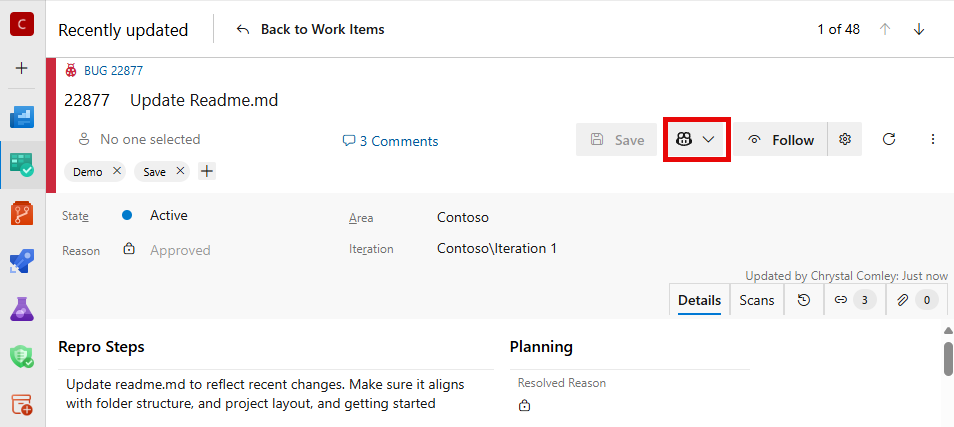
In the work item form, select the GitHub icon.
If multiple options are available, the button becomes a dropdown menu with different choices.
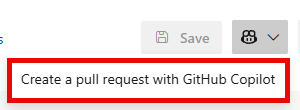
Select Create a pull request with GitHub Copilot.
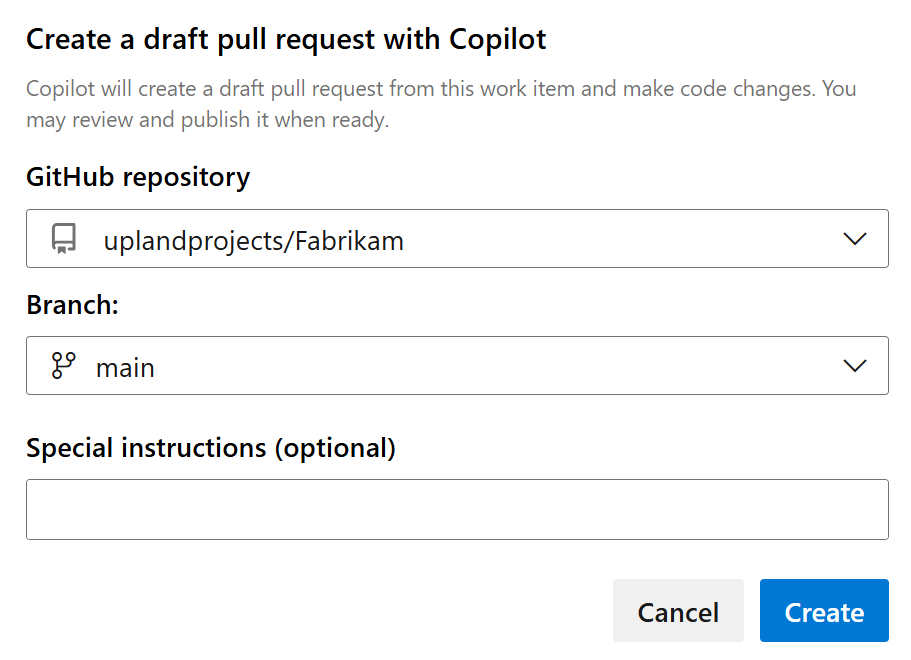
Select the target GitHub repository and branch where Copilot should create the pull request.
Note
Only GitHub repositories connected via GitHub App authentication appear in the repository list. Azure Repos aren't supported.
(Optional) Add special instructions to guide Copilot's implementation approach. For example, you could add, "Create README with setup instructions".
Select Create to begin the automated coding process.
What happens when you start Copilot
When you start Copilot from a work item, the following automated processes occur:
- Data sharing: Azure DevOps shares the work item title, large text fields (such as description and acceptance criteria), comments, and a link back to the work item with GitHub Copilot.
- License validation: Azure DevOps verifies your GitHub Copilot license.
- If validation fails, a Get a license option appears to purchase GitHub Copilot.
- Repository preparation: Copilot creates a new branch for the work.
- Pull request creation: A draft pull request is automatically generated and linked to your work item.
- Work item updates:
- A comment gets added to the work item discussion.
- Status indicator appears above the Development section.
- Branch and pull request links are automatically added.
- Progress tracking: Real-time status updates show Copilot's progress.
Monitor GitHub Copilot progress
Status indicators
Azure DevOps displays Copilot status directly on your work item with three possible states:
- In Progress: Copilot is actively working on code changes.
- Ready for Review: Draft pull request is complete and ready for your review.
- Error: Issues occurred during the coding process (hover for details).
Note
Expect the Copilot operation to take 5-15 minutes to complete, depending on the complexity of the work item.
Board card indicators
When you view work items on your board, you can identify the GitHub Copilot status directly on the work item card. A GitHub Copilot icon appears on the card and indicates that Copilot is working on or completed work for that item.
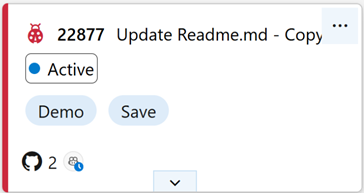
This visual indicator helps you quickly identify which work items have active Copilot operations without opening each individual work item.
Development section updates
The Development section of your work item automatically shows:
- Linked branch created by Copilot.
- Drafted pull request with real-time status.
- Direct links to review the generated code in GitHub.
Review and merge the pull request
Select the pull request link to review Copilot's implementation in GitHub.
If you're satisfied with the changes, convert the draft to a regular pull request. The work item discussion receives automatic updates about pull request status changes.
Use GitHub's interface to review, comment, and approve the generated code.
Complete the merge process in GitHub when you're ready.
- The merge commit automatically links to your work item.
- Branch links are removed if the branch is deleted.
- Copilot status indicators are hidden after successful merge.
After the pull request merges:
- To reflect completion, update your work item state.
- Verify that the merge commit appears in the Development section.
- Close the work item if the implementation fully addresses the requirements.
For more information, see our training module, Get started with GitHub Copilot.
Troubleshoot issues
Check error details: Hover over the error icon for specific information about what went wrong.
Rerun Copilot: Select Rerun Copilot to attempt the process again with the same or modified instructions.
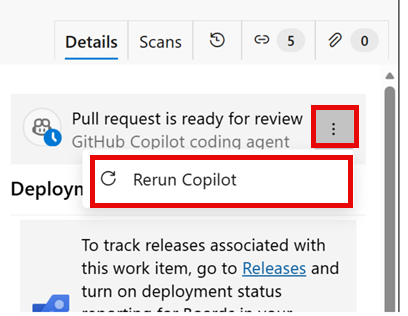
Manual intervention: If needed, make manual changes to the generated branch and pull request.
License issues
- Problem: License validation fails.
- Solution: Ensure you have an active GitHub Copilot subscription and select Get a license if needed.
Repository access
- Problem: Can't see expected repositories.
- Solution:
- Verify the GitHub App connection between Azure DevOps and GitHub.
- Ensure you have access to GitHub repositories (not Azure Repos).
- Check repository permissions and GitHub App authentication.
- Confirm the repository is connected via the proper GitHub App integration.
Copilot errors
- Problem: Coding agent encounters errors.
- Solution: Review error details, check instructions for clarity, and try rerunning Copilot.
Status not updating
- Problem: Progress status remains stuck.
- Solution: Check GitHub for actual progress, as status updates depend on GitHub reporting.
Best practices
- Clear work item descriptions: Provide detailed acceptance criteria and context for better Copilot results.
- Keep changes simple and concise: The more complex and verbose your work item description, the harder it is for Copilot to understand. Focus on clear, specific requirements.
- Specific instructions: Add implementation guidance when starting Copilot.
- Regular monitoring: Check progress periodically, especially for complex work items.
- Prompt review: Review and provide feedback on draft pull requests quickly to maintain momentum.
- Proper work item hygiene: Update work item states appropriately throughout the process.
Limitations
Be aware of the following limitations when using GitHub Copilot with Azure Boards:
- Dependencies: Handling dependencies between work items isn't supported. Each work item should be self-contained.
- Concurrent operations: Managing multiple concurrent Copilot operations across different work items isn't supported. Complete one Copilot operation before starting another.
- Data sharing: Only work item title, large text fields, comments, and the work item link are shared with GitHub Copilot.
- Complexity: Overly complex or verbose work item descriptions might reduce Copilot's effectiveness.