Note
Access to this page requires authorization. You can try signing in or changing directories.
Access to this page requires authorization. You can try changing directories.
Azure DevOps Services | Azure DevOps Server | Azure DevOps Server 2022
This article explains how to securely store and use sensitive files, such as certificates and keys, in Azure Pipelines with the secure files library. Secure files help protect sensitive data by encrypting it on the server and restricting access to authorized pipelines, ensuring your credentials and other critical files remain safe.
Use the secure files library to store files such as:
- Signing certificates
- Apple provisioning profiles
- Android keystore files
- SSH keys
The size limit for each secure file is 10 MB.
Secure files are stored on the server in encrypted form and can be consumed only from a pipeline task. Secure files are a protected resource. You can use approvals, checks, and pipeline permissions to limit access to the files. Secure files also use library security model roles.
Prerequisites
| Requirement | Details |
|---|---|
| Azure DevOps Project | - An Azure DevOps project. - Permissions to create pipelines and add library items. - Required roles: - Project Administrator, Contributor, or a custom role with permissions to manage Library items. - To manage Library security and permissions, you need Project Administrator or equivalent permissions. - Settings: - Ensure your Azure DevOps organization allows pipeline resource access. - Verify that the project's pipeline settings don't restrict secure file usage. |
| Secure File | - A certificate, keystore, or provisioning file you want to use securely in your pipeline. - File size must not exceed 10 MB. |
Add a secure file
In your Azure DevOps project, go to Pipelines > Library and select the Secure files tab.
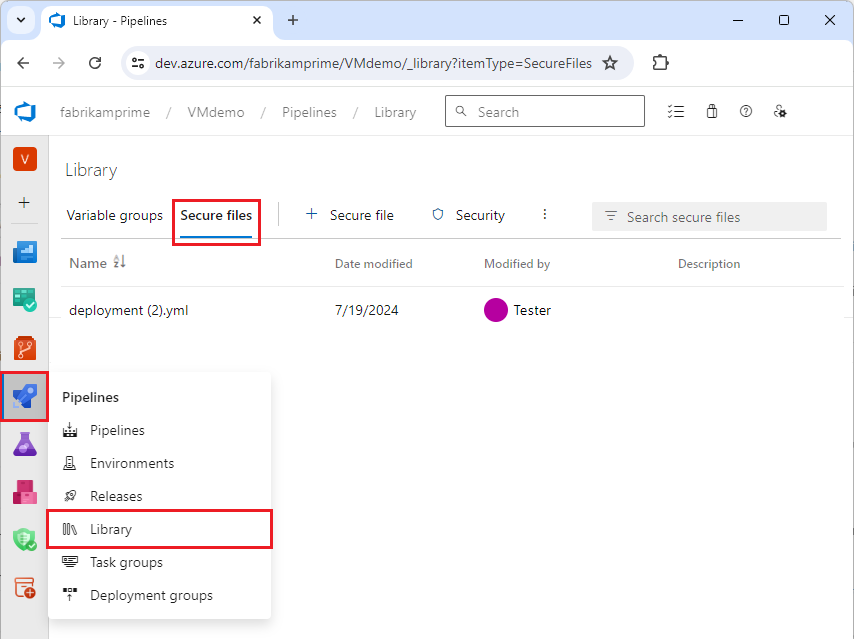
Select + Secure file to upload a secure file. Browse to upload or drag and drop your file.

Select OK. After you upload the file, you can delete it but you can't replace it.
Define security roles and permissions
You can define security role restrictions and permissions for all items in a library or for individual items.
To assign security roles for all items in a library, select Security on the Library page.
To define permissions for an individual file:
- Select the file from the Secure files list.
- At the top of the Secure file page, select:
- Security to set users and security roles that can access the file.
- Pipeline permissions to select YAML pipelines that can access the file.
- Approvals and checks to set approvers and other checks for using the file. For more information, see Approvals and checks.

Authorize a YAML pipeline to use a secure file
To use a secure file in YAML pipelines, authorize the pipeline to use the file. All classic pipelines can access secure files.
To authorize a pipeline or all pipelines to use a secure file:
- At the top of the page for the secure file, select Pipeline permissions.
- On the Pipeline permissions screen, select +, and then select a project pipeline to authorize. Or, to authorize all pipelines to use the file, select the More actions icon, select Open access, and select Open access again to confirm.
Consume a secure file in a pipeline
To consume secure files in a pipeline, use the Download Secure File utility task. The pipeline agent must be running version 2.182.1 or greater. For more information, see Agent version and upgrades.
The following example YAML pipeline downloads a secure certificate file and installs it in a Linux environment.
- task: DownloadSecureFile@1
  name: caCertificate
  displayName: 'Download CA certificate'
  inputs:
    secureFile: 'myCACertificate.pem'

- script: |
    echo Installing $(caCertificate.secureFilePath) to the trusted CA directory...
    sudo chown root:root $(caCertificate.secureFilePath)
    sudo chmod a+r $(caCertificate.secureFilePath)
    sudo ln -s -t /etc/ssl/certs/ $(caCertificate.secureFilePath)
Note
If you see an Invalid Resource error when downloading a secure file with Azure DevOps Server on-premises, make sure IIS Basic Authentication is disabled on the server.
Related content
To create a custom task that uses secure files, use inputs with type
secureFilein the task.json. For more information, see Learn how to build a custom task.The Install Apple Provisioning Profile task is a simple example that uses a secure file. For the source code, see InstallAppleProvisioningProfileV1.
To handle secure files during build or release tasks, see the Common module for tasks.