Note
Access to this page requires authorization. You can try signing in or changing directories.
Access to this page requires authorization. You can try changing directories.
Azure DevOps Services | Azure DevOps Server | Azure DevOps Server 2022
You can add protection to your repository resource by using checks and pipeline permissions. When you add protection, you can better manage repository ownership and editing permissions.
Prerequisites
You must be a member of the Project Administrators group or have the Manage permissions set to Allow for Git repositories.
Add a repository resource check
Sign in to your Azure DevOps organization (
https://dev.azure.com/{yourorganization}) and choose your project.Select Project settings > Repos.

Choose the repository that you want to modify.
Select
 > Approvals and checks.
Choose a check to set how your repository resource can be used, and then select Next. In the following example, add Approvals, so a manual approver is required for each time a pipeline requests the repository. For more information, see Approvals and checks.

Configure the check in the resulting screen, and then select Create.

Your repository has a resource check.
Add pipeline permissions to a repository resource
You can also set a repository to only be used on specific YAML pipelines. Restricting a repository to specific pipelines prevents an unauthorized YAML pipeline in your project from using your repository. This setting only applies to YAML pipelines.
Important
Access to all pipelines is turned off for protected resources by default. To grant access to all pipelines, select the Grant access permission to all pipelines checkbox for the resource. You can do so when you're creating or editing a resource. You need the repository Administrator role to have this option available.
Sign in to your organization (
https://dev.azure.com/{yourorganization}) and choose your project.Select Project settings > Repositories.
Choose the repository that you want to modify.
Select Security.

Go to Pipeline permissions.
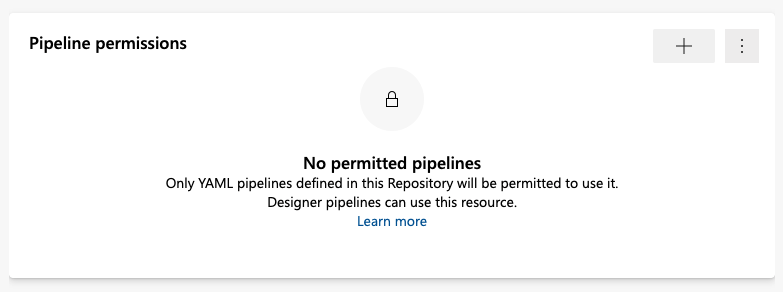
Select
 .
.Choose the pipeline to add.
You see the added pipeline listed.