Note
Access to this page requires authorization. You can try signing in or changing directories.
Access to this page requires authorization. You can try changing directories.
Azure DevOps Services | Azure DevOps Server | Azure DevOps Server 2022
Using variables in Classic release pipelines is a convenient way to exchange and transport data throughout your pipeline. Each variable is stored as a string, and its value can change between pipeline runs.
Unlike Runtime parameters, which are only available at template parsing time, variables in Classic release pipelines are accessible throughout the entire deployment process.
When you set up tasks to deploy your application in each stage of your Classic release pipeline, variables can help you:
Simplify customization: Define a generic deployment pipeline once and easily adapt it for different stages. For instance, use a variable to represent a web deployment's connection string, adjusting its value as needed for each stage. These variables are known as custom variables.
Leverage contextual information: Access details about the release context, such as a stage, an artifact, or the agent running the deployment. For example, your scripts might require the build location for download, or the agent's working directory to create temporary files. These variables are referred to as default variables.
Note
For YAML pipelines, see user-defined variables and predefined variables for more details.
Default variables
Default variables provide essential information about the execution context to your running tasks and scripts. These variables give you access to details about the system, release, stage, or agent in which they're running.
With the exception of System.Debug, default variables are read-only, and the system automatically sets their values.
Some of the most significant variables are described in the following tables. To view the full list, see View the current values of all variables.
System variables
| Variable name | Description |
|---|---|
| System.TeamFoundationServerUri | The URL of the service connection in Azure Pipelines. Use this variable in your scripts or tasks to call Azure Pipelines REST APIs. Example: https://fabrikam.vsrm.visualstudio.com/ |
| System.TeamFoundationCollectionUri | The URL of the Team Foundation collection or Azure Pipelines. Use this variable in your scripts or tasks to call REST APIs on other services such as Build and Version control. Example: https://dev.azure.com/fabrikam/ |
| System.CollectionId | The ID of the collection to which this build or release belongs. Example: 6c6f3423-1c84-4625-995a-f7f143a1e43d |
| System.DefinitionId | The ID of the release pipeline to which the current release belongs. Example: 1 |
| System.TeamProject | The name of the project to which this build or release belongs. Example: Fabrikam |
| System.TeamProjectId | The ID of the project to which this build or release belongs. Example: 79f5c12e-3337-4151-be41-a268d2c73344 |
| System.ArtifactsDirectory | The directory to which the pipeline downloads artifacts during deployment of a release. The pipeline clears the directory before every deployment if it requires artifacts to be downloaded to the agent. Same as Agent.ReleaseDirectory and System.DefaultWorkingDirectory.Example: C:\agent\_work\r1\a |
| System.DefaultWorkingDirectory | The directory to which the pipeline downloads artifacts during deployment of a release. The pipeline clears the directory before every deployment if it requires artifacts to be downloaded to the agent. Same as Agent.ReleaseDirectory and System.ArtifactsDirectory.Example: C:\agent\_work\r1\a |
| System.WorkFolder | The working directory for this agent, where the pipeline creates subfolders for every build or release. Same as Agent.RootDirectory and Agent.WorkFolder.Example: C:\agent\_work |
| System.Debug | This is the only system variable that users can set. Set this variable to true to run the release in debug mode to assist in fault-finding.Example: true |
Release variables
| Variable name | Description |
|---|---|
| Release.AttemptNumber | The number of times this release is deployed in this stage. Example: 1 |
| Release.DefinitionEnvironmentId | The ID of the stage in the corresponding release pipeline. Example: 1 |
| Release.DefinitionId | The ID of the release pipeline to which the current release belongs. Example: 1 |
| Release.DefinitionName | The name of the release pipeline to which the current release belongs. Example: fabrikam-cd |
| Release.Deployment.RequestedFor | The display name of the identity that triggered (started) the deployment currently in progress. Example: Mateo Escobedo |
| Release.Deployment.RequestedForEmail | The email address of the identity that triggered (started) the deployment currently in progress. Example: mateo@fabrikam.com |
| Release.Deployment.RequestedForId | The ID of the identity that triggered (started) the deployment currently in progress. Example: 2f435d07-769f-4e46-849d-10d1ab9ba6ab |
| Release.DeploymentID | The ID of the deployment. Unique per job. Example: 254 |
| Release.DeployPhaseID | The ID of the phase where deployment is running. Example: 127 |
| Release.EnvironmentId | The ID of the stage instance in a release to which the deployment is currently in progress. Example: 276 |
| Release.EnvironmentName | The name of stage to which deployment is currently in progress. Example: Dev |
| Release.EnvironmentUri | The URI of the stage instance in a release to which deployment is currently in progress. Example: vstfs://ReleaseManagement/Environment/276 |
| Release.Environments.{stage-name}.status | The deployment status of the stage. Example: InProgress |
| Release.PrimaryArtifactSourceAlias | The alias of the primary artifact source. Example: fabrikam\_web |
| Release.Reason | The reason for the deployment. Supported values are:ContinuousIntegration - the release started in Continuous Deployment after a build completed.Manual - the release started manually.None - the deployment reason isn't specified.Schedule - the release started from a schedule. |
| Release.ReleaseDescription | The text description provided at the time of the release. Example: Critical security patch |
| Release.ReleaseId | The identifier of the current release record. Example: 118 |
| Release.ReleaseName | The name of the current release. Example: Release-47 |
| Release.ReleaseUri | The URI of the current release. Example: vstfs://ReleaseManagement/Release/118 |
| Release.ReleaseWebURL | The URL for this release. Example: https://dev.azure.com/fabrikam/f3325c6c/_release?releaseId=392&_a=release-summary |
| Release.RequestedFor | The display name of the identity that triggered the release. Example: Mateo Escobedo |
| Release.RequestedForEmail | The email address of the identity that triggered the release. Example: mateo@fabrikam.com |
| Release.RequestedForId | The ID of the identity that triggered the release. Example: 2f435d07-769f-4e46-849d-10d1ab9ba6ab |
| Release.SkipArtifactsDownload | Boolean value that specifies whether to skip downloading of artifacts to the agent. Example: FALSE |
| Release.TriggeringArtifact.Alias | The alias of the artifact which triggered the release. This value is empty when the release is scheduled or triggered manually. Example: fabrikam\_app |
Release-stage variables
| Variable name | Description |
|---|---|
| Release.Environments.{stage name}.Status | The status of deployment of this release within a specified stage. Example: NotStarted |
Agent variables
| Variable name | Description |
|---|---|
| Agent.Name | The name of the agent as registered with the agent pool. This name is likely different from the computer name. Example: fabrikam-agent |
| Agent.MachineName | The name of the computer on which the agent is configured. Example: fabrikam-agent |
| Agent.Version | The version of the agent software. Example: 2.109.1 |
| Agent.JobName | The name of the job that runs, such as Release or Build. Example: Release |
| Agent.HomeDirectory | The folder where the agent is installed. This folder contains the code and resources for the agent. Example: C:\agent |
| Agent.ReleaseDirectory | The directory to which the deployment of a release downloads artifacts. The directory is cleared before every deployment if it requires artifacts to be downloaded to the agent. It's the same as System.ArtifactsDirectory and System.DefaultWorkingDirectory.Example: C:\agent\_work\r1\a |
| Agent.RootDirectory | The working directory for this agent, where subfolders are created for every build or release. It's the same as Agent.WorkFolder and System.WorkFolder.Example: C:\agent\_work |
| Agent.WorkFolder | The working directory for this agent, where subfolders are created for every build or release. It's the same as Agent.RootDirectory and System.WorkFolder.Example: C:\agent\_work |
| Agent.DeploymentGroupId | The ID of the deployment group the agent registers with. This ID is available only in deployment group jobs. Example: 1 |
Release artifacts variables
For each artifact that you reference in a release, use the following artifact variables. Note that not all variables apply to every artifact type. The following table lists default artifact variables and provides examples of their values based on the artifact type. If an example is empty, it indicates that the variable isn't applicable for that artifact type.
Replace the {alias} placeholder with the value you specify for the artifact source alias or with the default value generated for the release pipeline.
| Variable name | Description |
|---|---|
| Release.Artifacts.{alias}.DefinitionId | The identifier of the build pipeline or repository.Examples: Azure Pipelines: 1GitHub: fabrikam/asp |
| Release.Artifacts.{alias}.DefinitionName | The name of the build pipeline or repository.Examples: Azure Pipelines: fabrikam-ciTFVC: $/fabrikamGit: fabrikamGitHub: fabrikam/asp (main) |
| Release.Artifacts.{alias}.BuildNumber | The build number or the commit identifier.Examples: Azure Pipelines: 20170112.1Jenkins: 20170112.1TFVC: Changeset 3Git: 38629c964GitHub: 38629c964 |
| Release.Artifacts.{alias}.BuildId | The build identifier.Examples: Azure Pipelines: 130Jenkins: 130GitHub: 38629c964d21fe405ef830b7d0220966b82c9e11 |
| Release.Artifacts.{alias}.BuildURI | The URL for the build.Examples: Azure Pipelines: vstfs://build-release/Build/130GitHub: https://github.com/fabrikam/asp |
| Release.Artifacts.{alias}.SourceBranch | The full path and name of the branch from which the source was built.Examples: Azure Pipelines: refs/heads/main |
| Release.Artifacts.{alias}.SourceBranchName | The name only of the branch from which the source was built.Examples: Azure Pipelines: main |
| Release.Artifacts.{alias}.SourceVersion | The commit that was built.Examples: Azure Pipelines: bc0044458ba1d9298cdc649cb5dcf013180706f7 |
| Release.Artifacts.{alias}.Repository.Provider | The type of repository from which the source was built.Examples: Azure Pipelines: Git |
| Release.Artifacts.{alias}.RequestedForID | The identifier of the account that triggered the build.Examples: Azure Pipelines: 2f435d07-769f-4e46-849d-10d1ab9ba6ab |
| Release.Artifacts.{alias}.RequestedFor | The name of the account that requested the build.Examples: Azure Pipelines: Mateo Escobedo |
| Release.Artifacts.{alias}.Type | The type of artifact source, such as Build. Examples: Azure Pipelines: BuildJenkins: JenkinsAzure DevOps Services: TFVCGit: GitGitHub: GitHub |
| Release.Artifacts.{alias}.PullRequest.TargetBranch | The full path and name of the branch that is the target of a pull request. This variable is initialized only if the release is triggered by a pull request flow.Examples: Azure Pipelines: refs/heads/main |
| Release.Artifacts.{alias}.PullRequest.TargetBranchName | The name only of the branch that is the target of a pull request. This variable is initialized only if the release is triggered by a pull request flow.Examples: Azure Pipelines: main |
Primary artifact variables
In Classic release pipelines, if you use multiple artifacts, you can designate one artifact as the primary artifact. Azure Pipelines then populates the following variables for the designated primary artifact.
| Variable name | Same as |
|---|---|
| Build.DefinitionId | Release.Artifacts.{Primary artifact alias}.DefinitionId |
| Build.DefinitionName | Release.Artifacts.{Primary artifact alias}.DefinitionName |
| Build.BuildNumber | Release.Artifacts.{Primary artifact alias}.BuildNumber |
| Build.BuildId | Release.Artifacts.{Primary artifact alias}.BuildId |
| Build.BuildURI | Release.Artifacts.{Primary artifact alias}.BuildURI |
| Build.SourceBranch | Release.Artifacts.{Primary artifact alias}.SourceBranch |
| Build.SourceBranchName | Release.Artifacts.{Primary artifact alias}.SourceBranchName |
| Build.SourceVersion | Release.Artifacts.{Primary artifact alias}.SourceVersion |
| Build.Repository.Provider | Release.Artifacts.{Primary artifact alias}.Repository.Provider |
| Build.RequestedForID | Release.Artifacts.{Primary artifact alias}.RequestedForID |
| Build.RequestedFor | Release.Artifacts.{Primary artifact alias}.RequestedFor |
| Build.Type | Release.Artifacts.{Primary artifact alias}.Type |
| Build.PullRequest.TargetBranch | Release.Artifacts.{Primary artifact alias}.PullRequest.TargetBranch |
| Build.PullRequest.TargetBranchName | Release.Artifacts.{Primary artifact alias}.PullRequest.TargetBranchName |
Use default variables
You can use the default variables in two ways: as parameters to tasks in a release pipeline or within your scripts.
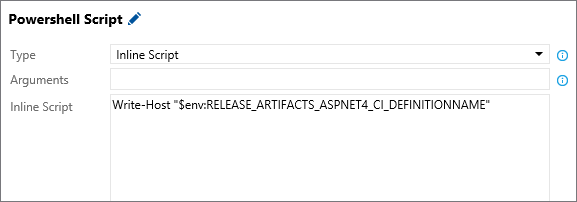
Use a default variable directly as an input to a task. For example, to pass Release.Artifacts.{Artifact alias}.DefinitionName as an argument to a PowerShell task for an artifact with ASPNET4.CI as its alias, use $(Release.Artifacts.ASPNET4.CI.DefinitionName).

To use a default variable in your script, replace the . in the default variable names with _. For example, to print the value of Release.Artifacts.{Artifact alias}.DefinitionName for an artifact with ASPNET4.CI as its alias in a PowerShell script, use $env:RELEASE_ARTIFACTS_ASPNET4_CI_DEFINITIONNAME. The original alias, ASPNET4.CI, is replaced with ASPNET4_CI.
Custom variables
You can define custom variables at different scopes.
Variable Groups: Use variable groups to share values across all definitions in a project. This approach is useful when you want to use the same values throughout definitions, stages, and tasks within a project, and manage them from a single location. Define and manage variable groups in the Pipelines > Library.
Release Pipeline Variables: Use release pipeline variables to share values across all stages within a release pipeline. This approach is ideal for scenarios where you need a consistent value across stages and tasks, with the ability to update it from a single location. Define and manage these variables in the Variables tab of the release pipeline. In the Pipeline Variables page, set the Scope drop-down list to Release when adding a variable.
Stage Variables: Use stage variables to share values within a specific stage of a release pipeline. This approach is useful for values that differ from stage to stage but are consistent across all tasks within a stage. Define and manage these variables in the Variables tab of the release pipeline. In the Pipeline Variables page, set the Scope drop-down list to appropriate environment when adding a variable.
By using custom variables at the project, release pipeline, and stage levels, you can:
Avoid duplicating values, making it easier to update all occurrences with a single change.
Secure sensitive values by preventing them from being viewed or modified by users. To mark a variable as secure (secret), select the
 icon next to the variable.
Important
The values of the hidden variables (secret) are securely stored on the server and users can't view them after they're saved. During deployment, Azure Pipelines decrypts these values when tasks reference them and passes them to the agent over a secure HTTPS channel.
Note
Creating custom variables can overwrite standard variables. For example, if you define a custom Path variable on a Windows agent, it overwrites the $env:Path variable and might prevent PowerShell from running properly.
Use custom variables
To use custom variables in your tasks, enclose the variable name in parentheses and precede it with a $ character. For example, if you have a variable named adminUserName, insert its current value into a task as $(adminUserName).
Note
Variables from different groups linked to a pipeline at the same scope (for example, job or stage) can conflict and lead to unpredictable results. To avoid this problem, ensure that variables across all your variable groups have unique names.
Define and modify your variables in a script
To define or modify a variable from a script, use the task.setvariable logging command. The updated variable value is scoped to the job being executed and doesn't persist across jobs or stages. Note that variable names are transformed to uppercase, with "." and " " replaced with "_".
For example, Agent.WorkFolder becomes AGENT_WORKFOLDER.
- On Windows, access this variable as
%AGENT_WORKFOLDER%or$env:AGENT_WORKFOLDER. - On Linux and macOS, use
$AGENT_WORKFOLDER.
Tip
You can run a script on:
- A Windows agent using either a Batch script task or PowerShell task.
- A macOS or Linux agent using a Shell script task.
Batch script
 Set the
 sauce and secret.Sauce variables
@echo ##vso[task.setvariable variable=sauce]crushed tomatoes
@echo ##vso[task.setvariable variable=secret.Sauce;issecret=true]crushed tomatoes with garlic
Read the variables
Arguments
"$(sauce)" "$(secret.Sauce)"
Script
@echo off
set sauceArgument=%~1
set secretSauceArgument=%~2
@echo No problem reading %sauceArgument% or %SAUCE%
@echo But I cannot read %SECRET_SAUCE%
@echo But I can read %secretSauceArgument% (but the log is redacted so I do not spoil the secret)
 Set the
  Set the
 Console output from reading the variables:
No problem reading crushed tomatoes or crushed tomatoes
But I cannot read
But I can read ******** (but the log is redacted so I do not spoil the secret)
View the current values of all variables
Select Pipelines > Releases, and then select your release pipeline.
Open the summary view for your release, and select the stage you're interested in. In the list of steps, choose Initialize job.
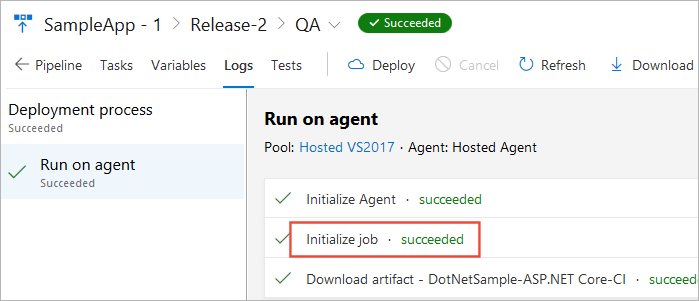
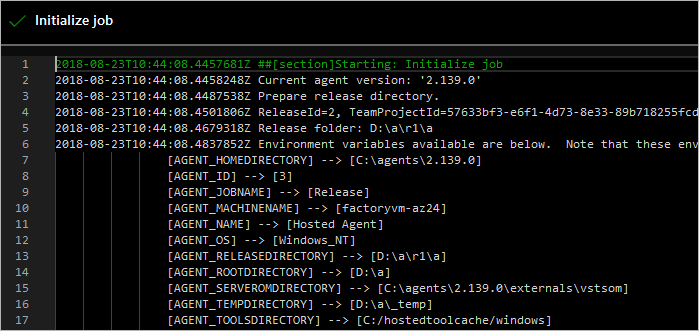
This step opens the logs. Scroll down to see the values the agent uses for this job.
Run a release in debug mode
Running a release in debug mode can help you diagnose and resolve problems by displaying extra information during the release execution. You can turn on debug mode for the whole release or just for the tasks in a specific release stage.
To turn on debug mode for the whole release, add a variable named
System.Debugwith the valuetrueto the Variables tab of the release pipeline.To turn on debug mode for a specific stage, open the Configure stage dialog from the shortcut menu of the stage, and add a variable named
System.Debugwith the valuetrueto the Variables tab.Alternatively, create a variable group containing a variable named
System.Debugwith the valuetrue, and link this variable group to the release pipeline.
Tip
If you encounter an error related to Azure Resource Manager service connections, see How to: Troubleshoot Azure Resource Manager service connections for more details.