Note
Access to this page requires authorization. You can try signing in or changing directories.
Access to this page requires authorization. You can try changing directories.
Azure DevOps Services | Azure DevOps Server | Azure DevOps Server 2022 | Azure DevOps Server 2020
An Analytics view provides a simplified way to specify the filter criteria for a Power BI report based on Analytics data. Analytics provides the reporting platform for Azure DevOps. You manage Analytics views in the web portal for Azure DevOps and then access them with the Power BI Data Connector.
This article provides troubleshooting guidance for common issues with Analytics views, including size warnings, verification errors, and Power BI connection problems.
Important
Analytics views only support Azure Boards data (work items). Analytics views don't support other data types, such as pipelines. Views provide a flat list of work items and don't support work item hierarchies. At this point, there are no plans to update the connector to support other types of data. For information on other approaches, see About Power BI integration.
Prerequisites
| Category | Requirements |
|---|---|
| Access levels | - Project member. - At least Basic access. |
| Permissions | By default, project members have permission to query Analytics and create views. For more information about other prerequisites regarding service and feature enablement and general data tracking activities, see Permissions and prerequisites to access Analytics. |
Resolve size warnings
Warning: This view may contain too much data
This warning appears when Power BI determines that it can't load all the data contained within the view. It typically occurs when you haven't specified sufficient filters within the view or you've specified to load all history with a daily granularity.
Resolution steps:
Add more specific filters: Apply additional work item filters to reduce the data scope:
- Filter by specific work item types (Bug, User Story, Task)
- Limit to specific areas or iterations
- Apply state filters (Active, Resolved, Closed)
- Set date range filters for creation or modification dates
Adjust history settings: Modify the History or Granularity to scope the view's results:
- Change from "All history" to a specific time range (last 30, 60, or 90 days)
- Increase granularity from daily to weekly or monthly
- Use "Current only" if you don't need historical trend data
Verify before saving: Always verify your view before saving to ensure it loads successfully in Power BI.
Tip
Views that pull large amounts of data might take a long time to refresh and load in Power BI. For organizations with extensive data, they might even fail to load completely.
Resolve verification errors
Error: The field 'FieldName' already exists
This error indicates that one of your project's custom fields has the same name as an Analytics field.
Resolution: Rename your custom field to avoid the naming conflict. Contact your project administrator if you don't have permissions to modify custom fields.
Error: Field doesn't exist anymore
This error means that one of your work item filters or view fields references a field that was removed from your project process.
Resolution steps:
- Edit your view in Azure DevOps.
- Go to the Work Items or Fields tab.
- Remove the filter or field that references the deleted field.
- Verify and save the view.
Error: Invalid filter criteria
This error occurs when filter values no longer exist in your project (for example, deleted areas, iterations, or work item states).
Resolution: Review and update filter criteria to use current, valid values for your project.
Resolve Power BI connection errors
Analytics view doesn't exist or you don't have permission to view it
This error occurs when you try to refresh a view in Power BI that's no longer available in Azure DevOps.
Common causes:
- The view was renamed or deleted
- Your permissions to access the view were removed
- The view was changed from Shared to Private
- Organization or project access was revoked
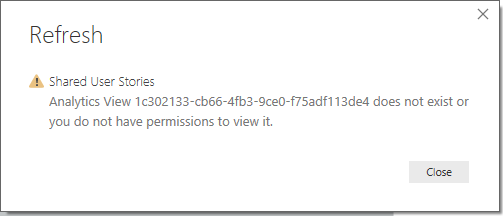
Resolution steps:
- Verify view access: Log in to Azure DevOps and confirm you can access the view.
- Check permissions: Ensure you have permission to use the view.
- Verify Analytics permissions: Confirm you have View analytics permission for the project.
- Update Power BI: If the view was renamed, update the connection in Power BI to use the new name.
- Remove broken table: If the view no longer exists, delete the table from your Power BI report.
The field already exists in the record
This error indicates a custom field has the same display name as one of the Azure DevOps reserved fields, creating a collision in Power BI.
Resolution:
- Edit the view in Azure DevOps.
- Go to the Fields tab.
- Remove the duplicate field from the field list.
- Save the view and refresh in Power BI.
Query result exceeds maximum size
This error occurs when your view returns more than 250,000 records, exceeding Power BI's loading limits.
Resolution steps:
- Add time filters: Limit the date range (last 30-90 days instead of all history).
- Filter work items: Apply more specific work item type, area, or iteration filters.
- Increase granularity: Change from daily to weekly or monthly data points.
- Split views: Create multiple smaller views instead of one large view.
Authentication and access errors
Error messages:
- "The user is not authorized"
- "Access to the resource is forbidden"
- "Project doesn't exist or you don't have permissions"
Resolution steps:
- Check project access: Verify you're a member of the Azure DevOps project.
- Validate Analytics permissions: Ensure you have Analytics access.
- Review credentials: Clear Power BI credentials and sign in again.
- Contact administrator: Work with your project administrator to resolve permission issues.
Use AI to troubleshoot Analytics view issues
The following example prompt for Copilot Chat helps you troubleshoot Analytics view and Power BI integration problems. Copy and paste this prompt into Copilot Chat, replacing the placeholders with your specific information.
For the best AI assistance, include specific details like your Analytics view name, Power BI Desktop version, field names, and filter configurations that might be related to the issue.
I'm getting this Azure DevOps Analytics view error: [PASTE YOUR ERROR MESSAGE HERE]

Analytics view details:
- View name: [YOUR VIEW NAME]
- Organization: [YOUR ORGANIZATION NAME]
- Project: [YOUR PROJECT NAME]
- Power BI Desktop version: [YOUR VERSION]
- Specific fields or filters involved: [LIST RELEVANT FIELDS/FILTERS]

Can you help me troubleshoot this issue? Please provide step-by-step instructions to:
1. Identify the root cause of the Analytics view problem
2. Fix the view configuration or Power BI connection issue
3. Verify the Analytics view loads correctly in Power BI

Context: This is for an Analytics view in Azure DevOps that I'm trying to connect to Power BI. The error might be related to view verification, field conflicts, data size limits, or Power BI refresh issues.
Copilot is powered by AI, so surprises and mistakes are possible. For more information, see Copilot general use FAQs.
Advanced troubleshooting
Performance optimization
If your Analytics view loads slowly or times out:
- Minimize field selection: Only include fields you actually need in your report.
- Use appropriate granularity: Monthly or weekly data loads faster than daily.
- Apply effective filters: Filter early in the data pipeline rather than in Power BI.
- Consider incremental refresh: Set up incremental refresh in Power BI for large datasets.
Data refresh issues
For automatic refresh problems:
- Verify credentials: Ensure stored credentials in Power BI service are valid.
- Check view permissions: Confirm the service account has access to the Analytics view.
- Monitor gateway connectivity: Verify on-premises gateway connectivity if applicable.
- Review refresh history: Check Power BI refresh logs for specific error details.