Note
Access to this page requires authorization. You can try signing in or changing directories.
Access to this page requires authorization. You can try changing directories.
In this tutorial, you use the Azure DocumentDB Migration Extension in Visual Studio Code to create and manage migration jobs from an on-premises or cloud instance of MongoDB to Azure DocumentDB. This extension provides a developer-friendly interface for performing migrations without service interruptions. The extension eliminates the need for additional infrastructure and offers secure connectivity, zero-cost usage, and granular control over which databases and collections to migrate.
The focus of this article is on using the extension's integrated workflow to simplify migration steps directly within Visual Studio Code. This approach is ideal for scenarios where you want a streamlined, managed experience with minimal complexity and maximum reliability.
Prerequisites
An Azure subscription
- If you don't have an Azure subscription, create a free account
An existing Azure DocumentDB cluster
- If you don't have a cluster, create a new cluster
- Install the Azure DocumentDB Migration Extension on your machine. This automatically installs its prerequisite, the DocumentDB for Visual Studio Code extension.
Before starting the migration, prepare your Azure DocumentDB account and your existing MongoDB instance for migration.
MongoDB instance (source)
- Complete the premigration assessment to determine if there are incompatibilities and warnings between your source instance and target account.
- Add a user with
readAnyDatabaseandclusterMonitorpermissions, unless one already exists. You use this credential while creating migration jobs in the extension.
Azure DocumentDB (target)
- Gather the Azure DocumentDB account's credentials.
- Ensure user has
createCollection,dropCollection,createIndex,insert, andlistCollectionspermissions.
Important
Microsoft Entra ID authentication isn't currently supported in migration jobs. Please use native DocumentDB authentication.
Perform the migration
Connect to source
- Open the DocumentDB for VS Code extension.
- Add the MongoDB server you want to migrate to the Document DB Connections list.
- Select Add New Connection.
- On the navigation bar, select Connection String.
- Paste your connection string:
mongodb://<YOUR_USERNAME>:<YOUR_PASSWORD>@localhost:10260/?tls=true&tlsAllowInvalidCertificates=true&authMechanism=SCRAM-SHA-256 - From the DocumentDB Connections, select the connection and expand it to connect.
Invoke the Migration Extension
You can invoke the Migration Extension from the DocumentDB Connections.
Right-click on an expanded (connected) connection.
Select Data Migration from the context menu.

Select Migrate to Azure DocumentDB from the command palette.

A migration wizard guides you through the process.
Create a migration job
A migration job is used to migrate a group of collections from the source to the destination Azure DocumentDB. The create migration job wizard has six steps.
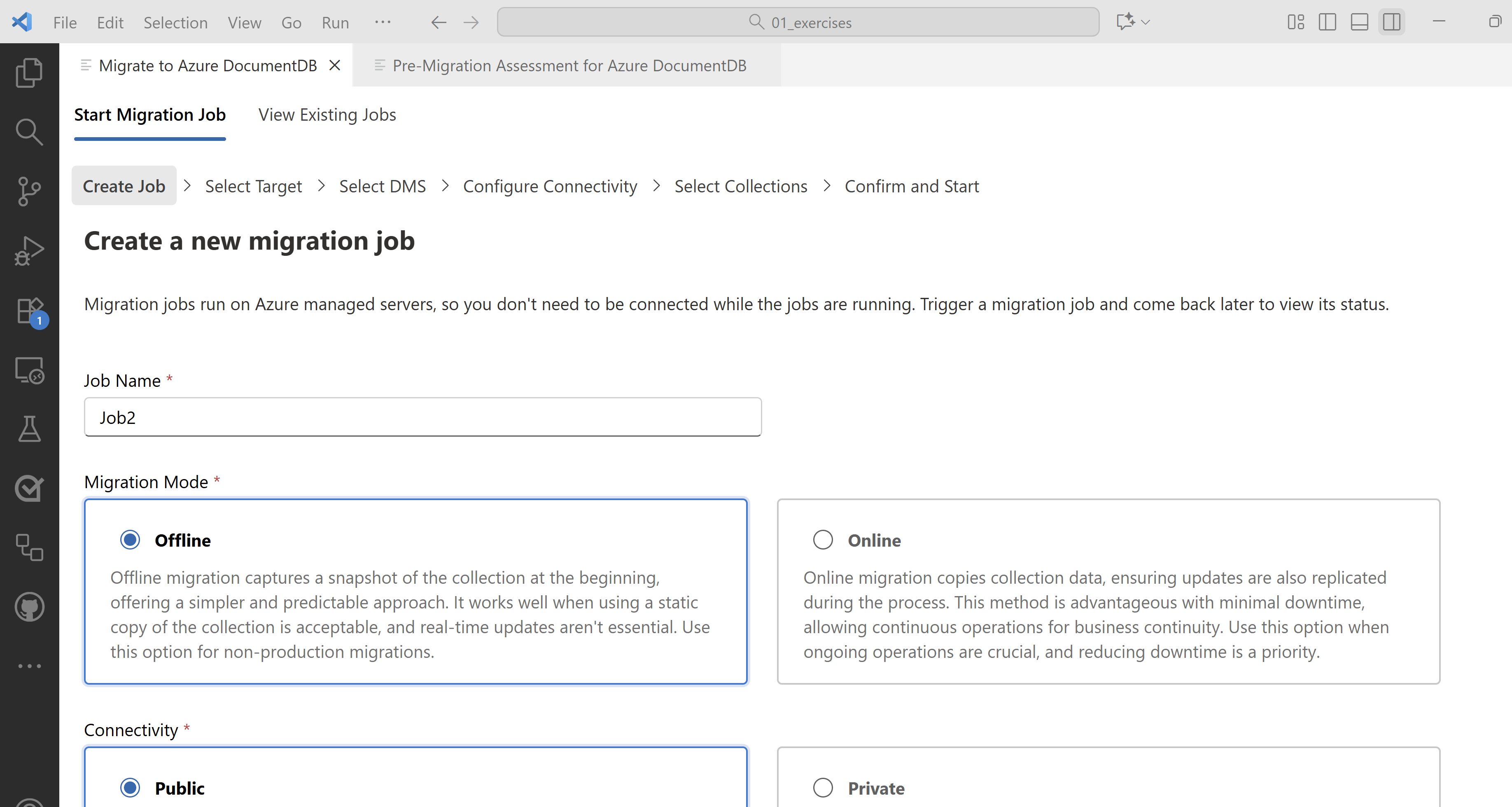
Step 1: Create job
In this step, you provide the basic details for the job.
Job Name: Provide a user-friendly name to identify the migration job.
Migration Mode: Select the migration mode that's most appropriate for your use case.
- Online migration copies collection data, ensuring updates are also replicated during the process. This method is advantageous with minimal downtime, allowing continuous operations for business continuity. Use this option when ongoing operations are crucial, and reducing downtime is a priority.
- Offline migration captures a snapshot of the database at the beginning, offering a simpler and predictable approach. It works well when using a static copy of the database is acceptable, and real-time updates aren't essential.
Important
To ensure successful online migrations from MongoDB, ChangeStream must be enabled on the source MongoDB server. Without ChangeStream, any modifications made to the data after the initial migration aren't captured. Therefore, use the online migration mode only if ChangeStream is enabled on your source MongoDB server.
Connectivity: Depending on your organization's security mandate and network setup, choose from Public and Private.
- Use Public when the source and target servers are accessible over the internet via public IPs. It enables support for services that require external accessibility.
- Use Private when either the source or target servers are accessible exclusively via private IPs within a virtual network. It enhances security by eliminating exposure to the public internet.
Select Next to continue.
Step 2: Select target
In this step, you select an existing Azure DocumentDB account and provide its connection string.
Select the subscription, resource group, and Azure DocumentDB account from the dropdowns.
Provide the connection string to the Azure DocumentDB account.
Ensure the IP listed in the screen is allowed on the Azure DocumentDB firewall.
Select Next to continue.

Step 3: Select Database Migration Service(DMS)
Azure Database Migration Service is a service that migrates data to and from Azure data platforms by using cloud infrastructure for data transfer, instead of relying on local resources. Choose an existing Azure Database Migration Service instance from the dropdown or select Create DMS to create a new migration service.
Important
Make sure that the Microsoft.DataMigration resource provider is registered in your subscription. You only need to do it once per subscription.
Select Next to continue.

Step 4: Configure connectivity
This screen depends on the connectivity mode you chose in Step 1.
Public connectivity
In public connectivity, the migration job connects to your source and target using public internet. To enable communication, you're required to update the source and target firewalls. To enable communication from the DMS servers, add the IP addresses listed in the screen to the source and target firewalls. For more information, see configure Azure DocumentDB cluster firewall.

Private connectivity
In private connectivity, the migration job runs within its virtual network. To securely communicate with your virtual network, we use virtual network peering.
Select the subscription, resource group, and virtual network from the dropdowns.
Run the PowerShell script provided on the screen to enable virtual network integration.
Select Next to continue.

Step 5: Select collections
In this step, you select the collections to be included in the migration job. Select from the list of collections by using the search options provided. Collections that already exist in the target are automatically marked Yes in the Exists in Target column.
Tip
Make sure to select all collections you want to include as the collections list can't be added once the migration job is created.
Select Next to continue.

Step 6: Confirm and start
Review the migration job details before selecting Start Migration. If the details need to be updated, use the Edit Details button.
Once the migration job is successfully created, you're automatically redirected to the View Existing Jobs page
Tip
The data migration tasks are run on Azure Database Migration Service. Therefore, you aren't required to be connected to the source and target environments during the data migration. The status is updated on the dashboard at frequent intervals.
Monitor existing migration jobs
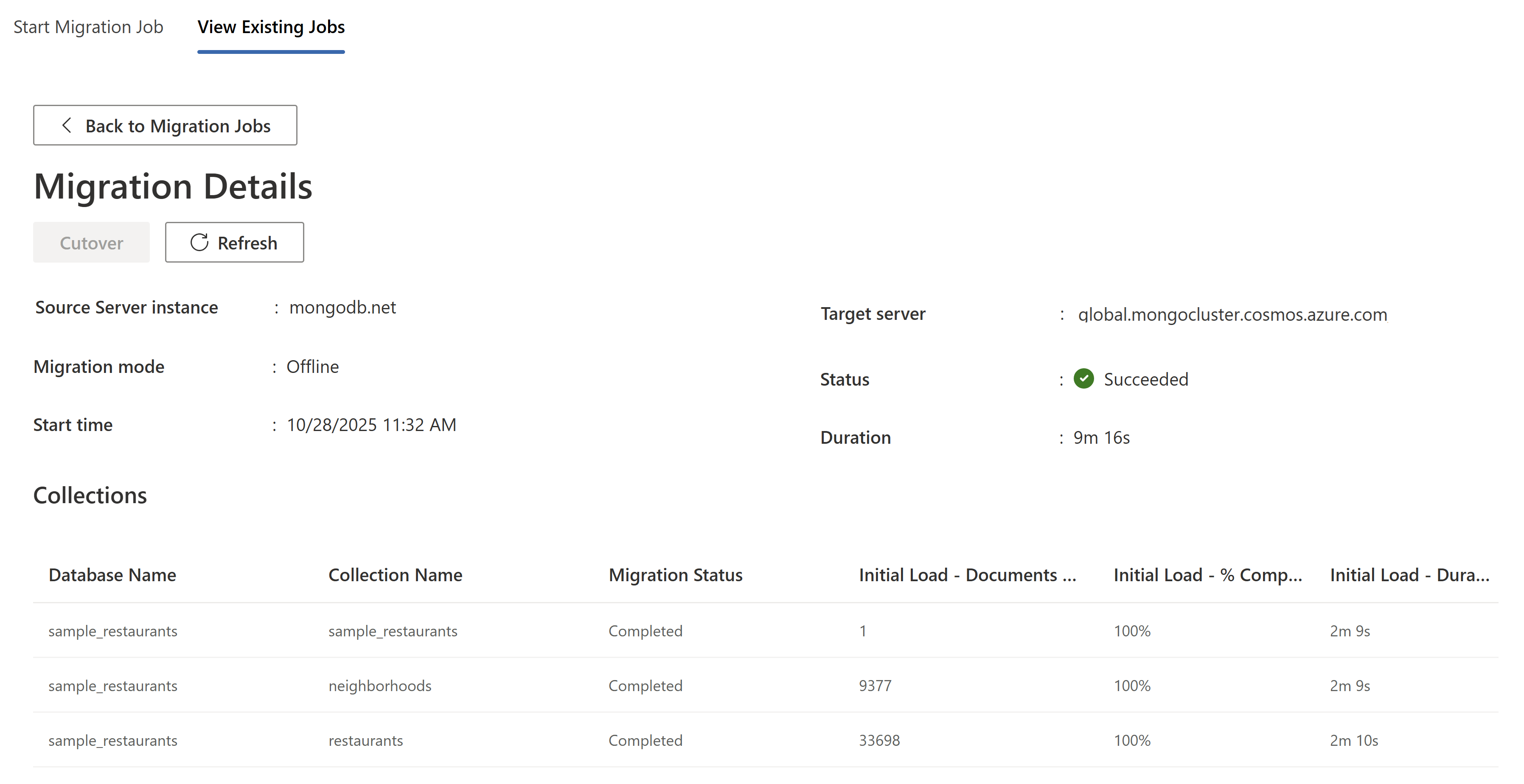
Use the View Existing Jobs tab to monitor the migration status of initialized jobs. The jobs are listed based on the selected DMS. Use the Change DMS button to change your selection.
The status is automatically updated at frequent intervals. Offline jobs automatically complete once the selected collection snapshots are copied to target. However, the online migrations need to be manually cut over.

To view the collection-wise status, select a row from the table.
Monitor online migrations
Online migrations, unlike offline migrations, don't automatically complete. Instead, they run continuously until they're manually finalized by selecting Cutover.
To complete the online migration, follow these steps in the given order:
The Cutover button is enabled once the initial data load is completed for all collections. At this stage, the job is in the replication phase, continuously copying updates from the source instance to the target instance to keep it up-to-date with the latest changes.
When ready to perform the migration cutover, stop all incoming transactions to the source collections being migrated.
The Replication Gap shows the time gap between the last update and current time.
Monitor the replication changes in the table and wait until the Replication Changes Played metric stabilizes. A stable Replication Changes Played metric indicates that all updates from the source are successfully copied to the target.
Select Cutover when the replication gap is minimal for all collections and the Replication Changes Played metric is stable.
Manually validate that the row count is the same between the source and target collections.
Note
Performing the cutover operation without validating that the source and target are synced can result in data loss.

Register Microsoft.DataMigration resource provider in your subscription
To ensure that the Microsoft.DataMigration resource provider is registered in your subscription, you can follow these steps:
Azure portal
Go to the Azure portal and navigate to your subscription.
In the left-hand menu, select Resource providers under Settings.
Search for Microsoft.DataMigration in the search box at the top.
If it isn't registered, select it and select the Register button.
Azure CLI
Open the Azure Cloud Shell or your local terminal.
Run the following command to register the resource provider:
az provider register --namespace Microsoft.DataMigration
PowerShell
Open the Azure Cloud Shell or your local PowerShell.
Run the following command to register the resource provider:
Register-AzResourceProvider -ProviderNamespace "Microsoft.DataMigration"
FAQ
Why are views missing in the select collection screen step when Azure DocumentDB supports views?
Azure DocumentDB supports the creation of new views. However, the migration extension doesn't provide support for migrating existing views.
After the migration is finished, you can always recreate the views.
Which collections and databases are skipped when migrating from MongoDB to Azure DocumentDB?
The following databases and collections are considered internal for MongoDB:
| Category | Description |
|---|---|
| Databases | admin, local, system config |
| Collections | Any collection with prefix system. |
Does the migration jobs run locally on my machine?
The databases and collections are listed directly in the wizard UI using commands executed from the local VS Code client. This functionality requires network connectivity between the machine running VS Code and both the source and target environments.
Data migration tasks are executed by the Azure Database Migration Service (DMS). DMS is an Azure-hosted service that orchestrates and manages data movement activities. Once the migration tasks are created, you no longer need to maintain connectivity to the source and target environments.
Can I rename databases and collections during migration?
The extension doesn't support database and collection renaming during migration.
How should I configure my source server firewalls to avoid connectivity issues?
The required network configuration depends on the selected connectivity mode:
- Public mode: You must allow the IP addresses displayed in the wizard on both the source and target firewalls to enable communication.
- Private mode: You must enable virtual network integration so that the DMS servers can securely communicate with the source and target endpoints within the virtual network.
Also refer to VS Code connectivity
How many databases and collections can I migrate in a single migration?
You can include up to 25 collections in a single migration. However, you can create and run multiple migration jobs to migrate other collections.
How many migration jobs can I run simultaneously?
You can run multiple migration jobs when using public access. However, when using private access, a single virtual network can support only one active job at a time. To run multiple jobs with private access, you need to use different virtual network for each job.
What type of logs does the extension generate?
The extension records errors, warnings, and other diagnostic logs in the default log directory:
- Windows -
C:\Users\<username>\.dmamongo\logs\ - Linux -
~/.dmamongo/logs - macOS -
/Users/<username>/.dmamongo/logs