Note
Access to this page requires authorization. You can try signing in or changing directories.
Access to this page requires authorization. You can try changing directories.
This article introduces the virtual network connectivity pattern for IoT devices provisioning with IoT hubs using DPS. This pattern provides private connectivity between the devices, DPS, and the IoT hub inside a customer-owned Azure virtual network.
In most scenarios where DPS is configured with a virtual network, your IoT hub is also configured in the same virtual network. For more information about virtual network support and configuration for IoT hubs, see IoT Hub support for virtual networks with Azure Private Link.
Introduction
By default, DPS hostnames map to a public endpoint with a publicly routable IP address over the Internet. This public endpoint is visible to all customers. IoT devices over wide-area networks and on-premises networks can try to access the public endpoint.
For several reasons, customers might wish to restrict connectivity to Azure resources, like DPS. These reasons include:
Prevent connection exposure over the public Internet. Exposure can be reduced by introducing more layers of security via network level isolation for your IoT hub and DPS resources
Enabling a private connectivity experience from your on-premises network assets ensuring that your data and traffic is transmitted directly to Azure backbone network.
Preventing exfiltration attacks from sensitive on-premises networks.
Following established Azure-wide connectivity patterns using private endpoints.
Common approaches to restricting connectivity include DPS IP filter rules and virtual networking with private endpoints. The goal of this article is to describe the virtual networking approach for DPS using private endpoints.
Devices that operate in on-premises networks can use Virtual Private Network (VPN) or ExpressRoute private peering to connect to a virtual network in Azure and access DPS resources through private endpoints.
A private endpoint is a private IP address allocated inside a customer-owned virtual network by which an Azure resource is accessible. By having a private endpoint for your DPS resource, you can allow devices operating inside your virtual network to request provisioning by your DPS resource without allowing traffic to the public endpoint. Each DPS resource can support multiple private endpoints, each of which might be located in a virtual network in a different region.
Prerequisites
Before proceeding ensure that the following prerequisites are met:
Your DPS resource is already created and linked to your IoT hubs. For guidance on setting up a new DPS resource, see Quickstart: Set up IoT Hub Device Provisioning Service with the Azure portal
You provisioned an Azure virtual network with a subnet in which the private endpoint is created. For more information, see Quickstart: Create an Azure Virtual Network.
For devices that operate inside of on-premises networks, set up Virtual Private Network (VPN) or ExpressRoute private peering into your Azure virtual network.
Private endpoint limitations
Note the following current limitations for DPS when using private endpoints:
Private endpoints don't work when the DPS resource and the linked IoT hub are in different clouds. For example, Azure Government and global Azure.
Private endpoints in DPS use Azure Private Link, which are only supported in public regions. For more information, see Azure Private Link availability.
Currently, custom allocation policies with Azure Functions for DPS doesn't work when the Azure function is locked down to a virtual network and private endpoints.
Current DPS virtual network support is for data ingress into DPS only. Data egress, which is the traffic from DPS to IoT Hub, uses an internal service-to-service mechanism rather than a dedicated virtual network. Support for full virtual network-based egress lockdown between DPS and IoT Hub isn't currently available.
The lowest latency allocation policy is used to assign a device to the IoT hub with the lowest latency. This allocation policy isn't reliable in a virtual network environment.
Enabling one or more private endpoints typically involves disabling public access to your DPS instance. Once public access is disabled, you can no longer use the Azure portal to manage enrollments. Instead you can manage enrollments using the Azure CLI, PowerShell, or service APIs from machines inside one or more virtual networks/private endpoints configured on the DPS instance.
When using private endpoints, we recommend deploying DPS in one of the regions that support Availability Zones. Otherwise, DPS instances with private endpoints enabled might see reduced availability during outages.
Note
Data residency consideration:
DPS provides a Global device endpoint (global.azure-devices-provisioning.net). However, when you use the global endpoint, your data might be redirected outside of the region where the DPS instance was initially created. To ensure data residency within the initial DPS region, use private endpoints.
Set up a private endpoint
To set up a private endpoint, follow these steps:
In the Azure portal, navigate to your DPS resource.
In the service menu, under Settings, select the Networking tab.
In the working pane, select the Private access tab, and then select + Create a private endpoint.
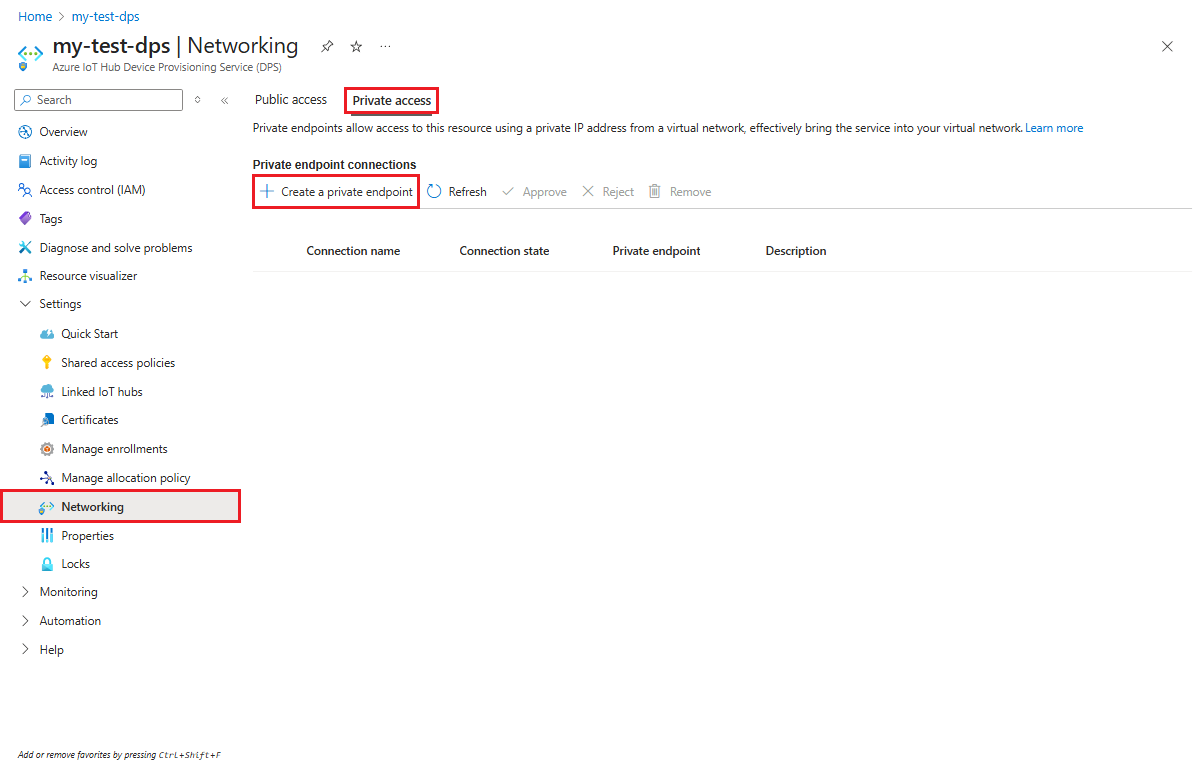
On the Basics tab of the Create a private endpoint page, enter the information mentioned in the following table.
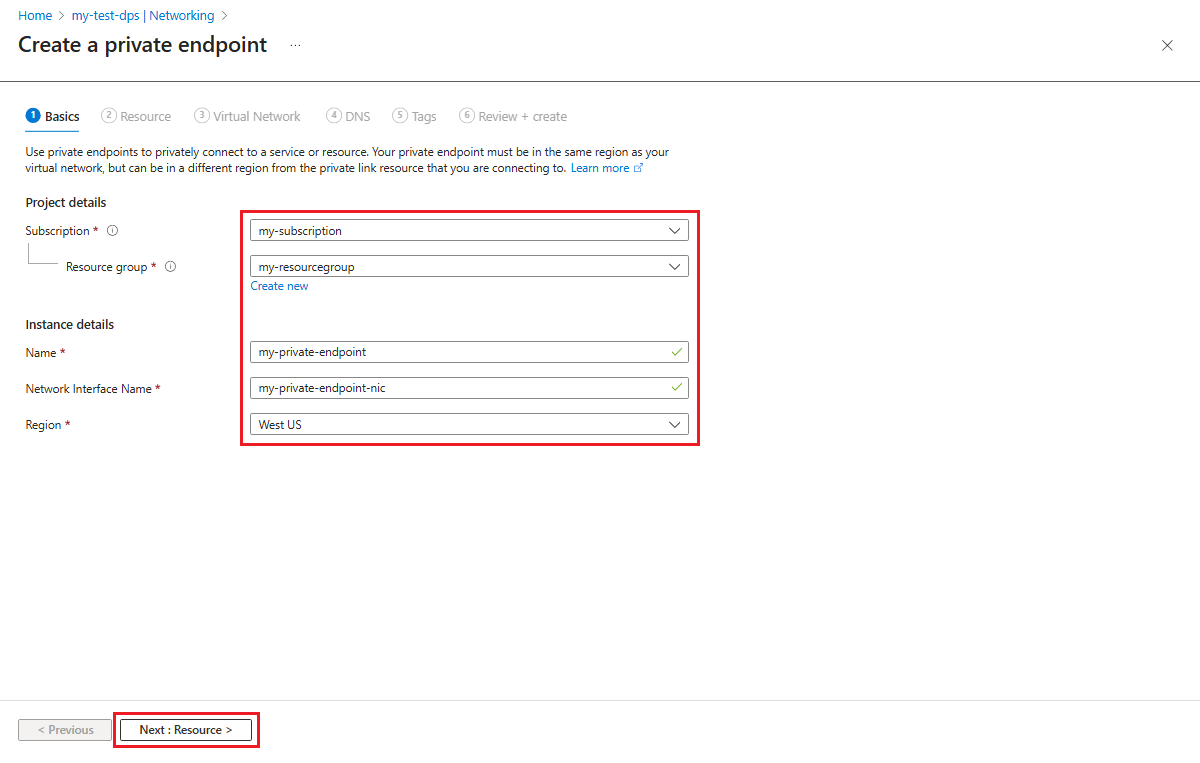
Field Value Subscription Choose the desired Azure subscription to contain the private endpoint. Resource group Choose or create a resource group to contain the private endpoint. Name Enter a name for your private endpoint. Network Interface Name If desired, enter a name for the network interface of your private endpoint. Region Choose the region for the private endpoint. The region chosen must be the same as the region that contains the virtual network, but it doesn't have to be the same as the DPS resource. Select Next : Resource to configure the resource that the private endpoint points to.
On the Resource tab of the Create a private endpoint page, enter the information mentioned in the following table.

Field Value Subscription If it isn't already chosen, choose the Azure subscription that contains the DPS resource that your private endpoint points to. Resource type If it isn't already chosen, choose Microsoft.Devices/ProvisioningServices. Resource If it isn't already chosen, select the DPS resource that the private endpoint maps to. Target sub-resource Select iotDps. Tip
Information on the Connect to an Azure resource by resource ID or alias setting is provided in the Request a private endpoint section in this article.
Select Next : Virtual Network to configure the virtual network for the private endpoint.
On the Virtual Network tab of the Create a private endpoint page, choose your virtual network and subnet to create the private endpoint in.
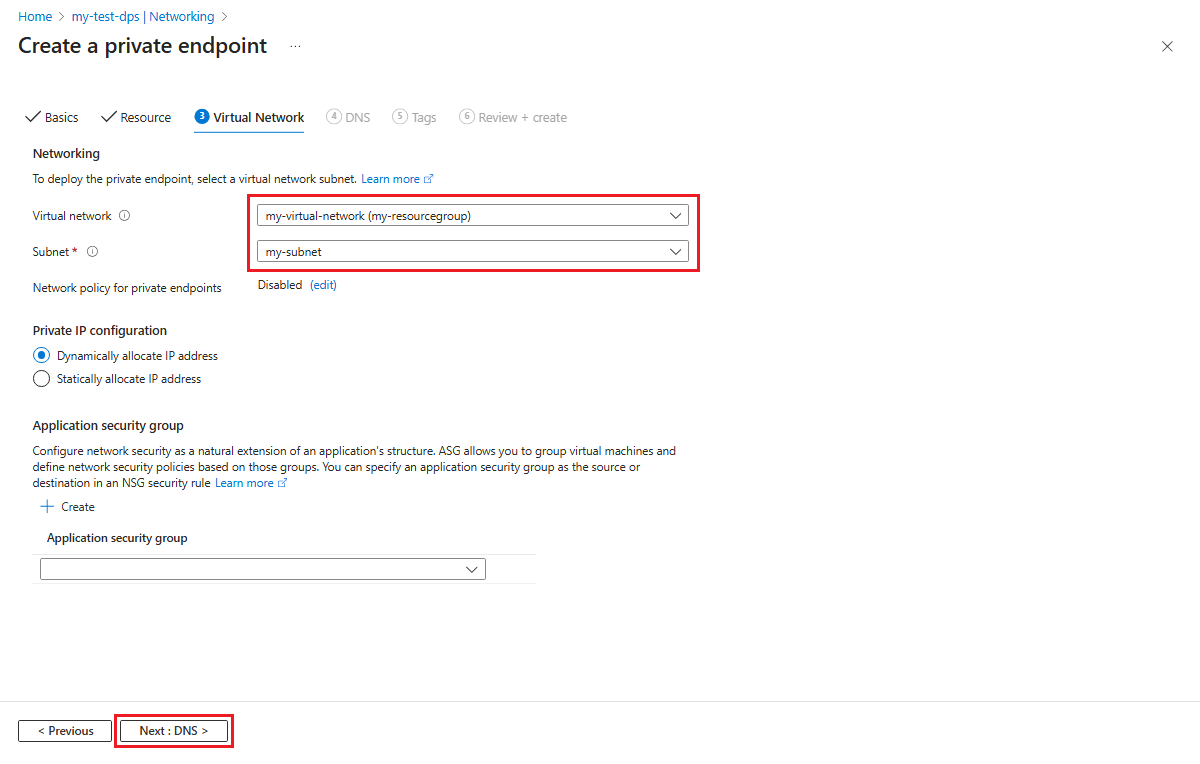
Select Next : DNS to choose any private DNS integration options needed for your private endpoint.
On the DNS tab of the Create a private endpoint page, choose any private DNS integration options needed for your private endpoint.

Select Next : Tags, and optionally provide any tags for your resource.
Select Next : Review + create, and then select Create to create your private endpoint resource.
Use private endpoints with devices
To use private endpoints with device provisioning code, your provisioning code must use the specific Service endpoint for your DPS instance as shown on the overview page of your DPS instance in the Azure portal. The service endpoint has the following form.
<Your DPS Tenant Name>.azure-devices-provisioning.net
Most sample code demonstrated in our documentation and SDKs, use the Global device endpoint (global.azure-devices-provisioning.net) and ID Scope to resolve a particular DPS instance. Use the service endpoint in place of the global device endpoint when connecting to a DPS instance using private endpoints to provision your devices.
For example, the provisioning device client sample (pro_dev_client_sample) in the Azure IoT C SDK is designed to use the Global device endpoint as the global provisioning URI (global_prov_uri) in prov_dev_client_sample.c
MU_DEFINE_ENUM_STRINGS_WITHOUT_INVALID(PROV_DEVICE_RESULT, PROV_DEVICE_RESULT_VALUE);
MU_DEFINE_ENUM_STRINGS_WITHOUT_INVALID(PROV_DEVICE_REG_STATUS, PROV_DEVICE_REG_STATUS_VALUES);

static const char* global_prov_uri = "global.azure-devices-provisioning.net";
static const char* id_scope = "[ID Scope]";
}

PROV_DEVICE_RESULT prov_device_result = PROV_DEVICE_RESULT_ERROR;
PROV_DEVICE_HANDLE prov_device_handle;
if ((prov_device_handle = Prov_Device_Create(global_prov_uri, id_scope, prov_transport)) == NULL)
{
    (void)printf("failed calling Prov_Device_Create\r\n");
To use the sample with a private endpoint, the highlighted code in the previous example would be changed to use the service endpoint for your DPS resource. For example, if your service endpoint was mydps.azure-devices-provisioning.net, the code would look as follows.
static const char* global_prov_uri = "global.azure-devices-provisioning.net";
static const char* service_uri = "mydps.azure-devices-provisioning.net";
static const char* id_scope = "[ID Scope]";
    PROV_DEVICE_RESULT prov_device_result = PROV_DEVICE_RESULT_ERROR;
    PROV_DEVICE_HANDLE prov_device_handle;
    if ((prov_device_handle = Prov_Device_Create(service_uri, id_scope, prov_transport)) == NULL)
    {
        (void)printf("failed calling Prov_Device_Create\r\n");
    }
Request a private endpoint
You can request a private endpoint to a DPS instance by resource ID. In order to make this request, you need the resource owner to supply you with the resource ID.
The resource ID is provided on the Properties page for the DPS resource in Azure portal, as shown in the following screenshot.

Caution
The resource ID does contain the subscription ID.
Once you have the resource ID, follow the steps in Set up a private endpoint to step 3 on the Resource tab of the Create a private endpoint page. Select Connect to an Azure resource by resource ID or alias and enter the information in the following table.
Field Value Resource ID or alias Enter the resource ID for the DPS resource. Target sub-resource Enter iotDps Request message Enter a request message for the DPS resource owner.
For example,Please approve this new private endpointfor IoT devices in site 23 to access this DPS instanceSelect Next : Virtual Network to configure the virtual network for the private endpoint.
On the Virtual Network tab of the Create a private endpoint page, choose your virtual network and subnet to create the private endpoint in.
Select Next : DNS to choose any private DNS integration options needed for your private endpoint request.
On the DNS tab of the Create a private endpoint page, choose any private DNS integration options needed for your private endpoint request.
Select Next : Tags, and optionally provide any tags for your resource.
Select Next : Review + create, and then select Create to create your private endpoint request.
The DPS owner sees the private endpoint request in the Private endpoint connections list on the Networking page of the DPS instance in the Azure portal. On that page, the owner can Approve or Reject the private endpoint request.

Pricing private endpoints
For pricing details, see Azure Private Link pricing.
Next steps
Learn more about DPS security features: