Note
Access to this page requires authorization. You can try signing in or changing directories.
Access to this page requires authorization. You can try changing directories.
Applies to: Azure Logic Apps (Consumption + Standard)
Important
Consumption agent workflows capability is in preview and is subject to the Supplemental Terms of Use for Microsoft Azure Previews.
Azure Logic Apps supports workflows that complete tasks by using agent loops with large language models (LLMs). An agent loop uses an iterative process to solve complex, multi-step problems. An LLM is a trained program that recognizes patterns and performs jobs without human interaction, for example:
- Analyze, interpret, and reason about information such as instructions, prompts, inputs, and other data.
- Make decisions, based on results and available data.
- Formulate and return answers back to the prompter, based on the agent's instructions.
You can build workflows that use autonomous or conversational agent loops. The agent loop uses natural language to communicate with you and the connected model. The agent also uses model-generated outputs to do work either with or without human interaction. The model helps the agent loop provide the following capabilities:
- Accept information about the agent's role, how to operate, and how to respond.
- Receive and respond to instructions and requests, or prompts.
- Process inputs, analyze data, and make choices, based on available information.
- Choose tools to complete the tasks necessary to fulfill requests. A tool is basically a sequence with one or more actions that complete a task.
- Adapt to environments that require flexibility and are fluid, dynamic, unpredictable, or unstable.
With 1,400+ connectors that you can use to build tools for an agent loop to use, agent workflows support a vast range of scenarios that greatly benefit from agent loop and model capabilities. Based on your scenario, create either an autonomous agent workflow without human interaction or a conversational agent workflow with human interaction to best suit your solution's needs.
This overview covers the following areas:
- Agent versus nonagent workflows
- Agent loop key concepts
- Autonomous versus conversational agent workflows
- Agent structure
- Example scenarios
- Authentication and authorization
- Basic billing information
Agent versus nonagent workflows
Workflows that use agent loops can evolve beyond the limits imposed on nonagent workflows. Agent workflows can adapt to environments where unexpected events happen, choose which tools to use based on prompts, inputs, and available data, continuously improve their performance, handle unstructured data, support complex scenarios, and provide a higher level of adaptability and flexibility. Nonagent workflows function best in stable environments, follow predefined rules, and perform tasks that are static, predictable, and repetitive.
The following table provides more comparisons between agent workflows and nonagent workflows:
| Aspect | Agent | Nonagent |
|---|---|---|
| Logic | Make informed choices about the tasks to perform, based on inputs and other available information, and take actions. | Follow predefined rules and fixed sequences. |
| Task management | Treat tasks as separate entities | Not applicable |
| Data structure | Handle and process unstructured data. | Handle and process structured data with predictable patterns. |
| Adaptability | Detect and respond to changing conditions and environments, make decisions, and adapt to new, real-time inputs. | Might struggle with environments that experience unexpected or dynamic changes. |
Key concepts
The following table provides basic introductions to key concepts:
| Concept | Description |
|---|---|
| Agent loop | A prebuilt action that uses a structured iterative process to solve complex, multi-step problems. The agent loop accomplishes this goal by iteratively following these steps: 1. Think: Collect, process, and analyze available information and inputs, such as text, images, audio, sensor data, and so on, from specific data sources. Apply reason, logic, or learning models to understand requests, create plans or solutions, and choose the best action to answer or fulfill requests with help from generative AI models. 2. Act: Based on the choices made and available tools, complete tasks in the digital or real world. 3. Learn (Optional): Adapt its own behavior over time by using feedback or other information. An agent can accept instructions, work with services, systems, apps, and data by invoking tools that you create with prebuilt actions in Azure Logic Apps, and respond with the results. An agent can process information, make choices, and complete tasks by using a deployed model, for example, in Azure OpenAI Service. Note: An agent workflow can include multiple agents in a sequence. You can't add an agent inline as a tool in another agent. For more information, see What is an AI agent? |
| Large language model (LLM) | A program trained to recognize patterns and perform jobs without human intervention. For more information, see What are large language models? |
| Tool | A tool contains one or more actions that perform a task for an agent. For example, a tool can send email, work with data sources, perform calculations or conversions, interact with APIs, and so on. For example, see Create tool to get the weather. |
| Agent parameter | A parameter that you create on a tool or in an action parameter, based on the use case for the agent parameter. You create agent parameters so the agent can pass model-only outputs as parameter inputs for an action in a tool. You don't need agent parameters for values from nonmodel sources. Agent parameters differ from traditional parameters in the following ways: - Agent parameters apply only to the tool where you define them. This restriction means you can't share agent parameters with other tools. In comparison, you can share traditional parameters globally with operations and control flow structures in a workflow. - Agent parameters don't use resolved values when the workflow starts to run. An agent parameter receives a value only if the agent invokes the tool by using specific arguments. These arguments become the agent parameters for invoking the tool. - An agent can invoke the same tool multiple times with different agent parameter values, even when that tool exists in the same loop iteration. For example, a tool can check the weather in both Seattle and London. For more information, see Create agent parameters for 'Get forecast' action. |
| Context | An agent maintains a log history by keeping a maximum number of tokens or messages as context and passing that context into the model for the next interaction. Each model has different context length limits. |
Autonomous versus conversational agent workflows
To help you better understand how these agent workflow types differ, the following sections describe and show examples for each agent workflow type. Both workflow types use an agent loop and tools to get the current weather and send that information in email. All agents have an information pane where you set up the agent with the model you want and provide instructions about the agent's roles, its functions, and the way to respond.
Autonomous agent workflow
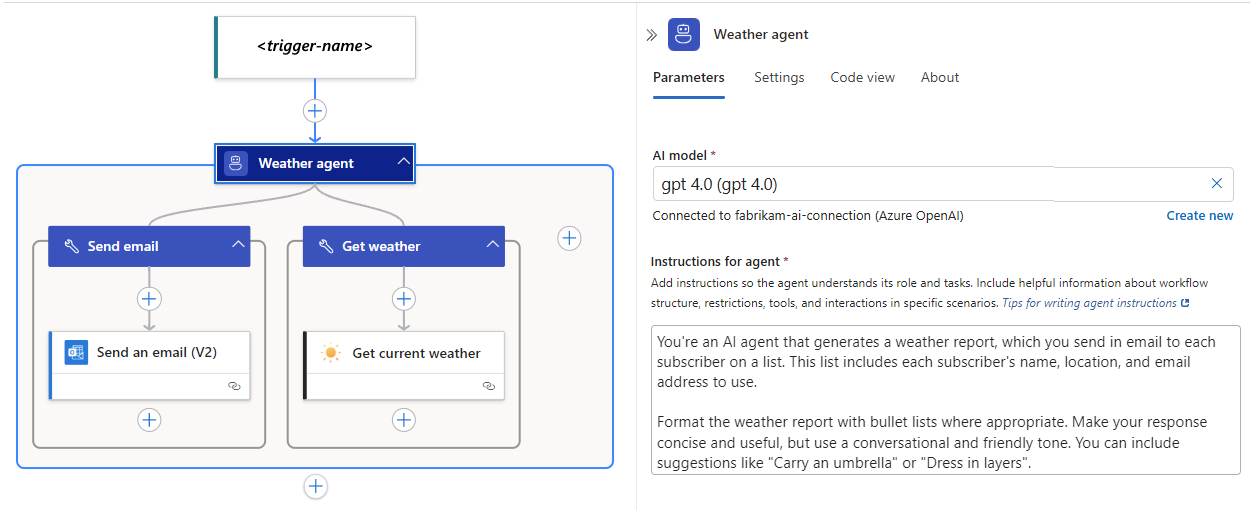
The following high-level steps describe the behavior for a basic autonomous agent workflow:
The workflow starts with any available supported trigger.
Optionally, zero or more actions might run between the trigger and the agent.
The agent accepts system instructions and nonhuman prompts or inputs, for example, outputs from the trigger or a preceding action.
Based on whether you have a Consumption or Standard agent workflow, the agent uses an Azure OpenAI model or LLM API from the following source to interpret and understand the instructions and request. The agent also uses the model to process and analyze the provided inputs.
Logic app Model source Consumption Microsoft Foundry Standard - Azure OpenAI Service resource
- Azure AI Foundry project (preview)
- Azure API Management account with an LLM API (preview)Based on the agent instructions, the model helps plan which tools that the agent needs to invoke to perform the necessary tasks.
The agent returns the tool results and responds to the workflow caller or the specified recipient.
The following screenshot shows a basic example autonomous agent workflow:
Conversational agent workflow
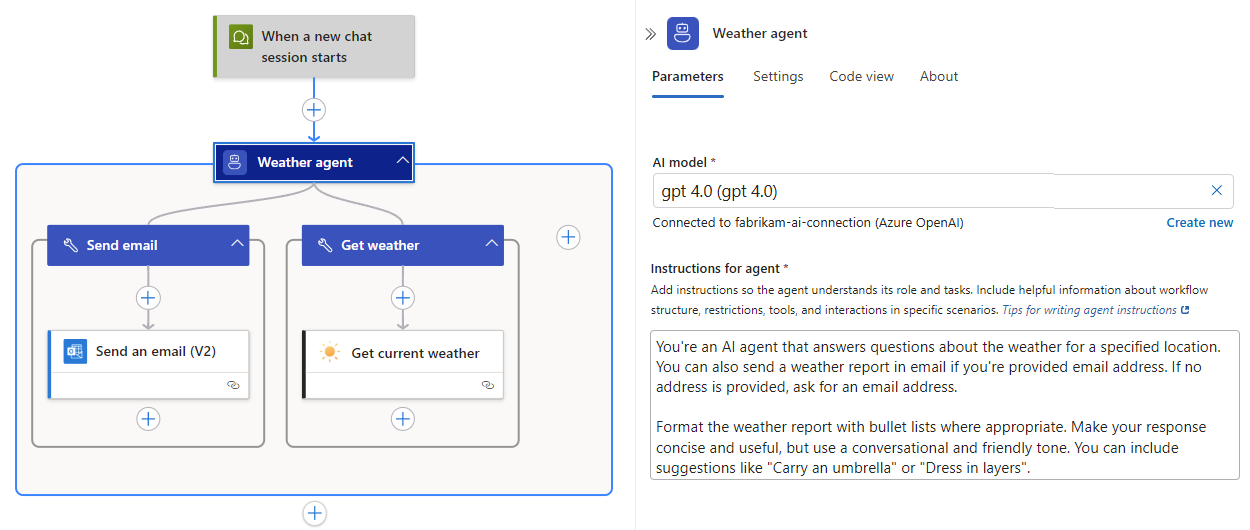
The following high-level steps describe the behavior for a basic conversational agent workflow:
The workflow always starts with the trigger named When a chat session starts.
Optionally, zero or more actions might run between the trigger and the agent.
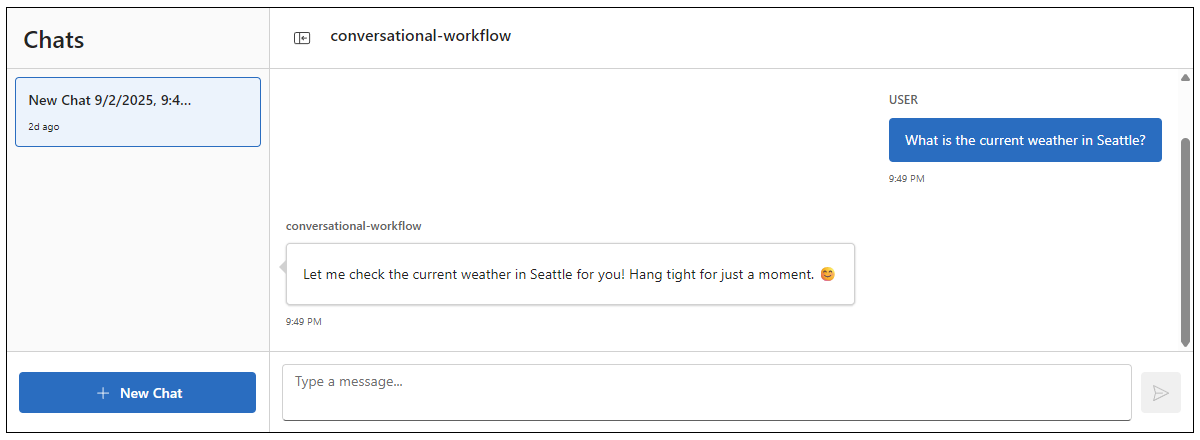
The agent accepts system instructions and human-provided prompts or inputs through the integrated chat interface, for example, What is the weather in Seattle?
Based on whether you have a Consumption or Standard agent workflow, the agent uses an Azure OpenAI model or LLM API from the following source to interpret and understand the instructions and request. The agent also uses the model to process and analyze the provided inputs.
Logic app Model source Consumption Microsoft Foundry Standard - Azure OpenAI Service resource
- Azure API Management account with an LLM API (preview)Based on the agent instructions, the model helps plan which tools that the agent invokes for the necessary tasks.
The agent returns the tool results and responds through the chat interface to the human prompter.
The following screenshot shows a basic example conversational agent workflow:
The following screenshot shows the integrated chat interface that you can access from the designer toolbar or the workflow sidebar menu in the Azure portal:
Conversational agent workflows also support an external chat client that others can use outside the Azure portal. To provide and secure access for this external chat client, you need to set up Production authentication and authorization.
Explore agent workflow structure
To build a new agent workflow, create a Consumption logic app in multitenant Azure Logic Apps or a Standard logic app in single-tenant Azure Logic Apps and select one of the following workflow types:
- Autonomous Agents
- Conversational Agents
These workflow types include all the capabilities in Consumption or Standard stateful workflows and are designed to work specifically with agent capabilities. These workflow types automatically include an empty agent.
For example, the following screenshot shows a new autonomous agent workflow:

The following screenshot shows a new conversational agent workflow:

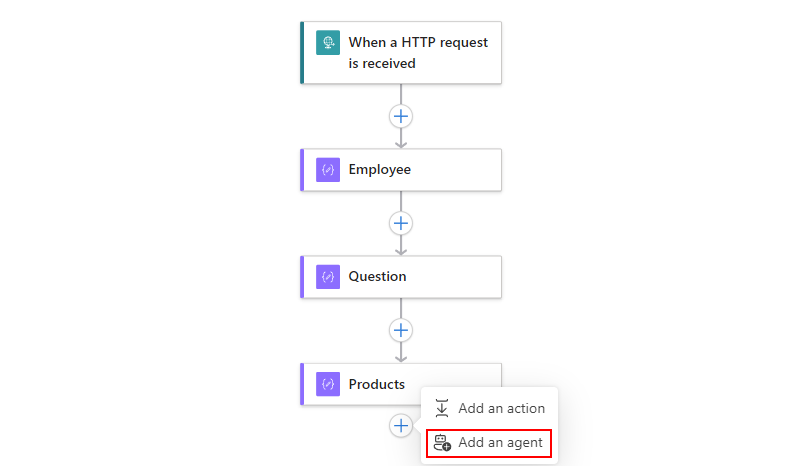
In Standard logic apps, if you have an existing Stateful workflow, the following screenshot shows how you can add an Agent action to include autonomous agent and LLM capabilities:
While Consumption agent workflows are automatically set up with a model to use, Standard agent workflows require that you set up a connection to the model for the agent to use:

Note
The connection pane shows the different connection requirements, based on your workflow type and the selected model source.
The agent requires that you provide instructions that describe the roles that the agent can play, tasks that the agent can perform, and other specific prescriptive information that helps the agent respond to prompts, answer questions, and perform requested tasks, for example:

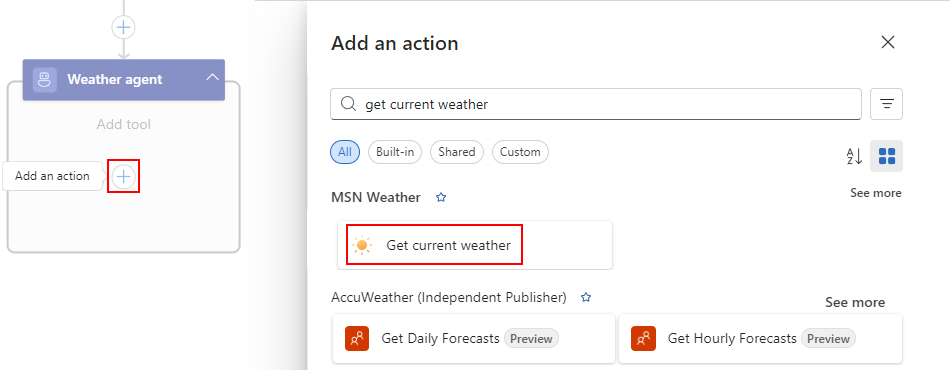
An empty agent connected to a model can respond to prompts that only use the model's capabilities, so an agent doesn't have to include tools. However, for the agent to use actions available in Azure Logic Apps, the agent needs you to create tools. You can start creating a tool by first adding an action from the connectors gallery.
The following diagram shows the gallery where you can browse and select actions to build tools:
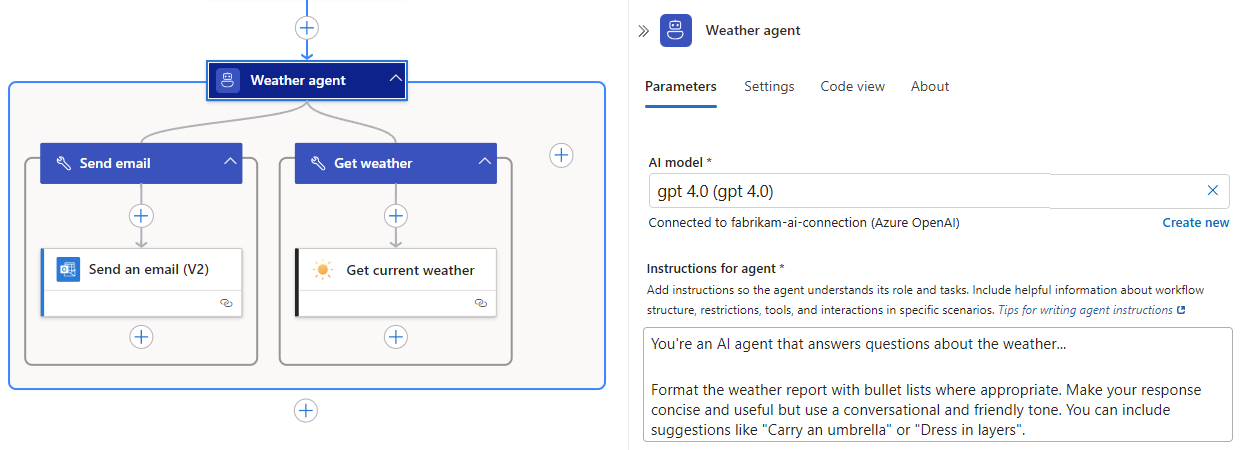
The following diagram shows a weather agent that can get the weather forecast and send that forecast in email:
More example scenarios
The following section describes a few more ways that an agent can complete tasks in a workflow:
Mortgage loan agent
Imagine that your bank uses a mortgage loan agent that processes loans autonomously or with human intervention when necessary by performing the following tasks in a single orchestrated loop:
- Converse with customers to answer questions.
- Review loan applications.
- Collect financial information to assess loan eligibility.
- Retrieve and analyze risk data.
- Request and summarize real estate appraisals when submitted.
- Include human reviewers for edge cases.
- Approve or decline applications.
- Communicate decisions to relevant parties.
Order fulfillment agent
Suppose your business uses an order fulfillment agent to perform the following tasks:
- Engage with customers to answer product questions, based on enterprise knowledge.
- Create orders but pass them on to humans when necessary.
- Provide 24/7 support with intelligent escalation.
You can also have an agent that orchestrates work across other agents. For example, you might have a team of agents, such as a writer, reviewer, and publisher, that work together to create and distribute sales reports.
Facilities work order agent
To support an internal facilities team, a work order agent performs the following tasks:
- Converse with employees and provide options for service requests.
- Open work orders based on employee selections.
- Send work orders to the corresponding service teams.
- Update work orders with jobs progress and status.
- Close work orders when jobs are complete.
- Notify the appropriate parties about completed jobs.
Authentication and authorization
Nonagent workflows usually interact with a small, known, and predictable set of callers. However, conversational agent workflows communicate with broader range of callers, such as people, agents, Model Context Protocol (MCP) servers, tool brokers, and external services. This wider reach increases integration options but introduces different security challenges because callers can originate from dynamic, unknown, or untrusted networks. When callers come from networks you don't control, or when identities are external or unbounded identities, you must authenticate and authorize each caller so you can protect conversational agent workflows because they provide an external chat client to interact with people.
For nonproduction activities, the Azure portal uses a developer key for authentication and authorization. However, when your conversational agent workflows are ready for production, set up the corresponding production authentication and authorization for your logic app type.
Developer key authentication and authorization
For nonproduction activities only, such as design, development, and quick validation, the Azure portal provides, manages, and uses a developer key to run your workflow on your behalf.
What is a developer key?
A developer key is a convenience authentication mechanism used only by the Azure portal to run your workflow during the design, development, and quick testing stages in the Azure portal. During these stages, the developer key lets you skip the need to manually set up Easy Auth or copy trigger callback URLs with shared access signatures (SAS). The key is linked to a specific user and tenant based only on an Azure Resource Manager bearer token, which is an access token that authenticates requests to the Azure Resource Manager REST API.
The portal automatically injects the developer key when you use built‑in test experiences in the workflow designer like running a workflow, calling the Request trigger, or interacting with a conversational agent workflow in the internal chat interface. The key is implicitly bound to a tenant session and a signed-in portal user, so you can't distribute the key externally due to this binding, which is based only on the ARM bearer token.
Developer key limitations
The following list describes the developer key's usage and design limitations:
- The key isn't a substitute for Easy Auth, managed identity, federated credentials, or signed callback URLs in production scenarios.
- The key isn't designed for large or untrusted caller populations, agent tools, or automation clients.
- The key isn't a per-user authorization mechanism due to lack of granular scopes and roles.
- The key isn't governed by Conditional Access policies at the request execution layer, only at the portal sign‑in layer.
- The key isn't intended for programmatic or CI/CD usage.
For a comparison between developer key and Easy Auth, see Easy Auth versus developer key.
Developer key use cases
The following table describes appropriate and inappropriate scenarios for using the developer key:
| Appropriate scenarios | Inappropriate scenarios |
|---|---|
| Quick testing in the designer before you formalize authentication. | Your workflow needs deterministic automation that uses a service principal and Easy Auth or signed SAS instead. |
| Check workflow structure, bindings, or basic trigger and action behavior. | - Your workflow callers include external agents, MCP servers, or conversational clients. - You plan to publish your workflow endpoint outside your tenant. |
| Temporary sandbox or spike prototypes that later adopt Easy Auth or SAS URL hardening. | Your workflow requires auditable per-user identities, token revocation, Conditional Access policies, or least‑privilege enforcement. |
Production authentication and authorization
When your conversational agent workflows are ready for production, The following sections describe nonproduction and production options for authenticating callers and authorizing their access to agent workflows.
| Logic app | Authentication and authorization |
|---|---|
| Consumption | OAuth 2.0 with Microsoft Entra ID |
| Standard | Easy Auth, also known as App Service Authentication, on your logic app resource enables an external chat client outside the Azure portal that others can use after you set up Easy Auth. See Easy Auth for your logic app. |
For more information about production authentication and authorization, see the tab for your logic app type.
OAuth 2.0 with Microsoft Entra ID for your logic app
For Consumption conversational agent workflows in production, protect access to your chat client with OAuth 2.0 with Microsoft Entra ID by setting up an agent authorization policy on your logic app resource. See Migration to production authentication.
Billing
Consumption: Billing uses the pay-as-you-go model. Agent loop pricing is based on the number of tokens that each agent action uses and appears as Enterprise Units on your bill. For specific pricing information see Azure Logic Apps pricing.
Standard: Although agent workflows don't incur extra charges, AI model usage incurs charges. For more information, see the Azure Pricing calculator.