Note
Access to this page requires authorization. You can try signing in or changing directories.
Access to this page requires authorization. You can try changing directories.
APPLIES TO:
 Azure CLI ml extension v1
Python SDK azureml v1
Azure CLI ml extension v1
Python SDK azureml v1
Important
This article provides information on using the Azure Machine Learning SDK v1. SDK v1 is deprecated as of March 31, 2025. Support for it will end on June 30, 2026. You can install and use SDK v1 until that date. Your existing workflows using SDK v1 will continue to operate after the end-of-support date. However, they could be exposed to security risks or breaking changes in the event of architectural changes in the product.
We recommend that you transition to the SDK v2 before June 30, 2026. For more information on SDK v2, see What is Azure Machine Learning CLI and Python SDK v2? and the SDK v2 reference.
Important
Some of the Azure CLI commands in this article use the azure-cli-ml, or v1, extension for Azure Machine Learning. Support for CLI v1 ended on September 30, 2025. Microsoft will no longer provide technical support or updates for this service. Your existing workflows using CLI v1 will continue to operate after the end-of-support date. However, they could be exposed to security risks or breaking changes in the event of architectural changes in the product.
We recommend that you transition to the ml, or v2, extension as soon as possible. For more information on the v2 extension, see Azure Machine Learning CLI extension and Python SDK v2.
This article applies to the first version (v1) of the Azure Machine Learning CLI and SDK. For version two (v2), see How Azure Machine Learning works (v2).
Learn about the architecture and concepts for Azure Machine Learning. This article gives you a high-level understanding of the components and how they work together to assist in the process of building, deploying, and maintaining machine learning models.
Workspace
A machine learning workspace is the top-level resource for Azure Machine Learning.
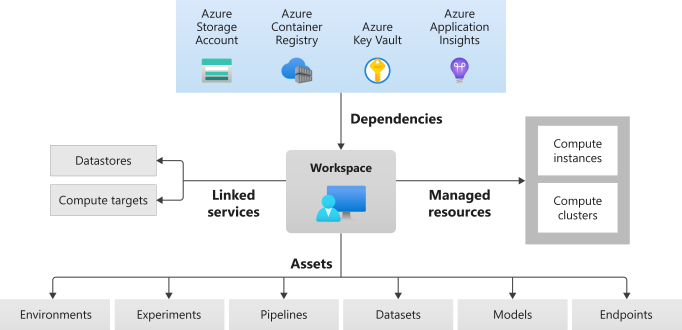
Use the workspace as a centralized place to:
- Manage resources you use for training and deployment of models, such as computes
- Store assets you create when you use Azure Machine Learning, including:
A workspace includes other Azure resources that it uses:
- Azure Container Registry (ACR): Registers docker containers that you use during training and when you deploy a model. To minimize costs, ACR is only created when deployment images are created.
- Azure Storage account: Acts as the default datastore for the workspace. Jupyter notebooks that you use with your Azure Machine Learning compute instances are stored here as well.
- Azure Application Insights: Stores monitoring information about your models.
- Azure Key Vault: Stores secrets that are used by compute targets and other sensitive information that the workspace needs.
You can share a workspace with others.
Computes
A compute target is any machine or set of machines you use to run your training script or host your service deployment. You can use your local machine or a remote compute resource as a compute target. With compute targets, you can start training on your local machine and then scale out to the cloud without changing your training script.
Azure Machine Learning introduces two fully managed cloud-based virtual machines (VM) that are configured for machine learning tasks:
Compute instance: A compute instance is a VM that includes multiple tools and environments installed for machine learning. Use a compute instance primarily as your development workstation. You can start running sample notebooks with no setup required. Use a compute instance as a compute target for training and inferencing jobs.
Compute clusters: Compute clusters are a cluster of VMs with multinode scaling capabilities. Compute clusters are better suited as compute targets for large jobs and production. The cluster scales up automatically when you submit a job. Use as a training compute target or for dev/test deployment.
For more information about training compute targets, see Training compute targets. For more information about deployment compute targets, see Deployment targets.
Datasets and datastores
Azure Machine Learning Datasets make it easier to access and work with your data. When you create a dataset, you create a reference to the data source location along with a copy of its metadata. Because the data remains in its existing location, you incur no extra storage cost, and you don't risk the integrity of your data sources.
For more information, see Create and register Azure Machine Learning Datasets. For more examples using Datasets, see the sample notebooks.
Datasets use datastore to securely connect to your Azure storage services. Datastores store connection information without putting your authentication credentials and the integrity of your original data source at risk. They store connection information, like your subscription ID and token authorization in your Key Vault associated with the workspace, so you can securely access your storage without having to hard code them in your script.
Environments
Workspace > Environments
An environment is the encapsulation of the environment where training or scoring of your machine learning model happens. The environment specifies the Python packages, environment variables, and software settings around your training and scoring scripts.
For code samples, see the "Manage environments" section of How to use environments.
Experiments
Workspace > Experiments
An experiment is a grouping of many runs from a specified script. It always belongs to a workspace. When you submit a run, you provide an experiment name. The run information is stored under that experiment. If the name doesn't exist when you submit an experiment, a new experiment is automatically created.
For an example of using an experiment, see Tutorial: Train your first model.
Runs
Workspace > Experiments > Run
A run is a single execution of a training script. An experiment typically contains multiple runs.
Azure Machine Learning records all runs and stores the following information in the experiment:
- Metadata about the run (timestamp, duration, and so on)
- Metrics that your script logs
- Output files that the experiment autocollects or that you explicitly upload
- A snapshot of the directory that contains your scripts, prior to the run
You create a run when you submit a script to train a model. A run can have zero or more child runs. For example, the top-level run might have two child runs, and each of those child runs might have its own child run.
Run configurations
Workspace > Experiments > Run > Run configuration
A run configuration defines how to run a script on a specified compute target. Use the configuration to specify the script, the compute target, the Azure Machine Learning environment, any distributed job-specific configurations, and some additional properties. For more information on the full set of configurable options for runs, see ScriptRunConfig.
You can save a run configuration to a file inside the directory that contains your training script. Or, you can create it as an in-memory object and use it to submit a run.
For example run configurations, see Configure a training run.
Snapshots
Workspace > Experiments > Run > Snapshot
When you submit a run, Azure Machine Learning compresses the directory that contains the script as a zip file and sends it to the compute target. The zip file is then extracted, and the script runs there. Azure Machine Learning also stores the zip file as a snapshot as part of the run record. Anyone with access to the workspace can browse a run record and download the snapshot.
Logging
Azure Machine Learning automatically logs standard run metrics for you. However, you can also use the Python SDK to log arbitrary metrics.
You can view your logs in multiple ways: monitor run status in real time, or view results after completion. For more information, see Monitor and view ML run logs.
Note
To prevent unnecessary files from being included in the snapshot, make an ignore file (.gitignore or .amlignore) in the directory. Add the files and directories to exclude to this file. For more information on the syntax to use inside this file, see syntax and patterns for .gitignore. The .amlignore file uses the same syntax. If both files exist, the .amlignore file is used and the .gitignore file is unused.
Git tracking and integration
When you start a training run and set the source directory to a local Git repository, the run history stores information about the repository. This feature works with runs you submit by using a script run configuration or an ML pipeline. It also works for runs you submit from the SDK or Machine Learning CLI.
For more information, see Git integration for Azure Machine Learning.
Training workflow
When you run an experiment to train a model, the following steps happen. The training workflow diagram shows these steps:
You call Azure Machine Learning with the snapshot ID for the code snapshot saved in the previous section.
Azure Machine Learning creates a run ID (optional) and a Machine Learning service token. Compute targets like Machine Learning Compute and VMs use this token to communicate with the Machine Learning service.
You choose either a managed compute target, like Machine Learning Compute, or an unmanaged compute target, like VMs, to run training jobs. Here are the data flows for both scenarios:
- VMs and HDInsight, accessed by SSH credentials in a key vault in the Microsoft subscription. Azure Machine Learning runs management code on the compute target that:
- Prepares the environment. (Docker is an option for VMs and local computers. See the following steps for Machine Learning Compute to understand how running experiments on Docker containers works.)
- Downloads the code.
- Sets up environment variables and configurations.
- Runs user scripts (the code snapshot mentioned in the previous section).
- Machine Learning Compute, accessed through a workspace-managed identity. Because Machine Learning Compute is a managed compute target (that is, Microsoft manages it), it runs under your Microsoft subscription.
- Kicks off remote Docker construction, if needed.
- Writes management code to the user's Azure Files share.
- Starts the container with an initial command. That command is the management code described in the previous step.
After the run completes, you can query runs and metrics. In the flow diagram, this step occurs when the training compute target writes the run metrics back to Azure Machine Learning from storage in the Azure Cosmos DB database. Clients can call Azure Machine Learning. Machine Learning pulls metrics from the Azure Cosmos DB database and returns them to the client.

Models
At its simplest, a model is a piece of code that takes an input and produces output. Creating a machine learning model involves selecting an algorithm, providing it with data, and tuning hyperparameters. Training is an iterative process that produces a trained model, which encapsulates what the model learned during the training process.
You can bring a model that you trained outside of Azure Machine Learning. Or you can train a model by submitting a run of an experiment to a compute target in Azure Machine Learning. Once you have a model, you register the model in the workspace.
Azure Machine Learning is framework agnostic. When you create a model, you can use any popular machine learning framework, such as Scikit-learn, XGBoost, PyTorch, TensorFlow, and Chainer.
For an example of training a model using Scikit-learn, see Tutorial: Train an image classification model with Azure Machine Learning.
Model registry
Workspace > Models
The model registry lets you keep track of all the models in your Azure Machine Learning workspace.
Models are identified by name and version. Each time you register a model with the same name as an existing one, the registry assumes that it's a new version. The version is incremented, and the new model is registered under the same name.
When you register the model, you can provide additional metadata tags and then use the tags when you search for models.
Tip
A registered model is a logical container for one or more files that make up your model. For example, if you have a model that is stored in multiple files, you can register them as a single model in your Azure Machine Learning workspace. After registration, you can then download or deploy the registered model and receive all the files that you registered.
You can't delete a registered model that an active deployment uses.
For an example of registering a model, see Train an image classification model with Azure Machine Learning.
Deployment
You deploy a registered model as a service endpoint. You need the following components:
- Environment. This environment encapsulates the dependencies required to run your model for inference.
- Scoring code. This script accepts requests, scores the requests by using the model, and returns the results.
- Inference configuration. The inference configuration specifies the environment, entry script, and other components needed to run the model as a service.
For more information about these components, see Deploy models with Azure Machine Learning.
Endpoints
Workspace > Endpoints
An endpoint is an instance of your model as a web service that you host in the cloud.
Web service endpoint
When you deploy a model as a web service, you can deploy the endpoint on Azure Container Instances or Azure Kubernetes Service. You create the service from your model, script, and associated files. These files go into a base container image, which contains the execution environment for the model. The image has a load-balanced HTTP endpoint that receives scoring requests sent to the web service.
You can enable Application Insights telemetry or model telemetry to monitor your web service. You have exclusive access to the telemetry data. It's stored in your Application Insights and storage account instances. If you enable automatic scaling, Azure automatically scales your deployment.
The following diagram shows the inference workflow for a model deployed as a web service endpoint:
Here are the details:
- You register a model by using a client like the Azure Machine Learning SDK.
- You create an image by using a model, a score file, and other model dependencies.
- You create and store the Docker image in Azure Container Registry.
- You deploy the web service to the compute target (Container Instances or AKS) by using the image created in the previous step.
- Scoring request details are stored in Application Insights, which is in your subscription.
- Telemetry is also pushed to the Microsoft Azure subscription.

For an example of deploying a model as a web service, see Tutorial: Train and deploy a model.
Real-time endpoints
When you deploy a trained model in the designer, you can deploy the model as a real-time endpoint. A real-time endpoint commonly receives a single request via the REST endpoint and returns a prediction in real-time. This approach contrasts with batch processing, which processes multiple values at once and saves the results after completion to a datastore.
Pipeline endpoints
Pipeline endpoints let you call your ML Pipelines programmatically via a REST endpoint. Pipeline endpoints let you automate your pipeline workflows.
A pipeline endpoint is a collection of published pipelines. This logical organization lets you manage and call multiple pipelines by using the same endpoint. Each published pipeline in a pipeline endpoint is versioned. You can select a default pipeline for the endpoint, or specify a version in the REST call.
Automation
Azure Machine Learning CLI
The Azure Machine Learning CLI v1 is an extension to the Azure CLI, a cross-platform command-line interface for the Azure platform. This extension provides commands to automate your machine learning activities.
ML Pipelines
Use machine learning pipelines to create and manage workflows that stitch together machine learning phases. For example, a pipeline might include data preparation, model training, model deployment, and inference/scoring phases. Each phase can encompass multiple steps, each of which can run unattended in various compute targets.
Pipeline steps are reusable, and you can run them without rerunning the previous steps if the output of those steps didn't change. For example, you can retrain a model without rerunning costly data preparation steps if the data didn't change. Pipelines also allow data scientists to collaborate while working on separate areas of a machine learning workflow.
Monitoring and logging
Azure Machine Learning provides the following monitoring and logging capabilities:
- For Data Scientists, you can monitor your experiments and log information from your training runs. For more information, see the following articles:
- For Administrators, you can monitor information about the workspace, related Azure resources, and events such as resource creation and deletion by using Azure Monitor. For more information, see How to monitor Azure Machine Learning.
- For DevOps or MLOps, you can monitor information generated by models deployed as web services to identify problems with the deployments and gather data submitted to the service. For more information, see Collect model data and Monitor with Application Insights.
Interacting with your workspace
Studio
Azure Machine Learning studio provides a web view of all the artifacts in your workspace. You can view results and details of your datasets, experiments, pipelines, models, and endpoints. You can also manage compute resources and datastores in the studio.
The studio is also where you access the interactive tools that are part of Azure Machine Learning:
- Azure Machine Learning designer to perform workflow steps without writing code
- Web experience for automated machine learning
- Azure Machine Learning notebooks to write and run your own code in integrated Jupyter notebook servers.
- Data labeling projects to create, manage, and monitor projects for labeling images or text.
Programming tools
Important
Tools marked (preview) in the following list are currently in public preview. The preview version is provided without a service level agreement, and it's not recommended for production workloads. Certain features might not be supported or might have constrained capabilities. For more information, see Supplemental Terms of Use for Microsoft Azure Previews.
- Interact with the service in any Python environment with the Azure Machine Learning SDK for Python.
- Use Azure Machine Learning designer to perform the workflow steps without writing code.
- Use Azure Machine Learning CLI for automation.
Next steps
To get started with Azure Machine Learning, see: