Note
Access to this page requires authorization. You can try signing in or changing directories.
Access to this page requires authorization. You can try changing directories.
In this article, you learn how to start Visual Studio Code remotely connected to an Azure Machine Learning compute instance. Use VS Code as your integrated development environment (IDE) together with the power of Azure Machine Learning resources. Use VS Code in the browser with VS Code for the Web, or use the VS Code desktop application.
There are two ways you can connect to a compute instance from VS Code. We recommend the first approach.
Use VS Code as your workspace's IDE. This option provides a full-featured development environment for building your machine learning projects.
- You can open VS Code from your workspace either in the browser by using VS Code for the Web or use VS Code desktop.
- We recommend VS Code for the Web because you can do all your machine learning work directly from a browser, without any required installations or dependencies.
Use a Remote Jupyter Notebook server. This option enables you to set a compute instance as a remote Jupyter Notebook server. This option is available only in VS Code desktop.
Important
For information about connecting to a compute instance behind a firewall, see Configure inbound and outbound network traffic.
Prerequisites
- An Azure Machine Learning workspace and compute instance. Complete Create resources you need to get started to create them both.
- Sign in to the studio and select your workspace if it's not already open.
Use VS Code as your workspace IDE
Use one of these options to connect VS Code to your compute instance and workspace files.
VS Code for the Web provides a full-featured development environment for building your machine learning projects, all from a browser and without required installations or dependencies. When you connect your Azure Machine Learning compute instance, the rich and integrated development experience VS Code offers is enhanced by the power of Azure Machine Learning.
You can start VS Code for the Web with one click from Azure Machine Learning studio and seamlessly continue your work.
Sign in to Azure Machine Learning studio and follow the steps to start a VS Code for the Web browser tab that's connected to your Azure Machine Learning compute instance.
You can create the connection from either the Notebooks or the Compute section of Azure Machine Learning studio.
Notebooks
In the left menu, select Notebooks.
In the Files list, select the file you want to edit.
If the compute instance is stopped, select Start compute and wait until it's running.

In the list of code editors, select Edit in VS Code (Web).
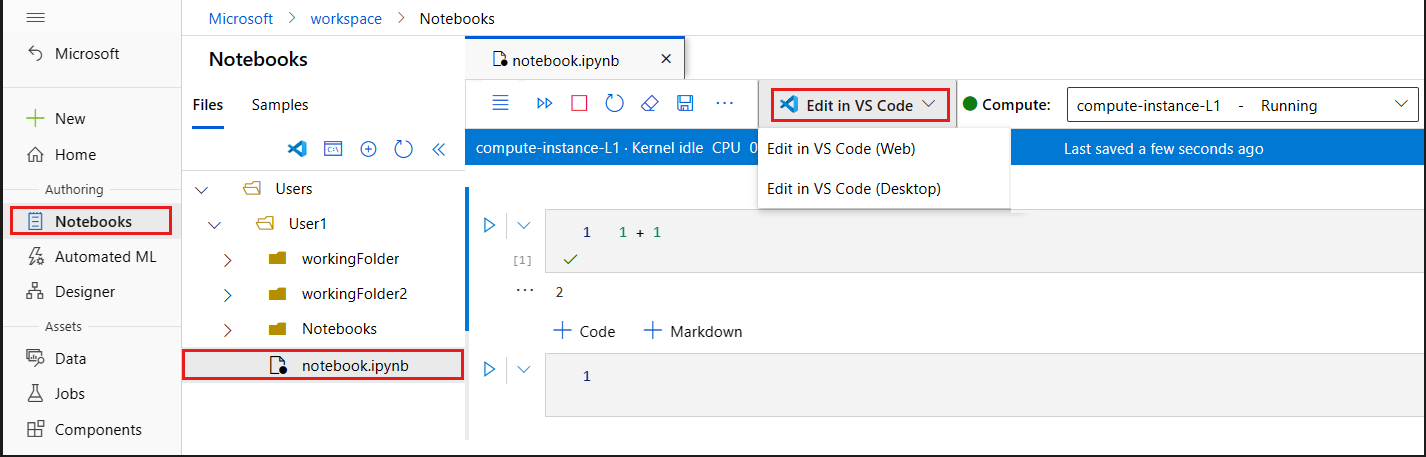
You can also start VS Code for Web without opening a notebook by selecting the VS Code (Web) button above the Files list or by right-clicking a folder in the Files list.

Compute
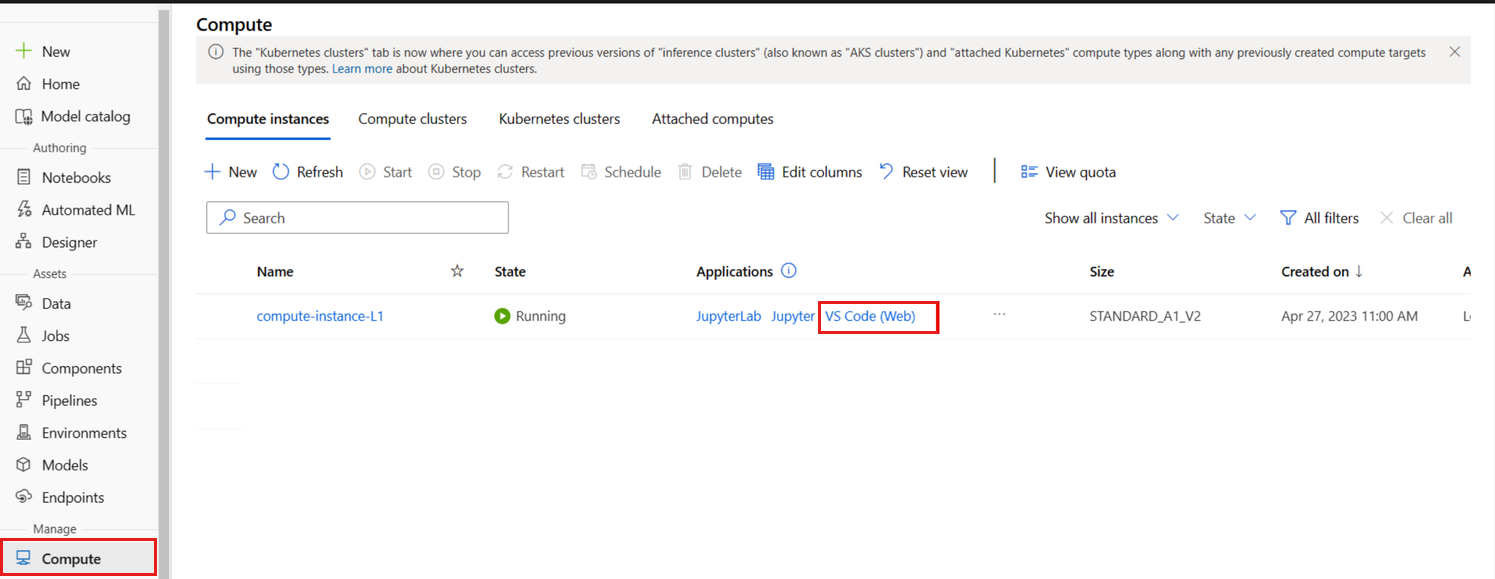
- In the left menu, select Compute.
- If the compute instance you want to use is stopped, select it, and then select Start.
- When the compute instance is running, in the Applications column, select VS Code (Web).

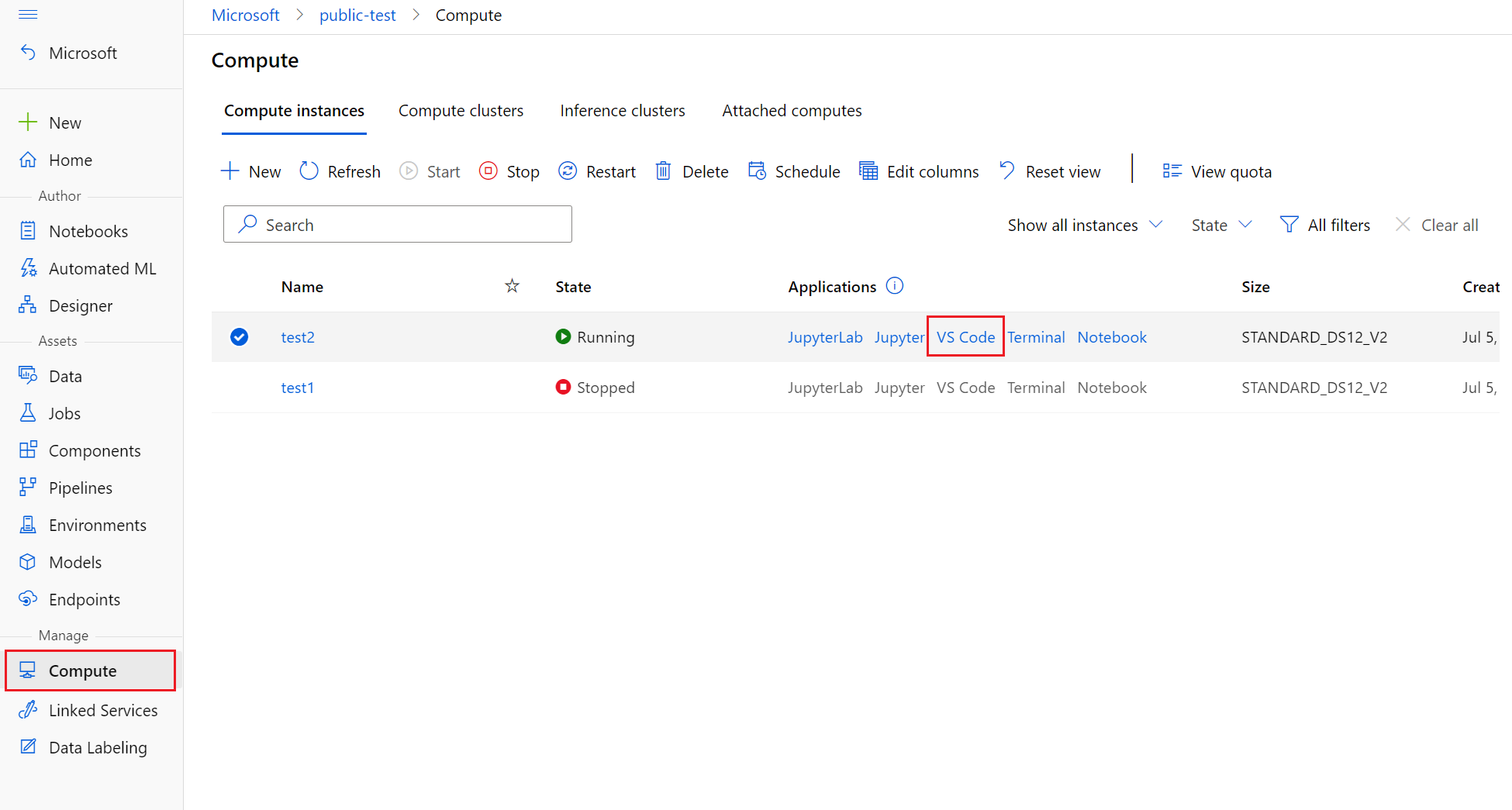
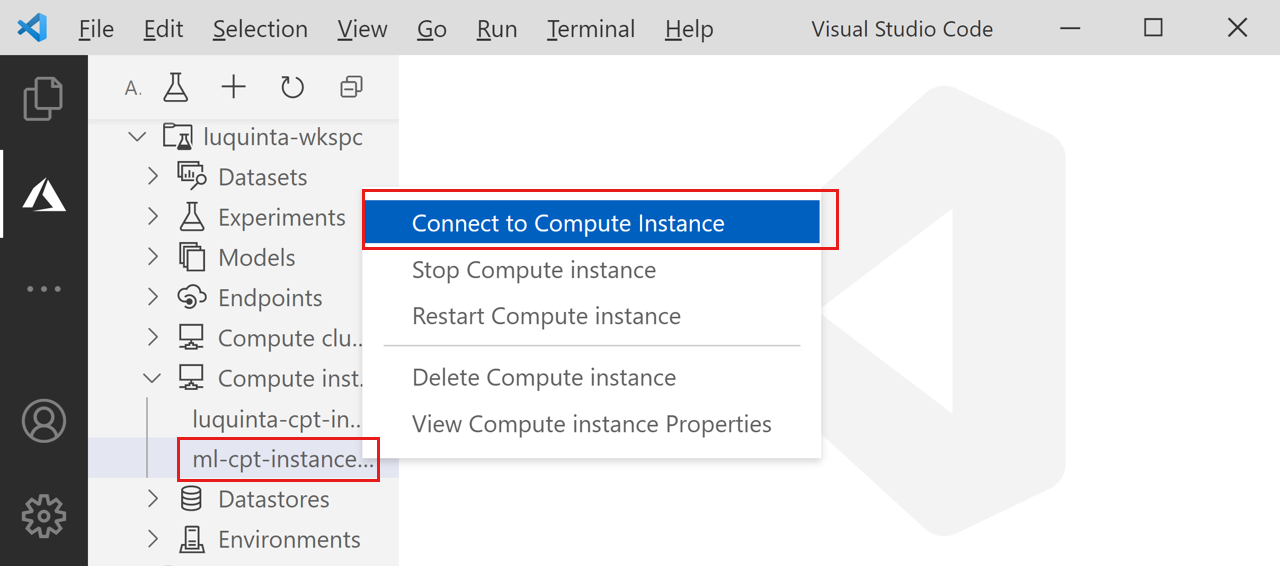
If you pick one of the click-out experiences, a new VS Code window is opened, and an attempt to connect to the remote compute instance is made. When you attempt to make this connection, the following steps take place:
- Authorization. Some checks are performed to make sure the user attempting to make a connection is authorized to use the compute instance.
- VS Code Remote Server is installed on the compute instance.
- A WebSocket connection is established for real-time interaction.
After the connection is established, it's persisted. A token is issued at the start of the session, and it's refreshed automatically to maintain the connection with your compute instance.
After you connect to your remote compute instance, use the editor to:
- Author and manage files on your remote compute instance or file share.
- Use the VS Code integrated terminal to run commands and applications on your remote compute instance.
- Debug your scripts and applications.
- Use VS Code to manage your Git repositories.
Remote Jupyter Notebook server
This option allows you to use a compute instance as a remote Jupyter Notebook server from VS Code desktop. This option connects only to the compute instance, not to the rest of the workspace. You won't see your workspace files in VS Code when you use this option.
To configure a compute instance as a remote Jupyter Notebook server, first install the Azure Machine Learning VS Code extension. For more information, see the Azure Machine Learning VS Code extension setup guide.
To connect to a compute instance:
Open a Jupyter Notebook in VS Code.
When the integrated notebook experience loads, click Select Kernel.
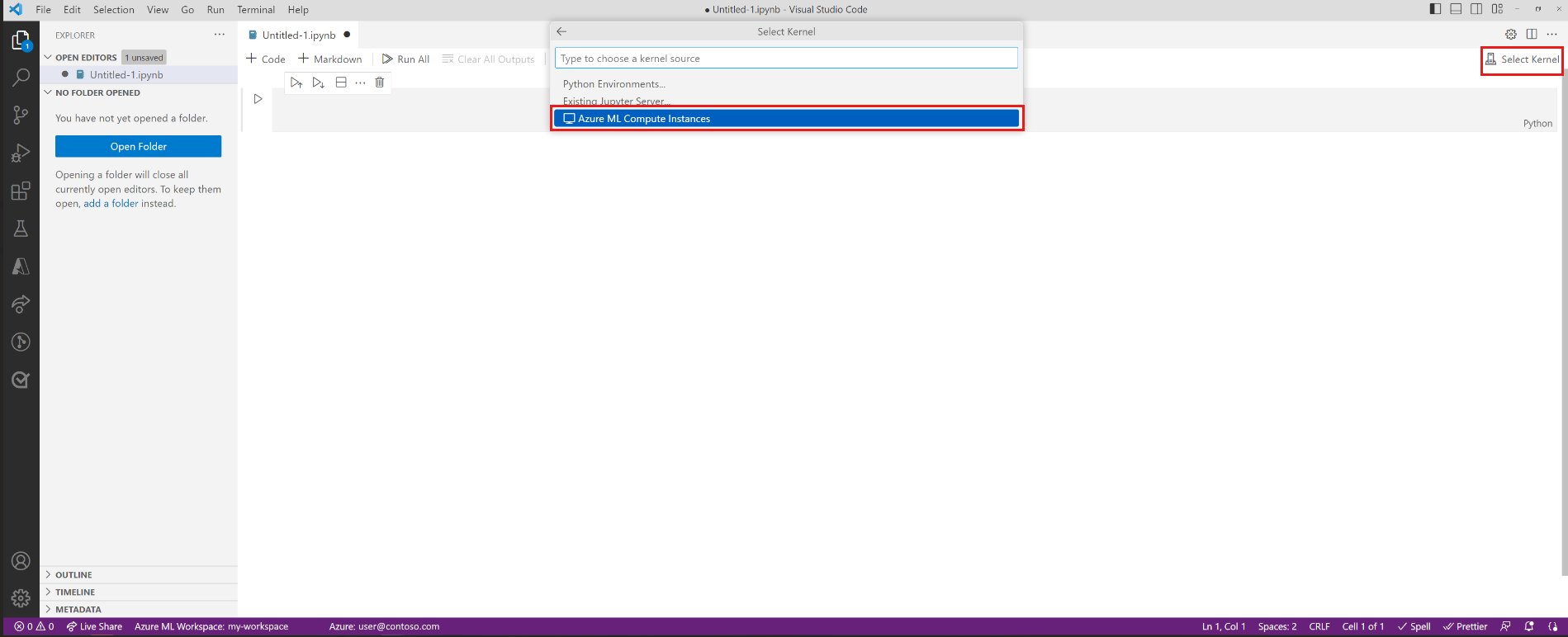
Alternatively, use the command palette:
- Select View > Command Palette to open the command palette.
- Filter for and select Azure ML: Connect to compute instance Jupyter server.
Select Azure ML compute instance from the list of Jupyter server options.
Select a Kernel.
Select your subscription in the list of subscriptions. If you have previously configured your default Azure Machine Learning workspace, this step is skipped.
Select your workspace.
Select your compute instance from the list. If you don't have one, select Create new Azure Machine Learning Compute Instance and follow the prompts to create one.
For the changes to take effect, you need to reload VS Code.
Open a Jupyter Notebook and run a cell.
Important
You must run a cell to establish the connection.
At this point, you can continue to run cells in your Jupyter Notebook.
Tip
You can also work with Python script files (.py) containing Jupyter-like code cells. For more information, see the Visual Studio Code Python Interactive documentation.
Next steps
Now that you've started VS Code remotely connected to a compute instance, you can prepare your data, edit and debug your code, and submit training jobs with the Azure Machine Learning extension.
To learn more about how to make the most of VS Code integrated with Azure Machine Learning, see Work in VS Code remotely connected to a compute instance.