Note
Access to this page requires authorization. You can try signing in or changing directories.
Access to this page requires authorization. You can try changing directories.
You can use MLflow to query experiments and jobs (or runs) in Azure Machine Learning. You don't need to install any specific SDK to manage what happens inside of a training job. By removing cloud-specific dependencies, you get a more seamless transition between local runs and the cloud. In this article, you learn how to query and compare experiments and runs in your workspace by using Azure Machine Learning and the MLflow SDK in Python.
With MLflow, you can:
- Create, query, delete, and search for experiments in a workspace.
- Query, delete, and search for runs in a workspace.
- Track and retrieve metrics, parameters, artifacts, and models from runs.
For a detailed comparison between open-source MLflow and MLflow when connected to Azure Machine Learning, see Support matrix for querying runs and experiments in Azure Machine Learning.
Note
The Azure Machine Learning Python SDK v2 doesn't provide native logging or tracking capabilities. This limitation applies not just to logging but also to querying the logged metrics. Instead, use MLflow to manage experiments and runs. This article explains how to use MLflow to manage experiments and runs in Azure Machine Learning.
You can also query and search experiments and runs by using the MLflow REST API. For an example about how to consume it, see Using MLflow REST with Azure Machine Learning.
Prerequisites
Install the MLflow SDK
mlflowpackage and the Azure Machine Learningazureml-mlflowplugin for MLflow:pip install mlflow azureml-mlflowTip
You can use the
mlflow-skinnypackage, which is a lightweight MLflow package without SQL storage, server, UI, or data science dependencies. We recommend this package for users who primarily need the MLflow tracking and logging capabilities but not the full suite of features, including deployments.Create an Azure Machine Learning workspace. To create a workspace, see Create resources you need to get started. Review the access permissions you need to perform MLflow operations in your workspace.
To do remote tracking, or track experiments running outside Azure Machine Learning, configure MLflow to point to the tracking URI of your Azure Machine Learning workspace. For more information on how to connect MLflow to your workspace, see Configure MLflow for Azure Machine Learning.
Query and search experiments
Use MLflow to search for experiments inside your workspace. See the following examples:
Get all active experiments:
mlflow.search_experiments()Note
In legacy versions of MLflow (<2.0), use method
mlflow.list_experiments()instead.Get all experiments, including archived experiments:
from mlflow.entities import ViewType

mlflow.search_experiments(view_type=ViewType.ALL)
Get a specific experiment by name:
mlflow.get_experiment_by_name(experiment_name)Get a specific experiment by ID:
mlflow.get_experiment('1234-5678-90AB-CDEFG')
Search experiments
The search_experiments() method, available since Mlflow 2.0, lets you search for experiments that match criteria by using filter_string.
Retrieve multiple experiments based on their IDs:
mlflow.search_experiments(filter_string="experiment_id IN ("
    "'CDEFG-1234-5678-90AB', '1234-5678-90AB-CDEFG', '5678-1234-90AB-CDEFG')"
)
Retrieve all experiments created after a given time:
import datetime

dt = datetime.datetime(2022, 6, 20, 5, 32, 48)
mlflow.search_experiments(filter_string=f"creation_time > {int(dt.timestamp())}")
Retrieve all experiments with a given tag:
mlflow.search_experiments(filter_string=f"tags.framework = 'torch'")
Query and search runs
MLflow lets you search for runs inside any experiment, including multiple experiments at the same time. The method mlflow.search_runs() accepts the arguments experiment_ids and experiment_name to indicate which experiments you want to search. You can also set search_all_experiments=True if you want to search across all the experiments in the workspace:
By experiment name:
mlflow.search_runs(experiment_names=[ "my_experiment" ])By experiment ID:
mlflow.search_runs(experiment_ids=[ "1234-5678-90AB-CDEFG" ])Search across all experiments in the workspace:
mlflow.search_runs(filter_string="params.num_boost_round='100'", search_all_experiments=True)
The experiment_ids argument supports providing an array of experiments, so you can search runs across multiple experiments. This feature is useful if you want to compare runs of the same model when it's being logged in different experiments (for example, by different people or different project iterations).
Important
If you don't specify experiment_ids, experiment_names, or search_all_experiments, then MLflow searches by default in the current active experiment. You can set the active experiment by using mlflow.set_experiment().
By default, MLflow returns the data in Pandas Dataframe format, which makes it handy when doing further processing or analysis of the runs. Returned data includes columns with:
- Basic information about the run.
- Parameters with column names
params.<parameter-name>. - Metrics (last logged value of each) with column names
metrics.<metric-name>.
All metrics and parameters are also returned when querying runs. However, for metrics that contain multiple values (for instance, a loss curve, or a PR curve), only the last value of the metric is returned. If you want to retrieve all the values of a given metric, use the mlflow.get_metric_history method. See Getting params and metrics from a run for an example.
Order runs
By default, the portal shows experiments in descending order by start_time, which is the time you queued the experiment in Azure Machine Learning. However, you can change this default order by using the order_by parameter.
Order runs by attributes, like
start_time:mlflow.search_runs(experiment_ids=[ "1234-5678-90AB-CDEFG" ], order_by=["attributes.start_time DESC"])Order runs and limit results. The following example returns the last single run in the experiment:
mlflow.search_runs(experiment_ids=[ "1234-5678-90AB-CDEFG" ],
                   max_results=1, order_by=["attributes.start_time DESC"])
Order runs by the attribute
duration:mlflow.search_runs(experiment_ids=[ "1234-5678-90AB-CDEFG" ], order_by=["attributes.duration DESC"])Tip
attributes.durationisn't present in MLflow OSS, but Azure Machine Learning provides it for convenience.Order runs by metric values:
mlflow.search_runs(experiment_ids=[ "1234-5678-90AB-CDEFG" ]).sort_values("metrics.accuracy", ascending=False)Warning
The
order_byparameter doesn't currently support expressions containingmetrics.*,params.*, ortags.*. Instead, use thesort_valuesmethod from Pandas as shown in the example.
Filter runs
You can use the filter_string parameter to find runs with a specific combination of hyperparameters. Use params to access a run's parameters, metrics to access metrics logged in the run, and attributes to access run information details. MLflow supports expressions joined by the AND keyword (the syntax doesn't support OR):
Search runs based on a parameter's value:
mlflow.search_runs(experiment_ids=[ "1234-5678-90AB-CDEFG" ],
                   filter_string="params.num_boost_round='100'")
Warning
Only operators
=,like, and!=are supported for filteringparameters.Search runs based on a metric's value:
mlflow.search_runs(experiment_ids=[ "1234-5678-90AB-CDEFG" ],
                   filter_string="metrics.auc>0.8")
Search runs with a given tag:
mlflow.search_runs(experiment_ids=[ "1234-5678-90AB-CDEFG" ],
                   filter_string="tags.framework='torch'")
Search runs created by a given user:
mlflow.search_runs(experiment_ids=[ "1234-5678-90AB-CDEFG" ],
                   filter_string="attributes.user_id = 'John Smith'")
Search runs that failed. See Filter runs by status for possible values:
mlflow.search_runs(experiment_ids=[ "1234-5678-90AB-CDEFG" ],
                   filter_string="attributes.status = 'Failed'")
Search runs created after a given time:
import datetime

dt = datetime.datetime(2022, 6, 20, 5, 32, 48)
mlflow.search_runs(experiment_ids=[ "1234-5678-90AB-CDEFG" ],
                   filter_string=f"attributes.creation_time > '{int(dt.timestamp())}'")
Tip
For the key
attributes, values should always be strings and hence encoded between quotes.Search runs that take longer than one hour:
duration = 360 * 1000 # duration is in milliseconds
mlflow.search_runs(experiment_ids=[ "1234-5678-90AB-CDEFG" ],
                   filter_string=f"attributes.duration > '{duration}'")
Tip
attributes.durationisn't present in MLflow OSS, but Azure Machine Learning provides it for convenience.Search runs that have the ID in a given set:
mlflow.search_runs(experiment_ids=[ "1234-5678-90AB-CDEFG" ],
                   filter_string="attributes.run_id IN ('1234-5678-90AB-CDEFG', '5678-1234-90AB-CDEFG')")
Filter runs by status
When you filter runs by status, MLflow uses a different convention to name the different possible statuses of a run compared to Azure Machine Learning. The following table shows the possible values:
| Azure Machine Learning job status | MLflow's attributes.status |
Meaning |
|---|---|---|
| Not started | Scheduled |
Azure Machine Learning receives the job or run. |
| Queue | Scheduled |
The job or run is scheduled for running, but it doesn't start yet. |
| Preparing | Scheduled |
The job or run doesn't start yet, but a compute is allocated for its execution and it's preparing the environment and its inputs. |
| Running | Running |
The job or run is currently under active execution. |
| Completed | Finished |
The job or run completes without errors. |
| Failed | Failed |
The job or run completes with errors. |
| Canceled | Killed |
The user cancels the job or run or the system terminates it. |
Example:
mlflow.search_runs(experiment_ids=[ "1234-5678-90AB-CDEFG" ],
                   filter_string="attributes.status = 'Failed'")
Get metrics, parameters, artifacts, and models
The method search_runs returns a Pandas Dataframe that contains a limited amount of information by default. You can get Python objects if needed, which might be useful to get details about them. Use the output_format parameter to control how output is returned:
runs = mlflow.search_runs(
    experiment_ids=[ "1234-5678-90AB-CDEFG" ],
    filter_string="params.num_boost_round='100'",
    output_format="list",
)
You can access details from the info member. The following sample shows how to get the run_id:
last_run = runs[-1]
print("Last run ID:", last_run.info.run_id)
Get params and metrics from a run
When you return runs by using output_format="list", you can easily access parameters by using the key data:
last_run.data.params
In the same way, you can query metrics:
last_run.data.metrics
For metrics that contain multiple values (for instance, a loss curve, or a PR curve), only the last logged value of the metric is returned. If you want to retrieve all the values of a given metric, use the mlflow.get_metric_history method. This method requires you to use the MlflowClient:
client = mlflow.tracking.MlflowClient()
client.get_metric_history("1234-5678-90AB-CDEFG", "log_loss")
Get artifacts from a run
MLflow can query any artifact logged by a run. You can't access artifacts by using the run object itself. Instead, use the MLflow client:
client = mlflow.tracking.MlflowClient()
client.list_artifacts("1234-5678-90AB-CDEFG")
The preceding method lists all the artifacts logged in the run, but they remain stored in the artifacts store (Azure Machine Learning storage). To download any of them, use the method download_artifact:
file_path = mlflow.artifacts.download_artifacts(
    run_id="1234-5678-90AB-CDEFG", artifact_path="feature_importance_weight.png"
)
Note
In legacy versions of MLflow (<2.0), use the method MlflowClient.download_artifacts() instead.
Get models from a run
You can log models in the run and then retrieve them directly. To retrieve a model, you need to know the path to the artifact where it's stored. Use the list_artifacts method to find artifacts that represent a model since MLflow models are always folders. You can download a model by specifying the path where the model is stored, using the download_artifact method:
artifact_path="classifier"
model_local_path = mlflow.artifacts.download_artifacts(
  run_id="1234-5678-90AB-CDEFG", artifact_path=artifact_path
)
You can then load the model back from the downloaded artifacts by using the typical function load_model in the flavor-specific namespace. The following example uses xgboost:
model = mlflow.xgboost.load_model(model_local_path)
MLflow also allows you to perform both operations at once, and to download and load the model in a single instruction. MLflow downloads the model to a temporary folder and loads it from there. The method load_model uses an URI format to indicate from where the model has to be retrieved. In the case of loading a model from a run, the URI structure is as follows:
model = mlflow.xgboost.load_model(f"runs:/{last_run.info.run_id}/{artifact_path}")
Tip
To query and load models registered in the model registry, see Manage models registries in Azure Machine Learning with MLflow.
Get child (nested) runs
MLflow supports the concept of child (nested) runs. These runs are useful when you need to spin off training routines that must be tracked independently from the main training process. Hyper-parameter tuning optimization processes or Azure Machine Learning pipelines are typical examples of jobs that generate multiple child runs. You can query all the child runs of a specific run by using the property tag mlflow.parentRunId, which contains the run ID of the parent run.
hyperopt_run = mlflow.last_active_run()
child_runs = mlflow.search_runs(
    filter_string=f"tags.mlflow.parentRunId='{hyperopt_run.info.run_id}'"
)
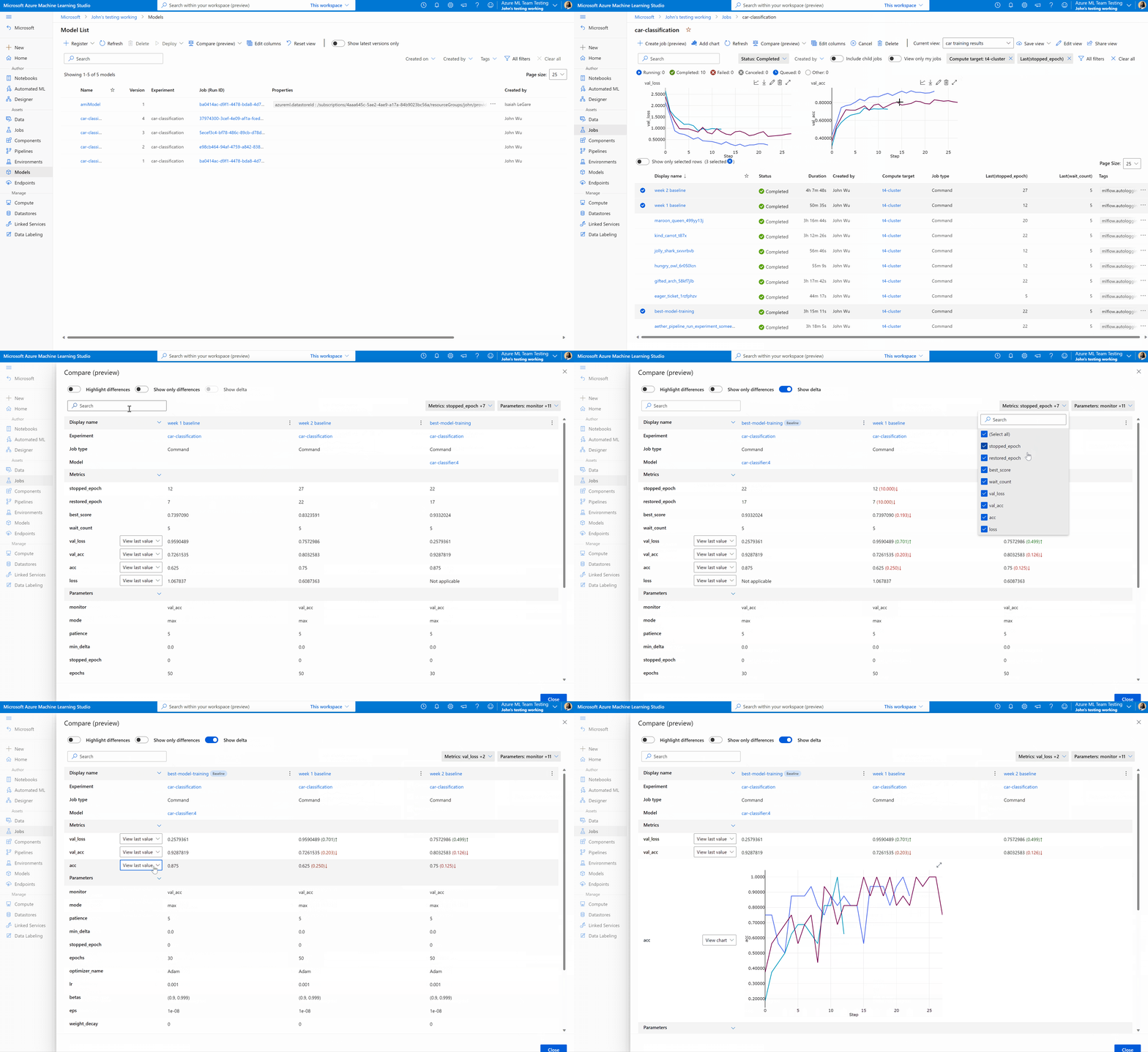
Compare jobs and models in Azure Machine Learning studio (preview)
To compare and evaluate the quality of your jobs and models in Azure Machine Learning studio, use the preview panel to enable the feature. Once enabled, you can compare the parameters, metrics, and tags between the jobs and models you selected.
Important
Items marked (preview) in this article are currently in public preview. The preview version is provided without a service level agreement, and it's not recommended for production workloads. Certain features might not be supported or might have constrained capabilities. For more information, see Supplemental Terms of Use for Microsoft Azure Previews.
The MLflow with Azure Machine Learning notebooks demonstrate and expand upon concepts presented in this article.
- Train and track a classifier with MLflow: Demonstrates how to track experiments using MLflow, log models, and combine multiple flavors into pipelines.
- Manage experiments and runs with MLflow: Demonstrates how to query experiments, runs, metrics, parameters, and artifacts from Azure Machine Learning using MLflow.
Support matrix for querying runs and experiments
The MLflow SDK exposes several methods to retrieve runs, including options to control what is returned and how. Use the following table to learn about which of those methods are currently supported in MLflow when connected to Azure Machine Learning:
| Feature | Supported by MLflow | Supported by Azure Machine Learning |
|---|---|---|
| Ordering runs by attributes | ✓ | ✓ |
| Ordering runs by metrics | ✓ | 1 |
| Ordering runs by parameters | ✓ | 1 |
| Ordering runs by tags | ✓ | 1 |
| Filtering runs by attributes | ✓ | ✓ |
| Filtering runs by metrics | ✓ | ✓ |
| Filtering runs by metrics with special characters (escaped) | ✓ | |
| Filtering runs by parameters | ✓ | ✓ |
| Filtering runs by tags | ✓ | ✓ |
Filtering runs with numeric comparators (metrics) including =, !=, >, >=, <, and <= |
✓ | ✓ |
Filtering runs with string comparators (params, tags, and attributes): = and != |
✓ | ✓2 |
Filtering runs with string comparators (params, tags, and attributes): LIKE/ILIKE |
✓ | ✓ |
Filtering runs with comparators AND |
✓ | ✓ |
Filtering runs with comparators OR |
||
| Renaming experiments | ✓ |
Note
- 1 Check the section Ordering runs for instructions and examples on how to achieve the same functionality in Azure Machine Learning.
- 2
!=for tags not supported.