Note
Access to this page requires authorization. You can try signing in or changing directories.
Access to this page requires authorization. You can try changing directories.
This article describes how to build a Business case for on-premises servers and workloads in your datacenter with Azure Migrate: Discovery and assessment tool.
Azure Migrate helps you to plan and execute migration and modernization projects to Azure. Azure Migrate provides a centralized hub to track discovery, assessment, and migration of on-premises infrastructure, applications, and data to Azure. The hub provides Azure tools for assessment and migration, and third-party independent software vendor (ISV) offerings.
Prerequisites
Make sure you've created an Azure Migrate project. You can also reuse an existing project to use this capability.
Once you've created a project, the Azure Migrate: Discovery and assessment tool is automatically added to the project.
Before you build the Business case, you need to first discover your IT estate. You can choose one of the two discovery sources based on your use case.
Business case overview
The Business case helps you understand where Azure can bring the most value to your organization by estimating total cost of ownership (TCO), potential savings, and sustainability impact for your applications and workloads. Highlights include:
- On‑premises vs Azure TCO and year‑over‑year (YoY) cash‑flow.
- Current on-premises vs On-premises with Arc TCO.
- Savings from Azure Hybrid Benefit (AHB), Extended Security Updates (ESU) on Azure, and Security & Management with Microsoft Defender for Cloud and Azure Monitor/Update Manager.
- Long term cost savings by moving from a capital expenditure model to an Operating expenditure model, by paying for only what you use.
- Sustainability insights (estimated emissions on‑premises vs Azure and YoY reductions).
- Discovery insights that summarize scope, utilization, OS/DB support status, and quick wins for migration/modernization.
There are 2 types of migration preferences that you can choose while building your Business case:
| Migration Strategy | Details | Assessment insights |
|---|---|---|
| Modernize (Platform as a Service) | You can get a PaaS preferred recommendation that means, the logic identifies workloads best fit for PaaS targets. General servers are recommended with a quick lift and shift recommendation to Azure IaaS. |
For SQL Servers, sizing and cost comes from the Recommended report with optimization strategy - Modernize to PaaS from Azure SQL assessment. For web apps, sizing and cost comes from Azure App Service and Azure Kubernetes Service assessments, with a preference to App Service. For general servers, sizing and cost comes from Azure VM assessment. All of these recommendations are aggregated using the heterogenous assessments. |
| Migrate to all IaaS (Infrastructure as a Service) | You can get a quick lift and shift recommendation to Azure IaaS. | For SQL Servers, sizing and cost comes from the Instance to SQL Server on Azure VM report. For general servers and servers hosting web apps, sizing and cost comes from Azure VM assessment. All of these recommendations are aggregated using the heterogenous assessments. |
Business case picks Azure recommendations from heterogenous assessments, and you will be able to access the assessments directly. To deep dive into sizing, readiness, and Azure cost estimates, you can open the respective assessment for the applications or workloads.
Build a business case
To build a business case, follow these steps:
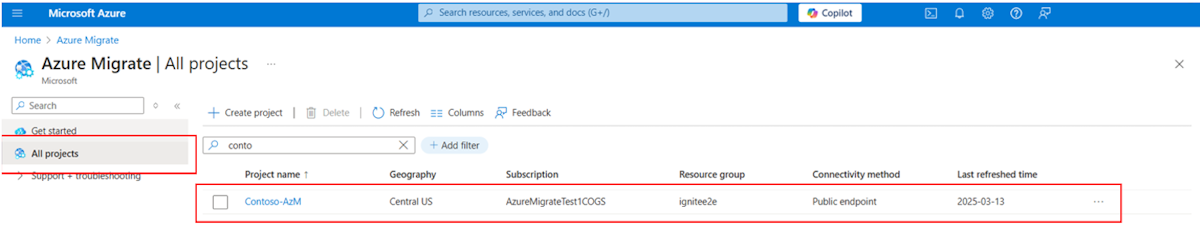
Select your project from the All Projects.
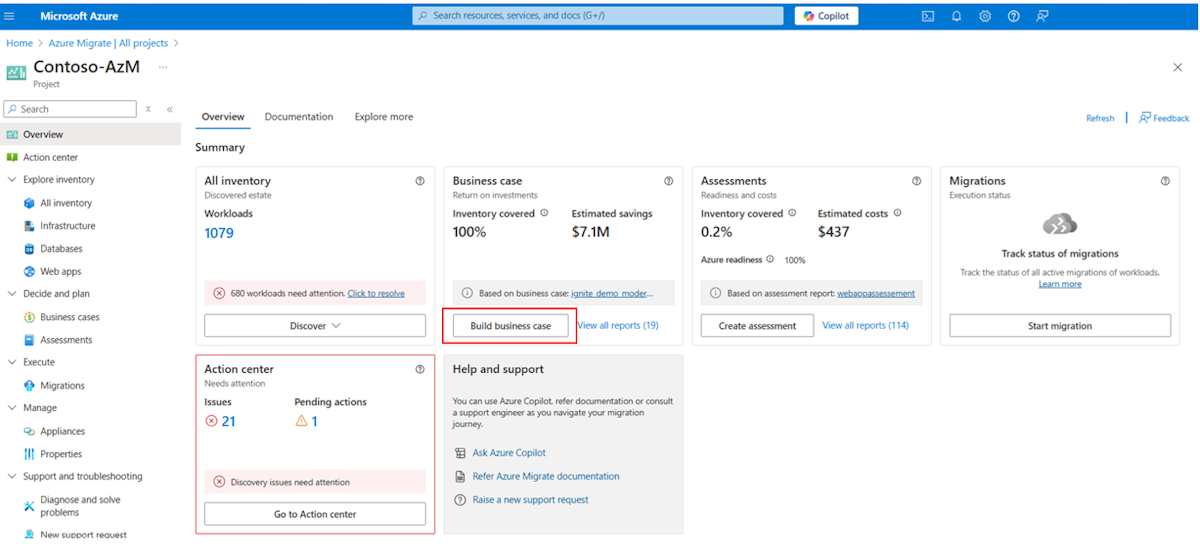
In the overview page, select Build business case.
Note
We recommend waiting at least a day after starting discovery before building a Business case. This period allows for adequate performance and resource utilization data collection. Also, review the Action Centre blade on the Azure Migrate overview page to identify any discovery-related issues. This ensures a more accurate representation of your datacenter's IT estate, making the Business case recommendations more valuable.
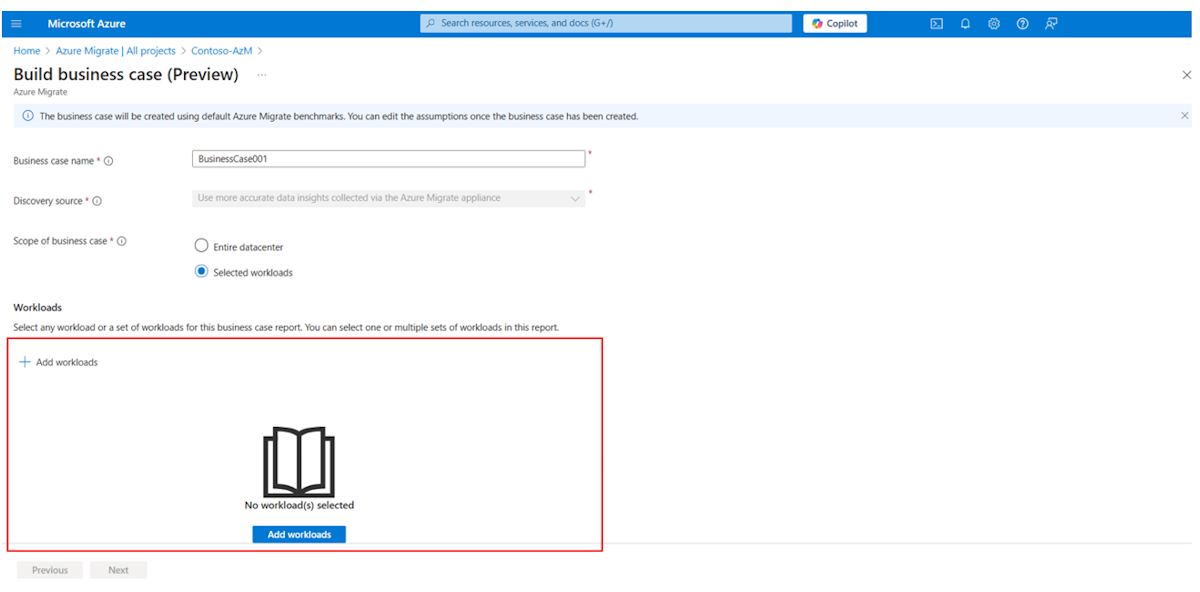
In Business case name, specify a name for the Business case. Make sure the Business case name is unique within a project, else the previous Business case with the same name gets recomputed.
Select the Scope of business case.
- Select Entire datacenter to create a business case for all discovered applications and workloads.

Select the Selected scope to create a business case for a specific set of applications and workloads.
Select Add applications and Add workloads to select the applications and workloads respectively that you want to include in your business case. You can filter and select based on the tags and criteria you’ve set.
Select Next to proceed.
In Target location, specify the Azure region to which you want to migrate.
Azure SKU size and cost recommendations are based on the location that you specify.
In Migration preference, specify the migration preference for your Business case:
- With the default Modernize, you can get the most cost-efficient and compatible target recommendation in Azure across Azure PaaS targets with a fallback to IaaS targets if workloads aren't ready to be modernized to PaaS targets.
- With the Migrate to IaaS Time option, you can get a quick lift-and-shift recommendation to Azure IaaS offerings like Azure VM and Azure VMware Solution.
- Select Preferred Target as Azure VM for a quick lift and shift recommendation to Azure VM
- Select Preferred Target as Azure VMware Solution (AVS) for the most cost-effective and compatible target recommendation for hosting workloads on AVS.
Note
Only Reserved Instances are available as a savings option for migrating to AVS.
Enter the Savings options. This specifies the combination that you want to consider while optimizing Azure costs to maximize savings.
Based on the availability of the savings option in your selected region and the targets, the business case recommends the appropriate options to help you save the most on Azure.
- Select Reserved Instance if your datacenter mainly consists of resources that run consistently.
- Select Reserved Instance and Azure Savings Plan if you need more flexibility and automated cost optimization for workloads eligible under Azure Savings Plan (Compute targets including Azure VM and Azure App Service).
In Discount (%) on Pay as you go, add any subscription-specific discounts you receive on top of the Azure offer. The default setting is 0%. The discount isn't applicable on top of reserved instance savings option.
Select the currency in which you want to create the business case.
Review your selected inputs and then select Build business case.

Next steps
- Learn more about how to review the Business case reports.